How to Enable VRR on Your TV
What is VRR and Why Do You Need It on Your TV?
Traditionally, TVs have a fixed refresh rate (e.g., 60Hz, 120Hz). Your console or PC outputs frames at a variable rate that fluctuates with the game's demand. When these two are out of sync, you get screen tears or stutters.VRR (Variable Refresh Rate) solves this by allowing the TV's refresh rate to instantly match the source's frame rate. If your game is rendering at 57 FPS, your TV displays at 57Hz. If it jumps to 118 FPS, the TV adjusts to 118Hz.Key Benefits for TV Gaming:- Eliminates Screen Tearing: The most noticeable improvement. No more horizontal lines during camera pans.
- Reduces Stuttering: Makes framerate fluctuations (e.g., between 50-60 FPS) feel incredibly smooth.
- Lower Input Lag: In many implementations, VRR allows the TV to bypass some processing steps, shaving off precious milliseconds of delay.
- Essential for "Performance Modes": Many games offer uncapped framerates or high-refresh 120Hz modes. VRR is the key to making these modes feel consistently smooth, even when the FPS dips.
Pre-Flight Checklist: What You Need Before You Start
Before digging into menus, verify you have the right setup:- HDMI Forum VRR / Adaptive-Sync: The open standard used by Xbox and most TVs.
- AMD FreeSync: Often found on Samsung and LG TVs.
- NVIDIA G-SYNC Compatible: Less common on TVs, but some high-end LG OLEDs are certified.
- Xbox Series X|S: Fully supports HDMI Forum VRR.
- PlayStation 5: Supports HDMI Forum VRR.
- Windows PC: Requires a modern NVIDIA (GTX 10-series+) or AMD (RX 500-series+) GPU with an HDMI 2.0 or 2.1 output.
The Universal Step-by-Step Enablement Guide
Follow these steps in order. We'll cover brand-specific nuances afterward.Step 1: Connect & Configure Your Source Device
- Plug your console/PC into the correct VRR-capable HDMI port on your TV using the proper cable.
- On Your Source Device:
- Xbox Series X|S: Go to Settings > General > TV & display options > Refresh rate. Select 120Hz. Then, go to "Video modes" and check the box for "Allow variable refresh rate."
- PlayStation 5: Go to Settings > Screen and Video > Video Output. Set "Enable 120Hz Output" to Automatic. Then, go to "VRR" and set it to "Automatic."
- Windows PC (NVIDIA): Right-click desktop > NVIDIA Control Panel > "Set up G-SYNC" > Select your TV > Check "Enable G-SYNC, G-SYNC Compatible" > Select "Enable for full screen mode."
- Windows PC (AMD): Open AMD Software: Adrenalin > "Gaming" tab > "Display" > Ensure "AMD FreeSync" is set to Enabled.
Step 2: Enable VRR & Game Mode on Your TV
- Turn on your TV and ensure the correct HDMI input is selected.
- Activate Game Mode: This is non-negotiable. Game Mode disables heavy post-processing that causes input lag. It is often required for VRR to function.
- Quick Access: On most TVs, press the "Settings" or "Quick Settings" button on your remote and look for a "Game Mode," "Game Optimizer," or "ALLM" (Auto Low Latency Mode) toggle. Enable it.
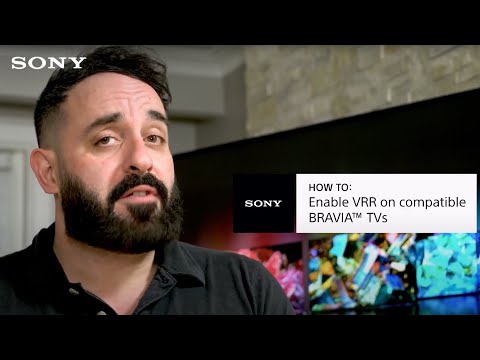
- Find and Enable VRR: Deep within your TV's picture or external input settings, you will find the VRR toggle. The names vary by brand (see below).
Step 3: Brand-Specific VRR Menu Locations & Key Settings
Navigate to your TV's main settings menu (often a gear icon).
LG OLED (WebOS - C1, C2, C3, G Series, etc.)
- Press the gear button on remote.
- Go to "All Settings" > "Picture" > "Game Optimizer."
- Ensure "Game Optimizer" is ON.
- In the Game Optimizer dashboard, look for "VRR & G-SYNC" and set it to "On."
- (Advanced) In "General" > "Devices" > "HDMI Settings," ensure "HDMI Deep Color" is ON for the port you're using.
Samsung QLED/Neo QLED (Tizen - Q80T and newer, S90C, etc.)
- Press the Home button > "Settings" (gear icon).
- Go to "Connection" > "External Device Manager."
- Select "Game Mode Settings."
- Ensure "Game Mode" is "Auto" or "On."
- In the same menu, toggle "Variable Refresh Rate" to On.
- (Important) Also check: "Settings" > "General & Privacy" > "Game Mode" settings.
Sony Bravia (Google TV - X90J/K/L, A80K/L, etc.)
- Press the gear button for quick settings.
- Select "Picture & Display."
- Go to "Video Signal."
- Ensure "Game Mode" is "Auto" or "On."
- Look for "Variable Refresh Rate" and set it to "Auto" or "On."
- (Note) Some older Sony sets label it "Auto Low Latency Mode" (ALLM) in the inputs menu, which enables the feature chain.
TCL (Google TV/Roku - Series 6/Q7, etc.)
- For Roku: Press the Star (*) button on remote while on the input.
- Select "Game Mode" to enable it.
- Go to the main Settings menu > "TV Inputs" > select your HDMI port.
- Look for "HDMI Mode" and set it to "HDMI 2.1" or "Auto." VRR is often automatically enabled when Game Mode and HDMI 2.1 are active.
Step 4: Verify & Test Your Setup
- On Xbox: Go back to Settings > General > TV & display options > Advanced. You should now see green checkmarks next to "Your setup supports variable refresh rate."
- On PS5: Go to Settings > Screen and Video > Video Output > VRR. It should now say "VRR: On."
- Visual Test: Load a game with an uncapped performance mode (like Fortnite in 120Hz mode) and perform a fast horizontal camera pan. The image should be perfectly smooth without any tearing lines.
- PC Test: Use the NVIDIA Pendulum Demo or a game with a visible FPS counter. Enable V-Sync in the NVIDIA/AMDcontrol panel (not in-game) and watch the FPS fluctuate smoothly with no tearing.
Troubleshooting Common VRR Problems
Issue: VRR option is greyed out on my console/TV.
- Fix: Ensure Game Mode is ON on the TV. You are likely using the wrong HDMI port—try another one.Ensure you are using the correct, high-bandwidth HDMI cable.
Issue: The screen flickers or goes black intermittently with VRR on.
- Fix: This is a known issue in some games/apps, especially near a TV's lower VRR range limit. On your TV, look for a "Fine Tune Dark Areas" (LG) or "VRR Control" (Samsung) setting and enable it. This stabilizes the gamma. On console, try disabling HDR for that specific game.
Issue: HDR looks washed out with VRR enabled.
- Fix: Re-run the HDR calibration tool on your console (Settings > General > TV & display options > Calibrate HDR for games on Xbox; Screen and Video > Adjust HDR on PS5) after VRR is enabled.
Issue: My PC won't output 4K 120Hz with VRR.
- Fix: In Windows Display Settings > Advanced Display, manually set the refresh rate to 120Hz. In NVIDIA Control Panel, under "Change resolution," select the "PC" resolution list (not the Ultra HD list) and choose "3840 x 2160" with "120Hz" and "GSYNC Compatible" listed.
How to Optimize and Live with VRR
- Use In-Game FPS Limiters: If a game allows, cap the frame rate 2-3 FPS below your TV's maximumVRR limit (e.g., 117 FPS for 120Hz) for the absolute smoothest,lowest-latency experience.
- Understand the Trade-off with Local Dimming: On some TVs (especially LED/LCD models), enabling VRR may disable orreduce the effectiveness of full-array local dimming (FALD), slightlyreducing contrast. This is a hardware limitation on some sets.
- It's Not Always Perfect for Movies: Turn off VRR/Game Mode when watching film content from streaming apps or Blu-rays, as it can cause judder.
Frequently Asked Questions (FAQs)
Q: Will VRR work at 60Hz, or only at 120Hz?
A: It works at all refresh rates within its supported range (e.g., 48-120Hz). It is incredibly beneficial for standard 60Hz gaming, as it smooths out any dips below 60 FPS.
Q: Does VRR increase input lag?
A: No. In almost all cases, it reduces input lag or leaves it unchanged. Enabling VRR usually forces the TV into its lowest-latency processing path (Game Mode).
Q: My TV has FreeSync but my console/PC doesn't mention it. Will it work?
A: Yes. FreeSync over HDMI is essentially the same standard as HDMI Forum VRR.If your TV lists FreeSync, it will work with Xbox Series X|S, PS5, andmodern PCs.
Q: Do I need to enable V-Sync in games with VRR?
A: Follow this rule: Enable V-Sync in your console or GPU driver settings, but DISABLE V-Sync in the individual game's menu. This allows VRR to work perfectly and only engages V-Sync to prevent tearing if FPS exceeds the max refresh rate.
Q: Is there a downside to always having VRR enabled?
A: For pure gaming, no. For watching 24p movie content from built-in apps, it may introduce slight judder. It's best to have VRR/Game Mode set to"Auto" if your TV supports it, so it only activates when a game isdetected.
Enabling VRR is the single most impactful setting change you can make to enhance the fluidity and responsiveness of your gaming experience on a modernTV. It takes the raw power of your PS5, Xbox, or gaming PC and deliversit to your eyes without the visual artifacts that used to be a necessary evil.
Did this guide help you unlock buttery-smooth gaming on your TV? Let us know your TV model and which step was the key in the commentsbelow. If you're still running into a greyed-out menu or flickeringscreen, post your setup details and our community can help diagnose. For more guides on optimizing HDR, choosing the perfect TV settings, ornext-gen console setups, explore our full library. Now, sit back, launch your favorite game, and enjoy the seamless, tear-free performance.
Other Articles Related
How to Set Up Surround Sound for GamingElevate your gaming experience! Learn how to set up surround sound at home,from choosing the right speaker layout to calibrating audio settings for immersive gameplay.
How to Apply Thermal Paste Correctly
Step-by-step guide for correctly applying thermal paste on CPUs and GPUs. Learnoptimal methods, common mistakes, and best practices to maximize cooling and hardware performance.
How to Improve Cooling in Your PC
Learn how to boost airflow, optimize components, and reduce heat for acooler, faster, and more stable PC. Discover step-by-step coolingupgrade tips.
How to Clean Your PC for Better Performance
Learn easy steps to clean your PC for better performance—remove junk files,manage startup programs, update drivers, and optimize settings.
How to Overclock Your CPU Safely
Step-by-step guide for safely overclocking your CPU. Learn proper cooling, voltagetuning, and stability testing to boost performance without riskingdamage. Achieve a stable overclock with confidence.
How to Overclock Your GPU Safely
Maximize GPU performance safely! Learn step-by-step GPU overclocking, essentialtools, stability testing, and temperature monitoring to boost speedwithout damage.
How to Fix High GPU Usage
"Learn effective solutions to reduce high GPU usage, improveperformance, and prevent overheating. Step-by-step troubleshooting guide for gamers and creators."
How to Fix High CPU Usage While Gaming
Fix high CPU usage while gaming with these effective troubleshooting tips.Learn to optimize settings, update drivers, and boost gaming performance effortlessly.
How to Boost Wi‑Fi Signal for Gaming
Maximize your gaming performance with expert tips on how to boost Wi‑Fi signalstrength. Reduce lag, eliminate drops, and ensure a stable connection.
How to Reduce Lag in Cloud Gaming
Level up your cloud gaming experience! Learn expert tips to reduce lag,optimize streaming quality, and enjoy smoother gameplay with ouractionable guide.
How to Reduce Screen Tearing
Discover how to enable VRR on your TV for smoother gaming and enhancedvisuals. Follow our step-by-step guide
How to Choose the Best Gaming Headset
Discover essential tips on how to choose the best gaming headset for an immersive experience. Elevate your gameplay
How to Optimize AMD Radeon Settings
Unlock the full potential of your gaming experience with our guide on how to optimize AMD Radeon settings for peak performance
How to Optimize NVIDIA Control Panel
Learn how to optimize your NVIDIA Control Panel settings for enhanced gaming performance and graphics quality.
How to Improve Laptop Gaming Performance
Boost your laptop's gaming performance with expert tips and tricks. Discover how to enhance speed, graphics, and overall gameplay