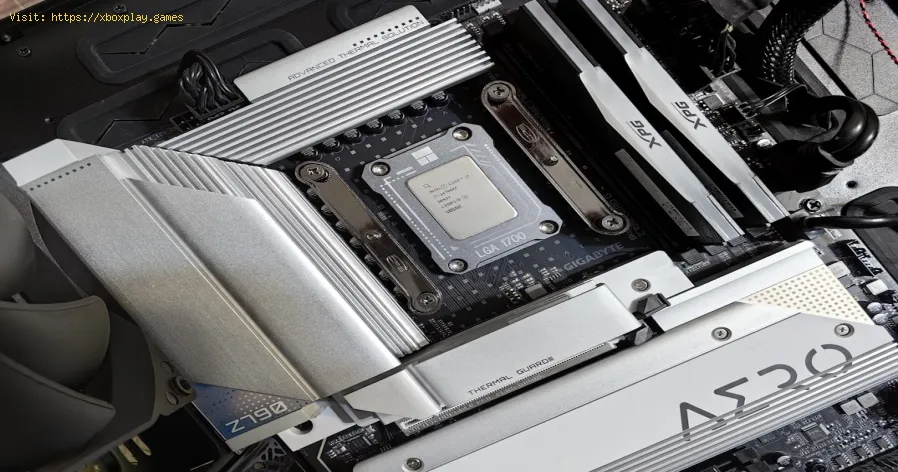
How to Clean Your PC for Better Performance
Causes of the Problem: Why Does Your PC Slow Down?
Before we dive into the fixes, it helps to understand the "why." Knowing the enemy makes it easier to defeat. Here are the main culprits behind a sluggish PC:- Simple Tech Explanation: Think of a clean HDD like a neat, empty library. A full, fragmented drive is like that same library after a hurricane—books (data) are scattered everywhere, and finding a specific one takes forever.
Quick Solution (For the Impatient)
If you're in a hurry, here's your 5-minute performance triage:Detailed Step-by-Step Solutions
Grab a metaphorical mop and bucket—it's time for a deep clean. Follow these steps in order for the best results.Phase 1: The Digital Declutter (Software)
Step 1: Audit and Disable Startup Programs.This is your highest-return action. Right-click your taskbar and select Task Manager. Click the Startup tab. You'll see a list of programs and their "Startup impact." Be ruthless. Right-click and Disable everything you don't absolutely need running from the moment you boot (e.g., Spotify, Steam, Discord Launcher, Adobe Updater). You can always launch them manually later.Step 2: Run the Built-in Cleanup Utilities.
Windows has great tools hidden in plain sight.
- Disk Cleanup: Search for it, run as administrator, select your C: drive. Check boxes for Temporary files, Delivery Optimization Files, Recycle Bin, and Windows Update Cleanup. Click OK.
- Storage Sense: Go to Settings > System > Storage. Turn Storage Sense ON. Click "Configure Storage Sense" and set it to run automatically (e.g., delete temporary files every week).
Go to Settings > Apps > Apps & features. Scroll through the list. Be critical. Uninstall any program you haven't used in 6 months, trial software, or manufacturer bloatware (like "McAfee Trial" or "WildTangent Games"). This frees up space and background processes.
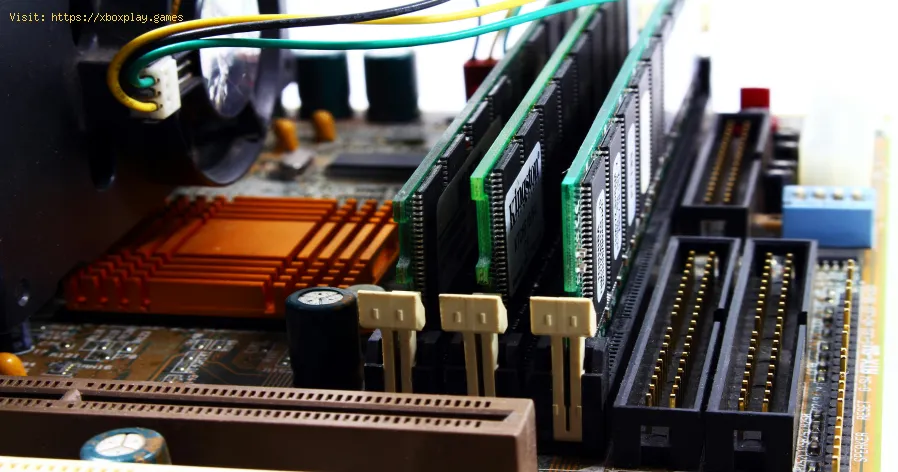
Step 4: Update Your Drivers.
- Graphics Driver (Crucial for Gaming): For NVIDIA users, use GeForce Experience. For AMD, use Adrenalin Software. Intel users can use the Intel Driver & Support Assistant. Let them scan and install the latest recommended drivers.
- Chipset/Other Drivers: Visit your PC or motherboard manufacturer's support website (e.g.,Dell, HP, ASUS, MSI). Enter your model number and download the latestchipset, audio, and network drivers. This can solve a myriad of hiddenperformance issues.
Step 5: Perform a Malware Scan.
Performance issues can sometimes be malicious. Run a full scan with Windows Security (built-in) and a second opinion scan with a trusted, free tool like Malwarebytes. Remove any detected threats.
Phase 2: The Physical and Deep Clean (Hardware & OS)
Step 6: Clean Your Physical PC (CRITICAL – Power Off First!).
- Safety First: Shut down, unplug, and press the power button a few times to discharge any residual electricity.
- Exterior: Use a can of compressed air to blast dust out of vents, fans, and ports. Hold fans in place to prevent them from spinning.
- Interior (Advanced): If comfortable, open the case. In a well-ventilated area, usecompressed air to gently clean dust from heatsinks, fans, and the powersupply (from the inside, don't open the PSU itself). Less dust = bettercooling = no thermal throttling.
Step 7: Optimize Your Drives.
- For Solid State Drives (SSDs):Do NOT defragment. This shortens their life. Instead, ensure TRIM is enabled (it is by default in Windows 10/11). You can run Optimize Drives (search for it), and it will correctly "Retrim" your SSD.
- For Hard Disk Drives (HDDs): Run Optimize Drives, select your HDD, and click Optimize. This is the defragmentation tool. Do this monthly if you use an HDD for storage.
Step 8: Consider a Fresh Start (Nuclear Option).
If things are still slow, a Windows Reset can work wonders. Go to Settings > System > Recovery. Click Reset PC. Choose Keep my files (this removes apps and settings but keeps your personal documents).This is like a factory reset for your software, often resolvingdeep-seated system corruption.
Alternative Solutions
- Upgrade Your Hardware: If cleaning software doesn't yield the results you want, consider ahardware upgrade. The single best upgrade for a feeling of speed isadding more RAM (aim for 16GB minimum in 2024) or replacing an old Hard Disk Drive with a Solid State Drive (SSD) for your operating system. An SSD makes booting and loading programs feel instant.
- Use a Reputable Third-Party Cleaning Tool (With Caution): Tools like CCleaner (use only the cleaner, avoid the "registry cleaner" and "monitoring"features) can offer a more aggressive temporary file cleanup. BleachBit is a good open-source alternative. Always be cautious and avoid "system optimizer" suites that promise miracles—they often cause more harm than good.
How to Prevent the Issue from Happening Again
Prevention is better than cure. Adopt these habits:
- The Monthly Mini-Clean: Once a month, run Disk Cleanup and check your Startup programs in Task Manager.
- Mindful Installation: Always choose Custom Install when installing new software. Uncheck boxes for optional toolbars, extra programs, or "launch at startup" options.
- Driver Hygiene: Set a calendar reminder to check for major graphics driver updatesquarterly, or enable notifications in your GPU's control panel.
- Storage Discipline: Don't let your main drive (C:) get above 80% full. Use an external HDD or cloud storage for large media files and archives.
- Physical Maintenance: Give your PC's exterior vents a quick blast of air every 3-6 months to prevent major dust buildup inside.
Frequently Asked Questions
Q1: Is it safe to use registry cleaners to speed up my PC?
A:No, we strongly advise against it. The Windows Registry is complex and fragile. "Cleaning" it offersnegligible performance gains and a very high risk of causing systeminstability or even preventing Windows from booting. The potentialdamage far outweighs any tiny benefit.
Q2: How often should I clean my PC like this?
A: Perform the software steps (Phase 1) every 3-6 months for maintenance. The physical cleaning (Step 6) depends on your environment but aim for once a year for most homes, or every 6 months if you have pets or a dusty room.
Q3: Will this process delete my personal files, photos, or documents?
A: If you follow the steps above precisely, no. We focus on system and temporary files. Always ensure you know whatyou're deleting. When using Disk Cleanup, the "Downloads" folder islisted—uncheck that box if you want to keep its contents.
Q4: My PC is still slow after all this. What now?
A: It may be a sign of aging hardware. The most common bottleneck for afeeling of overall slowness is a traditional Hard Drive (HDD). Upgrading to an SSD is the most transformative upgrade you can make for aperception of speed. Insufficient RAM (less than 8GB for modern Windows) is the next likely culprit.
Q5: Can I clean my laptop the same way?
A:Absolutely! The software steps are identical. For physical cleaning, laptops aredust magnets. Be extra gentle with the compressed air, and if you'reopening it, look for a specific teardown guide for your model onlinefirst.
You did it!You've just given your PC a new lease on life. That feeling of a faster, more responsive machine is its own reward. We hope this guide helpedyou reclaim your digital workspace.
Other Articles Related
How to Set Up Surround Sound for GamingElevate your gaming experience! Learn how to set up surround sound at home,from choosing the right speaker layout to calibrating audio settings for immersive gameplay.
How to Apply Thermal Paste Correctly
Step-by-step guide for correctly applying thermal paste on CPUs and GPUs. Learnoptimal methods, common mistakes, and best practices to maximize cooling and hardware performance.
How to Improve Cooling in Your PC
Learn how to boost airflow, optimize components, and reduce heat for acooler, faster, and more stable PC. Discover step-by-step coolingupgrade tips.
How to Clean Your PC for Better Performance
Learn easy steps to clean your PC for better performance—remove junk files,manage startup programs, update drivers, and optimize settings.
How to Fix High GPU Usage
"Learn effective solutions to reduce high GPU usage, improveperformance, and prevent overheating. Step-by-step troubleshooting guide for gamers and creators."
How to Fix High CPU Usage While Gaming
Fix high CPU usage while gaming with these effective troubleshooting tips.Learn to optimize settings, update drivers, and boost gaming performance effortlessly.
How to Boost Wi‑Fi Signal for Gaming
Maximize your gaming performance with expert tips on how to boost Wi‑Fi signalstrength. Reduce lag, eliminate drops, and ensure a stable connection.
How to Reduce Lag in Cloud Gaming
Level up your cloud gaming experience! Learn expert tips to reduce lag,optimize streaming quality, and enjoy smoother gameplay with ouractionable guide.
How to Overclock Your CPU Safely
Step-by-step guide for safely overclocking your CPU. Learn proper cooling, voltagetuning, and stability testing to boost performance without riskingdamage. Achieve a stable overclock with confidence.
How to Overclock Your GPU Safely
Maximize GPU performance safely! Learn step-by-step GPU overclocking, essentialtools, stability testing, and temperature monitoring to boost speedwithout damage.
How to Get All SpongeBob Cosmetics in Fortnite
guide to unlocking all SpongeBob cosmetics in Fortnite. Dive into tips, tricks, and strategies to enhance your gaming
How to Fix High GPU Usage
"Learn effective solutions to reduce high GPU usage, improveperformance, and prevent overheating. Step-by-step troubleshooting guide for gamers and creators."
How to Collect Shiny Llamas in Fortnite
guide to collecting shiny llamas in Fortnite. Unlock tips, strategies, and locations to enhance your gaming experience