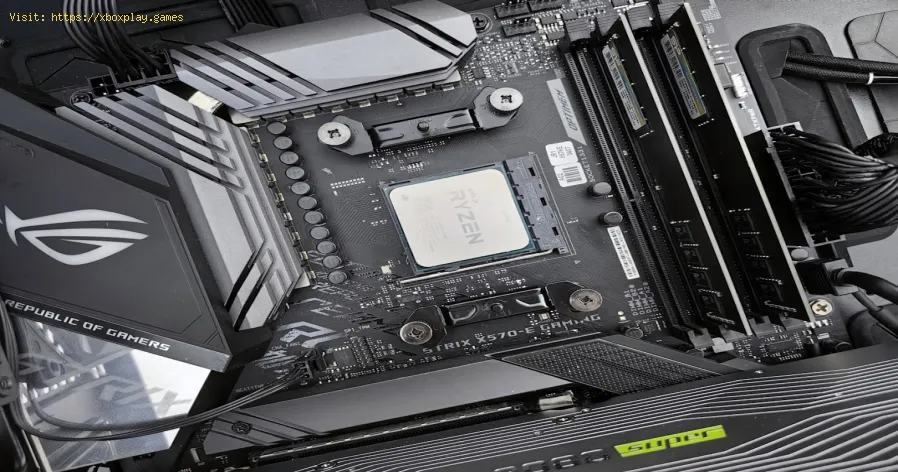
How to Fix High CPU Usage While Gaming
Why Does My CPU Go Berserk While Gaming?
Your Central Processing Unit (CPU) is the brain of your PC. While the GPU (graphics card) renders the beautiful images, the CPU handles the game’s logic: AI behavior, physics calculations, player input, and instructions for everything else. When it’s overloaded, everything bottlenecks.Here are the primary culprits behind high CPU usage in games:The Quick Fix (For the Impatient Gamer)
If you’re mid-session and need relief now, do this:Your Detailed Step-by-Step Battle Plan
Follow these steps methodically. Often, a combination of fixes yields the best result.Step 1: The Clean Slate – Kill Background Bloat
This is the most impactful step for most users.
Step 2: Update Your Graphics Drivers
Never use Windows Update for this. Go straight to the source.
- Identify your GPU: NVIDIA GeForce, AMD Radeon, or Intel Arc.
- Visit the manufacturer’s website (NVIDIA.com,AMD.com).
- Use their auto-detect tool or manually select your GPU model.
- Download and install the latest Game Ready (NVIDIA) or Adrenalin (AMD) driver.
- During installation, choose "Custom Install" and select the "Perform a clean installation" option. This removes old driver fragments.
Step 3: Tame Your In-Game Settings
Shift the burden from your CPU to your GPU (which is designed for it).
- Open your game’s settings menu. Go to Graphics or Advanced.
- Lower or turn off these CPU-intensive settings:
- Shadow Quality (Very High -> Medium)
- Draw Distance / View Distance (Ultra -> High)
- Population Density / NPC Count (Often in open-world games)
- Physics Effects
- Anti-Aliasing (Switch from MSAA or SSAA to TAA or FXAA)
- Increase GPU-intensive settings to maintain visual fidelity: Texture Quality, Anisotropic Filtering, and Resolution. This helps balance the load.
Step 4: Unleash Your CPU’s Power
Make sure Windows isn’t holding your CPU back.
- Type "Edit power plan" in the Windows Start menu and open it.
- Click on "Change advanced power settings."
- In the new window, find "Processor power management" and expand it.
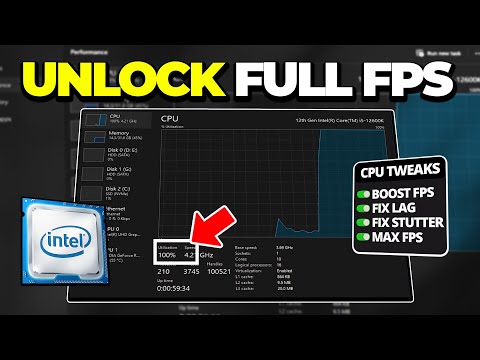
- Set both "Minimum processor state" and "Maximum processor state" to 100%.
- Also, ensure your main selected power plan is "High performance" or "Ultimate performance."
Step 5: Check for Thermal Throttling
Your CPU might be gasping for air.
- Download a lightweight monitoring tool like HWMonitor or Core Temp.
- Play your game for 10-15 minutes, then Alt+Tab and check the CPU temperatures.
- If you see sustained temperatures above 85-90°C (185-194°F), you have a cooling issue.
- Solution: Power down and unplug your PC. Use a can of compressed air to gently blow dust out of your CPU heatsink and case fans. If you’re comfortable, consider reapplying thermal paste between your CPU and its cooler (this can dramatically lower temps if it’s old and dried out).
How to Prevent High CPU Usage From Haunting You Again
- Practice Startup Hygiene: Regularly review your Startup tab in Task Manager. Be ruthless.
- Maintain Your System: Physically clean your PC of dust every 3-6 months. It’s the simplestmaintenance with the biggest impact on thermals and longevity.
- Driver Discipline: Set a calendar reminder to check for new GPU drivers once a month, especially before a major game launch.
- Manage Launchers: Close game launchers (Battle.net, Ubisoft Connect, etc.) after your game starts. They often run background processes.
- Browser Tab Bankruptcy: Make it a habit to close your browser before launching a demanding game. Modern browsers are resource monsters.
Frequently Asked Questions
Q: Is 100% CPU usage while gaming always bad?
A: Not necessarily. In very well-optimized games, hitting 95-100% on somecores just means the game is fully utilizing your hardware, which isideal if your framerate is high and stable. The "bad" 100% is when itcauses stutters, freezes, and framerate drops.
Q: Should I set my game’s priority to "High" in Task Manager?
A: This can sometimes help, but use it cautiously. Right-click the gameprocess in Task Manager > Go to details > Right-click the .exe> Set priority > High. Never set it to "Realtime," as it can destabilize your system.
Q: Will overclocking my CPU fix this?
A: It can help by giving your CPU more raw power to handle the load, butit’s not a true "fix" for underlying issues like bloatware oroverheating. Only overclock if you have adequate cooling and knowledge.
Q: Do I need to upgrade my CPU?
A: Consider it only after exhausting all software fixes. If you’re running a dual-core or very old quad-core CPU with a modern mid-to-high-endGPU, you likely have a genuine hardware bottleneck where an upgrade isthe true solution.
Q: Can a virus scan help?
A: Yes, especially if your CPU is mysteriously high at idle (when no games are running). Run a full scan with Windows Defender or your preferredanti-malware tool to rule out crypto-miners or other malware.
Taming high CPU usage is part art, part science, and all about understandingthe delicate ecosystem inside your PC. By following this guide, you’renot just applying a quick fix—you’re learning to optimize your machinefor a smoother, more immersive gaming experience.
Did this guide help you reclaim your framerates? Share your victory (oryour remaining struggles) in the comments below! Your experience couldhelp another gamer solve their headache. And if you’re battling othertech gremlins, explore our full library of performance-tuning guides tobecome the master of your own digital domain.
Other Articles Related
How to Set Up Surround Sound for GamingElevate your gaming experience! Learn how to set up surround sound at home,from choosing the right speaker layout to calibrating audio settings for immersive gameplay.
How to Apply Thermal Paste Correctly
Step-by-step guide for correctly applying thermal paste on CPUs and GPUs. Learnoptimal methods, common mistakes, and best practices to maximize cooling and hardware performance.
How to Improve Cooling in Your PC
Learn how to boost airflow, optimize components, and reduce heat for acooler, faster, and more stable PC. Discover step-by-step coolingupgrade tips.
How to Clean Your PC for Better Performance
Learn easy steps to clean your PC for better performance—remove junk files,manage startup programs, update drivers, and optimize settings.
How to Overclock Your CPU Safely
Step-by-step guide for safely overclocking your CPU. Learn proper cooling, voltagetuning, and stability testing to boost performance without riskingdamage. Achieve a stable overclock with confidence.
How to Overclock Your GPU Safely
Maximize GPU performance safely! Learn step-by-step GPU overclocking, essentialtools, stability testing, and temperature monitoring to boost speedwithout damage.
How to Fix High GPU Usage
"Learn effective solutions to reduce high GPU usage, improveperformance, and prevent overheating. Step-by-step troubleshooting guide for gamers and creators."
How to Fix High CPU Usage While Gaming
Fix high CPU usage while gaming with these effective troubleshooting tips.Learn to optimize settings, update drivers, and boost gaming performance effortlessly.
How to Reduce Lag in Cloud Gaming
Level up your cloud gaming experience! Learn expert tips to reduce lag,optimize streaming quality, and enjoy smoother gameplay with ouractionable guide.
How to Get Harry Potter Skins in Fortnite
Learn the secrets to obtaining Harry Potter skins in Fortnite. Ourcomprehensive guide provides tips and tricks
How to Boost Wi‑Fi Signal for Gaming
Maximize your gaming performance with expert tips on how to boost Wi‑Fi signalstrength. Reduce lag, eliminate drops, and ensure a stable connection.
Where to Find Back to the Future Mythic DeLorean in Fortnite
locations of the Mythic DeLorean from Back to the Future in Fortnite. Unlock its secrets and enhance your gameplay
How to Get the Free Rust Bucket Back Bling in Fortnite
unlock the Free Rust Bucket Back Bling in Fortnite with our step-by-step guide. Elevate your gameplay and style
How to Fix Washed‑Out Colors on Consoles
effective solutions for fixing washed-out colors on your gaming console. Enhance your visual experience with our expert tips