How to Optimize NVIDIA Control Panel
Why Default NVIDIA Control Panel Settings Are Suboptimal
The Control Panel's global defaults are designed for broad compatibility across thousands of applications, not for peak gaming performance. They often err on the side of quality over speed, and can leave features like G-SYNC disabled or configured incorrectly. Furthermore, many settings are overridden by in-game options, creating confusion about which application is "in charge." By taking manual control, you ensure consistent behavior, eliminate hidden sources of lag, and unlock features your games might not explicitly offer.The Quick Optimization Profile (5-Minute Setup)
For those who want a solid baseline without the deep dive, apply these global settings in the "Manage 3D settings" section:Detailed Step-by-Step Optimization Guide
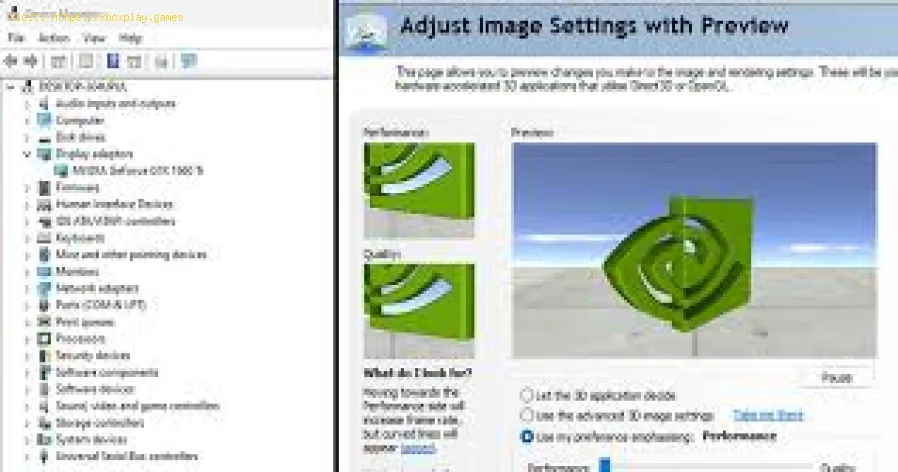
Navigate to the NVIDIA Control Panel (right-click on your desktop). We'll focus on the left-hand pane under "3D Settings."Part 1: Adjust Image Settings with Preview (The Easy Slider)
- Location: The first tab you see.
- Recommendation: Select "Use the advanced 3D image settings." This gives you manual control in the next section. The "Let the 3D application decide" option is too passive.
Part 2: Manage 3D Settings (The Heart of Optimization)
This has two tabs: Global Settings (applies to everything) and Program Settings (for individual games). We'll set a strong global profile, then use program settings for exceptions.
Global Settings Recommendations:
ANTI-ALIASING SECTION
- FXAA:Off. A post-process AA that adds blur. Let games use better methods like TAA or MSAA.
- Gamma correction:Off. Let the game handle it.
- Mode:Application-controlled. Modern games have their own superior AA implementations.
- Transparency:Off.
BACKGROUND APPLICATION MAX FRAME RATE
- Setting:20 FPS. This brilliantly caps FPS for non-active windows, saving GPU power and heat when you alt-tab.
CUDA - GPUs
- Setting:All. Lets all apps use all GPU cores.
DSR - FACTORS
- Setting:Off (unless needed). Dynamic Super Resolution renders the game at a higher resolution anddownscales it for extreme quality at a big performance cost. Use only if you have massive GPU headroom and no DLSS.
LOW LATENCY MODE
- Setting:Ultra. This is critical. It forces the GPU's render queue to a minimum,drastically reducing input lag. If you encounter stuttering in an oldergame, set it to "On" or "Off" for that title individually.
MAX FRAME RATE
- Setting:Off (Globally). We'll cap per-game if needed. A global cap can hinder high-refresh monitors.
MONITOR TECHNOLOGY
- Setting: If you have a G-SYNC or G-SYNC Compatible monitor, select it here. This is the first step to enabling variable refresh rate.
MULTI-FRAME SAMPLED AA (MFAA)
- Setting:Off. Can cause artifacts. Modern temporal AA (TAA) is better.
OPENGL RENDERING GPU
- Setting: Select your dedicated NVIDIA GPU (e.g., GeForce RTX 4070).
POWER MANAGEMENT MODE
- Setting:Prefer maximum performance. This prevents the GPU from downclocking to save power during gameplay,eliminating micro-stutters. It may increase idle fan noise slightly.
PREFERRED REFRESH RATE
- Setting:Highest available. Ensures your desktop and games can use your monitor's max refresh rate.
SHADER CACHE SIZE
- Setting:10 GB (or unlimited if option exists). A larger cache reduces stuttering when games compile shaders on-the-fly.
TEXTURE FILTERING - ANISOTROPIC SAMPLE OPTIMIZATION
- Setting:On. No quality loss, free performance.
- TEXTURE FILTERING - QUALITY:High performance. The visual difference is negligible, but it reduces GPU load.
- TEXTURE FILTERING - TRILINEAR OPTIMIZATION:On. Improves performance when trilinear filtering is used.
THREADED OPTIMIZATION
- Setting:Auto. Lets the driver manage multi-threaded CPU utilization.
TRIPLE BUFFERING
- Setting:Off. Only works with OpenGL V-Sync. Can increase input lag. Keep off.
VERTICAL SYNC
- Setting:Use the 3D application setting. We will control V-Sync in conjunction with G-SYNC.
VIRTUAL REALITY PRE-RENDERED FRAMES
- Setting:1. Minimizes latency for VR. Keep at 1 for flat gaming as well.
Program Settings:
This is where you fine-tune. Click "Add" and browse to a game's .exe file (e.g., valorant.exe). For each game, you can override the global settings. Key uses:
- For Competitive FPS Games (Valorant, CS2): Set Low Latency Mode to Ultra, Power Management to Prefer Max Performance. You can also enable "Max Frame Rate" and cap it 3-5 FPS below your monitor's max refresh rate for the absolute smoothest G-SYNC experience.
- For Older/Stuttering Games: If a game stutters with Low Latency Mode on Ultra, set it to "On" or "Off" for just that program.
Part 3: Set Up G-SYNC Correctly (The Game-Changer)
- Go to "Set up G-SYNC" in the left pane.
- Check "Enable G-SYNC, G-SYNC Compatible" for your primary monitor.
- Select "Enable for full screen mode." (Windowed mode can sometimes cause issues).
- Now, go to "Change resolution" in the left pane. Ensure your monitor's refresh rate is set to its maximum (e.g., 144Hz, 240Hz).
- Finally, go back to "Manage 3D settings" > Vertical sync. With G-SYNC enabled, you should enable V-Sync in the NVIDIA Control Panel globally and disable it in every game. This pairing allows G-SYNC to operate across its full range andprevents tearing at the bottom of the screen when your FPS exceeds yourrefresh rate. (This is a crucial, often-misunderstood step).
Part 4: Adjust Desktop Color & Video Settings
- Change Resolution: Verify you are using the PC resolution (e.g., 1920x1080) not the HD/UHD resolution, as the PC mode ensures correct color format and refresh rate selection.
- Adjust Desktop Color Settings: Under "Apply the following enhancements," you can increase "Digital vibrance" slightly (e.g., 55-65%) for more vivid colors in games and on the desktop. This is a popular tweak for better visual clarity.
Alternative Configuration: The "Quality" vs. "Performance" Toggle
For single-player games where you want the absolute best visuals and have GPU headroom:
- In Program Settings for that game, set Texture Filtering - Quality to "Quality" and Power Management to "Normal."
- Consider enabling DSR Factors (2.00x DL) and setting the game's resolution to the new DSR option for incredible image quality (if performance allows).
How to Prevent Settings from Resetting
- Always click "Apply" after making changes in any section.
- Avoid using "optimize" features in other apps like GeForce Experience that might conflict.
- Creating a restore point before major tweaks is a good safety net.
Frequently Asked Questions (FAQs)
Q: Should I use NVIDIA Control Panel settings or in-game settings?
A: The game's settings usually take precedence. The Control Panel is for enforcing behavior when the game doesn't havean option, or for creating a global baseline. The hierarchy is: Program Setting in NCP > Global Setting in NCP > In-Game Setting.
Q: Does "Prefer Maximum Performance" increase heat or hurt my GPU?
A: It may increase idle temperatures slightly as it prevents downclocking, but it does not exceed the GPU's designed thermal limits. Under load,temperatures will be the same. The benefit of eliminating power-statestutters is worth it.
Q: Why enable V-Sync in NCP but disable it in-game when using G-SYNC?
A: This is the recommended method from NVIDIA. The NCP V-Sync acts as a fallback only when the framerate exceeds the G-SYNC range, preventing tearing. WithG-SYNC active, it does not add the typical input lag of traditionalV-Sync. In-game V-Sync implementations can interfere.
Q: What is the difference between Low Latency Mode "On" and "Ultra"?
A: "On" caps the pre-rendered frames to 1. "Ultra" also allows the game's engine to queue a new frame only when the GPU is ready to start rendering it, pushing latency to the absolute minimum. Use "Ultra" for most modern games.
Q: I don't see the G-SYNC option. Do I have it?
A: You need a monitor that is G-SYNC Native (with a module) or G-SYNC Compatible (validated by NVIDIA). Ensure you're using a DisplayPort cable (G-SYNC does not work over HDMI on most monitors) and that your monitor's adaptive sync feature is enabled in its own OSD menu.
The NVIDIA Control Panel is the bridge between your hardware and yourgames. Spending 20 minutes to configure it properly can yield a moreresponsive, smoother, and visually consistent experience across yourentire library. The combination of G-SYNC + V-Sync (NCP) + Low Latency Mode Ultra + Max Performance is a transformative baseline for any serious gamer.
Which tweak surprised you the most? Did enabling G-SYNC properly finally eliminate your screen tearing, ordid Low Latency Mode "Ultra" make your aim feel instantly snappier?Share your results and favorite program-specific profiles in thecomments below. If you have a question about a specific setting notcovered, ask away! For game-specific optimization guides that pair withthese settings, explore our full performance tuning library. Now, applythese settings, load up your favorite game, and feel the difference.
Other Articles Related
How to Overclock Your CPU SafelyStep-by-step guide for safely overclocking your CPU. Learn proper cooling, voltagetuning, and stability testing to boost performance without riskingdamage. Achieve a stable overclock with confidence.
How to Overclock Your GPU Safely
Maximize GPU performance safely! Learn step-by-step GPU overclocking, essentialtools, stability testing, and temperature monitoring to boost speedwithout damage.
How to Fix High GPU Usage
"Learn effective solutions to reduce high GPU usage, improveperformance, and prevent overheating. Step-by-step troubleshooting guide for gamers and creators."
How to Fix High CPU Usage While Gaming
Fix high CPU usage while gaming with these effective troubleshooting tips.Learn to optimize settings, update drivers, and boost gaming performance effortlessly.
How to Boost Wi‑Fi Signal for Gaming
Maximize your gaming performance with expert tips on how to boost Wi‑Fi signalstrength. Reduce lag, eliminate drops, and ensure a stable connection.
How to Reduce Lag in Cloud Gaming
Level up your cloud gaming experience! Learn expert tips to reduce lag,optimize streaming quality, and enjoy smoother gameplay with ouractionable guide.
How to Enable HDR on Consoles
Learn how to activate HDR on your consoles effortlessly. Our detailedinstructions will help you elevate your gaming
How to Enable VRR on Your TV
Unlock the full potential of your TV with our guide on enabling VRR. Enhance your gaming and viewing experience today!
How to Reduce Screen Tearing
Discover how to enable VRR on your TV for smoother gaming and enhancedvisuals. Follow our step-by-step guide
How to Choose the Best Gaming Headset
Discover essential tips on how to choose the best gaming headset for an immersive experience. Elevate your gameplay
How to Improve Laptop Gaming Performance
Boost your laptop's gaming performance with expert tips and tricks. Discover how to enhance speed, graphics, and overall gameplay
How to Lower Ping in Online Games
Discover effective tips to lower ping in online games and enhance your gaming experience. Improve your connection
Best Settings for High FPS in Any Game
Unlock the best settings for high FPS in your games! Boost performance and enjoy smoother gameplay with our expert tips.
How to Calibrate Your TV for Gaming
Calibrate your TV for gaming with our step-by-step guide. Optimize response time, HDR, color, and input lag for the ultimate competitive edge and visualexperience.
How to Fix Game Pass App Not Working
Having trouble launching or installing Game Pass? This guide offersstep-by-step fixes for installation errors, login issues, and crashingon the Xbox & PC Game Pass app.