How to Reduce Screen Tearing
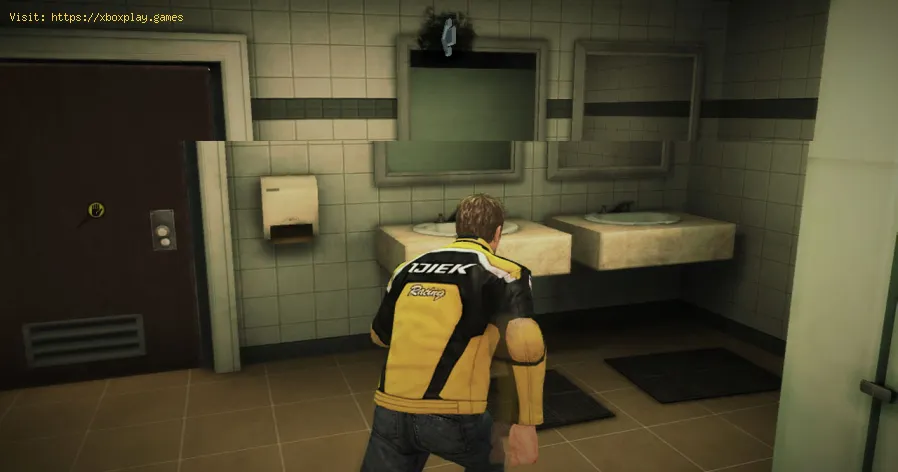
What Causes Screen Tearing?
To fix tearing, you need to understand the simple "push and pull" conflict causing it.The Hierarchy of Solutions: From Worst to Best
Not all fixes are created equal. Some introduce new problems (like input lag), while others solve tearing without compromise.Tier 3: The Basic Fix (Vsync) - The Double-Edged Sword
- What it is: Vertical Sync (Vsync) forces the GPU to wait for the monitor to start a new refresh cycle before sending a new frame. This syncs them up, eliminating tearing.
- The Major Drawback: It introduces significant input lag and can cause stuttering if your FPS drops below the refresh rate. Your actions feel sluggish, which is unacceptable in competitive gaming.
- When to use it: Only in slow-paced, single-player games where input lag doesn't matter, and you can maintain a rock-solid FPS at your monitor's refresh rate (e.g., a perfect 60 FPS at 60Hz).
Tier 2: The Improved Fix (Fast Sync / Enhanced Sync) - A Better Software Lock
- What it is: NVIDIA's Fast Sync and AMD's Enhanced Sync are smarter software solutions. They let the GPU render frames freely but only send completed frames to the monitor that are ready for a new refresh cycle. Extra frames are discarded.
- The Drawback: Can feel uneven or "stuttery" when framerate isn't a perfect multiple of the refresh rate. Better than Vsync, but not perfect.
- When to use it: When you lack a VRR monitor (see Tier 1) and your FPS is consistently, significantly higher than your monitor's refresh rate (e.g., 200+ FPS on a 60Hz screen).
Tier 1: The Ultimate Fix (Variable Refresh Rate - VRR) - The Hardware Solution
This is the modern, correct way to eliminate tearing without downsides.- What it is: Variable Refresh Rate technology allows your monitor to change its refresh rate on the fly to match the current FPS output of your GPU. No mismatch, no tearing. It also makes framerate fluctuations feel incredibly smooth.
- The Technologies:
- NVIDIA G-SYNC: Requires proprietary hardware in the monitor (more expensive).
- AMD FreeSync: An open standard. More common and affordable. "FreeSync Premium" adds low framerate compensation and requires low latency.
- HDMI 2.1 VRR / Adaptive-Sync: The console standard. Works on modern TVs and monitors over HDMI.
- The Requirement: You need a VRR-compatible display (monitor or TV) and compatible hardware (GPU for PC, or a PS5/Xbox Series X|S for console).
- There is no drawback when set up correctly. This is the gold standard.
Detailed Step-by-Step Setup for a Tear-Free Experience
The goal is to always use Tier 1 (VRR) if available. Follow this roadmap.Step 1: Enable VRR on Your Hardware & Display
- For PC (NVIDIA):
- Connect your monitor via DisplayPort (required for most G-SYNC/FreeSync).
- Open NVIDIA Control Panel > "Set up G-SYNC."
- Check "Enable G-SYNC, G-SYNC Compatible" and select your monitor.
- Crucially, select "Enable for full screen mode."
- For PC (AMD):
- Open AMD Software: Adrenalin Edition > "Gaming" > "Display."
- Ensure "AMD FreeSync" or "Adaptive-Sync" is set to Enabled.
- For Consoles (PS5 / Xbox Series X|S):
- Connect to an HDMI 2.1 port on a VRR-compatible TV/monitor.
- PS5: Go to Settings > Screen and Video > Video Output > VRR > Automatic.
- Xbox: Go to Settings > General > TV & display options > Refresh rate > 120Hz. Then, under "Video modes," check "Allow variable refresh rate."
- For All Systems: Don't forget to enable VRR/FreeSync/G-SYNC in your monitor's own On-Screen Display (OSD) menu! It's often disabled by default.
Step 2: Configure the Software Sync Settings (The "Golden Rule")
For VRR to work perfectly with no lag, follow this rule across all platforms:- IN THE DRIVER/CONSOLE SETTINGS: Enable V-Sync. (NVIDIA Control Panel, AMD Software, or console video settings).
- IN EVERY GAME'S SETTINGS MENU: Disable V-Sync.
- Why? This allows the VRR technology to work across its entire range. The driver-level V-Sync only acts as a clamp to prevent tearing if your FPS ever exceeds the monitor's maximum refresh rate, which would otherwise exit the VRR range. Within the VRR range, it is inactive and adds no lag.
Step 3: Apply an FPS Cap (The Final Polish)
For the absolute smoothest experience with VRR enabled:- Cap your in-game FPS to 3-5 frames BELOW your monitor's maximum refresh rate.
- Example: For a 144Hz monitor, cap FPS at 141.
- Why? This ensures you never hit the max refresh rate, which would trigger the V-Sync clamp and a tiny bit of lag. It also gives the GPU a tiny bit of headroom, reducing latency.
- How: Use the in-game FPS limiter, or a tool like NVIDIA Reflex (which has a built-in optimal cap), Rivatuner Statistics Server (RTSS), or the driver control panel.
Step 4: What to Do If You Don't Have VRR
If your monitor or TV does not support VRR, you must choose between tearing, lag, or stuttering.
- Try Fast Sync (NVIDIA) / Enhanced Sync (AMD) in the driver control panel if your FPS is very high.
- If that feels bad, and you are sensitive to tearing, use standard V-Sync and ensure you can lock a stable FPS (e.g., 60 FPS at 60Hz).
- If you are sensitive to input lag (competitive gamers), your last resort is to disable ALL sync technologies, accept some tearing, and push for the highest, most stable FPSpossible. The higher the FPS, the more tears there are, but each one ison screen for a shorter, less noticeable time.
Platform-Specific Notes
- Nintendo Switch: The Switch outputs at a fixed 60Hz. Your best bet is a monitor with good motion blur reduction (backlight strobing) or simply using V-Sync if tearing is bothersome in a particular game.
- Mobile Gaming: Some high-end phones support VRR (e.g., Samsung Adaptive Refresh). Enable it in the phone's display settings.
How to Prevent Configuration Issues
- Always use the correct cable:DisplayPort 1.2a+ for PC VRR. HDMI 2.1 for console VRR on 4K/120Hz setups.
- Update your graphics driver and monitor firmware.
- Test your setup: Use the UFO Test: Frame Rate Comparison in your browser to visually confirm VRR is working (the animation will be perfectly smooth).
Frequently Asked Questions (FAQs)
Q: I have a 144Hz FreeSync monitor but still see tearing. Why?
A: The most common reasons: 1) FreeSync is not enabled in your monitor's OSD menu. 2) You are playing in borderless windowed mode—some implementations of VRR only work in true fullscreen. Switch tofullscreen exclusive. 3) Your FPS is exceeding the monitor's VRR range(e.g., going above 144 FPS). Cap your FPS as described in Step 3.
Q: Does VRR/FreeSync/G-SYNC work on any GPU?
A: FreeSync/Adaptive-Sync monitors work with modern NVIDIA (10-series and newer) and AMD GPUs. G-SYNC module monitors only work with NVIDIA GPUs. Always check compatibility lists.
Q: Is there a difference between G-SYNC and FreeSync quality?
A: Historically, G-SYNC had a tighter performance standard. Today, FreeSync Premium and G-SYNC Compatible certifications ensure a high-quality, low-latency VRR experience. The difference for most users is negligible.
Q: Should I use V-Sync in-game if I have FreeSync enabled?
A: NO. This is the most common mistake. Follow the Golden Rule: V-Sync ON in driver/console settings, OFF in-game. Using in-game V-Sync can override and break the VRR implementation.
Q: Can I use VRR on a laptop?
A: Yes! Many gaming laptops now have G-SYNC or Adaptive-Sync displays. Enable it in the NVIDIA Control Panel or AMD Software, just like a desktop.
Screen tearing is a relic of a bygone era of fixed-refresh displays. With thenear-universal adoption of Variable Refresh Rate technology, you nolonger have to choose between smooth visuals and responsive controls.The path to perfection is clear: enable VRR, configure the sync settings correctly, and apply a sensible FPS cap.
Have you conquered screen tearing? Which solution worked for you—was it finally enabling FreeSync on yourmonitor, or discovering the driver-level V-Sync trick? Share yoursuccess story in the comments. If you're still struggling, tell us yourmonitor, GPU, and the steps you've tried, and let's get it sorted. Formore deep dives into display technology, HDR settings, or monitor buying guides, explore our full library. Now, enjoy your flawlessly smooth,tear-free gaming.
Other Articles Related
How to Improve Cooling in Your PCLearn how to boost airflow, optimize components, and reduce heat for acooler, faster, and more stable PC. Discover step-by-step coolingupgrade tips.
How to Clean Your PC for Better Performance
Learn easy steps to clean your PC for better performance—remove junk files,manage startup programs, update drivers, and optimize settings.
How to Overclock Your CPU Safely
Step-by-step guide for safely overclocking your CPU. Learn proper cooling, voltagetuning, and stability testing to boost performance without riskingdamage. Achieve a stable overclock with confidence.
How to Overclock Your GPU Safely
Maximize GPU performance safely! Learn step-by-step GPU overclocking, essentialtools, stability testing, and temperature monitoring to boost speedwithout damage.
How to Fix High GPU Usage
"Learn effective solutions to reduce high GPU usage, improveperformance, and prevent overheating. Step-by-step troubleshooting guide for gamers and creators."
How to Fix High CPU Usage While Gaming
Fix high CPU usage while gaming with these effective troubleshooting tips.Learn to optimize settings, update drivers, and boost gaming performance effortlessly.
How to Boost Wi‑Fi Signal for Gaming
Maximize your gaming performance with expert tips on how to boost Wi‑Fi signalstrength. Reduce lag, eliminate drops, and ensure a stable connection.
How to Reduce Lag in Cloud Gaming
Level up your cloud gaming experience! Learn expert tips to reduce lag,optimize streaming quality, and enjoy smoother gameplay with ouractionable guide.
How to Enable HDR on Consoles
Learn how to activate HDR on your consoles effortlessly. Our detailedinstructions will help you elevate your gaming
How to Enable VRR on Your TV
Unlock the full potential of your TV with our guide on enabling VRR. Enhance your gaming and viewing experience today!
How to Choose the Best Gaming Headset
Discover essential tips on how to choose the best gaming headset for an immersive experience. Elevate your gameplay
How to Optimize AMD Radeon Settings
Unlock the full potential of your gaming experience with our guide on how to optimize AMD Radeon settings for peak performance
How to Optimize NVIDIA Control Panel
Learn how to optimize your NVIDIA Control Panel settings for enhanced gaming performance and graphics quality.
How to Improve Laptop Gaming Performance
Boost your laptop's gaming performance with expert tips and tricks. Discover how to enhance speed, graphics, and overall gameplay
How to Lower Ping in Online Games
Discover effective tips to lower ping in online games and enhance your gaming experience. Improve your connection