How to Optimize AMD Radeon Settings
Why You Shouldn't Use Radeon Defaults
The default "Standard" profile in Adrenalin Software is designed for general stability and compatibility across a vast array of games and applications. It is not configured for peak gaming performance. Key features like Radeon Anti-Lag, Radeon Boost, and Integer Scaling are often disabled by default. Furthermore, power and fan settings may prioritize silence over thermals, leading to thermal throttling in demanding games. Taking manual control ensures your hardware is working for you, not just working.The Quick Optimization Profile (5-Minute Setup)
For a solid, performance-focused baseline, open AMD Software: Adrenalin Edition (right-click desktop) and apply these global graphics settings:Detailed Step-by-Step Optimization Guide
We'll navigate through the Adrenalin Software tabs from top to bottom, focusing on the most impactful settings.Part 1: The Graphics Tab (Visuals & Core Settings)
This is where you set global rules for how games are rendered.- Global Graphics Profile: Click the "Gaming" tab at the top, then "Graphics." Ensure you are adjusting the "Global Graphics" settings. You can create game-specific profiles later.
- Radeon Anti-Lag: Enable. This is AMD's equivalent to NVIDIA's Low Latency Mode, reducing input lag by pacing the CPU to keep up with the GPU. Crucial for competitive gaming. (May cause issues in some older titles—disable per-game if needed).
- Radeon Boost: Dynamic Resolution can be set to Enabled. This dynamically lowers resolution during fast camera movement (where you won't notice it) to boost FPS, then restores it. Great for fast-paced single-player games. Set Target FPS to your monitor's refresh rate.
- Radeon Image Sharpening (RIS): Enable. Set between 70-80%. This adds exceptional clarity with almost no performance cost. It's one of AMD's best features.
- AMD Super Resolution (FSR): Leave on "Enabled" globally. This allows the in-game FSR option to work. For supported games, use FSR Quality or Balanced mode in the game's own settings menu for a huge FPS boost.
- Wait for Vertical Refresh (V-Sync): Set to "Off, unless application specifies." We will handle sync technologies separately in the Display tab. Forcing V-Sync here adds input lag.
- Anti-Aliasing & Texture Filtering: As per the Quick Profile, let the application control these unless a specific game lacks good options.
Part 2: The Display Tab (Monitor & Sync Setup)
Critical for ensuring your monitor and GPU communicate properly.- Custom Color (Optional): You can slightly increase "Saturation" here (to ~110-115%) for more vibrant colors, similar to Digital Vibrance.
- GPU Scaling: Keep Off if your monitor's native resolution matches your in-game resolution. Only enable if you need to upscale a lower resolution (e.g., 1080p on a 1440p monitor), and use "Preserve aspect ratio."
- Scaling Mode: If GPU Scaling is on, set to "Preserve aspect ratio."
- Integer Scaling: A fantastic pixel-art-style upscaler for retro games or indie pixel art titles. Disable for modern 3D games.
- HDMI Link Assurance: On. Helps maintain a stable connection.
- Variable Refresh Rate (FreeSync/Adaptive-Sync):
- Ensure it's Enabled here.
- Then, most importantly, go to your physical monitor's On-Screen Display (OSD) menu and enable FreeSync/Adaptive-Sync there. Both ends must be on.
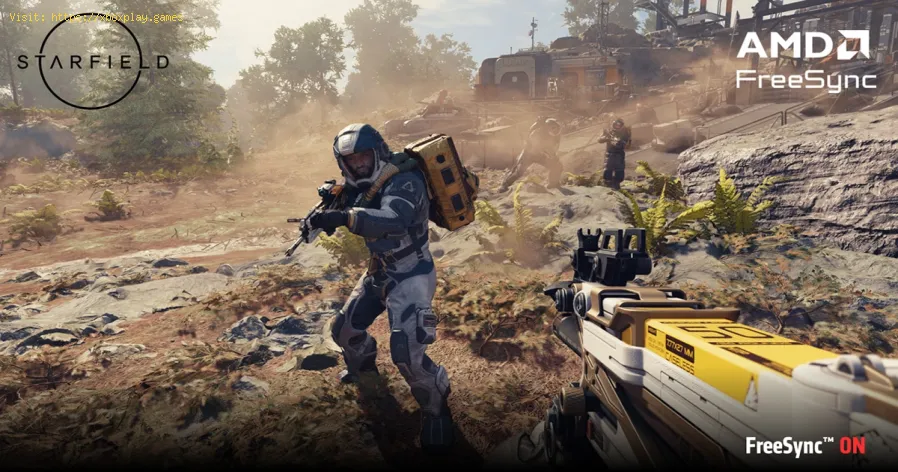
- With FreeSync enabled, the recommended practice is to enable V-Sync in the Adrenalin software (set it to "Always On") and disable V-Sync in every game. This combination allows FreeSync to operate across its full range and prevents tearing when FPS exceeds the refresh rate, with minimal added lag.
Part 3: The Performance Tab (Tuning & Metrics)
The heart of performance control. Use caution here.
- Metrics Overlay: Enable this to see real-time FPS, GPU/CPU usage, and temperatures in-game. Essential for troubleshooting.
- Tuning:
- Default: Automatic, power-efficient.
- Auto Overclocking: A safe, one-click mild overclock and undervolt. A great starting point.
- Manual: For advanced users.
- GPU Tuning: Enable. Increase Max Frequency by 5-10%. Decrease GPU Voltage by 50-100mV (this is an undervolt—it reduces heat and power draw, often allowing for higher sustained clocks). Adjust in small increments and stress test.
- VRAM Tuning: Enable. Set Timing to "Fast" for a free performance boost.
- Fan Tuning: Enable. Create a more aggressive fan curve to keep temperatures lower.This reduces thermal throttling. Aim to keep your GPU below 85°C under load.
- Power Tuning: Increase the Power Limit (%) slider to the maximum. This gives the GPU permission to draw more power to sustain higher boost clocks.
Part 4: The Game-Specific Profiles
This is where optimization shines. In the "Gaming" tab, your installed games will appear. Click on a game to create a unique profile.
- Example for Valorant (Competitive): Enable Anti-Lag, disable Boost, enable RIS at 80%. Set a Min/Max FPS Cap just below your monitor's refresh rate (e.g., 237 FPS for 240Hz).
- Example for Cyberpunk 2077 (Visuals/Performance): Enable FSR 2/3 in the game's menu. Enable Boost with Target FPS = 60. Enable RIS at 70%.
Advanced Features & Streaming
- Radeon Chill: Sets an FPS range (min/max) to save power and reduce heat. Great for less demanding games or capped single-player experiences.
- Enhanced Sync: An alternative to V-Sync with less lag, but can cause tearing. Generally, FreeSync + V-Sync (in driver) is a superior combo.
- Recording & Streaming: The "Record & Stream" tab offers robust, low-overhead options using the GPU's dedicated media engine.
How to Prevent Issues & Reset Settings
- Always test changes in a game after applying them.
- If a game becomes unstable, use its specific profile to reset to default, or use the global "Factory Reset" option in the Settings (gear icon) menu.
- Use Driver Only Install during updates if you encounter software conflicts (a clean install option in the AMD installer).
Frequently Asked Questions (FAQs)
Q: Should I use Radeon Image Sharpening (RIS) or in-game sharpening?
A: Prefer RIS. It's applied as a highly efficient post-process with minimalperformance impact and often looks cleaner than in-game sharpeners,which can add noise.
Q: Does "Auto Overclocking" or manual undervolting void my warranty?
A: No. AMD allows and provides tools for tuning within the Adrenalin software. It does not void the standard warranty. Pushing voltages dangerouslyhigh via other tools could cause damage not covered by warranty.
Q: Why enable V-Sync in Adrenalin when using FreeSync? Doesn't V-Sync cause lag?
A: This is a key nuance. With FreeSync enabled, enabling V-Sync in the driver (and disabling it in-game) acts only as a fallback to eliminate tearing when your FPS hits your monitor's max refreshrate. Within the FreeSync range, it does not activate, so it does notadd the traditional V-Sync input lag. This is the officially recommended setup by AMD for tear-free, low-lag gameplay.
Q: What's the difference between Radeon Boost and FSR?
A: Radeon Boost dynamically lowers resolution based on your camera movement. FSR is a static or dynamic upscaling technology that renders the game at a lower internal resolution and reconstructs a higher-quality image. Use FSR when available in-game; use Boost for games without FSR support.
Q: My GPU is running hot and loud. What should I do?
A: Go to Performance > Tuning > Manual > Fan Tuning. Create a more aggressive fan curve. Also, try Manual GPU Tuning and apply an undervolt (reduce GPU voltage). This often lowers temperatures significantly without hurting performance.
Your AMD Radeon GPU is a powerful piece of hardware, and the Adrenalinsoftware is the key to customizing its behavior to your exactpreferences. The combination of Anti-Lag for responsiveness, RIS for clarity, FreeSync for smoothness, and a mild undervolt for cool/quiet operation can transform your experience.
Which Adrenalin feature became your new favorite? Did Radeon Image Sharpening make your games look crisper, or did anundervolt quiet your fans? Share your before-and-after results and bestgame profiles in the comments below. If you’re struggling with aspecific setting or game, let us know your GPU model and we’ll helptroubleshoot. For more deep dives into game-specific optimizations thatpair with these driver settings, explore our full library of PCperformance guides. Now, launch Adrenalin, apply these optimizations,and game on with confidence

Other Articles Related
How to Overclock Your CPU SafelyStep-by-step guide for safely overclocking your CPU. Learn proper cooling, voltagetuning, and stability testing to boost performance without riskingdamage. Achieve a stable overclock with confidence.
How to Overclock Your GPU Safely
Maximize GPU performance safely! Learn step-by-step GPU overclocking, essentialtools, stability testing, and temperature monitoring to boost speedwithout damage.
How to Fix High GPU Usage
"Learn effective solutions to reduce high GPU usage, improveperformance, and prevent overheating. Step-by-step troubleshooting guide for gamers and creators."
How to Fix High CPU Usage While Gaming
Fix high CPU usage while gaming with these effective troubleshooting tips.Learn to optimize settings, update drivers, and boost gaming performance effortlessly.
How to Boost Wi‑Fi Signal for Gaming
Maximize your gaming performance with expert tips on how to boost Wi‑Fi signalstrength. Reduce lag, eliminate drops, and ensure a stable connection.
How to Reduce Lag in Cloud Gaming
Level up your cloud gaming experience! Learn expert tips to reduce lag,optimize streaming quality, and enjoy smoother gameplay with ouractionable guide.
How to Enable HDR on Consoles
Learn how to activate HDR on your consoles effortlessly. Our detailedinstructions will help you elevate your gaming
How to Enable VRR on Your TV
Unlock the full potential of your TV with our guide on enabling VRR. Enhance your gaming and viewing experience today!
How to Reduce Screen Tearing
Discover how to enable VRR on your TV for smoother gaming and enhancedvisuals. Follow our step-by-step guide
How to Choose the Best Gaming Headset
Discover essential tips on how to choose the best gaming headset for an immersive experience. Elevate your gameplay
How to Optimize NVIDIA Control Panel
Learn how to optimize your NVIDIA Control Panel settings for enhanced gaming performance and graphics quality.
How to Improve Laptop Gaming Performance
Boost your laptop's gaming performance with expert tips and tricks. Discover how to enhance speed, graphics, and overall gameplay
How to Lower Ping in Online Games
Discover effective tips to lower ping in online games and enhance your gaming experience. Improve your connection
Best Settings for High FPS in Any Game
Unlock the best settings for high FPS in your games! Boost performance and enjoy smoother gameplay with our expert tips.
How to Calibrate Your TV for Gaming
Calibrate your TV for gaming with our step-by-step guide. Optimize response time, HDR, color, and input lag for the ultimate competitive edge and visualexperience.