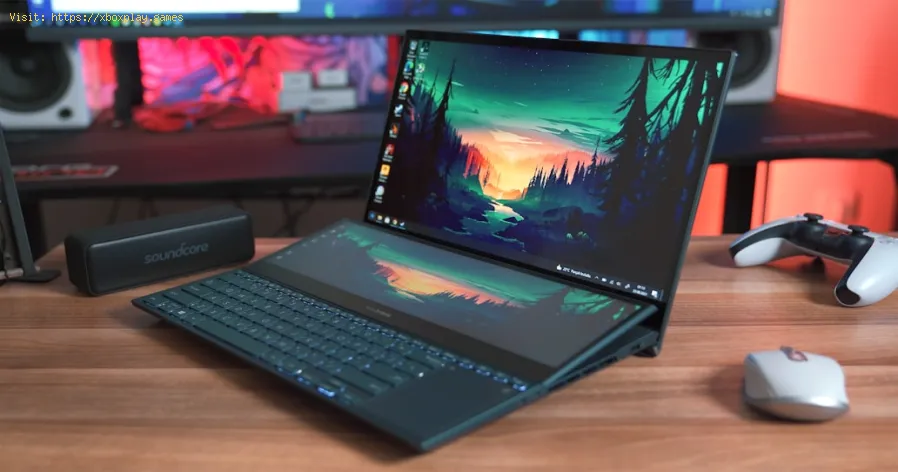
How to Improve Laptop Gaming Performance
Why Laptop Gaming Performance Suffers (The Core Challenges)
The Quick Performance Boost (Do This First)
Enable Ultimate/Maximum Performance Power Plan and Update Your GPU Drivers.Detailed Step-by-Step Performance Optimization
Follow these steps in order for a cumulative performance gain.Step 1: Master Thermal Management (The Most Critical Step)
- Elevate Your Laptop: Never game with your laptop flat on a bed, couch, or even a solid desk. Use a laptop cooling pad with active fans or, at a minimum, simple rubber feet or stands to elevate the back by 1-2 inches. This dramatically improves airflow to the intake vents (usually on the bottom).
- Repaste (Advanced Users Only): If your laptop is 1-2 years old, the factory thermal paste between the CPU/GPU and the heatsink may have dried out. Replacing it with high-quality paste (like Thermal Grizzly Kryonaut, Arctic MX-6) can lower temperatures by 10-20°C. This may void your warranty.
- Clean the Fans/Vents: Use a can of compressed air to blow dust out of the cooling vents and fans. Do this every 6-12 months. For a deep clean, you may need to open the bottom panel.
Step 2: Optimize Windows & Software for Gaming
- Disable Startup Programs: Press Ctrl + Shift + Esc to open Task Manager. Go to the Startup tab and disable every non-essential application (everything except your antivirus and driver utilities).
- Adjust for Best Performance: Search for "Adjust the appearance and performance of Windows." Go to Advanced tab and select "Adjust for best performance." This disables most visual effects, freeing up CPU/GPU resources.
- Turn Off Game Bar & DVR: Go to Windows Settings > Gaming > Xbox Game Bar and turn it OFF. Also, under "Captures," disable "Background recording" (Game DVR). These features constantly run and impact performance.
- Set GPU Preference (NVIDIA/AMD):
- NVIDIA: Right-click desktop > NVIDIA Control Panel > Manage 3D settings > Program Settings. Add your game .exe and set:
- Power management mode: Prefer maximum performance.
- Preferred graphics processor: High-performance NVIDIA processor.
- AMD: AMD Adrenalin Software > Performance > Tuning > Enable GPU tuning.
- NVIDIA: Right-click desktop > NVIDIA Control Panel > Manage 3D settings > Program Settings. Add your game .exe and set:
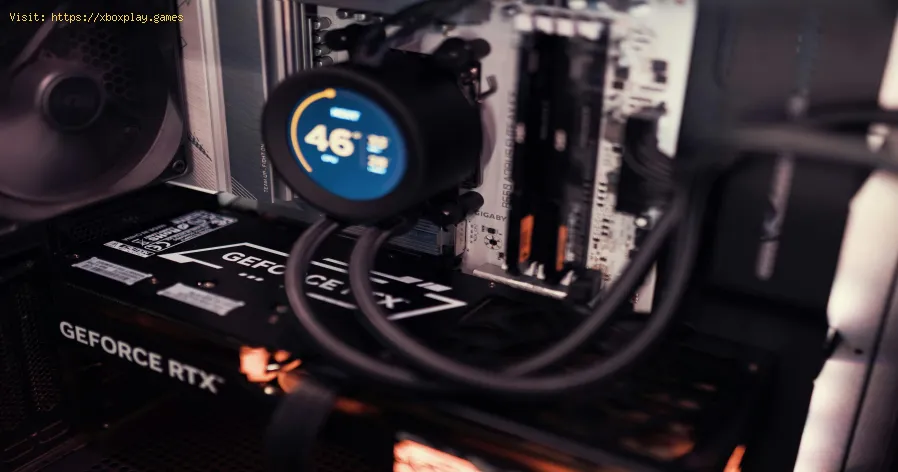
Step 3: Configure In-Game Settings Intelligently
- Target a Stable FPS: Use the in-game FPS limiter or V-Sync to cap your FPS just below yourdisplay's refresh rate (e.g., 117 FPS for a 120Hz screen). This prevents the GPU from rendering excess frames, reducing heat and power draw.
- Use Upscaling Technologies:NVIDIA DLSS (RTX cards) or AMD FSR (most GPUs) are your best friends. They render the game at a lowerresolution and upscale it, providing a massive FPS boost with minimalvisual loss. Always enable this if available.
- Lower GPU-Intensive Settings: Use our [High FPS Settings Guide](link to previous article) principles. Prioritize lowering Shadows, Lighting, Volumetric Fog, and Anti-Aliasing. Keep Texture Quality high if you have enough VRAM.
Step 4: Tune Hardware & BIOS Settings (Carefully)
- Undervolting (CPU/GPU): This is a game-changer for laptops. It involves slightly reducing the voltage supplied to your CPU/GPU, which lowers temperatures and power consumption without sacrificing performance (and can sometimes even improve it due to less throttling). Use ThrottleStop for Intel CPUs or MSI Afterburner for GPUs. Research a guide for your specific chip model.
- Check BIOS for Performance Mode: Reboot and enter your laptop's BIOS (often by pressing F2 or Del). Look for a performance or fan profile setting (like "Performance Mode,""Turbo Mode," or "Cooler Boost"). Enable it.
- Ensure Dedicated GPU is Active: Use monitoring software like HWMonitor or MSI Afterburner to confirm your game is using the dedicated GPU (NVIDIA/AMD) and not the integrated Intel/AMD graphics.
Step 5: Maintain System Health
- Use SSD for Games: Install your games on an SSD (NVMe is best). This drastically reducesloading times and can eliminate open-world stuttering caused by slowasset streaming.
- Keep Your OS Lean: Uninstall bloatware you don't use. Regularly run Windows Update.Consider a clean Windows install every 1-2 years if performancedegrades.
- Monitor Your Temperatures: Use HWMonitor while gaming. Ideal gaming temps are below 85-90°C for both CPU and GPU. Consistently hitting 95°C+ means you are heavily throttling.
Alternative & Advanced Solutions
- External GPU (eGPU) Enclosure: If your laptop has a Thunderbolt 3/4 port, you can connect a full-sized desktop graphics card. This is a costly but extremely powerful upgradefor compatible ultrabooks.
- Disable CPU Boost (Aggressive Undervolting Alternative): For some games that are purely GPU-bound, you can set your CPU to runat its base clock speed instead of its turbo boost. This drasticallycuts CPU heat, allowing the GPU more thermal headroom. This is done inThrottleStop or the Windows Power Plan advanced settings.
How to Prevent Performance Degradation Over Time
- Schedule Regular Cleaning: Mark your calendar to clean vents with compressed air every 6 months.
- Mind Your Surfaces: Always game on a hard, flat surface. Avoid fabrics that trap heat and block vents.
- Monitor Background Updates: Pause Windows Update and driver updates before a long gaming session to prevent sudden bandwidth/disk usage spikes.
Frequently Asked Questions (FAQs)
Q: Is it safe to use a laptop cooling pad?
A: Yes, and highly recommended. A good cooling pad with large, quiet fans can lower internaltemperatures by 5-10°C, directly preventing throttling. Look for onethat aligns with your laptop's intake vent pattern.
Q: Should I keep my laptop plugged in while gaming?
A: ABSOLUTELY YES. Gaming on battery forces the system into a severe power-saving mode,cutting GPU and CPU performance by 50% or more. Always game whileplugged into the wall charger.
Q: Why is my FPS lower even though my hardware is good?
A: Check if you're thermally throttling. Download HWMonitor and check your CPU/GPU clockspeeds and temperatureswhile gaming. If clock speeds are dropping as temps hit 90°C+, that'syour answer. Also, confirm your game is using the dedicated GPU.
Q: Does more RAM improve gaming performance on a laptop?
A: It depends. If you currently have 8GB, upgrading to 16GB will provide a significant boost in modern games. Going from 16GB to32GB offers minimal gains for pure gaming unless you are running manybackground applications.
Q: How do I know if my game is using the dedicated GPU?
A: Right-click on your desktop and open the NVIDIA Control Panel or AMD Software. There is usually a setting or display that shows which GPU is active. In Windows, you can also go to Settings > System > Display > Graphics and assign your game to the "High performance" GPU.
Optimizing a gaming laptop is an ongoing process of managing heat, power, andsoftware. By starting with the fundamentals—elevating your laptop,setting the right power profile, and updating drivers—you'll see animmediate improvement. From there, delve into undervolting and in-gamesettings to fine-tune your experience.
What single tweak gave your laptop the biggest performance boost? Was it the humble laptop stand, the discovery of DLSS/FSR, or the brave venture into undervolting? Share your success story in the comments tohelp fellow laptop gamers. If you're stuck on a specific thermal orthrottling issue, tell us your laptop model and the game, and let'stroubleshoot together. For more deep dives on specific games orhardware, explore our full library of optimization guides. Now, powerup, plug in, and game on with newfound smoothness
Other Articles Related
How to Fix High GPU Usage"Learn effective solutions to reduce high GPU usage, improveperformance, and prevent overheating. Step-by-step troubleshooting guide for gamers and creators."
How to Fix High CPU Usage While Gaming
Fix high CPU usage while gaming with these effective troubleshooting tips.Learn to optimize settings, update drivers, and boost gaming performance effortlessly.
How to Boost Wi‑Fi Signal for Gaming
Maximize your gaming performance with expert tips on how to boost Wi‑Fi signalstrength. Reduce lag, eliminate drops, and ensure a stable connection.
How to Reduce Lag in Cloud Gaming
Level up your cloud gaming experience! Learn expert tips to reduce lag,optimize streaming quality, and enjoy smoother gameplay with ouractionable guide.
How to Enable HDR on Consoles
Learn how to activate HDR on your consoles effortlessly. Our detailedinstructions will help you elevate your gaming
How to Enable VRR on Your TV
Unlock the full potential of your TV with our guide on enabling VRR. Enhance your gaming and viewing experience today!
How to Reduce Screen Tearing
Discover how to enable VRR on your TV for smoother gaming and enhancedvisuals. Follow our step-by-step guide
How to Choose the Best Gaming Headset
Discover essential tips on how to choose the best gaming headset for an immersive experience. Elevate your gameplay
How to Optimize AMD Radeon Settings
Unlock the full potential of your gaming experience with our guide on how to optimize AMD Radeon settings for peak performance
How to Optimize NVIDIA Control Panel
Learn how to optimize your NVIDIA Control Panel settings for enhanced gaming performance and graphics quality.
How to Lower Ping in Online Games
Discover effective tips to lower ping in online games and enhance your gaming experience. Improve your connection
Best Settings for High FPS in Any Game
Unlock the best settings for high FPS in your games! Boost performance and enjoy smoother gameplay with our expert tips.
How to Calibrate Your TV for Gaming
Calibrate your TV for gaming with our step-by-step guide. Optimize response time, HDR, color, and input lag for the ultimate competitive edge and visualexperience.
How to Fix Game Pass App Not Working
Having trouble launching or installing Game Pass? This guide offersstep-by-step fixes for installation errors, login issues, and crashingon the Xbox & PC Game Pass app.
How to Fix PC Blue Screen While Gaming
Stop gaming crashes! Learn step-by-step fixes for the PC blue screen (BSOD)during gameplay. Troubleshoot drivers, overheating, hardware &settings for a stable system.