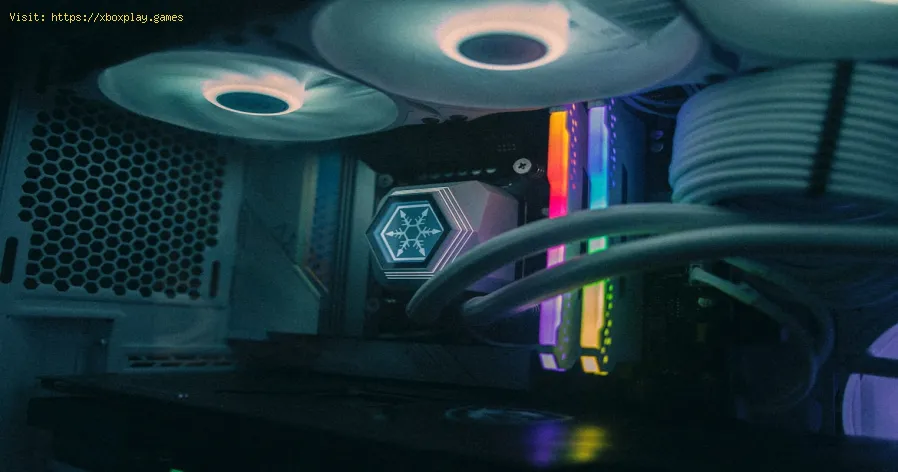
How to Improve Cooling in Your PC
Causes of Overheating in Your Gaming PC
Before we dive into the fixes, it helps to understand the common culprits. Think of your PC's cooling like a room's ventilation:- Dust Bunnies Galore: The number one offender. Dust acts as a thick insulating blanket on fans, heatsinks, and vents, drastically reducing their ability to move heat.
- Poor Airflow: A messy nest of cables blocks the smooth intake and exhaust of air. Placing your PC in an enclosed cabinet or against a wall suffocates it.
- Aged or Dried-Out Thermal Paste: This crucial compound bridges the gap between your CPU/GPU and its cooler. Over years, it can dry out, crack, and lose its heat-transferring properties.
- Inadequate or Failing Cooling Hardware: Stock coolers are often just "good enough." As you upgrade components, your old cooling might not keep up. Fans can also wear out and spin slower.
- Aggressive Overclocking Without Sufficient Cooling: Pushing your components beyond factory settings generates more heat. If you've overclocked your CPU or GPU without upgrading your cooling, you're asking for trouble.
Quick Solution (For the Impatient Gamer)
If you're in a hurry and need a temporary fix right now:Detailed Step-by-Step Cooling Improvements
Ready for a permanent fix? Follow this upgrade path from simple maintenance to advanced solutions.Step 1: The Deep Clean (Essential Maintenance)
Tools needed: Compressed air, microfiber cloths, isopropyl alcohol (90%+), soft-bristle brush.Step 2: Optimize Internal Airflow & Cable Management

Step 3: Reapply Thermal Paste (CPU/GPU)
Warning: This may void warranties. Proceed with caution.
- Remove the Cooler: Unplug the CPU fan, unscrew the cooler from the motherboard, and gently twist it off. For GPUs, you'll need to unscrew the heatsink from thecard's backplate.
- Clean Old Paste: Dampen a cloth or paper towel with isopropyl alcohol. Gently wipe awayall old thermal paste from both the CPU/GPU lid and the cooler's baseuntil shiny clean.
- Apply New Paste: For a CPU, apply a small pea-sized dot (or a thin line for some CPUs)of high-quality paste (like Arctic MX-4, Noctua NT-H1) directly in thecenter.
- Re-mount the Cooler: Carefully place the cooler straight down and secure it with even, cross-pattern pressure. Reconnect the fan.
Step 4: Upgrade Your Cooling Hardware
If temperatures are still high, it's time for new gear.
- For Better Air Cooling: Upgrade your stock CPU cooler to a quality tower cooler from brandslike Noctua, be quiet!, or DeepCool. Add more case fans to ensurepositive air pressure (more intake than exhaust).
- For Maximum Cooling & Aesthetics: Consider an All-In-One (AIO) liquid cooler for your CPU. They offerexcellent cooling and a clean look. For the GPU, aftermarket air coolers or hybrid kits are available for advanced users.
- For Extreme Enthusiasts: Custom liquid cooling loops offer the best possible cooling and are a rewarding project, but they are complex and expensive.
Step 5: Configure Fan Curves & Undervolting (Software Solutions)
- Fan Curves: Enter your BIOS/UEFI or use software like Argus Monitor or MSI Afterburner. Set your fans to ramp up more aggressively at lower temperatures (e.g., 50% speed at 50°C) for proactive cooling instead of reactive.
- Undervolting (Advanced): Using tools like Intel XTU or AMD Ryzen Master (for CPUs) or MSI Afterburner (for GPUs), you can slightly reduce the voltage supplied to your chip.This can lower temperatures significantly with little to no performanceloss, but requires stability testing.
Alternative Solutions
- Improve Your Room's Environment: Ensure your gaming room itself is cool. Use an air conditioner, adedicated room fan pointed near your PC, or simply avoid gaming indirect sunlight.
- Use a Laptop Cooling Pad: If you're on a gaming laptop, a quality pad with large, powerful fans is non-negotiable.
- Limit Frame Rates: Use in-game or driver settings (NVIDIA Control Panel / AMD Adrenalin)to cap your FPS to your monitor's refresh rate. This prevents your GPUfrom rendering unnecessary extra frames that generate heat.
How to Prevent the Issue From Happening Again
- Schedule Quarterly Cleanings: Every 3-6 months, give your PC a quick blast with compressed air.
- Monitor Your Temperatures: Keep a lightweight monitoring tool like HWMonitor or Core Temp running in the background. Knowledge is power.
- Mind Your Case Placement: Always keep your PC on a hard, flat surface—not carpet—with plenty of breathing room.
- Build with Cooling in Mind: For new builds, prioritize a case with a mesh front panel, good reviews for airflow, and room for multiple fans.
Frequently Asked Questions
Q: What are safe temperatures for my CPU and GPU while gaming?
A: As a general rule, aim for below 80°C for your CPU and below 85°C foryour GPU under heavy load. Idle temperatures should typically be between 30°C and 50°C.
Q: Is liquid cooling better than air cooling?
A: High-end AIO liquid coolers often outperform large air coolers,especially in compact cases, and can be quieter. However, premium aircoolers offer similar performance, are often more reliable (no pump tofail), and are typically cheaper. Both are excellent choices over stockcoolers.
Q: Can I just take the side panel off permanently?
A: While this drops temperatures immediately, it's a bad long-termstrategy. It destroys controlled airflow, lets dust settle directly oncomponents, and exposes them to more physical damage. It's an emergencyfix, not a solution.
Q: How often should I replace thermal paste?
A: For most quality pastes, every 3-5 years is sufficient. If you notice a steady, unexplained rise in idle and load temperatures, it might betime for a refresh.
Q: My PC is cool but still thermal throttling. Why?
A: Throttling can be triggered by a sensor reading a "hot spot" you're not monitoring. Ensure your VRM (Voltage Regulator Module) and SSDheatsinks are properly seated. Also, check that plastic protective filmwas removed from your cooler's base—it's a classic rookie mistake!
Keeping your PC cool isn't just about avoiding crashes; it's about ensuringevery component runs at its peak for years to come, giving you thesmooth, immersive experience you built it for. A little maintenance andsmart upgrades go an incredibly long way.
Other Articles Related
How to Set Up Surround Sound for GamingElevate your gaming experience! Learn how to set up surround sound at home,from choosing the right speaker layout to calibrating audio settings for immersive gameplay.
How to Apply Thermal Paste Correctly
Step-by-step guide for correctly applying thermal paste on CPUs and GPUs. Learnoptimal methods, common mistakes, and best practices to maximize cooling and hardware performance.
How to Improve Cooling in Your PC
Learn how to boost airflow, optimize components, and reduce heat for acooler, faster, and more stable PC. Discover step-by-step coolingupgrade tips.
How to Fix High GPU Usage
"Learn effective solutions to reduce high GPU usage, improveperformance, and prevent overheating. Step-by-step troubleshooting guide for gamers and creators."
How to Fix High CPU Usage While Gaming
Fix high CPU usage while gaming with these effective troubleshooting tips.Learn to optimize settings, update drivers, and boost gaming performance effortlessly.
How to Boost Wi‑Fi Signal for Gaming
Maximize your gaming performance with expert tips on how to boost Wi‑Fi signalstrength. Reduce lag, eliminate drops, and ensure a stable connection.
How to Reduce Lag in Cloud Gaming
Level up your cloud gaming experience! Learn expert tips to reduce lag,optimize streaming quality, and enjoy smoother gameplay with ouractionable guide.
How to Clean Your PC for Better Performance
Learn easy steps to clean your PC for better performance—remove junk files,manage startup programs, update drivers, and optimize settings.
How to Overclock Your CPU Safely
Step-by-step guide for safely overclocking your CPU. Learn proper cooling, voltagetuning, and stability testing to boost performance without riskingdamage. Achieve a stable overclock with confidence.
How to Overclock Your GPU Safely
Maximize GPU performance safely! Learn step-by-step GPU overclocking, essentialtools, stability testing, and temperature monitoring to boost speedwithout damage.
How to Get All SpongeBob Cosmetics in Fortnite
guide to unlocking all SpongeBob cosmetics in Fortnite. Dive into tips, tricks, and strategies to enhance your gaming
How to Fix High GPU Usage
"Learn effective solutions to reduce high GPU usage, improveperformance, and prevent overheating. Step-by-step troubleshooting guide for gamers and creators."