How to Reduce Lag in Cloud Gaming
Causes of Cloud Gaming Lag
Understanding the "why" is the first step to fixing the "how." Cloud gaming lag typically falls into three main categories:Quick Solution (For the Impatient)
If you're in the middle of a session and lag spikes, try this immediate triage:Detailed Step-by-Step Solutions for a Lag-Free Experience
Follow these steps methodically to optimize your setup.Step 1: Test Your Foundational Internet ConnectionBefore blaming the service, know your numbers. Use a site like Speedtest.net or Fast.com.
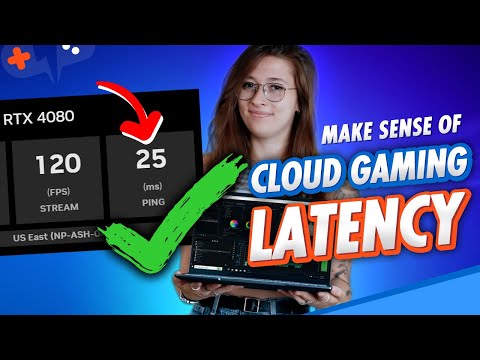
- Ideal Targets: For 1080p, aim for at least 25 Mbps. For 4K, you'll want 50 Mbps or higher. More critical than peak speed is latency (ping). A ping under 30ms to a nearby server is excellent. Over 70ms, and you'll likely feel delays.
Step 2: Conquer Your Local Network (The Most Important Step)
- Ethernet is King: Always use a wired Ethernet connection for your gaming device. Itprovides lower latency, higher stability, and no wireless interference.
- Wi-Fi Warriors: If you must use Wi-Fi:
- Use the 5 GHz band (less range but less interference) instead of 2.4 GHz.
- Ensure your router is in the same room or line-of-sight.
- Consider a Wi-Fi Mesh System (like eero, Google Nest) for whole-home coverage or a Powerline Adapter to carry signal through your electrical wiring.
Step 3: Prioritize Your Gaming Traffic
Modern routers have a feature called Quality of Service (QoS). Access your router's admin page (often 192.168.1.1) and find this setting. You can:
- Prioritize your gaming device's MAC or IP address.
- Prioritize the "Gaming" traffic category.
This tells your router to give data packets from your game the VIP lane on your network highway.
Step 4: Optimize Your Gaming Device
- Close Background Applications: Shut down unnecessary programs, especially web browsers, video players, and chat apps (Discord can be a resource hog).
- Disable Hardware-Accelerated GPU Scheduling (Windows): This can sometimes conflict with cloud streaming. Try turning it off in Windows Graphics Settings.
- Use a Lightweight Browser: If you're gaming via a browser (like for Xbox Cloud Gaming), use Microsoft Edge or Google Chrome and close all other tabs. Edge often has optimizations for Xbox services.
Step 5: Fine-Tune Your Cloud Service Settings
Don't just use defaults. Dive into the settings of your chosen service:
- GeForce NOW: In Settings > Streaming Quality, try "Custom" and match the resolution & frame rate to your display. Enable "Adjust for poor network conditions" if lag is frequent.
- Xbox Cloud Gaming: While in-game, open the overlay (menu button) and lower the stream quality if needed.
- General Tip: If available, lock the frame rate to 60 FPS unless you have an exceptionally good connection. 120 FPS demands much more bandwidth.
Alternative Solutions
- Try a Different Server Region: Most services let you manually choose a data center. Pick the one geographically closest to you.
- Upgrade Your Internet Plan: If you consistently have multiple users and devices online, a higher-bandwidth plan (e.g., 200 Mbps+) may be necessary.
- Use a Gaming VPN (Cautiously): In rare cases, your Internet Service Provider (ISP) may be "throttling" or poorly routing gaming traffic. A quality gaming VPN (like ExitLag)can sometimes provide a more direct, efficient route to the cloudservers. This can backfire, so test during a free trial.
How to Prevent the Issue from Happening Again
- Schedule Your Gaming: Avoid peak internet hours (evenings, weekends) if possible, when neighborhood network congestion is high.
- Dedicate Your Network: For serious sessions, ask housemates to avoid 4K streaming or large downloads.
- Keep Firmware Updated: Regularly update your router's firmware and the app/drivers on your gaming device.
- Invest in Your Router: If your router is more than 3-4 years old, consider upgrading to a modern Wi-Fi 6 model.
Frequently Asked Questions
Q1: Is a faster internet speed always the solution to cloud gaming lag?
A: Not always. While sufficient bandwidth (25+ Mbps) is crucial, stability and low latency (ping) are often more important than raw downloadspeed. A stable 50 Mbps connection is better for gaming than an unstable 1 Gbps one.
Q2: Can I use cloud gaming on any Wi-Fi connection?
A: You can, but public or shared Wi-Fi is not recommended due to highlatency, security risks, and data caps. A personal mobile hotspot fromyour phone can work in a pinch but watch for data overages.
Q3: Why is my picture blurry or pixelated, even with good internet?
A: This is usually your cloud service dynamically lowering the streambitrate to compensate for packet loss or jitter. It prioritizes a stable connection over visual fidelity. Follow the network optimization stepsabove, especially using Ethernet.
Q4: Does my PC or phone's processor matter for cloud gaming?
A: Yes, but less so for running the game. Your local device mustefficiently decode the video stream. A very old or low-end device mightstruggle with this, causing lag or high device temperature.
Q5: Is wired Bluetooth controller input lag noticeable?
A: Yes. For the absolute lowest latency, connect your controller directlyto your device via USB cable. If using Bluetooth, ensure your controller is charged and close to the device to avoid signal interference.
Closing with a Call to Action
Conquering cloud gaming lag is part art, part science, and entirely satisfying. By taking control of your local network and settings, you unlock the fullpotential of these incredible services, turning sci-fi convenience intoyour everyday reality.
What was the biggest lag-fix that worked for you? Share your own pro-tipsand experiences in the comments below—you might just help a fellowstreamer save their ranked match! And if you found this guide helpful,why not share it with your gaming squad? For more deep-dives intogetting the most out of Game Pass, GeForce NOW, and other services,explore our full library of optimization guides right here. Now, get back in the game—smoothly.
Other Articles Related
How to Set Up Surround Sound for GamingElevate your gaming experience! Learn how to set up surround sound at home,from choosing the right speaker layout to calibrating audio settings for immersive gameplay.
How to Apply Thermal Paste Correctly
Step-by-step guide for correctly applying thermal paste on CPUs and GPUs. Learnoptimal methods, common mistakes, and best practices to maximize cooling and hardware performance.
How to Improve Cooling in Your PC
Learn how to boost airflow, optimize components, and reduce heat for acooler, faster, and more stable PC. Discover step-by-step coolingupgrade tips.
How to Clean Your PC for Better Performance
Learn easy steps to clean your PC for better performance—remove junk files,manage startup programs, update drivers, and optimize settings.
How to Overclock Your CPU Safely
Step-by-step guide for safely overclocking your CPU. Learn proper cooling, voltagetuning, and stability testing to boost performance without riskingdamage. Achieve a stable overclock with confidence.
How to Overclock Your GPU Safely
Maximize GPU performance safely! Learn step-by-step GPU overclocking, essentialtools, stability testing, and temperature monitoring to boost speedwithout damage.
How to Fix High GPU Usage
"Learn effective solutions to reduce high GPU usage, improveperformance, and prevent overheating. Step-by-step troubleshooting guide for gamers and creators."
How to Fix High CPU Usage While Gaming
Fix high CPU usage while gaming with these effective troubleshooting tips.Learn to optimize settings, update drivers, and boost gaming performance effortlessly.
How to Boost Wi‑Fi Signal for Gaming
Maximize your gaming performance with expert tips on how to boost Wi‑Fi signalstrength. Reduce lag, eliminate drops, and ensure a stable connection.
How to Reduce Lag in Cloud Gaming
Level up your cloud gaming experience! Learn expert tips to reduce lag,optimize streaming quality, and enjoy smoother gameplay with ouractionable guide.
How to Enable HDR on Consoles
Learn how to activate HDR on your consoles effortlessly. Our detailedinstructions will help you elevate your gaming
How to Enable VRR on Your TV
Unlock the full potential of your TV with our guide on enabling VRR. Enhance your gaming and viewing experience today!
How to Reduce Screen Tearing
Discover how to enable VRR on your TV for smoother gaming and enhancedvisuals. Follow our step-by-step guide
How to Choose the Best Gaming Headset
Discover essential tips on how to choose the best gaming headset for an immersive experience. Elevate your gameplay
How to Optimize AMD Radeon Settings
Unlock the full potential of your gaming experience with our guide on how to optimize AMD Radeon settings for peak performance