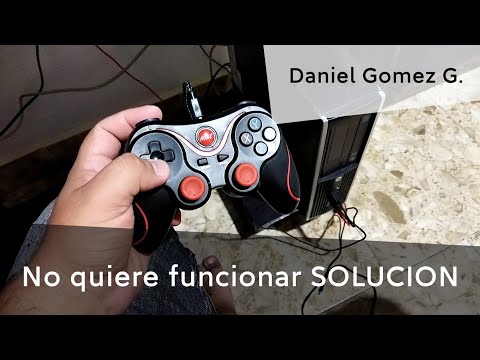
コントローラーを手に、壮大なゲームセッションに向けて準備万端なのに、PCがまるで何も知らないかのように反応してしまうことほどイライラすることはありません。「コントローラーが検出されません」というメッセージや反応しないボタンは、エルデンリングで広大なクエストに挑戦しようとしていたり、ロケットリーグで精密な動きを披露しようとしていたり、 Windows PCでコール オブ デューティのカオスなアクションに飛び込もうとしていたりする時でも、一瞬にして気分を台無しにしてしまうことがあります。
この接続トラブルは、コンソールの利便性とPCの汎用性の間にある、驚くほど一般的な問題です。これは通常、コントローラーの故障やPCの不調の兆候ではなく、通信の不具合が原因です。この問題は、コントローラーとPCの接続が、ハードウェアポート、無線プロトコル、ソフトウェアドライバー、ゲーム内設定など、繊細な要素を巧みに組み合わせているために発生します。ドライバーの破損、電力消費の激しいUSBポート、Steamの設定の難しさ、あるいは単純な物理的な接続の問題など、これらのいずれかの要素に問題があると、接続が切断される可能性があります。
キーボードとマウスに頼るのを諦めないでください。このガイドでは、30秒でできる簡単な解決策から、より詳細なトラブルシューティングまで、効果的な解決策をご案内します。コントローラーが、目に見えない道具から、再び頼りになる味方へと生まれ変わります。
「なぜ」を理解すると、「どう解決すればいいのか」が見えてくることがよくあります。よくある原因は次のとおりです。
物理的な接続の不良または緩み:ケーブルの擦り切れ、USB ポートのほこり、またはコネクタの差し込み不足が最も単純かつ一般的な原因です。
ドライバーが古い、破損している、または不足している: PCはハードウェアと通信するために「ドライバー」と呼ばれる小さなソフトウェアを使用しています。コントローラーのドライバー(またはWindowsの汎用ドライバー)が古い、または破損している場合、ハンドシェイクは失敗します。
電源管理の干渉:電力を節約するために、Windows は USB ポートへの電源をオフにして、デバイスを切断することがあります。
Steam のアグレッシブ設定: Steam の Big Picture モードには、強力だが、場合によっては過剰なコントローラー設定ツールがあり、Steam 以外のゲームの設定を上書きしたり、他のソフトウェアと競合したりすることがあります。
Bluetooth ペアリングの問題:ワイヤレス コントローラーの場合、信号干渉、距離、またはペアリングされたデバイスの数が多すぎることが原因で、ペアリングが失敗することがあります。
Third-Service Software Conflicts: Applications like DS4Windows, reWASD, or even peripheral software fromRazer or Logitech can sometimes conflict with native Windows support.
Controller Not in Correct Mode: Some controllers (like the DualShock 4) have different pairing modes for PC vs. PlayStation.
Simple Technical Explanation: Think of it like a conversation. Your controller speaks"Controller-ese," and your PC speaks "Windows." The driver is thetranslator. A bad cable is like a broken telephone line. Software likeSteam is like an overeager interpreter who sometimes interrupts andtakes over the conversation, confusing everyone.
If you need a fix in under two minutes, run through this checklist:
Unplug and Replug: Use a different USB cable and a different USB port on your PC(preferably one directly on the motherboard, not the front panel).
Restart Your PC: The classic IT solution. It clears temporary caches and resets USB controllers.
Check Steam Settings: If using Steam, open Big Picture Mode > Settings > Controller Settings. Ensure your controller type is detected and disable the configuration support for controllers you aren't using (e.g., disable PlayStation support if you're using an Xbox pad).
Follow these steps methodically. Try your controller after each step.
Wired: Try a high-quality data-sync USB cable (some cables are for charging only). Test every USB 2.0 and 3.0 port.
Wireless (Bluetooth): Go to Windows Settings > Bluetooth & devices. Remove your controller from the list of paired devices. Put yourcontroller into pairing mode (for Xbox, hold the sync button; forPlayStation, hold Share + PS button) and re-pair it.
Wireless (Dongle): For official Xbox Wireless Adapters, plug it into a different port. Ensure it's firmly seated.
Press Windows Key + X and select Device Manager.
Expand "Sound, video and game controllers" and "Human Interface Devices."
Look for your controller (e.g., "Xbox 360 Peripherals," "Wireless Controller").
Right-click on it and select "Update driver." Choose "Search automatically for drivers."
If that doesn't work, right-click again and select "Uninstall device." Restart your PC. Windows will automatically attempt to reinstall the correct driver upon reboot.
This stops Windows from cutting power to your controller.
Open the Control Panel > Power Options.
Click "Change plan settings" next to your active plan, then "Change advanced power settings."
Expand USB settings > USB selective suspend setting.
Set both "On battery" and "Plugged in" to Disabled. Click Apply & OK.
Steam is a major culprit.
Open Steam and go to Settings > Controller > General Controller Settings.
You'll see detection boxes for Xbox, PlayStation, Nintendo, and Generic controllers.
Uncheck every box except for the typeof controller you are actively using. If you're playing a non-Steamgame, try disabling all of them as a test.
Also, in the main Steam Settings under Interface, ensure "Start Steam in Big Picture Mode" is unchecked unless you need it.
Is the controller dead everywhere?
Open your web browser and go to a site like gamepad-tester.com. This bypasses Steam and games entirely.
If it works here, the issue is with your specific game or launcher (Steam/Epic). Check the game's own input settings.
Go to Settings > Windows Update and install any pending updates.
If you use an Xbox Elite, Razer, or other brandedcontroller, check the manufacturer's app (Xbox Accessories app, RazerSynapse) for firmware updates.
Go to Settings > System > Troubleshoot > Other troubleshooters.
Run the "Hardware and Devices" troubleshooter and follow its prompts.
Use a Third-Party Tool (As a Solution, Not a Cause): If a PlayStation controller isn't being recognized, DS4Windows can force it to appear as an Xbox controller, which has universal support. Ensure you've uninstalled any old drivers first.
System Restore: If the problem started recently, use System Restore to roll back your PC to a point before the issue began.
Test on Another PC: This is theultimate test. If the controller works on another computer, the issue is firmly within your primary PC's software/drivers. If it doesn't work,the controller itself may be faulty.
Designate a "Gaming" USB Port: Always use the same, high-quality USB port for your dongle or cable to minimize wear and tear.
Keep Drivers Updated: Periodically check for optional driver updates in Windows Update or via the Device Manager.
Manage Your Bluetooth Environment: Reduce interference by keeping routers and other wireless devices a few feet from your Bluetooth adapter.
Steam Hygiene: Be mindful when enabling or disabling controller support in Steam. Only enable what you need.
Q: My controller works on the gamepad tester website but not in my game. What gives?
A: This confirms the hardware is fine. The issue is with the game orlauncher. Go into the game's settings menu and look for an "Input" or"Controller" section. Ensure the controller is enabled and set as theprimary input device.
Q: Do I need DS4Windows for my PlayStation controller on Windows 10/11?
A: Not necessarily. Modern Windows 10/11 and Steam have native support for DualShock 4 and DualSense. Only use DS4Windows if games are notrecognizing it natively.
Q: Can a low battery cause detection issues?
A: Absolutely. A critically low battery can cause erratic behavior, includingdisconnections and failed detection. Always ensure your wirelesscontroller is adequately charged.
Q: Does Windows 11 have more controller issues than Windows 10?
A: Not inherently. The core drivers and processes are similar. However,any major OS update can occasionally reset settings or introducetemporary driver incompatibilities, making the solutions above equallyvalid.
Q: Is an official Xbox Wireless Adapter better than Bluetooth?
A: For Xbox controllers, yes. The proprietary adapter offers a morestable, lower-latency connection with support for multiple controllersand native headset audio passthrough, which Bluetooth lacks.
A PC not detecting your controller is a solvable obstacle. By following this structured guide—starting with the simple cable swap and moving through driver resets and software settings—you’re armed todefeat this digital gremlin in almost all its forms.
Don't let a simple connection issue rob you of your gaming time. Work through these steps, identify your specific fix, and reclaim yourpreferred way to play. Your library of adventures awaits—grab thatcontroller, get it recognized, and dive back in.
Found this guide helpful? Bookmark it for future reference,and share it with a fellow gamer who might be facing the samefrustrating black screen of controller-less despair!