Ashes of CreationでIntrepidアカウントをSteamにリンクする方法
Daniel Hidalgo | 2025-12-14 19:37:41 | 日本語
Ashes of Creationの世界が、ついにより幅広い冒険者たちへと門戸を開きます。Intrepid Studiosが手掛けるこの野心的なMMORPGは、早期アクセス期間を終え、2025年12月11日にSteamでの正式リリースという重要な節目を迎えました。世界最大のPCゲームプラットフォームであるSteamへの移行は、本作のダイナミックなノードベースの世界とプレイヤー主導の経済を、膨大な数の新たなプレイヤー層に届けることを約束します。しかし、このエキサイティングな拡張には、ベテランの支援者と新規プレイヤーの両方にとって、重要な一度限りのステップが伴います。それは、Intrepid StudiosアカウントとSteamアカウントの連携です。
なぜこれが必要なのでしょうか? Ashes of Creationには熱心なコミュニティとの長い歴史があり、その多くはSteamデビューの何年も前から、公式Ashes of Creationウェブサイトから直接パッケージを購入することでゲームを応援してきました。プレイヤーの進行状況、購入履歴、創設者のステータスを維持するために、IntrepidStudiosは独自のアカウントシステムを使用しています。リンクプロセスにより、アルファテスターとして復帰した方でも、Steamから新しく参加した方でも、すべての資格とIDがシームレスに同期されます。プロセスはわかりやすく設計されていますが、2つの異なるプラットフォーム間を移動することで混乱が生じる場合があります。この包括的なガイドでは、すべての手順を詳しく説明し、よくある問題のトラブルシューティングを行い、Verraをすぐにプレイできるように準備を整えます。
アカウントをリンクする必要がある理由とは?その背景を理解する
Steamを初めてプレイするプレイヤーにとって、別のアカウントを作成する必要があるのは戸惑うかもしれません。Intrepidアカウントを長年ご利用いただいている方は、既存のアカウントがまだ有効かどうか疑問に思われるかもしれません。そこで、疑問を解消しましょう。
Ashes of Creationの開発は当初からコミュニティを重視しており、資金調達とテストはIntrepidの独自ポータルを通じて行われています。Intrepidアカウントは、Ashes of Creationに関わるすべての情報(ゲームライセンス、コスメティックパック、ファウンダーズタイトル、そして将来的にベータ版へのアクセスなど)のマスターレコードです。Steamは、この場合、主に配信およびパッチ適用プラットフォームとして機能します。このリンクは基本的にSteamに「このユーザーはプレイする権限を持っています」と伝え、Intrepidのサーバーに「このSteamユーザーは実は私たちの忠実なサポーターである[ユーザー名]です」と伝えます。
データは失われません。Intrepidアカウントは真実の情報源として残ります。このシステムは、早期に投資したプレイヤーを保護し、Intrepidが複数の流通チャネルを通じてプレイヤーベースとの直接的な関係を維持することを可能にします。
Solution at a Glance (For the Impatient Adventurer)
Short on time? Here's the ultra-quick version:
If you bought on Steam: Launch the game, click "Link Account" on the splash screen, and followthe prompts to either log in to an existing Intrepid account or create a new one.
If you bought on the Intrepid Site: Log into your account on the Ashes of Creation website, go to Account Settings > Account Connections, click "Connect" next to Steam, and authorize the link.
Done! The game should nowappear in your Steam library or become accessible. For everyone else,let's dive into the detailed, foolproof steps.
Detailed Step-by-Step Linking Instructions
Follow the section below that matches your situation.
Scenario A: I Purchased Ashes of Creation on the Official Website (Returning Player/Veteran)
This is for the backers, Alpha testers, and anyone who bought an Early Access Bundle directly from Intrepid Studios.
Step 1: Prepare Your Accounts
Ensure you know the login credentials for your Intrepid Account. Also, make sure you are logged into your desired Steam account on your browser or client.
Step 2: Log into the Intrepid Portal
Visit the official Ashes of Creation Account Portal. Click "Sign In" and enter your Intrepid account details.
Step 3: Navigate to Account Connections
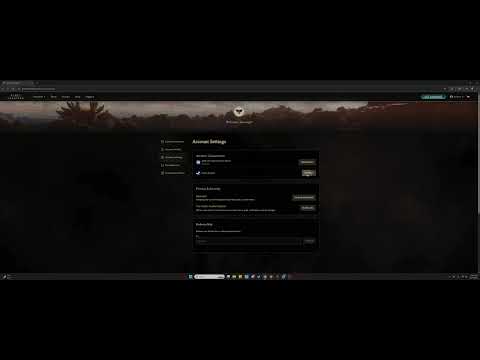
Once logged in, click on your profile icon or name in the top-right corner and select "Account Settings" from the dropdown menu. On the settings page, look for a tab or section labeled "Account Connections," "Linked Accounts," or "Third-Party Connections."
Step 4: Initiate the Steam Link
In the connections menu, you should see the Steam logo with a "Connect" or "Link" button next to it. Click this button.
Step 5: Authorize Through Steam
You will be securely redirected to the official Steam website. You’ll see a page asking, "Sign in to ashesofcreation.com?" It will list the information Intrepid is requesting (typically justyour public Steam Profile ID and username). This is a standard OAuthprocess and is secure.
If you are not logged into Steam in your browser, log in now.
Click "Sign In" or "Authorize" to grant the linking permission.
Step 6: Confirmation
You should be redirected back to the Intrepid portal with asuccess message (e.g., "Steam account successfully linked"). The"Connect" button should now change to "Disconnect" or a similar statusindicator.
Step 7: Access on Steam
Open your Steam client. Navigate to your Library. Ashes of Creation should now appear in your game list. You can download andinstall it. When you launch, you will be logged in automatically withyour linked Intrepid account.
Scenario B: I Purchased Ashes of Creation on Steam (New Player)
This is the path for players who discovered the game on Steam and purchased it there.
Step 1: Purchase & Install
First, ensure you have purchased and installed Ashes of Creation through the Steam store.
Step 2: Launch the Game
In your Steam Library, click "Play" on Ashes of Creation.
Step 3: Click the Link Prompt
The game will launch to a splash screen or launcher. Since itdetects no linked account, it will display a prominent button: "Link Account" or "Connect Your Intrepid Account." Click it.
Step 4: Browser Redirection
This will automatically open your default web browser to a specific linking page on the Ashes of Creation website.
Step 5: Log In or Register
If you have an existing Intrepid account: Simply log in with your credentials on this page.
If you are new: Click "Register" or "Create Account." Fill out the form to create your new Intrepid Studios account. Use a valid email, as you may need to verify it.
Step 6: Authorize the Link
After logging in or registering, you will encounter the same Steam authorization page: "Sign in to ashesofcreation.com?" Ensure you are logged into the correct Steam account in your browser. Click "Sign In" to approve the link.
Step 7: Return to Game
Once authorized, your browser may display a success messagelike "You may now close this window." Return to the Ashes of Creation game windowon Steam.
Step 8: Complete the Process
The game client/launcher should automatically detect the successful link and proceed. You may need to click a "Continue" or "Play" button on the initial splash screen. The game will now launch, and your journey in Verra begins.
What to Do If the Link Fails (Alternative Solutions & Troubleshooting)
Sometimes, the path isn't smooth. Here’s what to try if you hit a snag:
The "Connect" Button is Greyed Out or Missing: This usually means your Intrepid account does not have a valid game license attached. Ensure you have purchased an Early Access Bundle from the Intrepid Shop. If you bought from Steam, you must use the in-game linking flow (Scenario B), not the website portal.
Steam Says "Account Already Linked":Each Intrepid account can only link to one Steam account, andvice-versa. You cannot share or re-use a link. If you're getting thiserror on a new Steam account, your Intrepid account is likely linked to a different, old Steam account. You must disconnect it in the AccountConnections panel first.
The Game Doesn't Appear in My Steam Library: After linking from the website (Scenario A), try the following:
Restart the Steam client completely.
In Steam, go to Library > Games. Check the drop-down filter—make sure it's set to "All Games," not just "Installed."
Use the search bar in your Steam library and type "Ashes of Creation."
Browser Pop-Up Blockers: If clicking"Link Account" in the game does nothing, your browser's pop-up blockermay be preventing the redirect. Temporarily allow pop-ups forashesofcreation.com or try holding Ctrl (or Cmd on Mac) while clickingthe link.
How to Prevent Future Issues
Keep Your Email Updated: Your Intrepid account email is crucial for recovery and communication. Keep it current.
Use a Password Manager: Avoid loginconfusion by using secure, unique passwords for both your Intrepid andSteam accounts, stored in a reliable manager.
Document Your Purchase IDs: Keep the confirmation emails for any purchases made on the Intrepid site. The support team may ask for these.
Only Link Once, Link Correctly: Beabsolutely certain you are logged into the correct Steam and Intrepidaccounts before finalizing the link. It's a permanent bond.
Frequently Asked Questions (FAQ)
Q: Is my founder status/pack from the Intrepid site preserved if I link to Steam?
A: Yes, absolutely. All items, titles, and status attached to your Intrepid account remain intact. Steam is just a launch platform.
Q: Can I unlink my Steam account later?
A: Yes, but the process is not instant. You can initiate an unlink from the Account Connections panel on theIntrepid site. However, there is often a cooldown period (e.g., 30-90days) before you can link a new Steam account to prevent abuse.
Q: I have two Intrepid accounts. Can I merge them?
A: No, account merging is not supported. You must choose which Intrepid account (and its associated licenses) you wish to link to your Steam account.
Q: Intrepidのサイトでゲームを所有していて、Steamでも購入したい場合、二重に支払う必要がありますか?
A: いいえ。既存のライセンスをリンクすると、Steamで追加料金なしでアクセスできるようになります。どちらのストアでも、ゲームは一度だけ購入すれば十分です。
Q: ゲームで「キー」の入力を求められます。どこで確認できますか?
A: Steam リリース前に Intrepid のサイトからパックを購入された場合は、Steamキーが提供されている可能性があります。Intrepid アカウントの「マイオーダー」セクション、または購入時のメールをご確認ください。Steam で直接購入された場合、または今からリンクを設定される場合、キーは必要ありません。リンク設定によってキーが置き換えられます。
結論と行動への呼びかけ
IntrepidアカウントとSteamアカウントの連携は、常に進化を続けるAshes of Creationの世界に没頭するための、最後の簡単なゲートキーピングの儀式です。追加の手順が必要になりますが、サポーターとしてのレガシーを守り、Verraにおける統一されたアイデンティティを確保するために支払う小さな代償です。
レガシーを築く準備はできましたか?以下の道を選んでください。
アカウントを連携させると、プラットフォームとプレイヤーの垣根は消え、プレイヤーの形をした広大なAshes of Creationの世界だけがあなたの影響力を待ち受けます。Verraでお会いしましょう
 ▶
▶ クラッシュに悩まされていませんか?PCやコンソールでゲームが頻繁に終了する原因を突き止めましょう。破損したファイル、ドライバーの問題、過熱などの修復方法を学び、すぐにゲームを再開しましょう。
PCがコントローラーを認識しない:効果的な解決策 - 修正方法 PCがコントローラーを認識しませんか?Windows PCの接続問題を迅速に解決するための効果的な解決策をご紹介します。ステップバイステップのトラブルシューティング方法を学びましょう。
PCゲームで画面が真っ黒になる:解決方法 PCゲームのブラックスクリーンに関する問題のトラブルシューティングと解決方法をご紹介します。ドライバー、ハードウェア、ゲーム設定に関する問題をステップバイステップで解決し、ゲームを再開しましょう。
Destiny 2 Renegadesでサイト間トランスマットを介して貨物を輸送する方法 Destiny 2の「レネゲード」ミッションで、サイト間トランスマットを使って貨物を輸送する方法を学びましょう。この目標を達成し、クエストを進めるためのクイックガイドです。
Pokemon Legends Z-Aでローグメガニャースティックを倒す方法 ルミオンシティのサイキックの猛威に立ち向かえ!戦略、タイプ相性、そしてチーム編成を学んで、『ポケモンレジェンズZA』で恐るべきメガニャースを倒そう!
GTA OnlineのPfister X-Tremeについて知っておくべきこと GTA OnlineでPfister X-Tremeをマスターしましょう。パフォーマンス、アップグレード、価格、そしてレースとスタイルを両立させたこの最高級スポーツカーのアンロック方法など、完全ガイドを入手しましょう。
ゲームを保存できない:どのゲームでも修正する方法 ゲームのセーブに関する問題を専門家のヒントと解決策で解決しましょう。ゲームをトラブルシューティングして復元する方法を学びましょう。
Clair Obscur Expedition 33でシックな服装を手に入れる方法 Clair Obscur: Expedition 33 のすべてのシックな衣装のロックを解除する方法を学びましょう。コスメティック ギアを獲得し、あらゆる遠征に合わせてキャラクターのスタイルをカスタマイズするためのガイドを入手してくã
DirectXが動作しなくなった場合の修正方法:原因と解決策 「DirectXが動作を停止しました」というエラーに対する効果的な解決策。ゲームやアプリケーションをスムーズに動作させましょう。
Fortniteがサーバーに接続できない問題を修正する方法 Fortnite接続エラーでお困りですか?問題を解決してゲームを再開するための効果的な解決策を見つけましょう
Ashes of CreationでIntrepidアカウントをSteamにリンクする方法 IntrepidアカウントをSteamに接続して、Ashes of Creationを獲得しましょう!簡単なガイドに従ってアカウントをリンクすると、シームレスなアクセス、予約特典、将来のベータ版への参加が可能になります。
6945369451
Clair Obscur Expedition 33のVerso's Drafts DLCのすべての武器 新たな戦争兵器をすべて使いこなせ。Clair Obscur: Expedition 33のVerso's DraftsDLCに登場する全武器の完全ガイドをご覧ください。ステータス、アップグレード、そして強力な武器のアンロック方法を網羅しています。
69452
Windowsのエラー0xc0000005:確実な解決策 こちらのガイドで、PCのエラー0xc0000005を修正しましょう。このよくある問題を解決するための効果的な解決策を見つけましょう。
69450
Xbox Series/One のエラー 0x87e50007: 解決方法 Xboxでエラー0x87e50007が発生する場合の対処法をステップバイステップガイドでご紹介します。トラブルシューティングを行い、迅速に問題を解決しましょう。
69449
ゲーミングモニターの選び方:2026年版完全ガイド ゲーミングモニター選びの究極ガイド。解像度、リフレッシュレートに関する専門家のヒントで、ゲーミング体験を向上させましょう。
Note: Due to the fact that this post is a translation of the original content that was published in English, we would like to offer our most sincere apologies in the case that the translation is perceived as being wrong. We have made it our purpose to provide each and every one of our customers with the absolute finest experience that we are capable of providing. In the event that you find any errors, please do not be reluctant to get in touch with us; we will do all in our power to correct them as early as we possibly can. I would want to express my appreciation for your intervention.