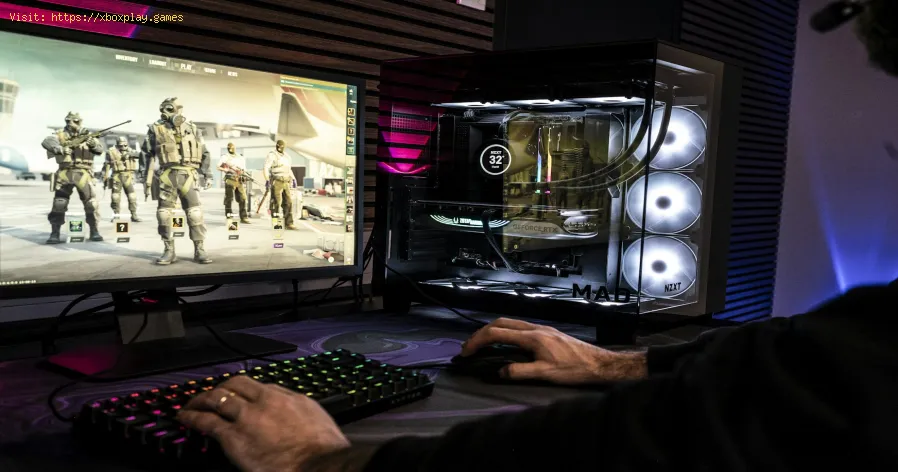
PCやコンソールでゲームが終了してしまう場合の対処法 - 原因と解決策
Daniel Hidalgo | 2025-12-14 21:33:13 | 日本語
デジタル世界にどっぷり浸かっているのに、突然何の前触れもなくゲームが終了してしまうことほどイライラさせられることはありません。最終ボス戦の最中、オンライン対戦の最中、広大なオープンワールドを探索中など、予期せぬクラッシュはゲーム体験を台無しにし、プレイヤーの忍耐力を試すことになります。PCでは「デスクトップへのクラッシュ」、コンソールでは「予期せぬアプリケーションの終了」と呼ばれるこの問題は、ハイエンドゲーミングPCからPlayStation、Xbox、Nintendo Switchまで、あらゆるプラットフォームのゲーマーを悩ませています。
この問題は、「サイバーパンク2077」や「コール オブデューティ」といった超大作AAAタイトルから、小規模なインディーゲームまで、あらゆるタイトルに影響を与える可能性があります。突然のゲーム終了は、ゲーム自体が「壊れている」ということではなく、ハードウェア、ソフトウェア、ドライバといったシステムの複雑なエコシステムにおける不一致や競合の兆候です。基本的に、ゲームとマシン間の繊細な通信チェーンに何らかの障害が発生し、保護措置として、あるいは解決不可能なエラーによって強制的にシャットダウンします。これを理解することが、安定したゲームセッションへの第一歩です。
根本原因: ゲームが終了し続けるのはなぜですか?
クラッシュは症状であり、効果的な治療には原因の診断が必要です。ここでは、最も一般的な原因を簡単に説明します。
古くなった、または破損したGPUドライバー:グラフィックカードドライバーは、ゲームとハードウェア間の重要な翻訳者です。ドライバーが古かったり、バグがあったり、破損していたりすると、命令が失われ、クラッシュにつながります。
システムの過熱:ゲームはCPUとGPUに過負荷をかけます。温度が安全限界(多くの場合85~90℃以上)を超えると、コンポーネントは物理的な損傷を防ぐためにパフォーマンスを低下させたり、完全にシャットダウンしたりします。ファンのほこりや換気の悪さが原因となることがよくあります。
ゲームファイルの破損:ゲームのインストール時に、1つのファイルが欠落しているか正しくないと、インストールプロセス全体が中断される可能性があります。これは、アップデート後、インストール中、またはディスクエラーによって発生することがよくあります。
ソフトウェアの競合:バックグラウンド プログラム (特にオーバーレイ (Discord、Xbox Game Bar、Steam Overlay)、RGB制御ソフトウェア、ウイルス対策ソフトウェア、その他のアプリ)は、ゲームとリソースを奪い合ったり、競合するコードを挿入したりする可能性があります。
システムリソース不足: PCのRAMまたはVRAMの空き容量が不足している可能性があります。ゲームに必要なメモリ容量が不足すると、重要なデータを保存する場所がなくなり、クラッシュする可能性があります。
オペレーティング システムの問題: Windows/コンソール システム ソフトウェアが古かったり、重要なランタイム ライブラリ (DirectX や Visual C++ など) が不足していたり、OS ファイルが破損していると、ゲームの安定性が損なわれる可能性があります。
Hardware Instability or Failure: An underpowered or failing Power Supply Unit (PSU), faulty RAM, or anoverclocked component pushed beyond its stable limits can cause randomcrashes.
Console-Specific Cache Issues: Consoles have temporary system caches that, when clogged, can cause performance issues and game crashes.
The Quick Fix (For the Impatient Gamer)
Short on time? Try these three universal steps first—they solve a majority of common crashes:
Restart Your PC or Console. A full reboot clears temporary memory and stops conflicting processes.
Update Your Graphics Drivers (PC) or System Software (Console). Go to NVIDIA, AMD, or Intel's website for PC, or check system updates in your console settings.
Verify/Repair Your Game Files. On Steam: Library > Right-click game > Properties > InstalledFiles > "Verify integrity of game files." On console, tryuninstalling and reinstalling the game.
Detailed, Step-by-Step Solutions
If the quick fixes didn't work, let's systematically troubleshoot.
For PC Gamers:
Step 1: Run as Administrator & Disable Overlays
Right-click the game's shortcut .exe file, select Properties> Compatibility, and check "Run this program as an administrator."Then, disable overlays in Discord, Steam (Steam > Settings >In-Game), and the Xbox Game Bar (Windows Settings > Gaming).
Step 2: Perform a Clean GPU Driver Update
Don't just update; do a clean install. Use a tool like Display Driver Uninstaller (DDU) in Safe Mode to wipe all old driver traces, then install the latest driver fresh from NVIDIA or AMD.
Step 3: Monitor Your Temperatures
Download HWMonitor or MSI Afterburner. Play for a few minutes,then check max CPU and GPU temps. If they're consistently above 90°C,you have an overheating issue. Clean dust from vents and fans, ensureproper airflow, and consider repasting thermal compound if comfortable.
Step 4: Close Background Applications
Press Ctrl + Shift + Esc to open Task Manager. Before launching your game, close non-essential high-resource apps, especially RGBsoftware, browser tabs with many videos, and chat apps.
Step 5: Adjust In-Game Graphical Settings
Lower settings that are heavy on VRAM, like Texture Quality,Shadows, and Anti-Aliasing. Disable features like Ray Tracing to test.Set a stable FPS cap (like 60 or 120) instead of using "Unlimited."
For Console Gamers (PlayStation/Xbox):
Step 1: Clear the System Cache (Power Cycle)
Turn off your console completely (not Rest Mode).
Unplug the power cord from the back for at least 60 seconds.
Plug it back in and restart. This clears cached data that can cause conflicts.
Step 2: Rebuild Database (PS) or Clear Local Saved Games (Xbox)
PS4/PS5: Boot into Safe Mode (turn off, then hold power button for 7 seconds until you hear two beeps). Select "Rebuild Database." This defrags your drive and cleans up data.
Xbox: Go to Settings > System > Storage > Clear local saved games. This will sync with the cloud on next boot. Do not select "Remove everywhere."
Step 3: Ensure Proper Ventilation
Consoles need space. Move your console to an open area, notinside a closed cabinet. Clean visible dust from the vents usingcompressed air.
Step 4: Check for System Software Updates
Manually check for updates: Settings > System > System Software Update (PS) or Settings > System > Updates (Xbox).
Step 5: Reinstall the Game
As a last resort, fully uninstall the game, restart yourconsole, and download it again. This ensures a clean installation.
Alternative Fixes to Try
Update Your BIOS/UEFI (PC Advanced Users): An outdated motherboard BIOS can cause instability. Visit yourmotherboard manufacturer's website for instructions—proceed withcaution.
Scan for Windows Corruption: Open Command Prompt as Admin and run: sfc /scannow
Adjust Windows Power Settings: Set your Power Plan to "High Performance" (Windows Control Panel > Hardware and Sound > Power Options).
Disable Fullscreen Optimizations (Windows 10/11): Right-click game .exe > Properties > Compatibility > Check "Disable fullscreen optimizations."
How to Prevent Future Crashes
Maintain Your System: Regularly clean dust from your PC or console vents every 3-6 months.
Adopt a Proactive Update Routine: Set a monthly reminder to check for GPU drivers and system updates.
Manage Your Storage: Keep at least 15-20% of your hard drive or SSD free for optimal performance and to prevent file corruption during updates.
Invest in Good Hardware: Ensure yourPSU is from a reputable brand and has enough wattage for yourcomponents. Consider more RAM if you multitask heavily.
Frequently Asked Questions (FAQ)
Q: Is my game crashing because my hardware is too old?
A: Possibly, but not necessarily. It's more likely due to outdated drivers or overheating on older hardware. Lowering graphical settings is thefirst test.
Q: Could it be a problem with my save file?
A: Yes, particularly in open-world games. Try loading a slightly oldersave file to see if the crash persists in the same location/action.
Q: オンラインマルチプレイヤーでのみクラッシュします。何が原因でしょうか?
A:これは多くの場合、ネットワークまたはアンチチートの問題を示しています。ゲームファイルの検証、ネットワークドライバーの更新、ファイアウォール/ウイルス対策ソフトの一時的な無効化などをお試しください。
Q: Windowsを再インストールすべきでしょうか?
A:ソフトウェアを中心とした他の解決策をすべて試した後、最後の手段としてのみ再インストールしてください。これは究極の選択肢ですが、OSの根深い破損を修復できる可能性があります。
安定してクラッシュのないゲームを再開
ゲームのクラッシュは複雑なパズルですが、ほとんどの場合解決可能です。この体系的なガイド(簡単な修正から詳細な解決策まで)に従うことで、不安定さの最も一般的な原因を診断し、克服できるようになります。重要なのは、忍耐と体系的なアプローチです。ハードウェアの修正や大規模な再インストールを検討する前に、最も簡単なソフトウェアの修正から始めてください。
技術的なトラブルで冒険を諦めないでください。今日からステップ1、つまり簡単な再起動とアップデートから始めましょう。このガイドを、ゲームに困っている友達と共有して、一番大切なこと、つまりクラッシュのないゲームを楽しみましょう。
 ▶
▶ クラッシュに悩まされていませんか?PCやコンソールでゲームが頻繁に終了する原因を突き止めましょう。破損したファイル、ドライバーの問題、過熱などの修復方法を学び、すぐにゲームを再開しましょう。
Pokemon Legends Z-Aでローグメガニャースティックを倒す方法 ルミオンシティのサイキックの猛威に立ち向かえ!戦略、タイプ相性、そしてチーム編成を学んで、『ポケモンレジェンズZA』で恐るべきメガニャースを倒そう!
GTA OnlineのPfister X-Tremeについて知っておくべきこと GTA OnlineでPfister X-Tremeをマスターしましょう。パフォーマンス、アップグレード、価格、そしてレースとスタイルを両立させたこの最高級スポーツカーのアンロック方法など、完全ガイドを入手しましょう。
ゲームを保存できない:どのゲームでも修正する方法 ゲームのセーブに関する問題を専門家のヒントと解決策で解決しましょう。ゲームをトラブルシューティングして復元する方法を学びましょう。
Clair Obscur Expedition 33でシックな服装を手に入れる方法 Clair Obscur: Expedition 33 のすべてのシックな衣装のロックを解除する方法を学びましょう。コスメティック ギアを獲得し、あらゆる遠征に合わせてキャラクターのスタイルをカスタマイズするためのガイドを入手してくã
DirectXが動作しなくなった場合の修正方法:原因と解決策 「DirectXが動作を停止しました」というエラーに対する効果的な解決策。ゲームやアプリケーションをスムーズに動作させましょう。
Fortniteがサーバーに接続できない問題を修正する方法 Fortnite接続エラーでお困りですか?問題を解決してゲームを再開するための効果的な解決策を見つけましょう
Ashes of CreationでIntrepidアカウントをSteamにリンクする方法 IntrepidアカウントをSteamに接続して、Ashes of Creationを獲得しましょう!簡単なガイドに従ってアカウントをリンクすると、シームレスなアクセス、予約特典、将来のベータ版への参加が可能になります。
Clair Obscur Expedition 33のVerso's Drafts DLCのすべての武器 新たな戦争兵器をすべて使いこなせ。Clair Obscur: Expedition 33のVerso's DraftsDLCに登場する全武器の完全ガイドをご覧ください。ステータス、アップグレード、そして強力な武器のアンロック方法を網羅しています。
Windowsのエラー0xc0000005:確実な解決策 こちらのガイドで、PCのエラー0xc0000005を修正しましょう。このよくある問題を解決するための効果的な解決策を見つけましょう。
Xbox Series/One のエラー 0x87e50007: 解決方法 Xboxでエラー0x87e50007が発生する場合の対処法をステップバイステップガイドでご紹介します。トラブルシューティングを行い、迅速に問題を解決しましょう。
6946769466
PCがコントローラーを認識しない:効果的な解決策 - 修正方法 PCがコントローラーを認識しませんか?Windows PCの接続問題を迅速に解決するための効果的な解決策をご紹介します。ステップバイステップのトラブルシューティング方法を学びましょう。
69465
PCゲームで画面が真っ黒になる:解決方法 PCゲームのブラックスクリーンに関する問題のトラブルシューティングと解決方法をご紹介します。ドライバー、ハードウェア、ゲーム設定に関する問題をステップバイステップで解決し、ゲームを再開しましょう。
6946469463
Note: Due to the fact that this post is a translation of the original content that was published in English, we would like to offer our most sincere apologies in the case that the translation is perceived as being wrong. We have made it our purpose to provide each and every one of our customers with the absolute finest experience that we are capable of providing. In the event that you find any errors, please do not be reluctant to get in touch with us; we will do all in our power to correct them as early as we possibly can. I would want to express my appreciation for your intervention.