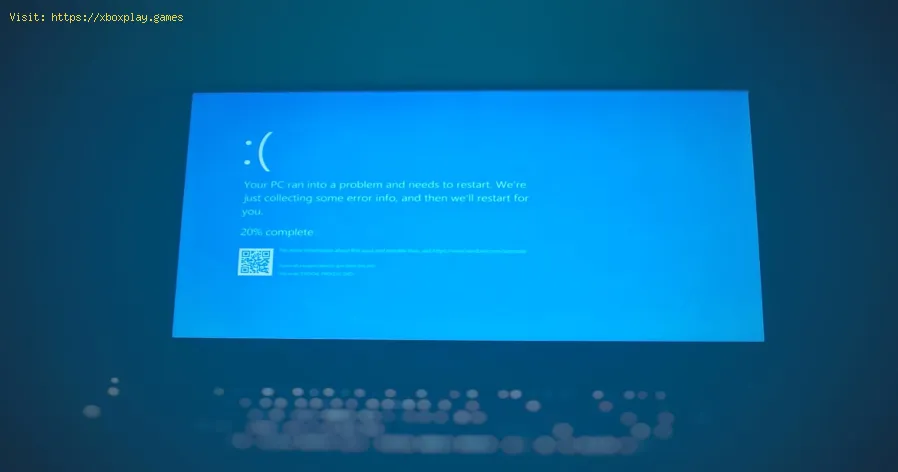
How to Fix PC Blue Screen While Gaming
What’s Actually Causing My Game to Crash?
A BSOD is a symptom, not the disease. Think of it as your PC’s emergency brake. Here are the most common culprits when it happens under gaming load:Quick Solution for the Impatient Gamer
If you need to get back in the game fast, follow this triage:Detailed Step-by-Step Solutions
Follow these steps methodically. The order is designed to tackle the most common and easiest fixes first.Step 1: Gather Intelligence – Decode the BSOD
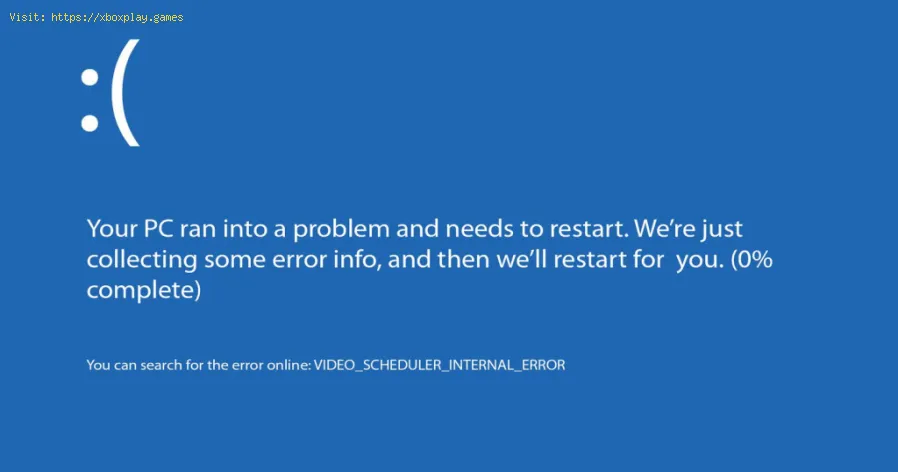
The error code is your clue. After a crash, write down:- The stop code (e.g., DPC_WATCHDOG_VIOLATION).
- The faulty file (often ending in .sys), like nvlddmkm.sys (NVIDIA driver) or atikmdag.sys (AMD driver).
A quick web search of this code and file can instantly point to a likely cause (e.g., a driver issue).
Step 2: The Driver Deep Clean
Corrupted drivers are a prime cause.Step 3: Tackle the Heat – Cool It Down
Overheating is a silent killer.
- Physically clean your PC. Power down, unplug, and use compressed air to blow dust out of fans, heatsinks, and filters.
- Monitor temperatures. Use HWMonitor or MSI Afterburner to log temperatures while gaming. If CPU/GPU temps consistently hit 90-95°C+, cooling is inadequate.
- Improve airflow. Ensure your case has a logical airflow path (typically front intake,rear/top exhaust). Consider adding more fans or repositioning existingones.
- Reapply thermal paste. If your CPU is old (3+ years) and running hot, replacing the driedthermal paste between the CPU and its cooler can drop temperaturessignificantly.
Step 4: Test Your Memory
Faulty RAM can cause myriad BSODs.
- Use the built-in Windows Memory Diagnostic. Search for it in the Start menu, run it, and let it restart and test.
- For a more thorough test, use MemTest86. Create a bootable USB, run it for at least 4 passes. Any errors mean your RAM is faulty and needs replacing.
- Disable XMP/DOCP: If you’ve overclocked your RAM via a profile in BIOS, go back into BIOS and disable it, running your RAM at its default JEDEC speed (often 2133 or 2400 MHz). If the BSODs stop, your RAM or motherboard may not handle the overclock stably.
Step 5: Stress Test and Power Check
This step checks system stability and power integrity.
- Stress Test: Use FurMark for GPU stress and Prime95 (Small FFTs) for CPU stress. Run them separately while monitoring temperatures. Warning: These tools push components to the absolute max—only run for 10-15 minutes to check for immediate crashes.
- Check Your PSU: This is harder to test without spare parts. Listen for coil whine, and consider the PSU’s age (over 5 years is a risk). Use a PSU calculator online to ensure your unit has enough wattage for your entire systemwith a 20-30% overhead. If you suspect the PSU, replacing it is oftenthe only sure test.
Alternative Solutions: When the Usual Fixes Fail
- Windows System Integrity: Open Command Prompt as Admin and run: sfc /scannow followed by DISM /Online /Cleanup-Image /RestoreHealth. This repairs corrupted Windows system files.
- BIOS/UEFI Update: An outdated motherboard BIOS can cause compatibility issues with newerhardware and games. Check your motherboard manufacturer’s website forthe latest BIOS and update carefully (a power loss during this can brick your board).
- Undo All Overclocks: If you’ve overclocked anything (CPU, GPU, RAM), revert everything to stock/default settings in BIOS and via tools like MSI Afterburner. Test for stability.
How to Prevent the BSOD From Happening Again
- Maintain Your PC: Clean dust from filters and interiors every 3-6 months. It’s the simplest preventative maintenance.
- Update Drivers Judiciously: Don’t update GPU drivers on day one unless the update mentions fixesfor your specific game. Wait a few days for community feedback. But doupdate every month or two.
- Monitor Temperatures: Keep an OSD (On-Screen Display) from MSI Afterburner running to keep an eye on temps during long gaming sessions.
- Invest in Quality Power: Don’t skimp on the Power Supply Unit. A reliable, 80+ Bronze or Goldrated PSU from a reputable brand is foundational for stability.
- Ensure Physical Connections: Periodically ensure your GPU, RAM sticks, and power cables are fully seated in their slots.
Frequently Asked Questions (FAQs)
Q: Is a BSOD while gaming damaging my PC?
A: The BSOD itself is a protective measure to prevent damage. However, the underlying cause—like severe overheating or afailing PSU—can indeed cause long-term harm if not addressed.
Q: Can a specific game cause BSODs?
A: Yes, but it's usually an interaction. A poorly optimized game canexpose an underlying weakness in your system, like an unstable overclock or driver issue, that other games don't trigger.
Q: Should I just reinstall Windows?
A: This is a last resort. It can fix deep software corruption, but if thecause is hardware-related (overheating, failing RAM/PSU), the BSODs will return. Try all hardware-focused steps first.
Q: What does the "WHEA_UNCORRECTABLE_ERROR" mean?
A: This is a common hardware error stop code. It strongly points towardCPU instability (often from overclocking), CPU overheating, or sometimes a failing SSD/NVMe drive.
Q: My PC is new. Why is this happening?
A: New builds often have teething issues: improperly seated components,needing a BIOS update for CPU/RAM compatibility, or aggressive defaultXMP RAM profiles that aren't stable.
Conquer the Blue Screen and Get Back in the Game
Facing the blue screen can feel like your PC is betraying you at the worstmoment. But as you’ve seen, it’s not a mystery—it’s a signal. Bymethodically working through these steps, from drivers to temperaturesto power, you’re not just applying a band-aid; you’re diagnosing andstrengthening your entire system.
Did this guide help you slay your BSOD dragon? Share your victory (or your remaining questions) in the comments below—your experience could help another frustrated gamer. For more guides on optimizing your setup, squeezing out more FPS, andbuilding a rock-solid gaming PC, explore the rest of our site andsubscribe. Now go on—your game awaits, crash-free.
Other Articles Related
How to Calibrate Your TV for GamingCalibrate your TV for gaming with our step-by-step guide. Optimize response time, HDR, color, and input lag for the ultimate competitive edge and visualexperience.
How to Fix PC Blue Screen While Gaming
Stop gaming crashes! Learn step-by-step fixes for the PC blue screen (BSOD)during gameplay. Troubleshoot drivers, overheating, hardware &settings for a stable system.
How to Fix Game Won’t Save Progress
"Troubleshoot and fix game progress not saving with our step-by-step guide. Learn how to check settings, clear cache, fix corrupt files, and solve storageissues to prevent lost saves."
How to fix PC Fans Too Loud While Gaming
Meta description: "PC fans too loud while gaming? Learn 8 simple fixes toreduce noise & cool your PC effectively. Easy, step-by-step guidefor a quieter gaming rig."
How to Fix PC Won’t Boot After Update
Struggling with a black screen or errors after an update? Learn step-by-step fixes to get your PC booting again. From safe mode to recovery tools, we'llguide you through the solutions.
How to Fix PC Stuttering in Games
Troubled by PC stuttering in games? Our guide shows you how to fix gamestuttering & lag with step-by-step solutions for settings, hardware, & drivers.
How to Fix PC Freezing While Gaming
Expert troubleshooting guide to stop PC freezing during games. Learn quickfixes for overheating, driver issues, and hardware bottlenecks torestore smooth gameplay.
How to Fix Game Crashes on Startup
Learn effective solutions to fix game crashes on startup and enjoy seamless gaming. Troubleshoot issues
How to Fix Xbox Controller Drift
Learn step-by-step solutions to fix Xbox controller drift. Discover DIYrepairs using isopropyl alcohol, replacement parts, and calibration tips to restore precise control without buying a new controller.
How to Fix PC Restarts While Gaming
Expert tips to diagnose and fix sudden PC restarts during gaming. Learntroubleshooting steps for overheating, PSU issues, driver problems, andhardware stability.
How to Fix CPU Overheating While Gaming
Learn how to fix CPU overheating while gaming with effective coolingsolutions, proper maintenance, and system optimization tips to preventdamage and boost performance.
How to Fix Warzone Dev Error
Learn how to fix Warzone Dev Error codes quickly with effectivetroubleshooting steps for PC & console. Get back to the game fast.
How to find Krampus in Phasmophobia
Searching for Krampus in Phasmophobia? Here's how to trigger the festive yetfearsome Krampus event, find his hidden sack, and survive his punishingwrath during the Christmas season.