How to Calibrate Your TV for Gaming
Causes of the Problem: Why Do Default TV Settings Suit for Gaming?
Modern TVs are fantastic, but they’re designed to make movies and TV shows look good in a brightly lit store. Their default settings often prioritize vibrancy over accuracy and introduce processing that gamers simply don’t want. Here’s a breakdown of the usual culprits:- The “Store Demo” Effect: Vivid or Dynamic picture modes crank up saturation, contrast, and sharpness to stand out on a showroom floor. This creates an unrealistic, eye-straining image that loses subtle detail.
- Image Processing Overload: Features like motion smoothing (often called TruMotion, Auto Motion Plus, etc.), dynamic contrast, and noise reduction add lag. Your TV is thinking about the image before showing it, which delays your gameplay.
- Incorrect HDR Setup: High Dynamic Range (HDR) can be breathtaking, but if the TV’s HDR settings aren’t configured properly, it can result in a dim or incorrectly colored image. This often happens if the TV isn’t receiving a proper HDR signal or the in-console settings are wrong.
- The Wrong HDMI Port: Not all HDMI ports on your TV are created equal. Some older ports may not support the full bandwidth needed for 4K, HDR, or high refresh rates like 120Hz.
Quick Solution (For the Impatient)
If you want one change that will make the biggest immediate difference, do this: Find your TV’s remote, open the picture settings, and change the picture mode from “Vivid,” “Dynamic,” or “Standard” to “Game Mode.” This single action typically disables most lag-inducing processing. For an extra boost, go into your PS5 or Xbox Series X|S display settings and run the HDR calibration tool if available.Detailed Step-by-Step Calibration Guide
Follow these steps in order. You’ll need your TV remote and your game console (we’ll use the PlayStation 5 and Xbox Series X as primary examples, but the principles apply to Nintendo Switch, PC, and older consoles too).Step 1: Enable the Foundation – Game Mode
This is non-negotiable. Game Mode is a dedicated setting that tells your TV to minimize image processing, drastically reducing input lag.- How to find it: On your TV remote, press the button labeled “Settings,” “Menu,” or a gear icon. Navigate to Picture or Picture Settings. Look for “Picture Mode,” “Scene Select,” or “Expert Settings.” Select “Game Mode.” If you see a “Game” icon or option, enable it.
Step 2: Set the Right HDMI Port & Features
Ensure your console is connected to the best port and that the port is configured correctly.- On your TV’s settings menu, find the input list. Select the HDMI port your console uses. You may find an option called “HDMI Deep Color,” “HDMI UHD Color,” “Enhanced Format,” or “HDMI 2.1.” Enable this for that specific port. This unlocks full HDR and high refresh rate support.
- On your PS5: Go to Settings > Screen and Video > Video Output. Set 4K Transfer Rate to Automatic and enable HDR and 120Hz Output if your TV supports it.
- On your Xbox Series X|S: Go to Settings > General > TV & display options. Under “Advanced,” click “Video modes” and check “Allow HDR10” and “Allow 4K,” and “Allow 120Hz” if supported.
Step 3: Calibrate HDR Correctly
HDR isn’t “set and forget.” It needs calibration.
- On PS5: Use the built-in tool at Settings > Screen and Video > Video Output > Adjust HDR. Follow the on-screen instructions carefully, ensuring the sun icondisappears into the bright background and the shape is barely visible in the dark background.
- On Xbox: Use the “Calibrate HDR for Games” tool in Settings > General > TV & display options > Calibrate HDR for gaming.
- In-Game HDR Settings: Many games have their own HDR brightness or paper white sliders. Always check the game’s display menu after doing the system-level calibration.
Step 4: Dial in Basic Picture Settings (With Game Mode ON)
Now, fine-tune the image. You may need to search online for a recommended starting point for your specific TV model.
- Brightness/Backlight: Set this to suit your room. In a dark room, you don’t need it maxed out. This controls the overall light output.
- Contrast: Leave this high (around 90-100) for modern LCD/LED TVs. It controls the intensity of whites.
- Sharpness:Turn this down to 0 or 10. High sharpness adds ugly halos around objects and does not improve actual detail.
- Color/Saturation: Start around 50-55. Avoid overcooked, cartoonish colors.
- Tint (Hue): Leave at 0 or the default midpoint.
Step 5: Tame the Advanced Settings (The Lag Killers)
This is where you kill the processing. In your TV’s advanced picture settings, find and TURN OFF the following:
- Motion Smoothing/Interpolation: Any variation of TruMotion, Auto Motion Plus, MotionFlow, etc. This creates the “soap opera effect” and adds massive lag.
- Dynamic Contrast:Off. Let the game handle contrast.
- Noise Reduction:Off.
- Film Mode/Cinema Smooth:Off.
- Black Frame Insertion: Usually best left Off unless you specifically want to reduce motion blur and are sensitive to the flicker it can introduce.
Step 6: Fine-Tune with a Test Pattern (Optional but Recommended)
Many games, like Call of Duty or Red Dead Redemption 2, have built-in calibration screens. Use them.
- Brightness/Black Level: Adjust so you can just barely distinguish the darkest gray from pure black.
- Contrast/White Level: Adjust so the brightest white doesn’t “bloom” or lose detail.
Alternative Solutions
- Use a Calibration Disc/Blu-ray: For movie and general use, discs like “Disney WOW” or “Spears & Munsil” offer advanced patterns.
- Hire a Professional Calibrator: For the absolute best results, a pro with specialized equipment cancalibrate your TV for your specific room lighting. This is an investment for high-end setups.
- Use RTINGS.com Settings: The website RTINGS.com provides meticulously tested recommended settings for hundreds of TV models. Find your model for a fantastic starting point.
How to Prevent Issues in the Future
- Always Check Per-Input Settings: Remember, picture settings are often saved per HDMI input. If you plug into a new port, you’ll need to calibrate it too.
- Update Your TV’s Firmware: Manufacturers often release updates that can improve Game Modeperformance, HDR, or fix bugs. Check your TV’s system menu for updates.
- Use Quality Cables: Don’t bottleneck your console with an old HDMI cable. Use at least a certified High-Speed HDMI cable, and for 4K/120Hz, look for Ultra High Speed HDMI certification.
Frequently Asked Questions
Q: Does calibration differ between PlayStation, Xbox, and Nintendo Switch?
A: The core TV settings (Game Mode, turning off processing) are identical. The difference is in the console-level HDR calibration andresolution/refresh rate options. The Switch, for example, doesn’tsupport HDR, so you’d focus on SDR brightness and color.
Q: Will Game Mode make my picture look worse?
A: Initially, it might look less “punchy” than the Vivid mode because itremoves artificial enhancements. But after a few minutes, you’ll noticemore accurate colors, better detail in shadows and highlights, and, most importantly, responsive controls.
Q: I calibrated for gaming. Will movies now look bad?
A: Possibly, as Game Mode is suboptimal for film content. Most TVs allow you to save settings per input and per picture mode. Set up a “Movie” or “Cinema” picture mode withdifferent settings (motion smoothing can be turned back on here if youprefer it) for your movie-watching inputs like a Blu-ray player orstreaming box.
Q: Are these settings good for a gaming monitor too?
A: The principles are similar (low latency, accurate colors), but monitors often have fewer processing features to disable. Look for a designatedGame Mode or directly adjust Overdrive/Response Time settings.
Q: My TV is 10 years old. Is this still worth doing?
A: Absolutely. Even older 1080p TVs benefit immensely from finding a Game or PC modeand turning off post-processing. The reduction in input lag will beinstantly noticeable.
Closing with a Call to Action
Your journey to a perfect gaming picture doesn’t end here—it just leveledup. Take 20 minutes tonight to walk through these steps. The differenceisn’t subtle; it’s the difference between watching a game and trulybeing in it. Did this guide help you spot an enemy in the shadows orfinally get that racing line right? Share your calibration success story (or question!) in the comments below—we’d love to hear what difference it made for you. And if you found this deep dive helpful, bookmark this page and share it with your squad so everyone can play at their best. For more guides on getting the most from your gaming tech, from optimizing your headset to building theperfect setup, explore the rest of our site. Now, go enjoy thatbuttery-smooth, visually stunning gameplay you’ve just unlocked
Other Articles Related
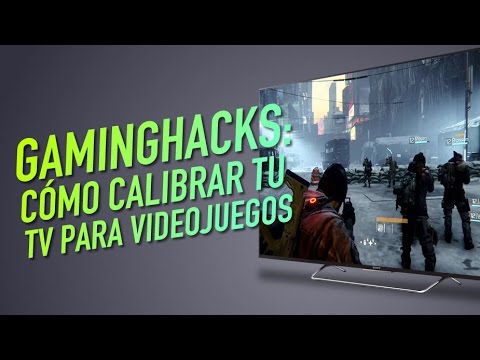
How to Calibrate Your TV for GamingCalibrate your TV for gaming with our step-by-step guide. Optimize response time, HDR, color, and input lag for the ultimate competitive edge and visualexperience.
How to Fix PC Restarts While Gaming
Expert tips to diagnose and fix sudden PC restarts during gaming. Learntroubleshooting steps for overheating, PSU issues, driver problems, andhardware stability.
How to Fix CPU Overheating While Gaming
Learn how to fix CPU overheating while gaming with effective coolingsolutions, proper maintenance, and system optimization tips to preventdamage and boost performance.
How to Fix Game Won’t Save Progress
"Troubleshoot and fix game progress not saving with our step-by-step guide. Learn how to check settings, clear cache, fix corrupt files, and solve storageissues to prevent lost saves."
How to fix PC Fans Too Loud While Gaming
Meta description: "PC fans too loud while gaming? Learn 8 simple fixes toreduce noise & cool your PC effectively. Easy, step-by-step guidefor a quieter gaming rig."
How to Fix PC Won’t Boot After Update
Struggling with a black screen or errors after an update? Learn step-by-step fixes to get your PC booting again. From safe mode to recovery tools, we'llguide you through the solutions.
How to Fix PC Stuttering in Games
Troubled by PC stuttering in games? Our guide shows you how to fix gamestuttering & lag with step-by-step solutions for settings, hardware, & drivers.
How to Fix PC Freezing While Gaming
Expert troubleshooting guide to stop PC freezing during games. Learn quickfixes for overheating, driver issues, and hardware bottlenecks torestore smooth gameplay.
How to Fix Game Crashes on Startup
Learn effective solutions to fix game crashes on startup and enjoy seamless gaming. Troubleshoot issues
How to Fix Game Pass App Not Working
Having trouble launching or installing Game Pass? This guide offersstep-by-step fixes for installation errors, login issues, and crashingon the Xbox & PC Game Pass app.
How to Fix PC Blue Screen While Gaming
Stop gaming crashes! Learn step-by-step fixes for the PC blue screen (BSOD)during gameplay. Troubleshoot drivers, overheating, hardware &settings for a stable system.
How to Fix Xbox Controller Drift
Learn step-by-step solutions to fix Xbox controller drift. Discover DIYrepairs using isopropyl alcohol, replacement parts, and calibration tips to restore precise control without buying a new controller.
How to Fix PC Restarts While Gaming
Expert tips to diagnose and fix sudden PC restarts during gaming. Learntroubleshooting steps for overheating, PSU issues, driver problems, andhardware stability.
How to Fix CPU Overheating While Gaming
Learn how to fix CPU overheating while gaming with effective coolingsolutions, proper maintenance, and system optimization tips to preventdamage and boost performance.