What is HDR and how to enable it correctly
Causas del problema (Why HDR Looks Wrong)
If your HDR image looks worse than standard (SDR), one or more of these elements is out of sync:Solución rápida (For Impatient Users)
Soluciones detalladas paso a paso (The Complete Setup Guide)
Follow these steps in order for a perfect HDR setup.Step 1: TV & Hardware Foundation- Identify Your TV's Best Port: Consult your TV manual. Look for ports that mention "HDMI 2.0," "HDMI 2.1," "High Speed," "Enhanced," or "4K@120Hz." This is your target port.
- Use a Certified Cable: The PS5's included cable is perfect. If you need a longer one, buy a certified "Ultra High Speed HDMI" cable (for future-proofing) or a "Premium High Speed HDMI" cable.
- Enable Full HDMI Signal: On your TV, find the settings for the specific HDMI port you're using. This is often under Settings > External Inputs > HDMI Signal Format. Change it from "Standard" to "Enhanced" or "Enhanced Format (4K)" (Sony), "HDMI ULTRA HD Deep Color" (LG), or "Input Signal Plus" (Samsung).
- Go to your PS5 Settings > Screen and Video > Video Output.
- Set Resolution to "Automatic."
- Set VRR to "Automatic."
- Set 120Hz Output to "Automatic."
- Set ALLM to "Automatic."
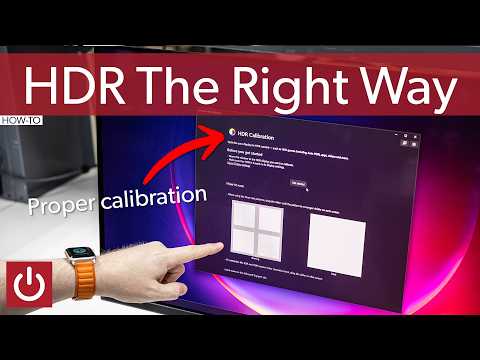
- Now, do the HDR calibration: Select "Adjust HDR."

- Screen 1 (Black Level): Lower the slider until the symbol becomes invisible. Click down once more. This sets perfect black.
- Screen 2 (White Level): Raise the slider until the symbol becomes barely visible. Don't go further. This sets your TV's peak brightness.
- Screen 3 (Paper White): This adjusts mid-tone brightness (UI elements). Set it to what's comfortable for you, often between 50% and 80%.
Step 3: Optimize Your TV's HDR Picture Mode
- Launch an HDR game (the TV should show an "HDR" badge).
- Open your TV's picture settings while the game is running.
- Select the "Game" or "HDR Game" picture mode. This minimizes input lag.
- Crucial Settings:
- Backlight/OLED Light: Set to MAX (100).
- Contrast: Set to MAX (100).
- Brightness: Leave at 50 (this controls black level, not peak brightness).
- Local Dimming: If your LED/LCD TV has it, set it to "High."
- Color: Leave near 50-60.
- Sharpness: Set very low (0-20) to avoid artificial edges.
- Color Temperature: "Warm2" or "Expert1" is most accurate.
- TURN OFF all "enhancements": Dynamic Contrast, Noise Reduction, Motion Smoothing (soap opera effect).
Step 4: In-Game HDR Settings
- Many games have their own HDR calibration menus. ALWAYS check them.
- They often have a "Peak Brightness" or "HDR Luminance" setting. Input the nits value from your TV's spec sheet (e.g., 600, 800, 1000 nits). If unsure, use the in-game preview image to match reality.
- There's also usually a "Paper White" setting—adjust this for comfortablemenu/UI brightness without blowing out the actual game highlights.
Soluciones alternativas (If Problems Persist)
- Try a Different HDMI Port: Rule out a faulty port.
- Perform a TV Power Cycle: Unplug your TV from the wall for 60 seconds, then plug it back in. This clears the HDMI handshake cache.
- Check for Firmware Updates: Update your TV and your PS5 to the latest software.
- Test in SDR: If you're truly unhappy, you can turn HDR off on the PS5 (Settings > Screen and Video > HDR > Off). A good SDR image is better than a bad HDR one.
Cómo evitar que vuelva a ocurrir (Preventing Future Issues)
- Don't Skip Calibration: Re-run the PS5 HDR calibration if you move your console to a new TV or room.
- Keep Firmware Updated: Manufacturers often improve HDR handling via updates.
- Know Your TV's Limits: Research your specific TV model's real HDR performance (sites like Rtings.com are excellent). This manages expectations—a 300-nit TV will never look like a 1500-nit OLED.
Preguntas frecuentes (FAQ)
Q: Do I need a 4K TV for HDR on PS5?
A: Technically no, but they are inseparable in modern gaming. The PS5's best HDR games are designed for 4K resolutions.
Q: What's the difference between HDR10, HDR10+, and Dolby Vision?
A: The PS5 supports the universal HDR10 standard. HDR10+ and Dolby Vision are "dynamic" formats that adjust per scene, but the PS5 does not currently support them for games (onlyHDR10).
Q: Why does my HDR picture look too dark in dark scenes?
A: This is often due to your TV's "gamma" or "black level" setting in HDRmode. Ensure your TV's "Brightness" (black level) is around 50, andcheck if there's a "Gamma" setting—set it to 2.2 or "Medium."
Q: Should I enable HDR even for non-HDR games and content?
A: No. On the PS5, leave the "HDR" setting to "On When Supported." Let the console auto-switch. Forcing HDR on SDR content makes it look oversaturated and wrong.
Cierre
Mastering HDR on your PS5 isn't about just flipping a switch; it's aboutfine-tuning a powerful visual instrument. The payoff, however, isimmense. When calibrated correctly, HDR stops being a setting andbecomes an experience—adding depth, realism, and emotional impact thatstandard definition simply cannot match. The lush biomes of Returnal, the gritty streets of *Spider-Man 2*, and the atmospheric realms of Demon's Souls are all waiting to be seen as their developers truly intended.
Ready to see your games in a new light? Grab your PS5 controller right now. Don't just assume it's working—take 10 minutes to walk through the detailed calibration steps above. Youreyes will thank you the next time you boot up a game and are truly,viscerally stunned by the world on your screen. Share your HDR success stories or questions in the comments below—let's build the best-looking gaming setups together.
Other Articles Related
The best games to play with the familyFamily fun for all ages! Discover the best board, card, and video games thatcreate laughter, teamwork, and lasting memories for your next gamenight. Find your new favorite!
What is thermal throttling and how to avoid it
Learn what thermal throttling is, how it slows down your CPU/GPU, and getpractical tips to avoid it for better device performance and longevity.Keep your system cool!
What is DLSS and how to enable it
Unlock smoother gameplay with NVIDIA DLSS. Learn what AI-powered DLSS does,how it boosts FPS, and a quick guide to enabling it in supported PCgames.
What is ping and how to lower it
Discover what ping is in online gaming and networking. Learn practical tips tolower high ping, reduce lag, and improve your connection speed for asmoother experience.
The best games to play with keyboard and mouse
Best keyboard and mouse games: Master FPS, RTS, & RPG titles designedfor precision control. Discover top PC games that play best with KBM.
The best games to play with a controller on PC
Top controller-supported PC games: action, racing, RPGs & more. Findthe best titles for Xbox, PlayStation, or generic gamepads. Ultimateguide for couch gaming.
The best role-playing games to start with
Looking to start playing RPGs? Discover the best beginner-friendly role-playing games with easy-to-learn rules, engaging stories, and memorableadventures for new players.
The best racing games for 2026
Discover the top racing games of 2026, from hyper-realistic simulators toexplosive arcade action. Get our expert picks for every platform andplay style.
What is GPU overclocking and should you do it?
Learn what GPU overclocking is, its performance benefits, and the risksinvolved. Discover if overclocking your graphics card is right for yourPC and gaming needs.
What is FSR and how does it work?
Learn what FSR (FidelityFX Super Resolution) is, how it upscales games forhigher performance & better visuals, and how it compares to otherupscaling tech. Get a clear, simple explanation here.
What is ray tracing and how does it work?
Discover what ray tracing is: a rendering technique that simulates realisticlighting in graphics. Learn how it works, its applications in gaming and film, and why it creates such lifelike visuals.
What is crossplay and how to enable it
Crossplay allows gamers on different platforms to play together. Learn whatcrossplay is, how it works, and step-by-step instructions to enable itin your favorite games.
What is input lag and how to reduce it
Discover what input lag is and learn effective strategies to reduce it for a smoother gaming experience.
How to start a new game without making mistakes
Learn how to start a new game successfully with our expert tips to avoid common mistakes and enhance your gaming
How to choose the right difficulty level in any game
Discover tips on selecting the perfect difficulty level for any game to enhance your gaming experience and challenge yourself