
What is input lag and how to reduce it
What Is Input Lag? The Chain of Delay
Input lag isn't one single thing; it's the cumulative effect of several small delays in a pipeline. Here’s what happens in the milliseconds after you press a button:- Pixel Response Time: How fast a pixel can change from one color to another. Slow transitions cause motion blur (ghosting).
- Refresh Rate: How many times per second (Hz) the monitor can draw a new image. 60Hz = a new frame every ~16.6ms. 240Hz = ~4.16ms.
- Signal Processing: This is the #1 culprit for TVs. Features like motion smoothing, dynamic contrast, and advanced upscaling (post-processing) can add dozens of milliseconds of delay as the TV's processor "enhances" the image before displaying it.
The Quick Fix Checklist (For the Impatient)
If you're in a match and need responsiveness now, do this:- DISABLE V-Sync.
- Set FPS Limit to "Uncapped" or a high value like 240.
- Lower graphics settings to boost FPS.
Detailed Step-by-Step Guide to Reducing Input Lag
Phase 1: Optimizing Your Display (The Biggest Gains)
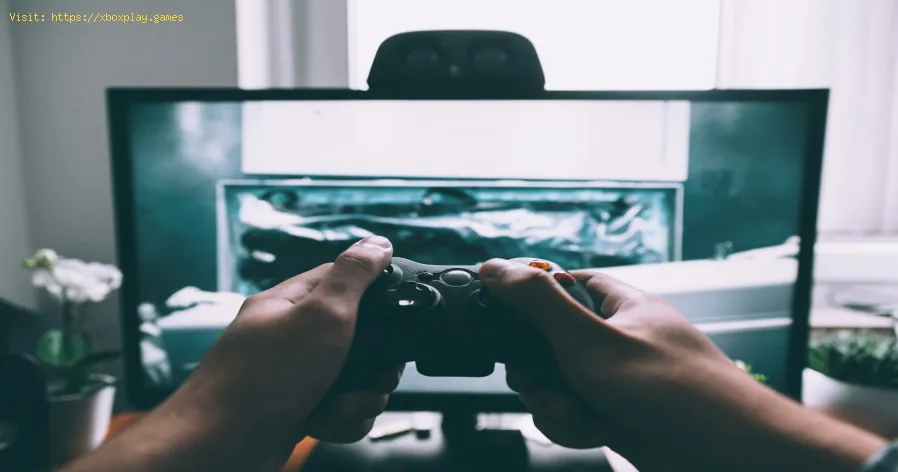
Your monitor/TV is the single largest variable in the input lag equation.
- Use a Gaming Monitor, Not a TV (for serious play): Gaming monitors are built for low latency. Look for specs like "1ms GtG (Gray to Gray) Response Time" and high Refresh Rates (144Hz, 240Hz, 360Hz). The higher the refresh rate, the less time between your action and the next possible screen update.
- ENABLE GAME MODE: On every single TV and most monitors, there is a "Game Mode" or "PC Mode" in the picture settings. This is non-negotiable. It bypasses almost all internal processing, slashing display lag from 50-100ms down to 10-20ms.
- Connect via the Right Port: Use a DisplayPort connection for PC monitors if possible (it's designed for PCs). Otherwise, use HDMI. For consoles, use the HDMI port that is sometimes labeled for "ARC" or check the manual for the best low-latency port.
- Check Your Monitor's Overdrive Setting: In your monitor's On-Screen Display (OSD) menu, find the response time/overdrive setting. Set it to "Normal" or "Fast." Avoid "Fastest" or "Extreme," as this can cause inverse ghosting (coronas), which is also bad.
Phase 2: Optimizing Your PC/Console & In-Game Settings
- Maximize Your Frames Per Second (FPS):Higher FPS directly reduces input lag. Even if your monitor is only 60Hz, running a game at 200 FPS means thegame engine is processing your inputs 200 times a second, giving you amore recent input sample when the monitor does refresh.
- Lower In-Game Graphics Settings: Shadows, anti-aliasing, ambient occlusion, and draw distance are often the biggest FPS hogs. Turn them down.
- Ensure Your GPU Drivers Are Updated.
- DISABLE Vertical Sync (V-Sync):This is a major lag inducer. V-Sync caps your FPS to your monitor's refresh rate to prevent screentearing, but it does so by forcing the GPU to wait. This adds massive,often variable, input lag. Turn it off. If screen tearing bothers you, use Variable Refresh Rate (VRR) technology instead (see below).
- Use Variable Refresh Rate (VRR - G-Sync/FreeSync): This is the modern solution. G-Sync (NVIDIA) and FreeSync (AMD) allow your monitor's refresh rate to dynamically match your GPU's frame rate. This eliminates tearing without the lag penalty of V-Sync. Enable it in your GPU control panel and your monitor's OSD.
- Set a High/Uncapped Frame Rate Limit: If not using VRR, set your in-game FPS limit to at least 2-3x yourmonitor's refresh rate (e.g., 180 FPS for a 60Hz monitor). This ensuresthe game engine is feeding fresh inputs as fast as possible.
Phase 3: Optimizing Your Peripherals & Connection
- Go WIRED Whenever Possible: Use a wired USB connection for your controller, keyboard, and mouse.It's the most reliable and fastest method. For mice, a lightweight,wired gaming mouse with a high-polling-rate sensor is ideal.
- If Wireless is a Must, Use the Right Tech: Avoid standard Bluetooth for gaming. Use the manufacturer's dedicated 2.4GHz USB dongle (like for an Xbox Wireless Controller, PlayStation DualSense, or ahigh-end wireless mouse). These are designed for low latency.
- Maximize Polling Rates: In your mouse software (or via a DPI button), set its polling rate to 1000Hz (reports its position every 1ms). Some gaming controllers also havesoftware for this. A standard keyboard/mouse is often 125Hz (8ms delay).
- For Online Games: Use an Ethernet Cable: A wired Ethernet connection to your router is far more stable and lower latency than Wi-Fi. If you must use Wi-Fi, ensure you are on a clear5GHz channel and close to the router.
Alternative Solutions & Advanced Tweaks
- For Fighting Game & Retro Enthusiasts: Consider a gaming-grade upscaler like the OSSC or RetroTINK. These devices convert old console signalsto HDMI with near-zero added lag, unlike most TVs' terrible internalupscalers.
- The NVIDIA Reflex/AMD Anti-Lag Suite: In supported games (like most major eSports titles), enable NVIDIA Reflex "On" or "On+Boost" in the game's settings. This SDK works at the driver level to reducerender queue latency, synchronizing the GPU and game engine moreefficiently. AMD has a similar "Anti-Lag" feature in its drivers.
- Monitor Your Latency: Tools like NVIDIA's Latency Display Analysis (LDAT) are for labs, but the NVIDIA GeForce Experience Performance Overlay can show "PC Latency" (a partial measurement) in Reflex-supported games. Use it to test the impact of your settings.
How to Build a Low-Lag Setup from the Ground Up
- Prioritize Your Purchase Order: If on a budget, upgrade in this order for lag reduction: 1) Gaming Monitor with high refresh rate & VRR > 2) Wired Peripherals > 3) More powerful GPU/CPU for higher FPS.
- Create a "Game Mode" Profile: On your PC, create a power profile that prioritizes performance. Onyour TV, if Game Mode doesn't save your preferred picture settings,manually duplicate them (brightness, contrast) in the Game Mode profile.
- Test and Compare: Use simple online reaction tests or the UFO Test at Blur Busters' website to visualize your display's motion clarity and perceived responsiveness before and after changes.
Frequently Asked Questions (FAQ)
Q: I use a big 4K TV. Can I ever game competitively on it?
A: It's a significant handicap. However, you must use Game Mode. Check reviews for your specific TV model on sites like Rtings.com, which measure input lag. Some modern TVs have a "Game Mode" lag under15ms, which is serviceable for casual play but not ideal for high-levelcompetitive gaming.
Q: Does a higher refresh rate monitor (144Hz+) really make that much difference?
A: Yes, it's transformative. It doesn't just make motion look smoother. It directly reduces the time you wait for your input to appear by providing a new frame up to 2.5x faster (144Hz vs. 60Hz). The feeling of direct control is profoundly better.
Q: I disabled V-Sync and now my screen tears horribly. What do I do?
A: This is the exact reason VRR (G-Sync/FreeSync) was invented. If your hardware doesn't support it, you can try capping your FPS just below your monitor's refresh rate (e.g., 58 FPS for 60Hz) using a tool likeRTSS (RivaTuner Statistics Server). This can sometimes reduce tearingwithout the full lag penalty of V-Sync.
Q: Is there input lag on consoles like PlayStation and Xbox?
A: Yes, the same principles apply. Always use your TV's Game Mode, prefer wired controllers, and onconsoles with display settings, enable "Allow Variable Refresh Rate" ifyour display supports it. Console games often have heavy forced motionblur or V-Sync; check if the game has a "Performance Mode" thatprioritizes framerate.
Q: What's the single most effective setting to change?
A: Enabling "Game Mode" on your TV/monitor. This one setting can instantly slash tens of milliseconds of displayprocessing lag. It is the first and most critical step for everyone.
Conclusion: Reclaim Your Instant Response
Input lag is the invisible barrier between your intention and the game world. By understanding its sources and methodically eliminating them, you'renot just tweaking settings—you're removing the layer of separationbetween you and the experience. The result is a game that feelsinstantly responsive, where your reactions are accurately translated onscreen, and your sense of immersion and control is complete.
You now have the roadmap: from the crucial Game Mode toggle to the advanced synergies of high FPS and VRR. Each step brings you closer to thatperfect, connected feel.
Ready to experience gaming with the lag stripped away? Start with your display's Game Mode, then work down the list. The difference won't just be visible; it will be felt in every move you make. Now, go play with the responsiveness you deserve.
Other Articles Related
The best games to play with the familyFamily fun for all ages! Discover the best board, card, and video games thatcreate laughter, teamwork, and lasting memories for your next gamenight. Find your new favorite!
What is thermal throttling and how to avoid it
Learn what thermal throttling is, how it slows down your CPU/GPU, and getpractical tips to avoid it for better device performance and longevity.Keep your system cool!
What is DLSS and how to enable it
Unlock smoother gameplay with NVIDIA DLSS. Learn what AI-powered DLSS does,how it boosts FPS, and a quick guide to enabling it in supported PCgames.
What is ping and how to lower it
Discover what ping is in online gaming and networking. Learn practical tips tolower high ping, reduce lag, and improve your connection speed for asmoother experience.
The best games to play with keyboard and mouse
Best keyboard and mouse games: Master FPS, RTS, & RPG titles designedfor precision control. Discover top PC games that play best with KBM.
The best games to play with a controller on PC
Top controller-supported PC games: action, racing, RPGs & more. Findthe best titles for Xbox, PlayStation, or generic gamepads. Ultimateguide for couch gaming.
The best role-playing games to start with
Looking to start playing RPGs? Discover the best beginner-friendly role-playing games with easy-to-learn rules, engaging stories, and memorableadventures for new players.
The best racing games for 2026
Discover the top racing games of 2026, from hyper-realistic simulators toexplosive arcade action. Get our expert picks for every platform andplay style.
What is GPU overclocking and should you do it?
Learn what GPU overclocking is, its performance benefits, and the risksinvolved. Discover if overclocking your graphics card is right for yourPC and gaming needs.
What is FSR and how does it work?
Learn what FSR (FidelityFX Super Resolution) is, how it upscales games forhigher performance & better visuals, and how it compares to otherupscaling tech. Get a clear, simple explanation here.
How to start a new game without making mistakes
Learn how to start a new game successfully with our expert tips to avoid common mistakes and enhance your gaming
How to choose the right difficulty level in any game
Discover tips on selecting the perfect difficulty level for any game to enhance your gaming experience and challenge yourself
How to avoid losing progress in games
Never lose your progress again! Discover effective strategies to safeguard your work and ensure seamless continuity.
The Next Big Names: Europe’s Rising LoL Stars for 2026
2026’s LEC season isn’t just another year - it’s the moment European talent finally stops getting overlooked.