
What is crossplay and how to enable it
What Exactly Is Crossplay? Breaking Down the Terminology
At its core, crossplay is the ability for a video game to allow players using different video game hardware to play with each other simultaneously. There are a few related terms to understand:- Cross-Platform Play (Crossplay): The broad term for players from different platforms sharing a game session.
- Cross-Progression: Allows you to carry your game progress, purchases, and inventory across different platforms by linking your account.
- Cross-Save: A subset of cross-progression, specifically letting you save your game on one platform and continue on another.
The Quick Fix: How to Enable Crossplay in 60 Seconds (For the Impatient Gamer)
For those who want to jump straight in, here's the universal quick start guide:Detailed Step-by-Step Guide to Enable Crossplay
Follow these detailed steps to ensure you and your friends can connect seamlessly.Step 1: Check if Your Game Supports Crossplay
Not all games offer this feature. Visit the game's official website, check its store page (look for the "Cross-Platform Play" tag on Steam, Xbox, or PlayStation stores), or search "[Game Name] crossplay support."Step 2: Create a Central Developer Account
- Examples: Epic Games Account, Activision Account, Rockstar Social Club, Ubisoft Connect.
- How: This is typically done the first time you boot up the game. You'll be prompted to sign in or create an account. Do not skip this step.
Step 3: Link All Your Gaming Platform Accounts
- Where: In the game's in-game settings under "Connections," "Linked Accounts," or "Account Linking," OR on the developer's official website.
- Action: Link your PlayStation Network ID, Xbox Live Gamertag, Nintendo Account, and/or Steam/PC account to your central developer account. This creates the bridge.

Step 4: Enable Crossplay in the Game's Settings
- Navigate to Settings > Account or Gameplay.
- Find the toggle for "Enable Crossplay" or "Cross-Platform Play." It's sometimes in the "Privacy" section.
- Toggle it ON. (Note: Some games have it on by default).
Step 5: Adjust Your Party/Privacy Settings
- Ensure your party is set to "Open," "Public," or "Crossplay Enabled." Settings like "Console-Only" or "Platform-Only" will restrict your matchmaking.
Step 6: Add Cross-Platform Friends
- You cannot use the native PlayStation or Xbox friend list to add someone on a different platform.
- Use the game's internal "Add Friends" function.
- Input your friend's Developer Account ID (e.g., Epic display name with hashtag numbers, Activision ID). You may need to exchange these IDs with your friends first.
Step 7: Form a Cross-Platform Party
- Once you're friends in-game, invite them to your party through the game'ssocial menu. The party interface should show player icons indicatingtheir platform.
Step 8: Start Matchmaking!
- With your cross-platform party formed, queue for a match as you normallywould. The game's servers will now match you with players from allenabled platforms.
Platform-Specific Notes:
- PlayStation: You may need to enable crossplay at the account level in PSN Settings > Account Management > Privacy Settings for some titles.
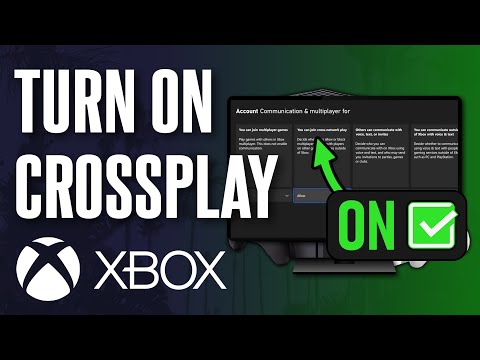
- Xbox: Crossplay settings are primarily managed within each individual game. Also check Xbox Settings > Account > Privacy & online safety.
- PC (Steam/Epic/etc.): The process is almost always managed entirely within the game client.
Troubleshooting: What To Do If Crossplay Isn't Working
Even after setup, you might hit a snag. Here are common fixes:
- "Crossplay Disabled" Error: Double-check that every person in your party has crossplay enabled in their own game settings. One person having it off can block the whole party.
- Cannot Add Friend: Verify you are using the correct case-sensitive developer ID, including any numbers (e.g., PlayerName#12345).
- No Audio/Game Chat: Cross-platform voice chat can be buggy. Use a dedicated app likeDiscord (now available on Xbox and PlayStation), a phone call, or thein-game chat if it's supported.
- Version Mismatch: Ensure everyone has downloaded the latest game update. Platforms sometimes receive patches at slightly different times.
- NAT Type Issues: A strict or moderate NAT type on your home network can block connections. Try restarting your router or enabling UPnP.
How to Ensure Crossplay Works Smoothly and Safely
- Prioritize Your Developer Account: Treat this as your primary gaming identity for crossplay titles. Use astrong, unique password and enable two-factor authentication.
- Manage Privacy: In games with large crossplay pools (especially with PC), you mayencounter a wider range of players. Use in-game mute/report functionsand adjust privacy settings to control who can invite or message you.
- Balance Your Experience: Many games offer input-based matchmaking. If you're on console with a controller, you can often opt to play onlywith other controller users to ensure a level playing field againstmouse-and-keyboard PC players.
Frequently Asked Questions (FAQs)
Q: Is crossplay free to use?
A: Yes, the crossplay feature itself is always free. You only need thegame and the respective platform's online subscription (PS Plus, XboxGame Pass Core) if required by that platform for online multiplayer.
Q: Can I turn crossplay off?
A: In most games, yes. You can disable it in the settings. This will limit your matchmaking pool to players on your own platform, which may result in longer queue times.
Q: Do my purchases and progress transfer with crossplay?
A: Only if the game also supports cross-progression. This is not automatic. Games like Fortnite and Minecraft (with a Microsoft Account) are great examples where your skins and world progress move with you.
Q: Is there a performance disadvantage?
A: Not directly from the connection. However, PC players often haveadvantages like higher frame rates, customizable graphics, and precision with a mouse. Many competitive games use input-based matchmaking toaddress this.
Q: Why doesn't every game have crossplay?
A: It requires significant additional development work for networking,account systems, and balancing. For some older games or titles withexclusive platform deals, it may never be implemented.
Conclusion: Build Your Party Without Limits
Crossplay is more than just a technical feature; it's a philosophy thatprioritizes players and friendships over platform allegiances. It breaks down the barriers that have segmented the gaming community for decades, ensuring that the most important factor in gaming—who you play with—isnever limited by what you play on.
The process of enabling it is straightforward: create your central account, link your platforms, flip the switch, and connect using your developerID. As the industry continues to embrace this standard, the future ofgaming looks more connected and inclusive than ever.
Ready to play with all your friends, no matter their console? Boot up your favorite crossplay-enabled game today, follow the steps in this guide, and send out those invites. The ultimate squad, free fromplatform borders, is waiting for you. Game on
Other Articles Related
The best games to play with the familyFamily fun for all ages! Discover the best board, card, and video games thatcreate laughter, teamwork, and lasting memories for your next gamenight. Find your new favorite!
What is thermal throttling and how to avoid it
Learn what thermal throttling is, how it slows down your CPU/GPU, and getpractical tips to avoid it for better device performance and longevity.Keep your system cool!
What is DLSS and how to enable it
Unlock smoother gameplay with NVIDIA DLSS. Learn what AI-powered DLSS does,how it boosts FPS, and a quick guide to enabling it in supported PCgames.
What is ping and how to lower it
Discover what ping is in online gaming and networking. Learn practical tips tolower high ping, reduce lag, and improve your connection speed for asmoother experience.
The best games to play with keyboard and mouse
Best keyboard and mouse games: Master FPS, RTS, & RPG titles designedfor precision control. Discover top PC games that play best with KBM.
The best games to play with a controller on PC
Top controller-supported PC games: action, racing, RPGs & more. Findthe best titles for Xbox, PlayStation, or generic gamepads. Ultimateguide for couch gaming.
The best role-playing games to start with
Looking to start playing RPGs? Discover the best beginner-friendly role-playing games with easy-to-learn rules, engaging stories, and memorableadventures for new players.
The best racing games for 2026
Discover the top racing games of 2026, from hyper-realistic simulators toexplosive arcade action. Get our expert picks for every platform andplay style.
What is GPU overclocking and should you do it?
Learn what GPU overclocking is, its performance benefits, and the risksinvolved. Discover if overclocking your graphics card is right for yourPC and gaming needs.
What is FSR and how does it work?
Learn what FSR (FidelityFX Super Resolution) is, how it upscales games forhigher performance & better visuals, and how it compares to otherupscaling tech. Get a clear, simple explanation here.
What is input lag and how to reduce it
Discover what input lag is and learn effective strategies to reduce it for a smoother gaming experience.
How to start a new game without making mistakes
Learn how to start a new game successfully with our expert tips to avoid common mistakes and enhance your gaming
How to choose the right difficulty level in any game
Discover tips on selecting the perfect difficulty level for any game to enhance your gaming experience and challenge yourself
How to avoid losing progress in games
Never lose your progress again! Discover effective strategies to safeguard your work and ensure seamless continuity.