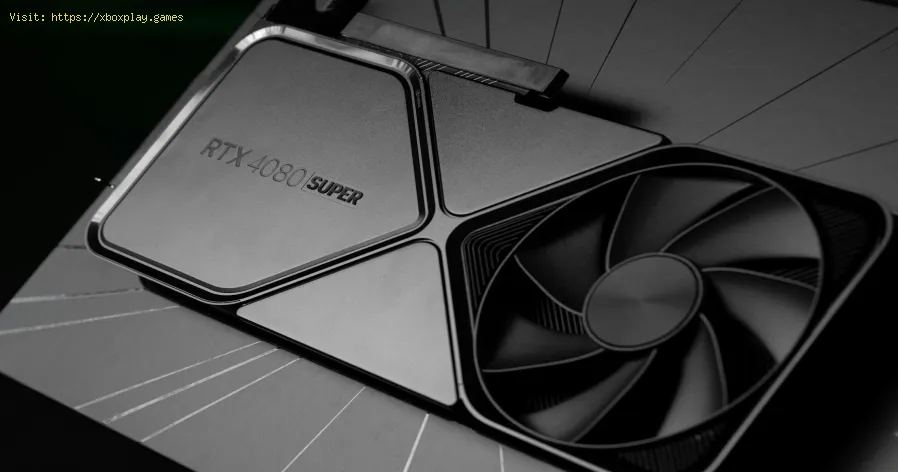
What is GPU overclocking and should you do it?
Causes of the Problem
Understanding the "why" is the first step to a permanent fix. Here are the most common culprits:Quick Fix (For Impatient Users)
If you want to get back into the fight immediately, try this three-step quick fix:- Battle.net: Click the gear icon next to Play > Scan and Repair.
- Steam: Library > Right-click MW2 > Properties > Installed Files > Verify Integrity of Game Files.
Detailed Step-by-Step Solutions
Follow these steps methodically. Test the game after each step to see if the issue is resolved.Step 1: Perform a Clean GPU Driver ReinstallDon't just update; do a clean install.
- For NVIDIA: Download "Display Driver Uninstaller (DDU)" and the latest driver from NVIDIA's website. Boot into Windows Safe Mode, run DDU to remove all traces of the old driver. Reboot and install the fresh driver, choosing "Custom Installation" and checking "Perform a clean installation."
- For AMD: Use the AMD Cleanup Utility or DDU similarly. Download the latest Recommended (not Optional) driver from AMD and install it.
- Use a tool like HWMonitor or MSI Afterburner.
- Launch MW2 and play for 10-15 minutes, then check the max GPU temperature. Anything consistently above 85-90°C is a problem.
- Fix: Ensure your PC case has adequate airflow. Use canned air to dust out your GPU and case fans. Consider setting a more aggressive fan curve via MSI Afterburner.

Step 3: Reset In-Game Graphics Settings
- Within MW2, go to Settings > Graphics.
- Click on Graphics Presets and select Minimum or Base.
- Play a match. If it's stable, gradually increase key settings (TextureResolution, Shadow Map Resolution) one by one, testing after eachchange. Crucially, ensure your VRAM usage meter in-game stays well below the limit.
Step 4: Clear the Shader Cache
- MW2 Specific: Go to Settings > Graphics and look for an option like "Reset Game Shaders" or "Clear Shader Cache." Use it.
- Windows-Wide:
- Press Win + R, type %localappdata%, and press Enter.
- Open the NVIDIA or AMD folder, find the DXCache and GLCache folders, and delete their contents.
Step 5: Disable Overclocking & Enable Stability Features
- Reset any manual GPU/RAM overclocks to default in your BIOS or tuning software.
- For NVIDIA: In the NVIDIA Control Panel (Manage 3D Settings > Program Settings), find MW2 and set:
- Power Management Mode: Prefer Maximum Performance.
- Background Application Max Frame Rate: Off.
- For AMD: In Adrenalin Software (Performance > Tuning), try disabling "Advanced Control" to reset to default, or enable "Radeon Chill" with a reasonable FPS limit to reduce load.
Alternative Solutions if Problems Persist
- Increase GPU Power Limit: In MSI Afterburner or similar, gently increase the "Power Limit" slider (e.g., to 110%). This gives your GPU more headroom under heavy load.
- Underclock Your GPU: Ironically, slightly reducing your GPU's core clock by 50-100MHz can enhance stability under extremeloads, acting as a counter-intuitive fix for some crashes.
- Check Your Power Supply: Ensure your PSU wattage is sufficient for your entire system (a goodrule is GPU TDP + CPU TDP + 150W). Listen for coil whine or checkvoltages in HWMonitor for significant drops.
- Reinstall the Game on an SSD: If the game is on a slow HDD or a nearly full SSD, performance canhitch and cause crashes. Ensure at least 20% free space on the drive.
How to Prevent Future Crashes
- Keep Drivers Updated: Set a monthly reminder to check for stable, game-ready driver updates.
- Maintain Your PC: Physically clean dust from your PC every 3-6 months.
- Manage Background Apps: Create a "gaming" profile that closes unnecessary apps before launching demanding titles.
- Benchmark and Stress Test: Use tools like 3DMark or FurMark after any hardware/driver change to ensure system stability before jumping into a game.
Frequently Asked Questions (FAQs)
Q: Is this crash damaging my GPU?
A: Typically, no. These are software or protective crashes (like fromoverheating) designed to prevent hardware damage. Consistentoverheating, however, can reduce component lifespan.
Q: I only crash in Warzone/DMZ, not multiplayer. Why?
A: The large, open-world maps of Warzone and DMZ are far more demanding on VRAM and GPU compute. This points to a VRAM limit issue or a stabilityproblem under sustained, high load. Lowering texture-related settings is key.
Q: Should I roll back to a much older driver?
A: Only as a last resort. Try the clean install of the current recommended driver first. If that fails, research which driver version was most stable for MW2 at its launch or major updates and try that.
Q: Could this be a problem with my specific GPU model?
A: It's possible. Search forums (like Reddit's r/ModernWarfareII orNVIDIA/AMD communities) using your exact GPU model (e.g., "RTX 4070 TiMW2 crash"). You might find a model-specific fix or BIOS update.
Conclusion and Final CTA
Taming Modern Warfare 2's GPU crashes requires patience and a systematicapproach, but a stable, high-frame-rate experience is almost alwayswithin reach. By working through the causes—from drivers andtemperatures to in-game settings and power—you’re not just fixing onegame; you’re optimizing your entire PC for peak performance.
Ready to push your system’s performance further, but safely? Understanding your hardware is key. Many crashes stem from the delicate balance of performance and stability. This leads to a crucial questionfor any PC enthusiast looking to optimize: What is GPU overclocking and should you do it? Learning the answer can empower you to safely extract more power fromyour hardware, potentially eliminating the instabilities that causecrashes like these in the first place. Click here to learn the pros, cons, and safe practices of GPU overclocking and take full control of your gaming experience.
Other Articles Related
The best games to play with the familyFamily fun for all ages! Discover the best board, card, and video games thatcreate laughter, teamwork, and lasting memories for your next gamenight. Find your new favorite!
What is thermal throttling and how to avoid it
Learn what thermal throttling is, how it slows down your CPU/GPU, and getpractical tips to avoid it for better device performance and longevity.Keep your system cool!
What is DLSS and how to enable it
Unlock smoother gameplay with NVIDIA DLSS. Learn what AI-powered DLSS does,how it boosts FPS, and a quick guide to enabling it in supported PCgames.
What is ping and how to lower it
Discover what ping is in online gaming and networking. Learn practical tips tolower high ping, reduce lag, and improve your connection speed for asmoother experience.
The best games to play with keyboard and mouse
Best keyboard and mouse games: Master FPS, RTS, & RPG titles designedfor precision control. Discover top PC games that play best with KBM.
The best games to play with a controller on PC
Top controller-supported PC games: action, racing, RPGs & more. Findthe best titles for Xbox, PlayStation, or generic gamepads. Ultimateguide for couch gaming.
The best role-playing games to start with
Looking to start playing RPGs? Discover the best beginner-friendly role-playing games with easy-to-learn rules, engaging stories, and memorableadventures for new players.
The best racing games for 2026
Discover the top racing games of 2026, from hyper-realistic simulators toexplosive arcade action. Get our expert picks for every platform andplay style.
What is GPU overclocking and should you do it?
Learn what GPU overclocking is, its performance benefits, and the risksinvolved. Discover if overclocking your graphics card is right for yourPC and gaming needs.
What is FSR and how does it work?
Learn what FSR (FidelityFX Super Resolution) is, how it upscales games forhigher performance & better visuals, and how it compares to otherupscaling tech. Get a clear, simple explanation here.
What is tearing and how to eliminate it
Discover what screen tearing is, why it happens, and effective solutions toeliminate it for smooth, stutter-free visuals in games and videos.
What is VRR and why it improves your gaming experience
Learn about Variable Refresh Rate (VRR) and how it eliminates screen tearingand stuttering for a smoother, more responsive gaming experience.
What is HDR and how to enable it correctly
Unlock stunning visuals with our guide to HDR. Learn what High Dynamic Rangetechnology is and how to properly enable it on your TV, monitor, orgaming console for richer contrast and vibrant colors.
What is ray tracing and how does it work?
Discover what ray tracing is: a rendering technique that simulates realisticlighting in graphics. Learn how it works, its applications in gaming and film, and why it creates such lifelike visuals.