
Xbox Live: Can't sign in — how to fix it
Causes of the Problem
Common Reasons You Can’t Sign In to Xbox Live
- Server Outages: Microsoft occasionally experiences downtime due to maintenance or unexpected issues.
- Network Connectivity Issues: Weak Wi‑Fi signals, router problems, or ISP disruptions can block sign‑in attempts.
- Incorrect Account Credentials: Mistyped passwords or outdated security settings may prevent login.
- Corrupted Cache or System Data: Temporary files on your console can interfere with authentication.
- Two‑Factor Authentication Conflicts: If your Microsoft account has 2FA enabled, mismatched verification can block access.
- Outdated System Software: Consoles running old firmware may struggle to connect properly.
- Profile Sync Errors: Sometimes, Xbox profiles fail to sync with the cloud, causing sign‑in failures.
Technical Explanation (Simple)
Xbox Live relies on secure communication between your console/PC and Microsoft’s servers. If your device cannot establish a stable connection or if the servers reject your credentials, the sign‑in process fails. This can be due to local issues (network, cache, outdated software) or global issues (server outages).Quick Solution (For Impatient Users)
If you just want to get back online fast:Detailed Step‑by‑Step Solutions
Step 1: Check Xbox Live Service Status
- Visit the official Xbox Status page.
- If there’s a reported outage, wait until Microsoft resolves it.
Step 2: Restart Your Console or PC
- Power cycle your Xbox by holding the power button for 10 seconds.
- On PC, restart Windows to refresh background services.
Step 3: Verify Internet Connection
- Test your network speed.
- Switch from Wi‑Fi to Ethernet for stability.
- Restart your router and modem.
Step 4: Re‑Enter Account Credentials
- Go to Settings > Account > Sign‑in.
- Remove your profile and re‑add it with correct credentials.
Step 5: Clear Cache and Temporary Data
- On Xbox, hold the power button until the console shuts down.
- Unplug it for 30 seconds, then restart.
- This clears cached data that may block sign‑in.
Step 6: Update System Software
- Navigate to Settings > System > Updates.
- Install any pending updates.
- Updated firmware ensures compatibility with Xbox Live servers.
Step 7: Disable and Re‑Enable Two‑Factor Authentication
- Log into your Microsoft account on a browser.
- Temporarily disable 2FA, sign in on Xbox, then re‑enable it.
- This resolves mismatched verification codes.
Step 8: Reset Network Settings
- On Xbox: Settings > Network > Advanced Settings > Clear Alternate MAC Address.
- Restart your console afterward.
Step 9: Re‑Sync Your Profile
- Go to Settings > Account > Remove Account.
- Restart console and re‑add your profile.
- This forces a fresh sync with Xbox Live.
Step 10: Contact Support if Needed
- If none of the above works, contact Xbox Support.
- Provide error codes for faster troubleshooting.
Variants According to Platform
- Xbox Series X|S: Faster hardware means fewer cache issues, but network misconfigurations still apply.
- Xbox One: More prone to cache corruption; clearing alternate MAC address often helps.
- Windows PC: Issues often stem from outdated Windows updates or firewall settings blocking Xbox services.
Alternative Solutions
- Use Offline Mode: If Xbox Live is down, switch to offline mode to play single‑player games.
- Mobile Hotspot: Test sign‑in using a mobile hotspot to rule out ISP problems.
- Reset Console (Last Resort): Factory reset can fix persistent issues, but back up data first.
How to Prevent the Problem from Happening Again
- Keep your console and PC updated.
- Regularly clear cache and restart devices.
- Use a wired Ethernet connection for stability.
- Enable automatic updates for Xbox system software.
- Maintain strong, unique passwords for your Microsoft account.
Frequently Asked Questions
Q1: Is Xbox Live down right now?Check the official Xbox Status page for real‑time updates.
Q2: Why does my Xbox keep asking for my password?This happens if your profile fails to sync or if 2FA is misconfigured.
Q3: Can I play games without Xbox Live?Yes, single‑player and offline modes work, but multiplayer and cloud saves require Xbox Live.
Q4: Does Xbox Live require a subscription?Basic sign‑in is free, but Xbox Game Pass Ultimate or Xbox Live Gold is needed for online multiplayer.
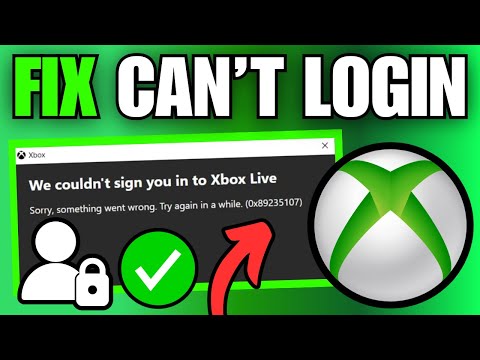
Q5: What does error code 0x800488FC mean?It usually indicates a network or credential issue. Clearing cache and re‑entering your profile often fixes it.
Xbox Live is the heart of the Xbox gaming experience, but sign‑in issues can disrupt your fun. By understanding the causes—whether server outages, network problems, or account conflicts—and applying quick fixes or detailed steps, you can restore access quickly.
Don’t let login errors keep you from your favorite games. Follow this guide, optimize your setup, and get back online with Xbox Live today.
Other Articles Related
Xbox Live: Can't sign in — how to fix itStruggling to sign in to Xbox Live? Discover effective solutions to troubleshoot and fix your sign-in issues
Xbox: Cannot install game — definitive solution - How to Fix
Get step-by-step fixes for Xbox 'cannot install game' errors.Clear your cache, free up storage, and resolve installation issues inminutes.
Error 0x87e50007 on Xbox Series/One: How to Fix It
Fix Error 0x87e50007 on Xbox with our step-by-step guide. Troubleshoot and resolve this issue quickly
How to Fix Lag on Xbox Series X
On this occasion we return with a guide with the objective of explaining to you How to Fix Lag on Xbox Series X.
How to Fix Xbox GamePass Download Speed Too Slow
Today we explain how to fix Xbox GamePass download speed that is too slow.
How to Fix Xbox Error 0x80073d0f
Learn How to Fix Xbox Error 0x80073d0f. Fix installation issues and get back to gaming quickly!
How To Fix Xbox Error Code 80004005
Learn how to resolve Xbox error code 80004005 with our step-by-step guide. Fixing this issue is easier than you think. Get back to gaming in no time!
How to Fix Xbox Error Code 80151015
Learn how to troubleshoot and fix Xbox Error Code 80151015 with our step-by-step guide. Get back to gaming in no time!
How To Fix Sticky Buttons on Xbox Controller
Learn effective techniques on How To Fix Sticky Buttons on Xbox Controller and enjoy uninterrupted gaming sessions.
How to fix Xbox Error Code 807b01f7
Get expert tips and solutions to How to fix Xbox Error Code 807b01f7 and efficiently on our website.
How to Fix Cannot log in — quick fix
Stuck outside your account? Learn quick, step-by-step solutions to fix “cannot log in” errors and regain access in minutes.
How to Fix The game keeps closing on PC or console — causes and solutions
Experiencing crashes? Find out why your game keeps closing on PC or console. Learnto fix corrupted files, driver issues, overheating & more. Get backto gaming fast.
HDMI no signal: how to fix it on consoles and PCs
Learn how to fix "HDMI no signal" on PS4, PS5, Xbox, Nintendo Switch, and PCwith our step-by-step troubleshooting guide. Quick, easy fixes to getyour screen back.
PC not detecting controller: effective solutions - How to Fix
PC not detecting your controller? Discover effective solutions to quicklyfix connectivity issues on Windows PCs. Learn step-by-steptroubleshooting methods.
Black screen on PC gaming: how to fix it
Troubleshoot and resolve PC gaming black screen issues. Learn step-by-step fixes for driver, hardware, and game setting problems to get back to your game.