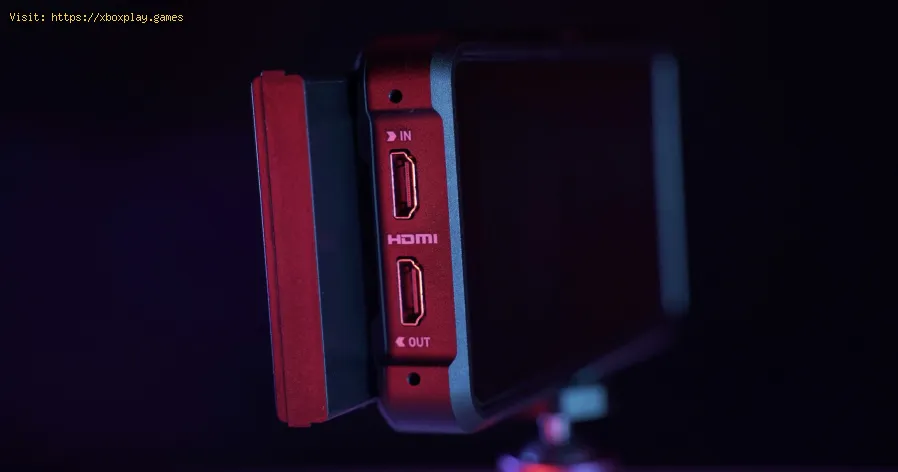
HDMI no signal: how to fix it on consoles and PCs
Causes of the Problem
Understanding the "why" can often help you find the "how" to fix it faster. Here are the most common culprits:The Quick Fix (For Impatient Users)
Try this 3-step sequence first. It solves the majority of cases in under a minute:Detailed Step-by-Step Solutions
For All Consoles (PlayStation, Xbox, Nintendo Switch)
Follow these steps in order:
- Boot in Safe Mode (PlayStation): With the console off, hold the power button until you hear a secondbeep (about 7 seconds). Connect your controller via USB and select Change Resolution. This will boot the console in a compatible, low-resolution mode.
- Boot in Low-Resolution Mode (Xbox): On your Xbox, hold the Eject and Bind buttons, then press the Xbox power button. Keep holding the first two buttons until you hear two power-up tones. This forces a low-resolution output.
- Check Console HDMI Port: Inspect the port on your console for any visible damage, bent pins, or debris. Use compressed air to gently clean it.
- Dock Check (Nintendo Switch): If the problem is only in docked mode, ensure the dock’s power adapteris connected and the Switch is properly seated. Try power cycling thedock by unplugging its power and HDMI for a minute.
For Gaming PCs
The PC troubleshooting path is more granular:
- Perform a Hard Reset: Shut down your PC, flip the power switch on the back of the PSU (PowerSupply Unit) to OFF, and unplug the power cord. Hold the PC’s powerbutton for 30 seconds to drain residual charge. Wait 2 minutes, thenreconnect and power on.
- Cable & Port Check: As with consoles, test a different HDMI cable and a different HDMI port on your graphics card (if it has multiple). Also, try a different typeof video cable (like DisplayPort) if your monitor supports it.
- Reseat Your Graphics Card:(Power off and unplug your PC first!) Open the case, locate the GPU, unscrew its bracket, press the PCIe slot release clip, and firmly remove and reinsert the card. A looseconnection can cause no signal.
- Try Integrated Graphics: If your CPU has integrated graphics (e.g., Intel Core or AMD RyzenG-series), remove your dedicated GPU and plug the HDMI cable directlyinto the motherboard’s video port. If you get a signal, the issue islikely with your dedicated GPU or its drivers.
- Boot into Safe Mode: Restart your PC and interrupt the boot process three times to trigger Automatic Repair. Go to Advanced Options > Troubleshoot > Startup Settings > Restart. Press 4 or F4 to enable Safe Mode. If you get a signal in Safe Mode, it’s almost certainly a driver problem.
- Update/Reinstall Graphics Drivers in Safe Mode: In Safe Mode, use Display Driver Uninstaller (DDU) to completely remove your GPU drivers. Restart normally and install the latest drivers fresh from NVIDIA or AMD’s website.
Alternative Solutions to Try
- Disable HDMI-CEC/Device Control: On your TV settings, turn off features like Sony’s BRAVIA Sync,Samsung’s Anynet+, or LG’s Simplink. These can sometimes interfere withthe initial handshake.
- Use a Different Display: If possible, connect your console or PC to a different TV or monitor.This will definitively tell you if the problem is with your originaldisplay.
- For PCs: Reset CMOS/BIOS: This resets your motherboard settings to default. Consult yourmotherboard manual, but it typically involves removing the smallcoin-cell battery for a few minutes or shorting a specific jumper. Thiscan clear incorrect display settings stored in the BIOS.
How to Prevent It from Happening Again
- Invest in Quality Cables: Use certified Premium High-Speed or Ultra High-Speed HDMI cables. Avoid extremely long cables (over 15ft/5m) without signal boosters.
- Handle Ports with Care: Be gentle when plugging and unplugging cables to avoid port damage.
- Proper Shutdown Procedure: Fully shut down your console or PC periodically instead of always using sleep/rest mode.
- Keep Drivers Updated (PC): Regularly update your graphics card drivers from the manufacturer.
- Use a Surge Protector: Protect all your electronics from power surges that can damage ports.
Frequently Asked Questions (FAQs)
Q: My console/PC works on one TV but not another. Why?
A: This points to a compatibility issue or a problem with the second TV.Check the display’s supported resolutions and try forcing your deviceinto a lower resolution (like 1080p) using the first TV beforeconnecting it to the second.
Q: I see the BIOS/UEFI screen but Windows doesn’t load. Is it the same issue?
A: Not exactly. If you see the initial boot screen but lose signal whenthe OS loads, the problem is almost always software/driver related on aPC. Use Safe Mode to fix drivers.
Q: Can a dirty HDMI port cause “No Signal”?
A: Yes. Dust and debris can prevent a proper connection. Use a can ofcompressed air to clean ports gently. Never use metal objects.
Q: I’ve tried everything and nothing works. What now?
A: It’s time to isolate the faulty component. If you have a spare cable,console/PC, and display, systematically swap each one to identify thebroken part. Contact technical support for your specific device.
Get Back in the Game
The “HDMI No Signal” error can be a major annoyance, but it’s rarely adeath sentence for your hardware. By methodically working through thesesteps—starting with the simple power cycle and cable check—you canalmost always restore your connection and get back to what’s important:your game.
Still stuck, or suspect a more serious hardware fault? Don’t struggle alone!
Share your specific setup and what steps you’ve tried in the comments below.The community might have the perfect tailored advice. For persistentissues, visiting the official support channels for your PlayStation,Xbox, Nintendo, or GPU manufacturer is the best next step. Now, goreclaim your signal and your playtime

Other Articles Related
How to Fix The game keeps closing on PC or console — causes and solutionsExperiencing crashes? Find out why your game keeps closing on PC or console. Learnto fix corrupted files, driver issues, overheating & more. Get backto gaming fast.
HDMI no signal: how to fix it on consoles and PCs
Learn how to fix "HDMI no signal" on PS4, PS5, Xbox, Nintendo Switch, and PCwith our step-by-step troubleshooting guide. Quick, easy fixes to getyour screen back.
Unable to save game: how to fix it in any game
Fix your game save problems with our expert tips and solutions. Learnhow to troubleshoot and restore your gaming
How to Choose a Gaming Monitor: A Complete Guide for 2026
ultimate guide to choosing a gaming monitor. Enhance your gaming experience with expert tips on resolution, refresh rates
How to set up OBS for lag-free streaming
Learn how to set up OBS for streaming with our easy guide. Optimize your settings for the best performance
How to record gameplay without losing FPS on PC or console
Capture your gameplay seamlessly without sacrificing FPS. Enjoy smooth recording and elevate your gaming
How to Optimize Windows 10/11 for Gaming and Higher FPS
Unlock peak gaming performance by optimizing your Windows settings. Enhance speed, reduce lag, and elevate your gaming
How to activate game mode on any TV and reduce lag
how to activate game mode on your TV for an enhanced gaming experience.Optimize settings for smoother graphics
PC not detecting controller: effective solutions - How to Fix
PC not detecting your controller? Discover effective solutions to quicklyfix connectivity issues on Windows PCs. Learn step-by-steptroubleshooting methods.
Black screen on PC gaming: how to fix it
Troubleshoot and resolve PC gaming black screen issues. Learn step-by-step fixes for driver, hardware, and game setting problems to get back to your game.
Xbox: Cannot install game — definitive solution - How to Fix
Get step-by-step fixes for Xbox 'cannot install game' errors.Clear your cache, free up storage, and resolve installation issues inminutes.
PS5: Not enough space — how to fix it
Out of storage on your PS5? Learn how to fix "not enough space" errors bymanaging your game library, using extended storage, and freeing upvaluable console memory.
How to Transport Cargo via Site-To-Site Transmat in Destiny 2 Renegades
Learn how to transport cargo via Site-To-Site Transmat in Destiny 2'sRenegades mission. A quick guide to complete this objective and progress through the quest step.