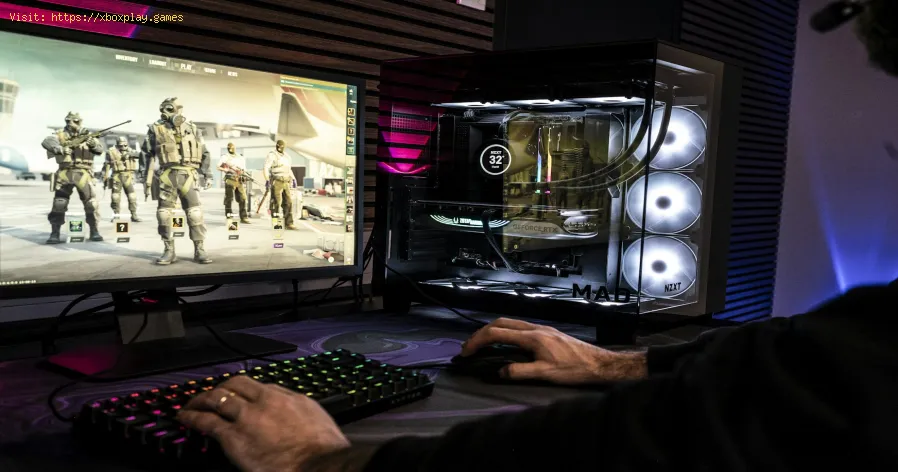
How to Fix The game keeps closing on PC or console — causes and solutions
Root Causes: Why Does My Game Keep Closing?
Crashes are a symptom, and effective treatment requires diagnosing the cause. Here are the most common culprits, explained simply.The Quick Fix (For the Impatient Gamer)
Short on time? Try these three universal steps first—they solve a majority of common crashes:Detailed, Step-by-Step Solutions
If the quick fixes didn't work, let's systematically troubleshoot.For PC Gamers:
Step 1: Run as Administrator & Disable OverlaysRight-click the game's shortcut .exe file, select Properties > Compatibility, and check "Run this program as an administrator." Then, disable overlays in Discord, Steam (Steam > Settings > In-Game), and the Xbox Game Bar (Windows Settings > Gaming).Step 2: Perform a Clean GPU Driver Update
Don't just update; do a clean install. Use a tool like Display Driver Uninstaller (DDU) in Safe Mode to wipe all old driver traces, then install the latest driver fresh from NVIDIA or AMD.
Step 3: Monitor Your Temperatures
Download HWMonitor or MSI Afterburner. Play for a few minutes, then check maxCPU and GPU temps. If they're consistently above 90°C, you have anoverheating issue. Clean dust from vents and fans, ensure properairflow, and consider repasting thermal compound if comfortable.
Step 4: Close Background Applications
Press Ctrl + Shift + Esc to open Task Manager. Before launching your game, close non-essentialhigh-resource apps, especially RGB software, browser tabs with manyvideos, and chat apps.
Step 5: Adjust In-Game Graphical Settings
Lower settings that are heavy on VRAM, like Texture Quality, Shadows, andAnti-Aliasing. Disable features like Ray Tracing to test. Set a stableFPS cap (like 60 or 120) instead of using "Unlimited."
For Console Gamers (PlayStation/Xbox):
Step 1: Clear the System Cache (Power Cycle)
- Turn off your console completely (not Rest Mode).
- Unplug the power cord from the back for at least 60 seconds.
- Plug it back in and restart. This clears cached data that can cause conflicts.
Step 2: Rebuild Database (PS) or Clear Local Saved Games (Xbox)
- PS4/PS5: Boot into Safe Mode (turn off, then hold power button for 7 seconds until you hear two beeps). Select "Rebuild Database." This defrags your drive and cleans up data.
- Xbox: Go to Settings > System > Storage > Clear local saved games. This will sync with the cloud on next boot. Do not select "Remove everywhere."
Step 3: Ensure Proper Ventilation
Consoles need space. Move your console to an open area, not inside a closedcabinet. Clean visible dust from the vents using compressed air.
Step 4: Check for System Software Updates
Manually check for updates: Settings > System > System Software Update (PS) or Settings > System > Updates (Xbox).
Step 5: Reinstall the Game
As a last resort, fully uninstall the game, restart your console, and download it again. This ensures a clean installation.
Alternative Fixes to Try
- Update Your BIOS/UEFI (PC Advanced Users): An outdated motherboard BIOS can cause instability. Visit yourmotherboard manufacturer's website for instructions—proceed withcaution.
- Scan for Windows Corruption: Open Command Prompt as Admin and run: sfc /scannow
- Adjust Windows Power Settings: Set your Power Plan to "High Performance" (Windows Control Panel > Hardware and Sound > Power Options).
- Disable Fullscreen Optimizations (Windows 10/11): Right-click game .exe > Properties > Compatibility > Check "Disable fullscreen optimizations."
How to Prevent Future Crashes
- Maintain Your System: Regularly clean dust from your PC or console vents every 3-6 months.
- Adopt a Proactive Update Routine: Set a monthly reminder to check for GPU drivers and system updates.
- Manage Your Storage: Keep at least 15-20% of your hard drive or SSD free for optimal performance and to prevent file corruption during updates.
- Invest in Good Hardware: Ensure your PSU is from a reputable brand and has enough wattage foryour components. Consider more RAM if you multitask heavily.
Frequently Asked Questions (FAQ)
Q: Is my game crashing because my hardware is too old?
A: Possibly, but not necessarily. It's more likely due to outdated drivers or overheating on older hardware. Lowering graphical settings is thefirst test.
Q: Could it be a problem with my save file?
A: Yes, particularly in open-world games. Try loading a slightly oldersave file to see if the crash persists in the same location/action.
Q: I only crash in online multiplayer. What gives?
A: This often points to a network or anti-cheat issue. Try verifying gamefiles, updating network drivers, or temporarily disabling yourfirewall/antivirus to test.
Q: Should I reinstall Windows?
A: Only as a true last resort after exhausting all other software-focusedsolutions. It's the nuclear option but can resolve deep-seated OScorruption.
Get Back in the Game—Stable and Crash-Free
Game crashes are a complex puzzle, but they are almost always solvable. Byfollowing this structured guide—from the quick fixes to the deep-divesolutions—you’re equipped to diagnose and defeat the most common causesof instability. The key is patience and a methodical approach. Startwith the simplest software fixes before considering hardware or majorreinstallations.
Don't let technical glitches keep you from your adventure. Start with Step 1 today—a simple restart and update. Share this guidewith a friend who's struggling, and get back to what matters most:enjoying your game, crash-free.

Other Articles Related
How to Fix The game keeps closing on PC or console — causes and solutionsExperiencing crashes? Find out why your game keeps closing on PC or console. Learnto fix corrupted files, driver issues, overheating & more. Get backto gaming fast.
Unable to save game: how to fix it in any game
Fix your game save problems with our expert tips and solutions. Learnhow to troubleshoot and restore your gaming
How to Choose a Gaming Monitor: A Complete Guide for 2026
ultimate guide to choosing a gaming monitor. Enhance your gaming experience with expert tips on resolution, refresh rates
How to set up OBS for lag-free streaming
Learn how to set up OBS for streaming with our easy guide. Optimize your settings for the best performance
How to record gameplay without losing FPS on PC or console
Capture your gameplay seamlessly without sacrificing FPS. Enjoy smooth recording and elevate your gaming
How to Optimize Windows 10/11 for Gaming and Higher FPS
Unlock peak gaming performance by optimizing your Windows settings. Enhance speed, reduce lag, and elevate your gaming
How to activate game mode on any TV and reduce lag
how to activate game mode on your TV for an enhanced gaming experience.Optimize settings for smoother graphics
HDMI no signal: how to fix it on consoles and PCs
Learn how to fix "HDMI no signal" on PS4, PS5, Xbox, Nintendo Switch, and PCwith our step-by-step troubleshooting guide. Quick, easy fixes to getyour screen back.
PC not detecting controller: effective solutions - How to Fix
PC not detecting your controller? Discover effective solutions to quicklyfix connectivity issues on Windows PCs. Learn step-by-steptroubleshooting methods.
Black screen on PC gaming: how to fix it
Troubleshoot and resolve PC gaming black screen issues. Learn step-by-step fixes for driver, hardware, and game setting problems to get back to your game.
Xbox: Cannot install game — definitive solution - How to Fix
Get step-by-step fixes for Xbox 'cannot install game' errors.Clear your cache, free up storage, and resolve installation issues inminutes.
PS5: Not enough space — how to fix it
Out of storage on your PS5? Learn how to fix "not enough space" errors bymanaging your game library, using extended storage, and freeing upvaluable console memory.