Error 0x87e50007 on Xbox Series/One: How to Fix It
🛑 Troubleshooting Xbox Error 0x87e50007
This issue specifically signals a licensing validation problem. Essentially, when you try to launch a game—especially titles accessed via Xbox Game Pass or games purchased digitally—the console fails to securely verify that your account has the current, valid license required to play that specific title.This comprehensive, human-optimized guide will explain the underlying reasons for this common license failure and provide a structured, step-by-step troubleshooting plan to get you past the 0x87e50007 error and back into your games on the Xbox platform.
🕹️ Understanding the Context: License Validation Failure
The Xbox ecosystem is designed to check your ownership rights every time you launch a digital game. This check is handled by the Xbox Live service.- The Problem: Error 0x87e50007 occurs when the console attempts to communicate with the Xbox Live Licensing Servers to confirm your ownership rights and one of three things happens:
- The console cannot reach the server (Network issue).
- The console’s cached data about your licenses is corrupted (Local data issue).
- The specific game's license has expired or is invalid (e.g., a Game Pass title was removed, or your subscription lapsed).
📉 Core Causes of Error 0x87e50007
This error is almost always rooted in connectivity or corrupted local data, preventing the crucial license handshake from occurring.| Problem Area | Detailed Explanation (Simple Technical View) |
| Home Xbox Designation | If you are offline or have network trouble, your console relies on its Home Xbox status to verify licenses. If the console is not set as your Home Xbox, it cannot verify licenses without an internet connection. |
| Corrupted Console Cache | The console stores temporary files and license tokens in its cache. This data can become corrupted, leading to the console sending the wrong or incomplete information to the Xbox Live servers. |
| Xbox Live Service Outage | Less common, but possible: The Xbox Live Licensing Service itself may be experiencing temporary downtime or maintenance, preventing any console from successfully validating licenses. |
| Network Issues (DNS/NAT) | Slow or incorrectly configured DNS servers, or a strict NAT type, can interrupt the specific, small data packet transfer required for a successful license check. |
| Subscription Lapse | If the game is a Game Pass title and your Game Pass Ultimate subscription recently expired or payment failed, the license is instantly revoked, triggering this error upon launch. |
⚡ Quick Fix for Impatient Users: Power Cycle and Home Xbox
If you just want to play immediately, try this rapid sequence:
🛠️ Detailed Solutions: Step-by-Step Troubleshooting
Follow these steps in order. They move from simple local fixes to more complex network and profile solutions.
Step 1: Check Xbox Live Service Status
Before troubleshooting your console, verify the issue isn't on Microsoft's end.
- Use a mobile phone or PC to navigate to the official Xbox Status Page.
- Look for alerts concerning Games and Gaming or Subscriptions and Licensing.
- If services are down, you must wait for Microsoft to resolve the issue.
Step 2: Ensure an Active Subscription (If Applicable)
If the game is part of a subscription service (Game Pass, EA Play):
- Go to Settings > Account > Subscriptions.
- Verify that your Xbox Game Pass Ultimate (or relevant subscription) is active and that the payment method is up-to-date.
Step 3: Remove and Re-Add Your Profile
A corrupted user profile token can often cause license issues.
- Go to Settings > Account > Remove accounts.
- Select the account getting the error and choose Remove.
- Restart your console (via the Guide button, not just a cache clear).
- Once restarted, go to the profile sign-in screen and select Add & manage > Add new. Sign back in with your Microsoft credentials.
Step 4: Full Network Reset (DNS Flush)
If the license check is failing due to poor server connection, try resetting the network components.
- Go to Settings > General > Network settings.
- Select Advanced settings.
- Note down your current DNS settings (for backup).
- Change the DNS settings from Automatic to Manual.
- Set Primary DNS to $8.8.8.8$ and Secondary DNS to $8.8.4.4$ (Google Public DNS).
- Restart your router and your Xbox.
Step 5: Check Storage Location and Move the Game
The error can sometimes be tied to the storage device.
- Go to Settings > System > Storage devices.
- Find the game causing the error.
- If it is on an external drive, select the game and choose Move or copy to move it to the Internal Storage of the console.
- Attempt to launch the game from the internal drive.
🔄 Alternative Solutions: The Purchase History Check
If all console and network steps fail, you may need to verify the purchase status online.
- Open a web browser and go to account.microsoft.com.
- Log in with your Xbox account.
- Navigate to Payment & billing > Order history.
- Find the specific game causing the error. Confirm that the purchase was successful and not refunded or canceled. If the purchase history is clear, proceed to re-download the license.
- Re-download the License: Go to Manage games and add-ons for the affected title. Delete the game locally, and then re-downloadit. This forces the console to fetch a brand new license token from theserver.
🛡️ How to Prevent Licensing Errors
Licensing errors are generally rare, but proactive steps can minimize the risk:
- Maintain Home Xbox Status: Only change your Home Xbox setting when absolutely necessary (you are limited to 5 changes peryear). Keeping your primary console designated as Home ensures offlineaccess to licenses.
- Regular Cache Clearing: Once a month, perform the Full Power Cycle (holding the power button for 10 seconds and unplugging) to keep thesystem running smoothly and clear out any potential cache corruption.
- Keep Subscriptions Current: Use automatic renewal or ensure your payment method for Game Pass Ultimate is always current to avoid lapses in license access.
❓ Frequently Asked Questions (FAQ)
Can I get Error 0x87e50007 if I play a disc-based game?
No, disc-based games use the physical disc itself as the license key. Thiserror is strictly tied to digital licenses verified via the Xbox Liveservice.
What if I changed my Gamertag recently?
Changing your Gamertag should not cause this issue, but if it occurs immediately after a name change, performing Step 3 (Remove and Re-Add Your Profile) is highly recommended to update all local profile tokens.
Is this error linked to an Xbox ban?
No. Licensing errors are technical communication failures. Account orconsole bans typically result in completely different error codes andmessages that explicitly mention the ban.
✅ Conclusion and Call to Action
Error 0x87e50007 is a disruptive, yet common, challenge for Xbox gamers. Bysystematically addressing potential issues—starting with the simple Home Xbox verification and cache clearing, then moving to network troubleshooting and profile resets—you canquickly restore the console's ability to validate your game licenses.
Are you still stuck on Error 0x87e50007?
➡️ If you have performed all the steps above but are still unable to launchthe game, tell me whether the game is a Game Pass title or a directpurchase, and I will guide you on the final step: initiating a licenseticket with Xbox Support!
Other Articles Related
Xbox: Cannot install game — definitive solution - How to FixGet step-by-step fixes for Xbox 'cannot install game' errors.Clear your cache, free up storage, and resolve installation issues inminutes.
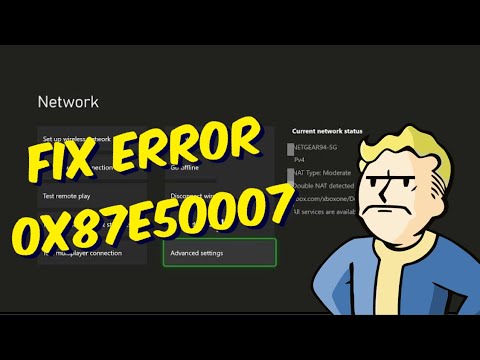
Error 0x87e50007 on Xbox Series/One: How to Fix It
Fix Error 0x87e50007 on Xbox with our step-by-step guide. Troubleshoot and resolve this issue quickly
How to Fix Lag on Xbox Series X
On this occasion we return with a guide with the objective of explaining to you How to Fix Lag on Xbox Series X.
How to Fix Xbox GamePass Download Speed Too Slow
Today we explain how to fix Xbox GamePass download speed that is too slow.
How to Fix Xbox Error 0x80073d0f
Learn How to Fix Xbox Error 0x80073d0f. Fix installation issues and get back to gaming quickly!
How To Fix Xbox Error Code 80004005
Learn how to resolve Xbox error code 80004005 with our step-by-step guide. Fixing this issue is easier than you think. Get back to gaming in no time!
How to Fix Xbox Error Code 80151015
Learn how to troubleshoot and fix Xbox Error Code 80151015 with our step-by-step guide. Get back to gaming in no time!
How To Fix Sticky Buttons on Xbox Controller
Learn effective techniques on How To Fix Sticky Buttons on Xbox Controller and enjoy uninterrupted gaming sessions.
How to fix Xbox Error Code 807b01f7
Get expert tips and solutions to How to fix Xbox Error Code 807b01f7 and efficiently on our website.
How to Fix Xbox App for PC Not Installing
Discover effective solutions on How to Fix Xbox App for PC Not Installing on your PC and enjoy uninterrupted gaming experiences.
How to Choose a Gaming Monitor: A Complete Guide for 2026
ultimate guide to choosing a gaming monitor. Enhance your gaming experience with expert tips on resolution, refresh rates
How to Improve Audio in Games: Equalization and Recommended Settings
Enhance your gaming experience with tips to improve audio quality in games. Discover techniques for immersive sound
How To Solve the Raider Refuge Button Puzzle in Arc Raiders
Learn how to solve the Raider Refuge button puzzle in Arc Raiders with thisstep-by-step guide. Find the correct sequence and timing to unlock thehidden loot.
How to use Xbox Cloud Gaming on PC, mobile, or TV
Experience gaming like never before with Xbox Cloud Gaming. Play your favorite titles anytime, anywhere
How to use Remote Play on PS5 from PC or mobile
Experience gaming freedom with Remote Play on PS5. Play your favorite titles anywhere, anytime, and enjoy