
How to activate game mode on any TV and reduce lag
Activate Game Mode on Any TV and Drastically Reduce Input Latency
The "problem" is that modern televisions are designed primarily for video processing and picture enhancement. When a game is running, the TV's internal processor applies numerous non-essential visual filters (like motion smoothing, noise reduction, and dynamic contrast) to improve the cinematic quality of the image. This complex processing—while great for movies—takes time, resulting in input lag. This is the perceptible delay between controller input and the action displayed on the screen, often ranging from an acceptable 20 milliseconds ($\text{ms}$) to a painful $100+ \text{ ms}$.The solution is Game Mode. This dedicated setting bypasses almost all unnecessary post-processing, minimizing the time data spends inside the TV's processor and radically dropping input latency. This article will guide you through locating and activating Game Mode on virtually any television and introduce other critical settings to ensure a smooth, responsive gaming session.
🛑 Causes of High Input Lag on Modern TVs
Your TV's advanced features, ironically, are what often cause poor gaming performance. Here are the detailed causes:- Image Post-Processing Filters: Features like motion smoothing (TruMotion, MotionFlow) and dynamic contrast/sharpness filters.
- Simple Technical Explanation: These filters involve buffering several frames, analyzing them for movement, and interpolating new frames in between (a process called frame insertion). This analysis and insertion requires significant computational time, directly adding tens or even hundreds of milliseconds of delay to the image display pipeline.
- Over-reliance on Native Picture Modes: Using modes like "Cinema," "Vivid," or "Standard."
- Simple Technical Explanation: These presets are configured to maximize the number of active post-processing features to produce a visually stunning, but slow, image. Only "Game Mode" is engineered to disable these features instantly.
- HDMI Port Configuration (4K/HDR): The specific HDMI port used may not be configured to handle high bandwidth features like $4\text{K} \text{ @ } 120 \text{ Hz}$ or $\text{HDR}$.
- Simple Technical Explanation: Many TVs require you to manually enable an enhanced signal format (like "HDMI Ultra HD Deep Color" or "Enhanced Format") on the HDMI port itself. If not enabled, the port defaults to a low-bandwidth setting (e.g., HDMI $1.4$), limiting the connection to $4\text{K} \text{ @ } 30 \text{ Hz}$ or $60 \text{ Hz}$, which can restrict advanced features like ALLM.
- Lack of ALLM (Auto Low Latency Mode): The gaming device and TV are not communicating to automatically switch to Game Mode.
- Simple Technical Explanation: ALLM (a feature of HDMI $2.1$) allows a console (like PS5 or Xbox Series X|S) to send a signal to a compatible TV, instructing it to instantly switch into its lowest latency mode. If either the console, the TV, or the HDMI cable doesn't support HDMI $2.1$, this automatic switching fails.
⚡ Quick Solution (For Impatient Users)
If you can't find the setting immediately, try this rapid approach:⚙️ Detailed Step-by-Step Solutions: Activating Game Mode Manually
Since menu names vary wildly between brands, these steps cover the common routes for the major TV manufacturers.
Step 1: Accessing the Picture Settings Menu
- Samsung: Press the Home button > Settings (gear icon) > Picture.
- LG: Press the Settings button > Picture > Picture Mode Settings.
- Sony: Press the Action Menu or Quick Settings button > Picture Settings.
- Vizio/TCL: Press the Menu button > Picture or Picture Modes.
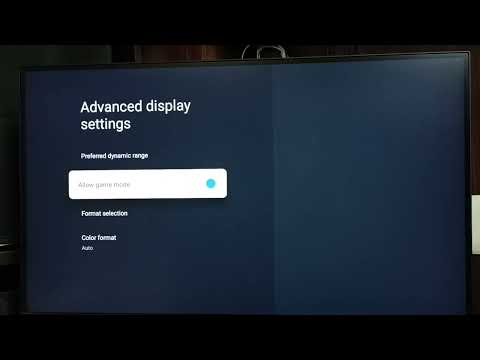
Step 2: Selecting Game Mode
Step 3: Enabling Enhanced HDMI Port Format (Crucial for $4\text{K} \text{ @ } 120 \text{ Hz}$ / HDR)
- Samsung: Settings > General > External Device Manager > Input Signal Plus (Turn this ON for the specific HDMI port you are using).
- LG: Settings > General > External Devices > HDMI Ultra HD Deep Color (Turn this ON for the HDMI port).
- Sony: Settings > External Inputs > HDMI Signal Format > Enhanced Format (Select this for the HDMI port).
- Vizio/TCL: Settings > Input Settings > Full UHD Color or HDMI $2.0$ (Enable for the port).
Step 4: Disabling Redundant Features (In Game Mode)
Even in Game Mode, some minor filters might be left on. While still in the Picture Settings (or the Game Mode sub-menu):
- Turn OFF any feature related to Motion Smoothing, Noise Reduction, or Sharpness (set to 0).
- Ensure Dynamic Contrast or Local Dimming (if applicable) is set to Off or Low.
Step 5: Adjusting the $4\text{K} \text{ @ } 120 \text{ Hz}$ Setting (for compatible TVs)
If you have a PS5, Xbox Series X, or a high-end PC, confirm your input device is sending the high refresh rate:
- Console: Navigate to the console's display settings and manually set the output refresh rate to $120 \text{ Hz}$ (if available).
- PC: Right-click desktop > Display Settings > Advanced Display > Choose a refresh rate > Select $120 \text{ Hz}$ or higher.
🔁 Soluciones Alternativas (Alternative Solutions)
If your TV is an older model and lacks a dedicated Game Mode, you must manually disable the processing:
- Rename the Input: Some older TVs have a "PC" or "Game" label option when renaming an input source. Renaming the input to "PC" often forces the TV to apply lower processing by treating the input as a computer monitor.
- Use the "Monitor" or "PC" Mode: Select the "Monitor" or "PC" picture preset, which often has less processing than "Standard" or "Vivid."
- Manually Disable All Motion Processing: Go through the settings and turn off every feature related to motion, noise reduction, and clarity enhancement (e.g., remove all five steps mentioned in Step 4 manually).
🛡️ How to Prevent High Lag from Returning
Once you've achieved low latency, you want to keep it:
❓ Frequently Asked Questions
Q: Does Game Mode make the picture look worse?
A: Technically, yes. Game Mode disables the advanced filters that makemovies look "cinematic." However, most gamers prefer the lower lag andhigher responsiveness over the slight loss of cinematic clarity. You can still adjust basic brightness, contrast, and color within Game Mode tomaintain a good picture.
Q: Is "PC Mode" the same as "Game Mode"?
A: Not exactly. Game Mode specifically targets low latency for variableframe rates. PC Mode (or renaming the input to "PC") targets the correct color range (Full RGB) and often eliminates some processing, resultingin low lag, but it might not be as optimized as a dedicated Game Mode.For consoles, use Game Mode; for PCs, test both.
Q: How do I know how much my input lag is?
A: You can't see the exact numerical value without a specialized lagtesting device. However, a good way to test is to use your console's web browser to find an online input lag tester video (showing a stopwatchnext to a mouse click) and record the screen with your phone in slowmotion to estimate the visual delay.
Q: Does $120 \text{ Hz}$ automatically mean low input lag?
A: No. $120 \text{ Hz}$ means the screen refreshes $120$ times per second(smoothness), but input lag is the time it takes the TV to process anddisplay the signal (responsiveness). While TVs capable of $120 \text{Hz}$ usually have better processors and lower native lag, you still need to activate Game Mode to bypass the post-processing filters.
✅ Take Control of Your Performance Today!
High input lag is a silent killer of good gaming performance, but it's aneasy fix. By locating and activating Game Mode on your television, youare stripping away the unnecessary processing that slows down yourresponse time, often cutting latency by half or more. This simple change is arguably the most significant performance upgrade you can makewithout buying new hardware.
Stop fighting your television's processor! Activate Game Mode now and experience instantaneous, responsive gaming!
Other Articles Related
How to activate game mode on any TV and reduce laghow to activate game mode on your TV for an enhanced gaming experience.Optimize settings for smoother graphics
How to configure a gaming monitor for the best image quality
Discover how to configure your gaming monitor to get the best image quality and maximize your gaming experience.
How to use a Nintendo Switch controller on a PC, step by step
Learn how to connect and use your Nintendo Switch controller on a PC with our step-by-step. Enhance your gaming experience
How to connect a PS5 controller to your PC via USB or Bluetooth
Learn how to easily connect your PS5 controller to your PC using USB or Bluetooth with our step-by-step.
How to Connect an Xbox controller to your PC
Easily connect your Xbox controller to your PC running Windows 10/11 with our step-by-step guide. Enjoy seamless gaming
How to reduce input lag on consoles
Discover effective solutions to reduce input lag on Xbox, PS5, and Switch for a smoother gaming experience. Optimize your gameplay
How to improve FPS on PC
Boost your PC's performance with our comprehensive guide on improving FPS. Unlock smoother gameplay and enhance your gaming
How To Get Dual Hammers in Vermintide 2
Learn how to unlock the powerful Dual Hammers for the Bardin Goreksson inVermintide 2. This guide covers the simple steps to get this top-tiermelee weapon for the Ironbreaker, Ranger Veteran, and Slayer careers.
All Heroes and Careers in Vermintide 2
Explore the diverse heroes and careers in Vermintide 2. Discover unique abilities, playstyles, and strategies to enhance your gameplay
How to improve your internet connection for lag-free online gaming
Enhance your online gaming experience with tips to improve yourconnection. strategies for a smoother, lag-free gameplay
How to open ports for Xbox Live and improve NAT
open ports for Xbox to enhance your gaming experience.Optimize your connection and enjoy seamless online play
How to Use an External SSD on Xbox Series X/S Correctly
Discover how to enhance your Xbox gaming experience by using an external SSD. Boost storage, speed, and performance
How to free up space on PS5 without deleting your games
effective tips to free up space on your PS5. Optimize storage and enhance your gaming experience with our guide.
How to easily free up space on Xbox Series X/S
methods to free up space on your Xbox Series. Optimize your storage and enhance your gaming experience with our tips.