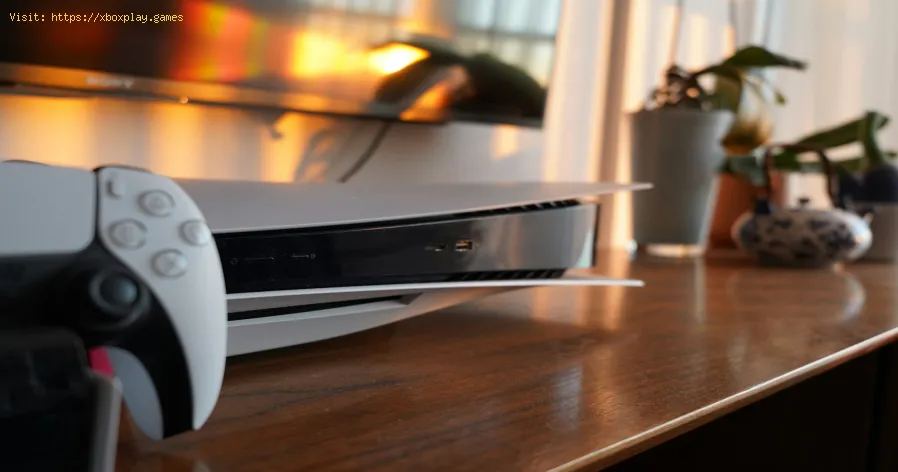
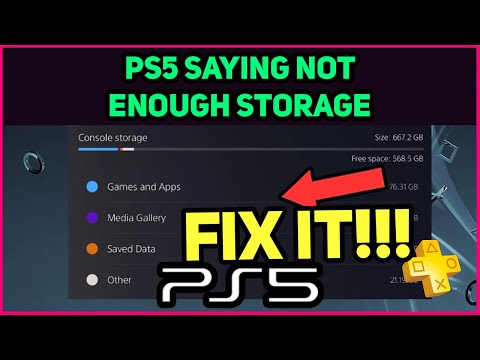
PS5: Not enough space — how to fix it
Causes of the Problem (Why Is My PS5 Full?)
Understanding what’s eating your space is the first step to reclaiming it. Here’s a breakdown of the digital culprits:The Quick Fix (For Impatient Users)
If you need space right now to download that one urgent game, follow this 5-minute purge:Detailed Step-by-Step Solutions
Follow these methods to systematically cleanse and manage your PS5 storage.Method 1: The Smart Cleanup (No Hardware Required)
This is your first line of defense—a surgical strike on space-wasters.
Method 2: Expand Your Arsenal (Adding an M.2 SSD)
This is the definitive, permanent solution, transforming your PS5’s capacity.
- Buy a Compatible SSD: You need a PCIe Gen4 NVMe M.2 SSD with a heatsink (or buy one separately). Ensure it’s at least 250GB and no larger than 4TB. Popular, reliable brands include Western Digital,Seagate, and Samsung.
- Power Down: Completely turn off your PS5 and unplug all cables.
- Remove the Side Panel: Place the console with the PS logo facing down. Lift the top-left corner of the white panel and slide it off.
- Locate and Open the SSD Bay: You’ll see a rectangular metal cover with a screw. Remove the screw and cover.
- Install the SSD: Remove the screw and spacer inside the bay. Insert your M.2 SSD intothe slot at a slight angle, press it down, and secure it with the screw(using the correct spacer for your SSD’s length).
- Reassemble: Put the metal cover and side panel back on.
- Format the SSD: Turn on your PS5. It will prompt you to format the new drive. Followthe instructions. The drive will now appear as additional “M.2 SSDStorage” in your settings. You can now set it as the default installation location for new games.
Method 3: The Hybrid Approach (Using an External USB Drive)
Perfect for your PS4 library and backups.
- Get a Compatible Drive: Use a USB 3.0 (or later) external HDD or SSD with at least 250GB capacity.
- Format It: Connect the drive to your PS5. Go to Settings > Storage > USB Extended Storage and select Format as USB Extended Storage.
- Transfer, Don’t Play:You cannot play PS5 games from an external USB drive. However, you can:
- Store PS5 Games: Move (not copy) PS5 games to the external drive for cold storage. Toplay them, you must move them back to the internal or M.2 SSD.
- Play PS4 Games: You can both store and play your PS4 games directly from the USB drive, freeing up the internal SSD for PS5 titles.
Alternative Solutions If The Problem Persists
- Check for Corrupted Downloads: A failed download can leave incomplete data. Delete the game from theHome Screen (press Options > Delete) and try re-downloading it.
- Initialize Your PS5 (Nuclear Option):Warning: This erases everything. Go to Settings > System > System Software > Reset Options > Reset Your Console. Choose Reset and Remove Everything only if all else fails. You will need to re-download all games and settings.
How to Prevent It From Happening Again
- Be Proactive with Storage Management: Make it a monthly habit to check your storage and delete finished games or old media.
- Leverage Cloud Storage: If you have PlayStation Plus, ensure Automatic Update and Save Data Sync are enabled. Your saves are always safe.
- Mind Your Captures: Change your capture settings (Settings > Captures and Broadcasts) to shorter clip durations and lower resolution for casual captures.
- Adopt a “One In, One Out” Rule: If your drive is near full, commit to deleting an old game for every new one you install.
- Invest in an M.2 SSD: Truly, this is the best investment for a seamless PS5 experience, effectively solving the storage problem forever.
Frequently Asked Questions (FAQ)
Q: Will deleting a game delete my save files?
A: No. Save data is stored separately. You can delete a 100GB game and your10MB save file will remain intact, especially if you have PS Plus cloudbackup enabled.
Q: Can I use any external hard drive to play PS5 games?
A: No. PS5 games must be played from the internal SSD or an installed M.2 SSD. External USB drives can only be used for storage of PS5 games or storage and play of PS4 games.
Q: What’s the best M.2 SSD size for PS5?
A: 1TB or 2TB. 1TB doubles your effective storage at a good price. 2TB offers acomfortable, long-term solution. 4TB is for the ultimate collector.
Q: I don’t see the “Move to USB Extended Storage” option for my PS5 game. Why?
A: The game might be currently running or updating. Close the game fully, and the option should appear.
Q: Is it safe to rebuild the database?
A: Yes. It’s a maintenance tool. It won’t delete your games or saves, though it may reset your home screen layout.
Conclusion & Final Call to Action
Running out of space on your PS5 is an inevitable part of the modern gamingecosystem, but it’s a problem with clear, effective solutions. You don’t have to live in a constant cycle of deletion and frustration.
Start today: Take 10 minutes to perform the Smart Cleanup (Method 1). You’ll likely be shocked at how many gigabytes you can reclaim from old captures and games you’ve already completed. For a permanent end tostorage anxiety, research and invest in an M.2 SSD—it’s the single best upgrade you can make to your console, restoring peaceof mind and ensuring you’re always ready to jump into the next gamingadventure without a second thought.
Other Articles Related
How to Fix Cannot log in — quick fixStuck outside your account? Learn quick, step-by-step solutions to fix “cannot log in” errors and regain access in minutes.
PS5: Not enough space — how to fix it
Out of storage on your PS5? Learn how to fix "not enough space" errors bymanaging your game library, using extended storage, and freeing upvaluable console memory.
“Data corrupted” error on PS5: how to fix it step by step
Fix the Data corrupted error on your PS5 with our step-by-step guide. Get your console back to gaming in no time!
How to Improve Audio in Games: Equalization and Recommended Settings
Enhance your gaming experience with tips to improve audio quality in games. Discover techniques for immersive sound
How to use Remote Play on PS5 from PC or mobile
Experience gaming freedom with Remote Play on PS5. Play your favorite titles anywhere, anytime, and enjoy
How to free up space on PS5 without deleting your games
effective tips to free up space on your PS5. Optimize storage and enhance your gaming experience with our guide.
How to fix Apple Music not working on PS5
Today we bring you an explanatory guide on How to fix Apple Music not working on PS5 with precise details.
All games confirmed in PS5 Pro
Today we bring you an explanatory guide with everything you need to know about All games confirmed in PS5 Pro.
How To Fix Balatro Crashing On PS5
Discover effective solutions to resolve How To Fix Balatro Crashing On PS5 with our comprehensive guide.
How To Fix Foamstars Download Stuck
Learn How To Fix Foamstars Download Stuck. Get unstuck with our step-by-step guide to fixing download problems quickly and easily.
How to Transport Cargo via Site-To-Site Transmat in Destiny 2 Renegades
Learn how to transport cargo via Site-To-Site Transmat in Destiny 2'sRenegades mission. A quick guide to complete this objective and progress through the quest step.
How To Defeat Rogue Mega Meowstic in Pokemon Legends Z-A
Face the psychic fury in Lumiose City! Learn strategies, type advantages,and team builds to defeat the formidable Rogue Mega Meowstic in PokémonLegends Z-A.
What You Need To Know About the Pfister X-Treme in GTA Online
Master the Pfister X-Treme in GTA Online. Get the full guide on itsperformance, upgrades, price, and how to unlock this top-tier sports car for racing and style.
Unable to save game: how to fix it in any game
Fix your game save problems with our expert tips and solutions. Learnhow to troubleshoot and restore your gaming
How to Fix DirectX has stopped working: causes and solutions
effective solutions for the "DirectX has stopped working" error. Getyour games and applications running smoothly