
How to set up OBS for lag-free streaming
Causes of the Problem
Lag in OBS streaming can be caused by several factors:- Incorrect Bitrate Settings: If your bitrate is too high for your internet upload speed, OBS will drop frames.
- Resolution and FPS Mismatch: Streaming at 1080p 60fps requires significant resources; weaker PCs may struggle.
- Encoder Overload: Using software (CPU) encoding instead of hardware (GPU) can overwhelm your system.
- Background Processes: Other applications consuming bandwidth or CPU can interfere with OBS.
- Network Instability: Wi‑Fi connections are prone to packet loss compared to wired Ethernet.
- Outdated Drivers: Old GPU drivers or network drivers can cause inefficiency.
Quick Solution (For Impatient Users)
If you want a fast fix without diving into details:Detailed Step‑by‑Step Solutions
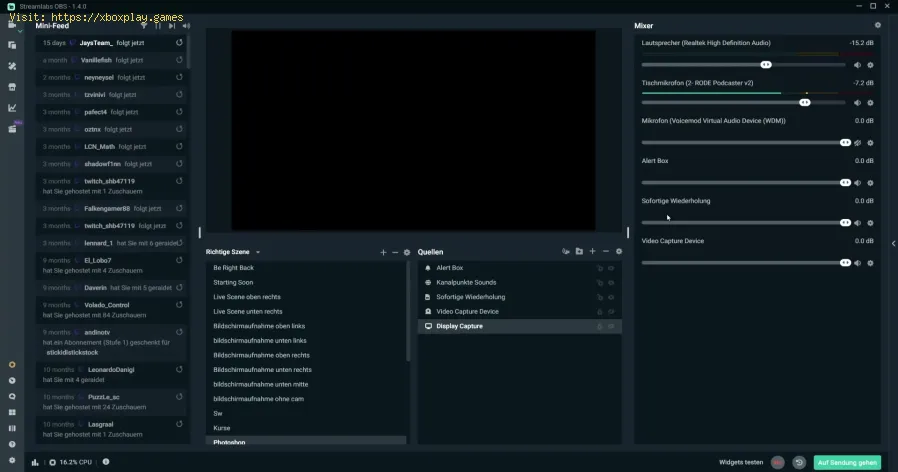
Step 1: Check Your Internet Speed
- Run a speed test (e.g., Speedtest.net).
- Ensure your upload speed is at least double your chosen bitrate.
- Example: For 4000 kbps bitrate, you need at least 8 Mbps upload.
Step 2: Adjust Output Settings
- Go to Settings > Outputin OBS.
- Set Output Modeto Advanced.
- Choose Hardware Encoder(NVENC, AMF, or QuickSync).
- Set bitrate between 2500–6000 kbps depending on your internet speed.
Step 3: Optimize Video Settings
- Navigate to Settings > Video.
- Set Base (Canvas) Resolutionto your monitor resolution.
- Set Output (Scaled) Resolutionto 1280x720 or 1920x1080 depending on hardware.
- Choose Common FPS Values: 30 or 60.
Step 4: Enable Dynamic Bitrate (if supported)
- In Settings > Advanced, enable Dynamic Bitrate.
- This allows OBS to adjust bitrate automatically if your network fluctuates.
Step 5: Prioritize OBS in Task Manager
- On Windows, open Task Manager.
- Right‑click OBS > Set Priority > High.
- This ensures OBS gets more CPU resources.
Step 6: Close Background Applications
- Shut down browsers, downloads, or games not needed for streaming.
- Disable auto‑updates during live sessions.
Step 7: Update Drivers
- Update GPU drivers via NVIDIA GeForce Experience or AMD Adrenalin.
- Update network drivers through your motherboard manufacturer.
Step 8: Use Wired Connection
- Plug directly into your router with Ethernet.
- Avoid streaming over Wi‑Fi to reduce packet loss.
Step 9: Test Stream
- Use Twitch’s Inspector or YouTube’s Stream Health tools.
- Monitor dropped frames and adjust settings accordingly.
Step 10: Save and Apply
- Once optimized, save settings.
- Restart OBS before your next stream for changes to take effect.
Variants According to Platform
- Windows: Full support for NVENC, AMF, and QuickSync. Best performance with NVIDIA GPUs.
- macOS: Limited hardware encoding; rely on Apple VT encoder. Ensure macOS is updated.
- Linux: NVENC supported with proprietary drivers. May require manual configuration.
Alternative Solutions
- Use Streamlabs OBS (SLOBS): Offers a simplified interface but consumes more resources.
- Reduce Game Graphics Settings: Lowering in‑game resolution or effects frees CPU/GPU for OBS.
- Dedicated Streaming PC: Advanced streamers use a dual‑PC setup, one for gaming and one for streaming.
- Third‑Party Tools: Services like Restream.io can balance load across multiple platforms.
How to Prevent Lag in Future Streams
- Always test your stream before going live.
- Keep OBS and GPU drivers updated.
- Monitor CPU/GPU usage during streams.
- Avoid multitasking while streaming.
- Use recommended bitrate settings for Twitch, YouTube, or Facebook Live.
Frequently Asked Questions
Q1: What bitrate should I use for Twitch?Twitch recommends 3000–6000 kbps for 720p60 or 1080p30 streams.
Q2: Can I stream in 4K with OBS?Yes, but you need a powerful PC and at least 20 Mbps upload speed.
Q3: Why does OBS drop frames even with good internet?Likely due to CPU/GPU overload. Switch to hardware encoding.
Q4: Is Wi‑Fi good enough for streaming?Not recommended. Ethernet ensures stable connections.
Q5: Does OBS work on laptops?Yes, but performance depends on hardware. Gaming laptops with dedicated GPUs perform best.
Setting up OBS for lag‑free streaming doesn’t have to be complicated. By understanding the causes of lag, applying quick fixes, and following detailed steps, you can ensure smooth, professional broadcasts on Twitch, YouTube, or Facebook Live.
Now it’s your turn: optimize your OBS settings, test your stream, and go live with confidence. Don’t let lag ruin your content—set up OBS correctly today and deliver the seamless experience your audience deserves!
Other Articles Related
How to Fix The game keeps closing on PC or console — causes and solutionsExperiencing crashes? Find out why your game keeps closing on PC or console. Learnto fix corrupted files, driver issues, overheating & more. Get backto gaming fast.
HDMI no signal: how to fix it on consoles and PCs
Learn how to fix "HDMI no signal" on PS4, PS5, Xbox, Nintendo Switch, and PCwith our step-by-step troubleshooting guide. Quick, easy fixes to getyour screen back.
PC not detecting controller: effective solutions - How to Fix
PC not detecting your controller? Discover effective solutions to quicklyfix connectivity issues on Windows PCs. Learn step-by-steptroubleshooting methods.
Black screen on PC gaming: how to fix it
Troubleshoot and resolve PC gaming black screen issues. Learn step-by-step fixes for driver, hardware, and game setting problems to get back to your game.
Unable to save game: how to fix it in any game
Fix your game save problems with our expert tips and solutions. Learnhow to troubleshoot and restore your gaming
How to Choose a Gaming Monitor: A Complete Guide for 2026
ultimate guide to choosing a gaming monitor. Enhance your gaming experience with expert tips on resolution, refresh rates
How to set up OBS for lag-free streaming
Learn how to set up OBS for streaming with our easy guide. Optimize your settings for the best performance
How to activate game mode on any TV and reduce lag
how to activate game mode on your TV for an enhanced gaming experience.Optimize settings for smoother graphics
How to Use Photo Mode in Clair Obscur Expedition 33
Master the art of cinematic photography in Clair Obscur Expedition 33. Ourguide reveals all Photo Mode controls, filters, and tips to capture your most stunning in-game moments.
How to record gameplay without losing FPS on PC or console
Capture your gameplay seamlessly without sacrificing FPS. Enjoy smooth recording and elevate your gaming
How to Optimize Windows 10/11 for Gaming and Higher FPS
Unlock peak gaming performance by optimizing your Windows settings. Enhance speed, reduce lag, and elevate your gaming
How to Get Mega Heatran in Pokemon Legends Z-A Mega Dimension
Discover how to obtain Mega Heatran in Pokemon Legends Z-A with our completeguide to unlocking this powerful Fire/Steel-type in the mysterious MegaDimension.
How to Get Mega Glimmora in Pokemon Legends Z-A Mega Dimension
Discover how to unlock Mega Glimmora in Pokémon Legends Z-A with our guide!Learn the exclusive Mega Evolution steps, abilities, and best strategies in the new Mega Dimension.