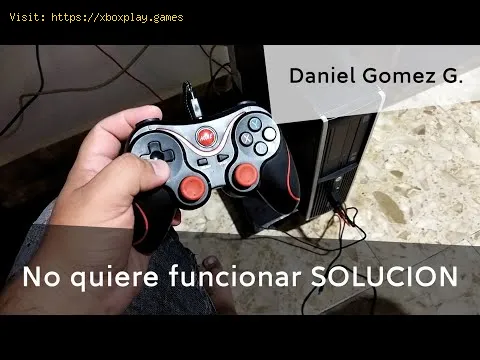
No hay nada más frustrante que prepararse para una sesión de juego épica, con el mando en la mano, y que tu PC actúe como si no se diera cuenta. Ese mensaje de "No se detecta mando" o los botones que no responden pueden arruinarte el ánimo al instante, ya sea que estés a punto de embarcarte en una aventura extensa en Elden Ring , realizar una maniobra precisa en Rocket League o sumergirte en la acción caótica de Call of Duty en tu PC con Windows .
Este problema de conectividad es un problema sorprendentemente común que conecta la comodidad de una consola con la versatilidad de una PC. No suele ser señal de un mando roto ni de una PC averiada, sino más bien de un fallo de comunicación. Este problema se produce porque la conexión entre el mando y la PC es una cuestión delicada que involucra puertos de hardware, protocolos inalámbricos, controladores de software y la configuración del juego. Un error en cualquiera de estos aspectos (un controlador dañado, un puerto USB que consume mucha energía, una configuración de Steam complicada o un simple problema de conexión física) puede romper la conexión.
No te conformes con el teclado y el ratón todavía. Esta guía te mostrará soluciones efectivas , desde una solución rápida de 30 segundos hasta una resolución de problemas más exhaustiva, para que tu mando pase de ser un instrumento invisible a un aliado de confianza.
Comprender el "por qué" a menudo puede indicar el "cómo solucionarlo". Estos son los culpables típicos:
Conexiones físicas defectuosas o sueltas: un cable desgastado, un puerto USB polvoriento o un conector parcialmente enchufado es la causa más simple y más común.
Controladores obsoletos, dañados o faltantes: Su PC utiliza pequeños componentes de software llamados "controladores" para comunicarse con el hardware. Si el controlador de su controlador (o el genérico de Windows) está obsoleto o dañado, el protocolo de enlace falla.
Interferencia en la administración de energía: para ahorrar energía, Windows a veces puede apagar los puertos USB y desconectar el dispositivo.
Configuración agresiva de Steam: el modo Big Picture de Steam tiene una herramienta de configuración de controlador potente, pero a veces excesiva, que puede anular las configuraciones de juegos que no son de Steam o entrar en conflicto con otro software.
Problemas de emparejamiento de Bluetooth: en el caso de los controladores inalámbricos, el emparejamiento puede fallar debido a interferencias de señal, distancia o tener demasiados dispositivos emparejados.
Third-Service Software Conflicts: Applications like DS4Windows, reWASD, or even peripheral software from Razer or Logitech can sometimes conflict with native Windows support.
Controller Not in Correct Mode: Some controllers (like the DualShock 4) have different pairing modes for PC vs. PlayStation.
Simple Technical Explanation: Think of it like a conversation. Your controller speaks "Controller-ese," and your PC speaks "Windows." The driver is the translator. A bad cable is like a broken telephone line. Software like Steam is like an overeager interpreter who sometimes interrupts and takes over the conversation, confusing everyone.
If you need a fix in under two minutes, run through this checklist:
Unplug and Replug: Use a different USB cable and a different USB port on your PC (preferably one directly on the motherboard, not the front panel).
Restart Your PC: The classic IT solution. It clears temporary caches and resets USB controllers.
Check Steam Settings: If using Steam, open Big Picture Mode > Settings > Controller Settings. Ensure your controller type is detected and disable the configuration support for controllers you aren't using (e.g., disable PlayStation support if you're using an Xbox pad).
Follow these steps methodically. Try your controller after each step.
Wired: Try a high-quality data-sync USB cable (some cables are for charging only). Test every USB 2.0 and 3.0 port.
Wireless (Bluetooth): Go to Windows Settings > Bluetooth & devices. Remove your controller from the list of paired devices. Put your controller into pairing mode (for Xbox, hold the sync button; for PlayStation, hold Share + PS button) and re-pair it.
Wireless (Dongle): For official Xbox Wireless Adapters, plug it into a different port. Ensure it's firmly seated.
Press Windows Key + X and select Device Manager.
Expand "Sound, video and game controllers" and "Human Interface Devices."
Look for your controller (e.g., "Xbox 360 Peripherals," "Wireless Controller").
Right-click on it and select "Update driver." Choose "Search automatically for drivers."
If that doesn't work, right-click again and select "Uninstall device." Restart your PC. Windows will automatically attempt to reinstall the correct driver upon reboot.
This stops Windows from cutting power to your controller.
Steam is a major culprit.
Is the controller dead everywhere?
Q: My controller works on the gamepad tester website but not in my game. What gives?A: This confirms the hardware is fine. The issue is with the game orlauncher. Go into the game's settings menu and look for an "Input" or"Controller" section. Ensure the controller is enabled and set as theprimary input device.
Q: Do I need DS4Windows for my PlayStation controller on Windows 10/11?A: Not necessarily. Modern Windows 10/11 and Steam have native support for DualShock 4 and DualSense. Only use DS4Windows if games are notrecognizing it natively.
Q: Can a low battery cause detection issues?A: Absolutely. A critically low battery can cause erratic behavior, includingdisconnections and failed detection. Always ensure your wirelesscontroller is adequately charged.
Q: Does Windows 11 have more controller issues than Windows 10?A: Not inherently. The core drivers and processes are similar. However,any major OS update can occasionally reset settings or introducetemporary driver incompatibilities, making the solutions above equallyvalid.
Q: Is an official Xbox Wireless Adapter better than Bluetooth?A: For Xbox controllers, yes. The proprietary adapter offers a morestable, lower-latency connection with support for multiple controllersand native headset audio passthrough, which Bluetooth lacks.
A PC not detecting your controller is a solvable obstacle. By following this structured guide—starting with the simple cable swap and moving through driver resets and software settings—you’re armed todefeat this digital gremlin in almost all its forms.
Don't let a simple connection issue rob you of your gaming time. Work through these steps, identify your specific fix, and reclaim yourpreferred way to play. Your library of adventures awaits—grab thatcontroller, get it recognized, and dive back in.
Found this guide helpful? Bookmark it for future reference,and share it with a fellow gamer who might be facing the samefrustrating black screen of controller-less despair!