How To Link Intrepid Account to Steam in Ashes of Creation
Why Do You Need to Link Accounts? Understanding the Context
For new Steam players, the requirement to create another account might seem puzzling. For veteran Intrepid account holders, you might wonder if your existing investment is still valid. Let's clear the air.Ashes of Creation's development has been community-focused from the start, with funding and testing driven through Intrepid's own portal. Your Intrepid Account is the master record of everything Ashes of Creation that belongs to you: your game license, any cosmetic packs, founder titles, and potentially future beta access. Steam, in this case, acts primarily as a distribution and patching platform. The link essentially tells Steam, "This user has permission to play," and tells Intrepid's servers, "This Steam user is actually our loyal supporter, [Your Username]."No data is lost. Your Intrepid account remains the source of truth. This system protects players who invested early and allows Intrepid to maintain a direct relationship with its player base across multiple distribution channels.Solution at a Glance (For the Impatient Adventurer)
Short on time? Here's the ultra-quick version:Detailed Step-by-Step Linking Instructions
Follow the section below that matches your situation.Scenario A: I Purchased Ashes of Creation on the Official Website (Returning Player/Veteran)
This is for the backers, Alpha testers, and anyone who bought an Early Access Bundle directly from Intrepid Studios.Step 1: Prepare Your AccountsEnsure you know the login credentials for your Intrepid Account. Also, make sure you are logged into your desired Steam account on your browser or client.Step 2: Log into the Intrepid Portal
Visit the official Ashes of Creation Account Portal. Click "Sign In" and enter your Intrepid account details.Step 3: Navigate to Account Connections
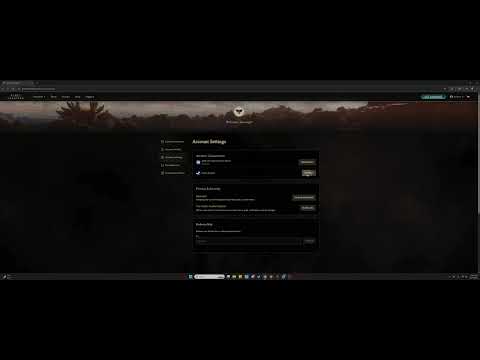
Once logged in, click on your profile icon or name in the top-right corner and select "Account Settings" from the dropdown menu. On the settings page, look for a tab or section labeled "Account Connections," "Linked Accounts," or "Third-Party Connections."Step 4: Initiate the Steam Link
In the connections menu, you should see the Steam logo with a "Connect" or "Link" button next to it. Click this button.Step 5: Authorize Through Steam
You will be securely redirected to the official Steam website. You’ll see a page asking, "Sign in to ashesofcreation.com?" It will list the information Intrepid is requesting (typically just your public Steam Profile ID and username). This is a standard OAuth process and is secure.
- If you are not logged into Steam in your browser, log in now.
- Click "Sign In" or "Authorize" to grant the linking permission.
You should be redirected back to the Intrepid portal with a success message (e.g., "Steam account successfully linked"). The "Connect" button should now change to "Disconnect" or a similar status indicator.Step 7: Access on Steam
Open your Steam client. Navigate to your Library. Ashes of Creation should now appear in your game list. You can download and install it. When you launch, you will be logged in automatically with your linked Intrepid account.
Scenario B: I Purchased Ashes of Creation on Steam (New Player)
This is the path for players who discovered the game on Steam and purchased it there.
Step 1: Purchase & Install
First, ensure you have purchased and installed Ashes of Creation through the Steam store.
Step 2: Launch the Game
In your Steam Library, click "Play" on Ashes of Creation.
Step 3: Click the Link Prompt
The game will launch to a splash screen or launcher. Since it detects no linked account, it will display a prominent button: "Link Account" or "Connect Your Intrepid Account." Click it.
Step 4: Browser Redirection
This will automatically open your default web browser to a specific linking page on the Ashes of Creation website.
Step 5: Log In or Register
- If you have an existing Intrepid account: Simply log in with your credentials on this page.
- If you are new: Click "Register" or "Create Account." Fill out the form to create your new Intrepid Studios account. Use a valid email, as you may need to verify it.
Step 6: Authorize the Link
After logging in or registering, you will encounter the same Steam authorization page: "Sign in to ashesofcreation.com?" Ensure you are logged into the correct Steam account in your browser. Click "Sign In" to approve the link.
Step 7: Return to Game
Once authorized, your browser may display a success message like "You maynow close this window." Return to the Ashes of Creation game window onSteam.
Step 8: Complete the Process
The game client/launcher should automatically detect the successful link and proceed. You may need to click a "Continue" or "Play" button on the initial splash screen. The game will now launch, and your journey in Verra begins.
What to Do If the Link Fails (Alternative Solutions & Troubleshooting)
Sometimes, the path isn't smooth. Here’s what to try if you hit a snag:
- The "Connect" Button is Greyed Out or Missing: This usually means your Intrepid account does not have a valid game license attached. Ensure you have purchased an Early Access Bundle from the Intrepid Shop. If you bought from Steam, you must use the in-game linking flow (Scenario B), not the website portal.
- Steam Says "Account Already Linked": Each Intrepid account can only link to one Steam account, andvice-versa. You cannot share or re-use a link. If you're getting thiserror on a new Steam account, your Intrepid account is likely linked to a different, old Steam account. You must disconnect it in the AccountConnections panel first.
- The Game Doesn't Appear in My Steam Library: After linking from the website (Scenario A), try the following:
- Restart the Steam client completely.
- In Steam, go to Library > Games. Check the drop-down filter—make sure it's set to "All Games," not just "Installed."
- Use the search bar in your Steam library and type "Ashes of Creation."
- Browser Pop-Up Blockers: If clicking "Link Account" in the game does nothing, your browser'spop-up blocker may be preventing the redirect. Temporarily allow pop-ups for ashesofcreation.com or try holding Ctrl (or Cmd on Mac) while clicking the link.
How to Prevent Future Issues
- Keep Your Email Updated: Your Intrepid account email is crucial for recovery and communication. Keep it current.
- Use a Password Manager: Avoid login confusion by using secure, unique passwords for both yourIntrepid and Steam accounts, stored in a reliable manager.
- Document Your Purchase IDs: Keep the confirmation emails for any purchases made on the Intrepid site. The support team may ask for these.
- Only Link Once, Link Correctly: Be absolutely certain you are logged into the correct Steam and Intrepid accounts before finalizing the link. It's a permanent bond.
Frequently Asked Questions (FAQ)
Q: Is my founder status/pack from the Intrepid site preserved if I link to Steam?
A: Yes, absolutely. All items, titles, and status attached to your Intrepid account remain intact. Steam is just a launch platform.
Q: Can I unlink my Steam account later?
A: Yes, but the process is not instant. You can initiate an unlink from the Account Connections panel on theIntrepid site. However, there is often a cooldown period (e.g., 30-90days) before you can link a new Steam account to prevent abuse.
Q: I have two Intrepid accounts. Can I merge them?
A: No, account merging is not supported. You must choose which Intrepid account (and its associated licenses) you wish to link to your Steam account.
Q: Do I need to pay twice if I own it on the Intrepid site and want it on Steam?
A: No. Linking your existing license grants you access on Steam at no extracost. You only need to purchase the game once through either store.
Q: The game is asking for a "Key." Where do I find this?
A: If you purchased a pack from the Intrepid site before the Steam launch, you may have been provided a Steam key. Check your Intrepid account's"My Orders" section or your original purchase email. If you boughtdirectly on Steam or are linking now, you do not need a key—the link process replaces that.
Conclusion & Call to Action
Linking your Intrepid and Steam accounts is the final, simple gatekeepingritual before you can lose yourself in the ever-evolving world of Ashes of Creation. While it involves an extra step, it's a small price to pay forpreserving your legacy as a supporter and ensuring a unified identity in Verra.
Ready to forge your legacy? Choose your path below:
- New Champions arriving from Steam:Launch Ashes of Creation on Steam now and follow our Scenario B steps to claim your place.
- Veteran Defenders of Verra:Log into your Intrepid Account now and use our Scenario A guide to bring your existing journey to the Steam platform.
Once your accounts are linked, the divide between platform and playerdisappears, leaving only the vast, player-shaped world of Ashes ofCreation awaiting your influence. See you in Verra
Other Articles Related
How To Link Intrepid Account to Steam in Ashes of CreationConnect your Intrepid account to Steam for Ashes of Creation! Follow our simple guide to link accounts, enabling seamless access, pre-order bonuses,and future beta participation.
How to Fix Ashes of Creation Error Code 51
effective solutions for Error Code 51 in Ashes of Creation. Troubleshoot and fix your gaming experience
Best Races in Ashes of Creation
Discover the definitive guide to the best races in Ashes of Creation. Exploreunique racial traits, abilities, and lore for the Aela, Dünir, Empyrean, Py’rai, Ren’kai, and Vaelune to optimize your MMORPG character build.
How to Find Treasure in Ashes of Creation
hidden treasures in Ashes of Creation! Explore key locations to uncover valuable loot and secrets in this immersive MMORPG.
How to Change Server in Ashes of Creation
This time we return with a guide with the objective of explaining How to Change Server in Ashes of Creation.
How to Fix Ashes of Creation Packet Loss
On this occasion we return with a guide aiming to explain to you How to Fix Ashes of Creation Packet Loss.
How to Fix Ashes of Creation Connection Issues
Discover How to Fix Ashes of Creation Connection Issues with this excellent and detailed explanatory guide.
How to Fix Ashes of Creation Lag
Discover How to Fix Ashes of Creation Lag with this excellent and detailed explanatory guide.
How to Boost FPS in Ashes of Creation
This time we return with a guide with the objective of explaining to you How to Boost FPS in Ashes of Creation.
How to Fix Ashes of Creation Server Down
Discover How to Fix Ashes of Creation Server Down with this excellent and detailed explanatory guide.
“Data corrupted” error on PS5: how to fix it step by step
Fix the Data corrupted error on your PS5 with our step-by-step guide. Get your console back to gaming in no time!
Error 0xc0000005 on Windows: definitive solution
Fix Error 0xc0000005 on your PC with our guide. Discover effective solutions to resolve this common issue
All Weapons in Verso’s Drafts DLC in Clair Obscur Expedition 33
Master every new tool of war. Dive into our complete guide to all weapons inVerso's Drafts DLC for Clair Obscur: Expedition 33, covering stats,upgrades, and how to unlock each powerful armament.
Error 0x87e50007 on Xbox Series/One: How to Fix It
Fix Error 0x87e50007 on Xbox with our step-by-step guide. Troubleshoot and resolve this issue quickly
How to Choose a Gaming Monitor: A Complete Guide for 2026
ultimate guide to choosing a gaming monitor. Enhance your gaming experience with expert tips on resolution, refresh rates