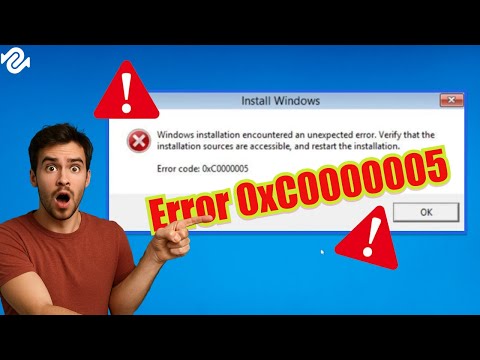
Error 0xc0000005 on Windows: definitive solution
💥 Application Error 0xc0000005: Fixing Windows Access Violation
When this error strikes, the application immediately crashes, leading to lost progress, interrupted work, and general system instability. Because the error is rooted in memory and execution failures, its cause can range from a corrupted software module to physical hardware degradation.This comprehensive, human-optimized guide will break down the technical reasons behind the 0xc0000005 Access Violation, offer a fast fix for users in a hurry, and provide a structured, detailed 10-step troubleshooting plan to definitively resolve this disruptive error on your Windows PC.
🧠 Understanding the Context: The Access Violation
Error Code 0xc0000005 is a low-level operating system error. It is a sign that the fundamental contract between the application and the Windows kernel has been broken.- The Problem: The error means the program tried to execute code in a section of Random Access Memory (RAM) that was either protected (owned by the system or another process) or was simply not mapped correctly.
- The Consequence: Windows, prioritizing security and stability, immediately shuts down the offending program—a process known as Access Violation—to prevent potential system crashes or security risks that could arise from unauthorized memory manipulation.
📉 Core Causes of Application Error 0xc0000005
Resolving this error requires moving through layers of potential causes, from software corruption to hardware failure.| Problem Area | Detailed Explanation (Simple Technical View) |
| Corrupted Windows Files | Key Windows system files, especially those related to DirectX or the C++ Redistributables, can become damaged, causing applications to crash when they call these corrupted functions. |
| Data Execution Prevention (DEP) | DEP is a Windows security feature designed to prevent code execution from data-only memory regions (a common anti-virus technique). Sometimes, DEP incorrectly flags legitimate application code as malicious, triggering the access violation. |
| Faulty or Incompatible Drivers | Outdated or corrupted drivers (especially graphics card drivers) can cause kernel-level instability, leading to memory address conflicts during program execution. |
| Physical RAM Failure | If a sector of your computer's RAM (Random Access Memory) has failed, any application attempting to use that sector will instantly crash with this access violation error. |
| Registry Corruption | Changes to the Windows Registry, often caused by malware or faulty program uninstalls, can lead to incorrect program paths and configuration, resulting in the error. |
⚡ Quick Fix for Impatient Users: Update and Repair
If you need a fast attempt to solve the error:
🛠️ Detailed Solutions: Step-by-Step Troubleshooting
Follow these steps sequentially. They move from simple software repairs to advanced system and hardware diagnostics.
Step 1: Disable Data Execution Prevention (DEP) for the Application
This is often the quickest fix if the error is tied to a specific older application.
- Press Windows Key + R, type sysdm.cpl, and hit Enter.
- Go to the Advanced tab and click Settings under Performance.
- Go to the Data Execution Prevention tab.
- Select "Turn on DEP for essential Windows programs and services only."
- If you want to keep DEP enabled, choose the first option, then click Add and locate the executable (.exe) file of the program causing the error to create an exception. Restart the PC.
Step 2: Install or Repair C++ Redistributables
Many applications rely on Microsoft Visual C++ files.
- Search for "Microsoft Visual C++ Redistributable" online and download the latest x86 and x64 versions.
- Run the installers. If they are already installed, choose the Repair option.
Step 3: Run the Windows Memory Diagnostic Tool
To rule out physical RAM failure, use the built-in diagnostic.
- Press Windows Key + R, type mdsched.exe, and hit Enter.
- Select "Restart now and check for problems (recommended)."
- Your PC will restart and run a thorough memory check. If errors arereported, you likely have a faulty RAM stick that needs to be replaced.
Step 4: Check Disk for Errors
A failing hard drive or SSD can cause read/write errors leading to memory access failures.
- Open Command Prompt as Administrator.
- Type chkdsk /f /r and hit Enter.
- Type Y to schedule the check on the next restart.
- Restart your PC. This process can take a significant amount of time but fixes disk corruption.
Step 5: Disable Antivirus Software Temporarily
Security suites (like Norton, McAfee, or even Windows Defender) can sometimes interfere with legitimate memory calls.
- Completely disable your third-party antivirus program temporarily.
- Attempt to launch the problematic application.
- If the error stops, you need to create an exception for the application in your antivirus settings or switch to a different security suite.
Step 6: Use the DISM Tool
If the SFC scan didn't fully resolve system file issues, the DeploymentImage Servicing and Management (DISM) tool is the next step.
- Open Command Prompt as Administrator.
- Type the following command and hit Enter:DISM /Online /Cleanup-Image /RestoreHealth
- Wait for the process to complete (it may take 10-20 minutes). This repairs Windows image files using online sources.
🔄 Alternative Solutions: Advanced Troubleshooting
If the above steps fail, you must consider deeper software and hardware conflicts.
- Clean Boot Diagnosis: Perform a clean boot (search for "System Configuration" or msconfig.exe > Services > Hide all Microsoft services > Disable allremaining services). If the application works in a clean boot, athird-party background process is the cause. Re-enable services one byone until the error returns to isolate the offender.
- Check Hardware Overclocking: If you have overclocked your CPU or RAM (via XMP/DOCP profiles) in the BIOS, reset these settings to their factory defaults. Aggressive overclocks often lead to instability, manifesting as the 0xc0000005error under load.
- Test with a Different User Profile: Create a brand new local Windows user account. Log into the new account and try running the application. If it works,your original user profile is corrupted and may need to be migrated orrecreated.
🛡️ How to Avoid Future Access Violation Errors
Preventative maintenance is the best defense against this kind of system instability.
- Regular Driver Updates: Use the official vendor websites (NVIDIA, AMD, Intel) to keep yourgraphics and chipset drivers updated, avoiding generic Windows updatesfor these critical components.
- Monitor RAM Health: If you notice repeated, random crashes, re-run the Windows Memory Diagnostic every few months. Catching RAM failure early can prevent data loss.
- Proper Uninstalls: Use the Settings > Apps menu to uninstall programs, or use a reliable third-party uninstallerto ensure registry entries are completely removed, preventing residualfile conflicts.
❓ Frequently Asked Questions (FAQ)
Is Error 0xc0000005 caused by a virus?
While possible, it's less common. Malware could try to execute code inillegal memory space, but the primary causes are hardware failure,corrupted drivers, or software conflicts. Always run a virus scan, butdon't assume that is the sole cause.
Does this error mean my hard drive is failing?
It could be a symptom of a failing hard drive/SSD causing read errors when loading the application. Running the chkdsk command (Step 4) will help determine the health of the drive.
Can I fix this without formatting my PC?
Yes. The steps provided cover over 95% of cases and avoid the need for afull Windows reinstallation. A full format is only the last resort ifthe DISM tool fails to repair core Windows files.
✅ Conclusion and Call to Action
Application Error 0xc0000005 is a serious signal of a system-level breakdown, butit is highly fixable. By systematically moving through driver updates,system file checks, memory diagnostics, and addressing DEP settings, you can isolate and eliminate the source of the memory access violation.
Tired of constant crashing and lost work?
➡️ If you have tried all 10 steps and suspect a hardware issue but are unsure whether to replace your RAM or your SSD, tell me what specificapplication is crashing (e.g., "Chrome" or "Elden Ring") and when thecrash usually occurs (e.g., "on launch" or "after 30 minutes"), and Iwill provide final hardware replacement guidance!
Other Articles Related
How to Fix DirectX has stopped working: causes and solutionseffective solutions for the "DirectX has stopped working" error. Getyour games and applications running smoothly
Error 0xc0000005 on Windows: definitive solution
Fix Error 0xc0000005 on your PC with our guide. Discover effective solutions to resolve this common issue
How to Fix Honkai Star Rail Resolution on PC
Want How to fix the resolution of Honkai Star Rail on PC? Look no further! Our guide will help you fix any resolution issues you may be experiencing.
How to Fix Xbox error code 0x8028008b
How to Fix Xbox error code 0x8028008b. If you are facing the Xbox error code 0x8028008b while playing your favorite games.
How to Fix Update KB5017389 - KB5017271 on Windows 11
Find out how to fix KB5017389 - KB5017271 update on Windows 11 in this excellent and explanatory guide.
How to Fix Error Code 0x8007000d Installing Update KB5017328 on Windows 11
Failures usually occur on all platforms, let's see How to fix error code 0x8007000d Install KB5017328 update on Windows 11.
How to Fix Windows 11 Version 22H2 Not Showing in the Windows Update
Errors are normal in all systems and that is why today we will explain how to fix Windows 11 version 22H2 not showing.
How to Fix Update KB5017328 Not Installing on Windows 11
Inconveniences are normal everywhere and that is why today we willexplain how to fix the KB5017328 update that does not install in Windows 11.
How to Fix Update KB5017026 and KB5017321 Not Installing On Windows 11
With our guide, you will learn more about How to Fix Update KB5017026 and KB5017321 Not Installing on Windows 11.
How to Fix Update KB5017383 Not Installing on Windows 11
This time we return with a guide with the objective of explaining how to Fix Update KB5017383 Not Installing on Windows 11.
All Weapons in Verso’s Drafts DLC in Clair Obscur Expedition 33
Master every new tool of war. Dive into our complete guide to all weapons inVerso's Drafts DLC for Clair Obscur: Expedition 33, covering stats,upgrades, and how to unlock each powerful armament.
Error 0x87e50007 on Xbox Series/One: How to Fix It
Fix Error 0x87e50007 on Xbox with our step-by-step guide. Troubleshoot and resolve this issue quickly
How to Choose a Gaming Monitor: A Complete Guide for 2026
ultimate guide to choosing a gaming monitor. Enhance your gaming experience with expert tips on resolution, refresh rates
How to Improve Audio in Games: Equalization and Recommended Settings
Enhance your gaming experience with tips to improve audio quality in games. Discover techniques for immersive sound
How To Solve the Raider Refuge Button Puzzle in Arc Raiders
Learn how to solve the Raider Refuge button puzzle in Arc Raiders with thisstep-by-step guide. Find the correct sequence and timing to unlock thehidden loot.