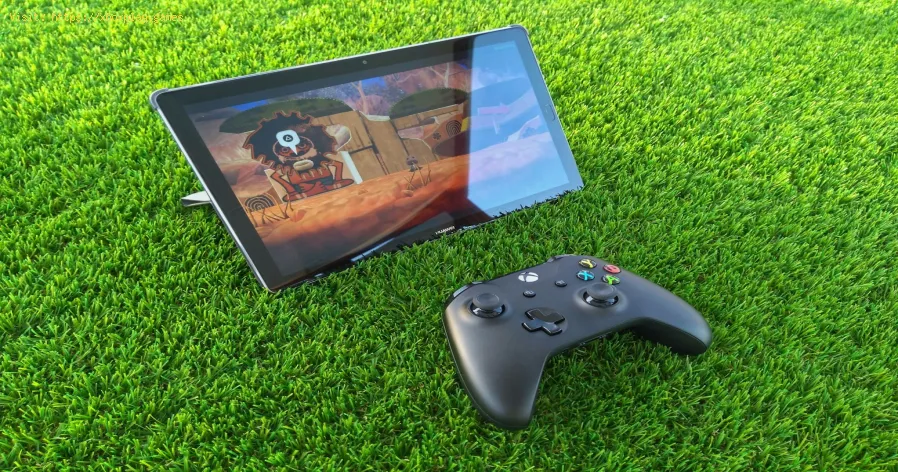
How to use Xbox Cloud Gaming on PC, mobile, or TV
☁️ Play Anywhere, Instantly: The Ultimate Guide to Xbox Cloud Gaming (xCloud)
The world of gaming has fundamentally changed. No longer are you tethered to a massive console and a single TV screen to enjoy triple-A titles like Forza Horizon 5, Starfield, or Halo Infinite. Microsoft’s Xbox Cloud Gaming (often called xCloud) delivers the full console experience—running on powerful Xbox Series X hardware in Microsoft's data centers—directly to your PC, laptop, smartphone, tablet, and compatible Smart TV.This revolutionary platform is bundled with an Xbox Game Pass Ultimate subscription, granting you instant access to hundreds of high-quality titles with no downloads, no installation, and minimal storage requirements. You click 'Play,' and within seconds, you are gaming. It’s gaming democratization in action, allowing millions to play demanding games on less powerful hardware.However, since xCloud is a video streaming service for interactive content, it is critically dependent on one thing: your internet connection. The primary challenge users face is not hardware setup, but rather combating latency (lag) and network congestion—the digital enemies of a smooth, responsive cloud gaming session.🛑 Essential Requirements and Causes of Poor Performance
Before diving into setup, it is vital to know the non-negotiables. If you're experiencing stuttering, pixelation, or delayed controls, one of these technical requirements is likely the culprit.| Problem Area | Detailed Explanation (Simple Technical View) |
| Subscription Tier | Cloud Gaming is exclusive to the Xbox Game Pass Ultimate subscription (or playing certain free-to-play games). PC Game Pass or Console Game Pass alone do not include it. |
| Internet Speed | Minimum required speed is 10 Mbps for mobile and 20 Mbps for PC/Console streaming. For smooth, high-resolution (1080p) play at 60 FPS, 25 Mbps or higher is strongly recommended. |
| Network Latency | This is the delay between you pressing a button and the action appearing on screen. Latency above 50ms will result in noticeable, game-breaking input lag. Latency is often caused by distance from the server or poor Wi-Fi. |
| Wi-Fi Frequency | Using the highly congested 2.4 GHz Wi-Fi band (common in older networks) will introduce interference and higher latency. The 5 GHz band is essential for stability. |
| Input Device | You must use a compatible controller (preferably an official Xbox Wireless Controller) connected via Bluetooth or USB. Keyboard and Mouse support is limited or non-existent for most titles. |
⚡ Quick Fix for Impatient Players: The Three C’s
If you are experiencing issues right now and just want to get back to playing:🚀 Detailed Step-by-Step Setup: Multi-Platform Guide
The method for accessing xCloud varies slightly depending on your device, but the underlying principle remains the same: sign in and stream.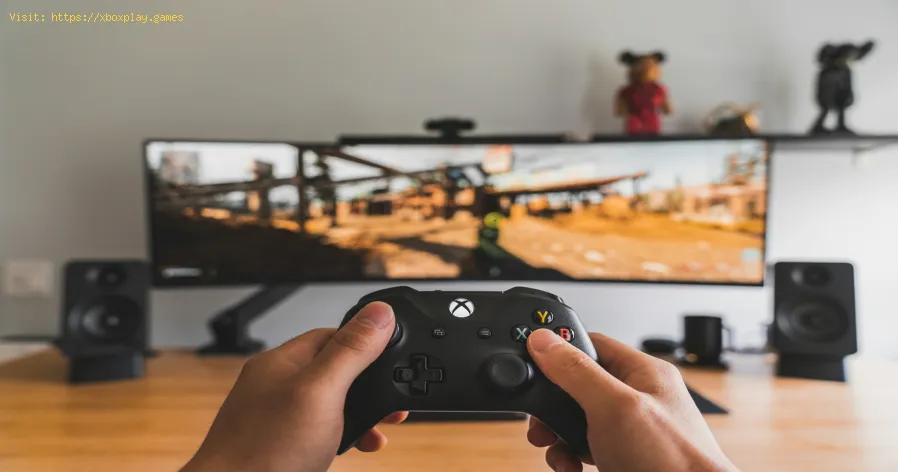
Part 1: Initial Setup (PC - Windows)
- Check Subscription: Ensure you have an active Xbox Game Pass Ultimate subscription.
- Install the Xbox App: Download the official Xbox App from the Microsoft Store on your Windows PC.
- Sign In: Launch the app and sign in with your Microsoft Account linked to Game Pass Ultimate.
- Connect Controller: Connect your Xbox Wireless Controller via a USB cable (best for lowest latency) or Bluetooth.
- Access Cloud Gaming: In the sidebar of the Xbox App, select the Game Pass tab, and look for the Cloud Gaming section.
- Play: Browse the catalog, select a cloud-enabled game, and click the "Play" button (with the cloud icon).
Part 2: Mobile Setup (iOS/Android Phones and Tablets)
- Android: Download the Xbox Game Pass App from the Google Play Store. Sign in and tap the "Cloud" tab at the top of the screen.
- iOS/Mac/Chromebook: Cloud Gaming is accessed exclusively through a web browser. Open Safari (iOS/Mac) or Chrome/Edge (Android/Chromebook) and navigate to xbox.com/play. Log in.
- Add to Home Screen (iOS/Mac): For a better full-screen experience, use the Share button in Safari and select Add to Home Screen. This creates a web app icon.
- Connect Controller: Pair your Xbox controller via Bluetooth. Alternatively, many titles support Xbox Touch Controls directly on the screen (look for the "Play with touch" icon).
Part 3: Smart TV Setup
- Compatibility Check: Cloud Gaming is officially supported on select Samsung Smart TVs (2022 models and newer) and LG Smart TVs. Check your model compatibility on the Xbox support site.
- Install the App: Search for and download the Xbox App from your TV's app store.
- Sign In: Launch the app and sign in with your Ultimate account.
- Connect Controller: Pair your Bluetooth-compatible controller (Xbox, PS4/PS5, or otherverified third-party controllers) directly to the TV via the TV’sBluetooth settings.
- Launch: Select a game and start playing.
🔧 Alternative Solutions: Optimizing Your Network
When the official steps fail to deliver the required smoothness, network optimization is the next step.
- Switch DNS Servers: Sometimes, the default Domain Name Server (DNS) provided by your ISP is slow. Switching to a public DNS like Google DNS or Cloudflare DNS cansometimes reduce the time it takes to connect to the streaming server.
- Disable VPN/Proxy: If you are running any VPN or Proxy service, disable it entirely. These services almost always introduce additional latency and routingcomplexity that harms game streaming performance.
- Check Router Channel: Log into your router's administration page and ensure your 5 GHz Wi-Fi channel is set to a channel that is not heavily used by your neighbors (use aWi-Fi analyzer app if possible). Channels 36-48 are generally goodchoices.
- Game Mode: If playing on a Smart TV, ensure the TV's Game Mode is active. This mode typically bypasses image processing features thatintroduce "display lag" (delay between the signal arriving and the image appearing).
🚫 How to Avoid Performance Lag
The key to preventing performance issues is maintaining a clean, stable network environment dedicated to the stream.
- Physical Proximity: Keep your device and controller as close to the Wi-Fi router as possible. Every meter of distance increases signal degradation.
- Controller Wiring: For competitive or sensitive games, use a USB cable to connect your controller to your PC or mobile device instead ofBluetooth. This eliminates Bluetooth interference and reduces controller input latency.
- Network Isolation: During a streaming session, ask family members to avoid heavy bandwidth activities like 4K video streaming or large file downloads, as thiswill compete directly with your game stream.
- Firmware Updates: Regularly check for and install firmware updates for your Wi-Fi router and any compatible controller.
❓ Frequently Asked Questions (FAQ)
Do I need to own an Xbox console to use Cloud Gaming?
No. Cloud Gaming streams the game from Microsoft's servers directly to your device. An Xbox console is only required if you want to use Xbox Remote Play (which streams games from your own console).
Can I use keyboard and mouse on xCloud?
Currently, official keyboard and mouse support is highly limited. Most titlesrequire a controller. It's best to always have a compatible controllerconnected.
Does my progress save across devices?
Yes! Because you are logged into your Microsoft account and streaming thegame, your save files are stored on the Xbox Cloud, ensuring you canpick up exactly where you left off, whether you switch from PC to mobile or back to your home console.
Xbox Cloud Gaming is a phenomenal service that truly delivers on the promise of "console-quality gaming anywhere." By ensuring you have thenecessary Xbox Game Pass Ultimate subscription, a stable 5 GHz Wi-Fi connection (25+ Mbps recommended), and a compatible controller, you can unlock a vast library of games without the commitment of time-consuming downloads.
Are you ready to jump into hundreds of games instantly?
➡️ If you've connected but the graphics look blurry or pixelated, let me know the make and model of your router and I can provide specific steps toprioritize cloud gaming traffic using Quality of Service (QoS) settings!

Other Articles Related
How to use Xbox Cloud Gaming on PC, mobile, or TVExperience gaming like never before with Xbox Cloud Gaming. Play your favorite titles anytime, anywhere
How to open ports for Xbox Live and improve NAT
open ports for Xbox to enhance your gaming experience.Optimize your connection and enjoy seamless online play
How to Use an External SSD on Xbox Series X/S Correctly
Discover how to enhance your Xbox gaming experience by using an external SSD. Boost storage, speed, and performance
How to easily free up space on Xbox Series X/S
methods to free up space on your Xbox Series. Optimize your storage and enhance your gaming experience with our tips.
How to fix XBox Error Code 8015190A
How to fix XBox Error Code 8015190A! Our guide walks you through simple, effective steps to resolve.
How to Fix Xbox Series X Not Loading
Learn how to fix Xbox Series X not loading with our easy-to-follow guide. Get back to gaming in no time!
Xbox Series X / S: How To Turn Off
This time we are back with a guide from Xbox Series X / S, aiming to show you how to turn off fast resume.
Xbox Series X / S: How to Fix Sign In Error Code 0x87dd0006
With our help, you will see that knowing how to correct the login error code 0x87dd0006 is easier than Xbox Series X / S thought.
Xbox Party: How To Fix Error Code 0x80190193
Today we make for you a Xbox Party guide where we explain how to fix error code 0x80190193.
Xbox Party Chat: How To Fix Xbox Voice Chat Not Connecting
This time we return with a Xbox Party Chat guide with the aim of explaining how to fix Xbox voice chat Not Connecting.
How to use Remote Play on PS5 from PC or mobile
Experience gaming freedom with Remote Play on PS5. Play your favorite titles anywhere, anytime, and enjoy
How to complete Imperium Campaign Mission in Destiny 2 Renegades
Master Destiny 2's Renegades with our guide on how to complete the ImperiumCampaign Mission. Find key strategies, objective walkthroughs, andessential combat tips to conquer this challenging fight.
How to set up Discord to play games with friends seamlessly
Learn how to set up Discord for gaming with our easy guide. Enhance your gaming experience and connect with friends
How to set up OBS for lag-free streaming
Learn how to set up OBS for streaming with our easy guide. Optimize your settings for the best performance
How to Use Photo Mode in Clair Obscur Expedition 33
Master the art of cinematic photography in Clair Obscur Expedition 33. Ourguide reveals all Photo Mode controls, filters, and tips to capture your most stunning in-game moments.