How to Fix PC Won’t Boot After Update
Detailed Step-by-Step Solutions
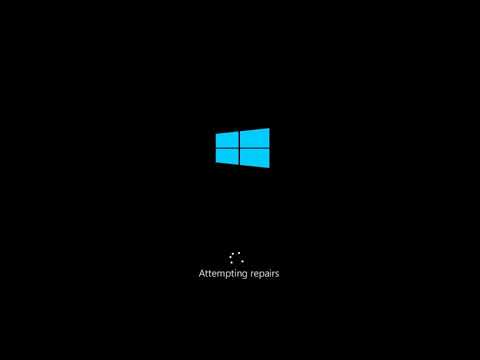
Your first goal is to reach the Windows Recovery Environment (WinRE). If the three-restart trick above didn’t work and you see nothing but a black screen, try spamming the F8, F11, or Delete key as soon as you power on (the key varies by manufacturer) to try and get into your BIOS/UEFI or a recovery menu. If you can see the Windows logo or a spinning circle before it fails, the automatic recovery might still trigger.Once you’re in the blue Advanced Startup Options menu, you have a toolkit at your disposal. Let's use it methodically.Solution 1: Run Startup Repair (The Automatic Fix)
This is Windows' own diagnostic tool and should always be your first stop inside WinRE.Solution 2: Boot into Safe Mode and Uninstall the Problematic Update
If Startup Repair fails, the next step is to bypass the normal boot process and get to a minimal desktop where you can remove the likely culprit.Solution 3: Use System Restore (Your PC's Time Machine)
This is often the most effective fix, if you had System Protection enabled beforehand. It reverts your PC's system files, registry, and installed programs to a previous point in time (a "restore point") without touching your personal files.
Solution 4: Repair Boot Configuration Data (BCD) and Master Boot Record (MBR)
This is a command-line fix for more severe boot corruption. It's less scary than it sounds!
- From Advanced Options, choose Command Prompt.
- A black command prompt window will open. Type the following commands, pressing Enter after each one:
- bootrec /fixmbr
- bootrec /fixboot
- bootrec /scanos
- bootrec /rebuildbcd
- The last command may ask if you want to add an installation to the boot list. Type Y and press Enter.
- Type exit and press Enter, then restart your PC.
Solution 5: The Nuclear Option: Reset This PC (Keep My Files)
If all else fails, this is your last resort from within recovery. It willreinstall Windows while preserving your personal files in a folder onthe C: drive. Note: You will need to reinstall all your applications and reconfigure settings.
- In Advanced Options, go back to the Troubleshoot menu.
- Select Reset this PC.
- Choose Keep my files.
- Follow the on-screen prompts. The process is lengthy but usually resolves even the most stubborn boot issues caused by updates.
Alternative Solutions
If you cannot access WinRE at all, you will need to create installation media on another working PC using Microsoft's Media Creation Tool. Boot from the USB drive, select your language, and then click "Repair your computer" in the lower-left corner of the install screen to access the same Advanced Options menu detailed above.
For advanced users with specific hardware, booting into your BIOS/UEFI(usually by pressing F2 or Delete at startup) and ensuring your bootdrive is correctly set as the first option can sometimes help. Also,temporarily disabling features like "Secure Boot" or "Fast Boot" can aid in recovery, though you should re-enable them afterward for securityand performance.
How to Prevent the Issue from Happening Again
- Enable System Restore: This is your single best defense. Search for "Create a restore point,"select your main drive (C:), click "Configure," and turn on systemprotection. Set disk space usage to at least 5-10%.
- Pause Updates: After a major update is released, consider pausing updates for a week in Windows Update > Advanced Options. This lets early adopters find any major bugs.
- Maintain Good Backups: Use File History for documents or a third-party tool to create a fullsystem image backup to an external drive. With an image, you can restore your entire system exactly as it was.
- Clean Up Before Updating: Before installing a major feature update, run Disk Cleanup and ensureyou have at least 20GB of free space on your C: drive to avoidinstallation corruption.
Frequently Asked Questions
Q: Will I lose all my files if I do a System Restore or Reset?
A: No. System Restore does not touch your personal files (Photos, Documents, etc.). Reset this PC (Keep my files) explicitly saves them. However, both will remove applications installed after the restore point/reset.
Q: My PC says "Preparing Automatic Repair" but then goes black. What now?
A: This indicates the recovery environment itself might be damaged. Yourbest bet is to create Windows installation media on another PC, bootfrom it, and use the "Repair your computer" option.
Q: I uninstalled the update in Safe Mode, but the problem came back after Windows re-installed it.
A: You need to pause updates temporarily. In Safe Mode with Networking, go to Windows Update > Advanced Options and pause updates for the maximum number of days (usually 35). This gives Microsoft time to potentially issue a revised update.
Q: Could this be a hardware failure and not the update?
A: It's possible but less likely if it happened immediately post-update.If none of these software solutions work, hardware (like a failingSSD/HDD or RAM) could be the culprit, and the update timing wascoincidental.
Q: Is it safe to skip updates forever?
A: No. Updates contain critical security patches. The goal is to update smartly—by having restore points and backups—not to avoid updates entirely.
Closing with a Call to Action
We know how stressful a non-booting PC can be—it’s your gateway to work,connection, and entertainment. We hope this guide acted as a calm, clear roadmap to get you from panic back to productivity. Remember, in thevast majority of cases, one of these solutions will get your system back on its feet.
Did this guide save the day? Pay it forward! Share this article with a friend who might need it someday. Have adifferent solution that worked for you, or still stuck on a specificstep? Drop a comment below—our community of readers and tech enthusiasts is a fantastic resource. And if you’re looking to master your PC andprevent future headaches, explore our full library of troubleshootingand optimization guides. Happy computing
Other Articles Related
How to Calibrate Your TV for GamingCalibrate your TV for gaming with our step-by-step guide. Optimize response time, HDR, color, and input lag for the ultimate competitive edge and visualexperience.
How to Fix PC Blue Screen While Gaming
Stop gaming crashes! Learn step-by-step fixes for the PC blue screen (BSOD)during gameplay. Troubleshoot drivers, overheating, hardware &settings for a stable system.
How to Fix PC Restarts While Gaming
Expert tips to diagnose and fix sudden PC restarts during gaming. Learntroubleshooting steps for overheating, PSU issues, driver problems, andhardware stability.
How to Fix CPU Overheating While Gaming
Learn how to fix CPU overheating while gaming with effective coolingsolutions, proper maintenance, and system optimization tips to preventdamage and boost performance.
How to Fix Game Won’t Save Progress
"Troubleshoot and fix game progress not saving with our step-by-step guide. Learn how to check settings, clear cache, fix corrupt files, and solve storageissues to prevent lost saves."
How to fix PC Fans Too Loud While Gaming
Meta description: "PC fans too loud while gaming? Learn 8 simple fixes toreduce noise & cool your PC effectively. Easy, step-by-step guidefor a quieter gaming rig."
How to Fix PC Won’t Boot After Update
Struggling with a black screen or errors after an update? Learn step-by-step fixes to get your PC booting again. From safe mode to recovery tools, we'llguide you through the solutions.
How to Fix PC Freezing While Gaming
Expert troubleshooting guide to stop PC freezing during games. Learn quickfixes for overheating, driver issues, and hardware bottlenecks torestore smooth gameplay.
How to Fix Game Crashes on Startup
Learn effective solutions to fix game crashes on startup and enjoy seamless gaming. Troubleshoot issues
How to Fix PS5 Won’t Read Disc
Struggling with a PS5 that won’t read discs? Learn quick fixes for common issueslike dirty lenses, software glitches, and power cycles. Get your console back to playing games in minutes.
How to Fix PC Stuttering in Games
Troubled by PC stuttering in games? Our guide shows you how to fix gamestuttering & lag with step-by-step solutions for settings, hardware, & drivers.
How to Fix PS5 Won’t Connect to Wi‑Fi
Meta description: Having PS5 Wi‑Fi issues? Follow our step-by-step guide todiagnose and fix connection problems—from restarting your router toadjusting DNS settings and updating system software. Get back onlinefast.
How to Fix PC Freezing While Gaming
Expert troubleshooting guide to stop PC freezing during games. Learn quickfixes for overheating, driver issues, and hardware bottlenecks torestore smooth gameplay.
Where to Farm Griswold's Opus in Diablo 4
Discover the best locations to farm Griswold's Opus in Diablo 4. Maximize your loot and enhance your gameplay