How to Fix Game Crashes on Startup
Why Do Games Crash on Startup? (Common Causes)
Understanding the "why" helps target the right fix. Think of the startup sequence as a chain; if any link breaks, the game fails.For PC Gamers:- Outdated or Corrupted GPU Drivers: The #1 culprit. Your graphics card drivers are the essential translators between the game and your hardware.
- Missing or Corrupted Game Files: A faulty download, interrupted update, or disk error can leave critical game files damaged.
- Software Conflicts: Overlay apps (Discord, Xbox Game Bar, NVIDIA ShadowPlay), antivirus/firewalls, or even RGB control software can block or interfere with the game's launch process.
- Missing System Runtime Libraries: Games often require specific components like DirectX, Visual C++ Redistributables, or .NET Framework, which may not be present on your system.
- Incorrect Graphics API Settings: Trying to force Vulkan when DirectX 11 is stable, or vice-versa, via launch options can cause an instant crash.
- Insufficient User Permissions or Admin Rights: The game may need elevated privileges to write to certain folders (like C:\Program Files).
- Corrupted Game Data/Installation: The core game files on your console's drive have become corrupted.
- Corrupted Save Data: While rarer, a damaged save file can sometimes cause a game to crash immediately when trying to load profile data.
- System Software Bugs: An issue with the console's own OS can prevent games from launching properly.
- Overheating or Hardware Issues: (Less common at pure startup) A deeply faulty console may fail under any load.
The Quick Fix (For All Platforms)
Perform a Full Power Cycle and Check for Updates.This simple step clears temporary caches and ensures you have the latest software, fixing a surprising number of issues.
- PC: Fully shut down your PC. Unplug it from power for 60 seconds (or hold the power button for 30 secs while unplugged). Restart, then check for Windows Updates and GPU driver updates via NVIDIA GeForce Experience, AMD Adrenalin, or Intel ARC Control.
- PlayStation/Xbox: Perform a full power cycle (go to Settings > Power and select "Restart" or "Turn Off," do not use Rest Mode/Instant-On). Then, highlight the game, press the Options/Menu button, and select "Check for Update."
- Switch: Fully power off the console (hold power button > Power Options > Turn Off). Power it back on, then ensure the game is updated.
Detailed Step-by-Step Solutions
Start at the top of the list for your platform and work down.For PC Gamers:
Step 1: Run as Administrator & Disable OverlaysRight-click the game's shortcut or .exe file and select "Run as administrator." Then, disable all in-game overlays:
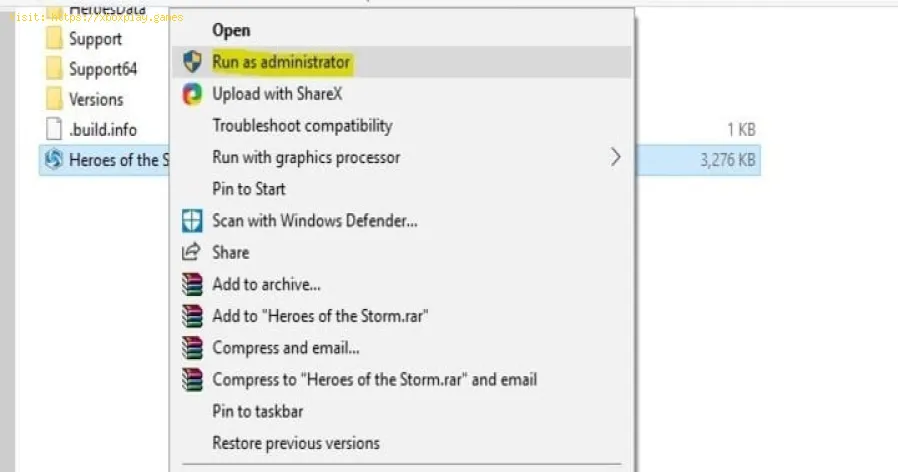
Right-click the game's shortcut or .exe file and select "Run as administrator." Then, disable all in-game overlays:
- Steam: Steam Settings > In-Game > Disable "Enable the Steam Overlay while in-game."
- Discord: User Settings > Game Overlay > Disable "Enable in-game overlay."
- Xbox Game Bar: Windows Settings > Gaming > Xbox Game Bar > Turn it off.
- NVIDIA/AMD: Disable the GeForce Experience or Adrenalin overlay temporarily.
Step 2: Update Your Graphics Drivers Cleanly
Don't just update; do a clean install.
- Download the latest driver from NVIDIA, AMD, or Intel.
- Use Display Driver Uninstaller (DDU) in Safe Mode to wipe old drivers completely, then install the freshlydownloaded driver. This is crucial for fixing deep-seated driverconflicts.
Step 3: Verify Integrity of Game Files
Your game launcher can check and repair broken files.
- Steam: Library > Right-click game > Properties > Installed Files > "Verify integrity of game files..."
- Epic Games: Library > click "..." on game > Manage > "Verify"
- EA App/Origin: My Collection > click game > Manage > "Repair"
- Battle.net: Game Icon > Options (gear) > "Scan and Repair"
Step 4: Install Critical System Dependencies
Ensure these are installed/updated:
- DirectX: Often installed with the game, but you can run the web installer from Microsoft.
- Visual C++ Redistributables: Download the latest packages from Microsoft's website. Install both the x86 and x64 versions.
- .NET Framework: Ensure you have the latest version via Windows Update.
Step 5: Adjust Compatibility Settings & Add Game Exceptions
Right-click the game .exe > Properties.
- Compatibility tab: Try running in compatibility mode for an older Windows version (e.g., Windows 8). Also check "Disable fullscreen optimizations."
- Antivirus/Firewall: Add the game's main .exe file and its installation folder to the "allow list" or "exclusions" in Windows Security and any third-party antivirus software (like McAfee, Norton).
Step 6: Check for Conflicting Software
Perform a clean boot in Windows to start with only essential services. If the game works, abackground program is the culprit. Re-enable services in groups to findit.
For Console Gamers:
Step 1: Clear the Console's Cache (Safe Mode)
This fixes many software glitches without deleting games.
- PS5/PS4: Turn off > boot into Safe Mode (hold power button until second beep) > select "Clear Cache and Rebuild Database."
- Xbox Series X|S / Xbox One: Go to Settings > System > Console info > "Reset console" > Choose "Reset and keep my games & apps." (This is a refresh, not a full factory reset).
- Nintendo Switch: Fully power off. Hold volume up + volume down, then press power. Keep holding volumes until maintenance mode loads.
Step 2: Delete and Reinstall the Game
This replaces all potentially corrupted game data.
- Highlight the game on your home screen.
- Press Options/Menu button > Manage Game/Delete.
- Important: Ensure your save data is backed up (via cloud or console storage). Usually, save data is kept separate, but always double-check.
- Re-download and install the game from your library.
Step 3: Initialize/Factory Reset (Last Resort)
- Warning: This erases everything. Back up saves to the cloud/USB first.
- PS5: Safe Mode > Option 6: "Initialize PS5."
- Xbox: Settings > System > Console info > "Reset console" > "Reset and remove everything."
- Switch: System Settings > System > "Formatting Options" > "Initialize Console."
This returns the console to factory state, ruling out any system-level corruption.
Alternative Solutions & Advanced Checks
- Check Event Viewer (PC): Type "Event Viewer" in Windows Search, go to Windows Logs > Application. Look for errors related to the game's .exe at the time of the crash. The error code can be a vital clue.
- Monitor Temperatures: Use HWMonitor or similar. If a component is overheating immediately on launch, it could indicate a failing cooler.
- Test Your RAM (PC): Use the built-in Windows Memory Diagnostic tool. Faulty RAM can cause instant crashes.
- Launch in Windowed Mode: Sometimes, fullscreen is the issue. For PC games, you can often force windowed mode by adding -windowed or -w to the game's launch options in Steam/Epic.
How to Prevent Future Startup Crashes
- Keep Your System Updated: Enable auto-updates for your OS, GPU drivers, and game clients.
- Install Games on an SSD: Faster read speeds and fewer corruption issues than traditional hard drives.
- Practice Safe Modding: If you use mods, install them one at a time and ensure they're updated for your game version.
- Maintain Storage Health: Don't fill your drive to 100% capacity. Use tools like chkdsk on Windows occasionally.
Frequently Asked Questions (FAQs)
Q: The game was working yesterday! Why did it suddenly start crashing today?
A: This almost always points to a software change. A Windows update, a GPU driver update, a game patch, or a newbackground program you installed has introduced a conflict. Roll backrecent changes if possible.
Q: I get an error like "DLL file is missing" or "VCRUNTIME140.dll was not found." What do I do?
A: This is a clear sign of missing system runtime libraries. Reinstall the Visual C++ Redistributables as outlined in Step 4 for PC. Download the "All-in-One" redistributable pack from a trusted source to cover all bases.
Q: Should I reinstall Windows to fix this?
A: Only as an absolute last resort after trying every other solution,including a clean driver install (DDU) and clean boot. A reinstall isnuclear but effective.
Q: The game crashes on my console but works on my friend's. Is my console broken?
A: Not necessarily. It's more likely a local software or data corruption issue on your specific console. Focus on clearing the cache and reinstalling the game first.
Q: How do I find the game's "launch options" to add commands?
A: In Steam, right-click the game > Properties. In the "LAUNCH OPTIONS" box at the bottom, you can add commands like -windowed. For other launchers, check their game-specific settings.
Closing with a Call to Action
Startup crashes are a formidable barrier, but they're almost always a softwarepuzzle with a logical solution. By working through this guidemethodically—from the simple power cycle to the more advanced cleaninstalls—you're systematically eliminating potential causes. Patience is your greatest weapon here.
Did this guide help you finally get past that crash screen and into the game? Please share your success story in the comments and let others knowwhich step was the key. If you're still stuck, tell us the game, yourplatform, and the exact error message (if any), and our community offellow gamers might have the specific answer you need. For more targeted troubleshooting guides and PC optimization tips, explore the rest ofour site. Now, go enjoy that game

Other Articles Related
How to Fix Game Won’t Save Progress"Troubleshoot and fix game progress not saving with our step-by-step guide. Learn how to check settings, clear cache, fix corrupt files, and solve storageissues to prevent lost saves."
How to fix PC Fans Too Loud While Gaming
Meta description: "PC fans too loud while gaming? Learn 8 simple fixes toreduce noise & cool your PC effectively. Easy, step-by-step guidefor a quieter gaming rig."
How to Fix PC Won’t Boot After Update
Struggling with a black screen or errors after an update? Learn step-by-step fixes to get your PC booting again. From safe mode to recovery tools, we'llguide you through the solutions.
How to Fix PC Stuttering in Games
Troubled by PC stuttering in games? Our guide shows you how to fix gamestuttering & lag with step-by-step solutions for settings, hardware, & drivers.
How to Fix PC Freezing While Gaming
Expert troubleshooting guide to stop PC freezing during games. Learn quickfixes for overheating, driver issues, and hardware bottlenecks torestore smooth gameplay.
How to Fix Game Crashes on Startup
Learn effective solutions to fix game crashes on startup and enjoy seamless gaming. Troubleshoot issues
Guide to Understanding Latency in Video Games
"Learn what gaming latency is and how it impacts your play. Discover types,causes, and proven tips to reduce lag for a smoother, more responsivegaming experience."
Guide to enabling Cross-Save in your games
Enabling Cross-Save? This guide shows you how to link your accounts and syncgame progress seamlessly between consoles, PC, and mobile platforms.Unlock true gaming freedom.
Where to Find the Yule Trooper Boss in Fortnite
Discover the Yule Trooper Boss location in Fortnite! tips and strategies to defeat this festive foe and enhance your gameplay.
How to Fix GPU Not Detected
Learn effective solutions to fix GPU not detected issues. Troubleshoot and restore your graphics card functionality
The best recommended survival games
Looking for your next survival challenge? Explore our expert picks of the bestsurvival games on PC and console, from wilderness crafting to intensehorror. Find your next adventure.
All Dark Ops challenges in Black Ops 7
all Dark Ops challenges in BO7 with our comprehensive guide. Unlock secrets, tips, and strategies to enhance your gameplay!
How to Fix PS5 Error CE‑34878‑0
Learn how to fix PS5 Error CE-34878-0 with our step-by-step guide. Troubleshoot and resolve this common issue