How to Fix PS5 Won’t Read Disc
Causes of the Problem
Understanding why your PS5 might be rejecting discs can help you apply the right fix. The issue is rarely random. Here are the most common culprits:Quick Solution (For Impatient Users)
Try this first: Perform a full power cycle.Detailed Step-by-Step Solutions
Follow these steps in order. Start with the simplest solutions before moving to more involved ones.Solution 1: The Basic Reset & Check
Solution 2: The Deep Power Cycle & Safe Mode
If a simple restart didn’t work, it’s time for a deeper reset.
- Turn your PS5 completely off.
- Unplug the power cable from the console and from the wall outlet for at least 2 minutes.
- Reconnect the power and turn the console on.
- If the problem persists, boot into Safe Mode. With the console off, press and hold the power button until you hear a second beep (about 7 seconds).
- Connect your DualSense controller with a USB cable and press the PS button.
- In the Safe Mode menu, select Option 3: Update System Software (even if you think it's updated). Sometimes a reinstall can fix drive issues.
- If that fails, go back to Safe Mode and try Option 5: Clear Cache and Rebuild Database. Select “Rebuild Database.” This won’t delete your games or saves butcan fix file system corruption that might affect the disc drive.
Solution 3: Check for System Updates
An outdated system can have bugs.
- Go to Settings > System > System Software > System Software Update and Settings.
- Select Update System Software and choose “Update Using the Internet.”
- Install any available updates and restart your console.
Solution 4: Inspect and Clean the Disc Drive (Externally)
- Power Down: Turn off and unplug your PS5.
- Visual Inspection: Use a flashlight to look into the disc slot. Do you see any obviousobstruction like a piece of paper, a broken disc fragment, or an unusual amount of dust?
- Gentle Air Cleaning: Using a can of compressed air, give short, controlled bursts into the slot at a slight angle to dislodge loose dust. DO NOT shake the can, tilt it upside down, or use an air compressor, as moisture or excessive force can damage the lens.
Solution 5: Contact PlayStation Support (The Last Resort)
If you’ve tried every step above with multiple discs and the drive iscompletely unresponsive or makes loud grinding/clicking noises, theissue is likely hardware.
- Visit the official PlayStation Support website for your region.
- Navigate to the PS5 hardware troubleshooting section and initiate a repair request.
- Be prepared to provide your console’s serial number (found on the bottomof the unit when placed vertically or on the back) and details of thesteps you’ve already tried.
How to Prevent the Issue from Happening Again
A little care goes a long way in maintaining your PS5’s disc drive.
- Handle Discs by the Edges: Always avoid touching the shiny data surface.
- Store Discs Properly: Put them back in their cases when not in use to prevent dust and scratches.
- Keep Your Console Ventilated and Clean: Place your PS5 in a well-ventilated area, away from carpets and pets.Dust the external vents regularly to prevent dust from being sucked into the system, including the disc drive.
- Insert Discs Correctly and Gently: Always ensure the label is facing the front faceplate and slide it in until the drive grabs it automatically. Don’t force it.
- Shut Down Fully Periodically: Instead of always using Rest Mode, do a full power down once a week to clear the system cache.
Frequently Asked Questions
Q1: Will rebuilding the database in Safe Mode delete my games and saves?
A: No. Rebuilding the database is a maintenance task that cleans up thedata structure on your drive. Your games, saves, and profiles arecompletely safe.
Q2: My PS5 reads game discs but not 4K Blu-ray movies. What’s wrong?
A: This is often a software or licensing issue. Try going to Settings > Users and Accounts > Other > Restore Licenses. Also, ensure your system software is fully updated, as updates often include new disc playback keys.
Q3: I hear a loud grinding noise when I insert a disc. Should I keep trying?
A: Stop immediately. A loud grinding noise typically indicates a mechanical jam ormisalignment. Continuing to insert discs can cause further damage. Thisis a clear sign to contact PlayStation Support for a repair.
Q4: Is the PS5 disc drive covered under warranty?
A: Yes, manufacturing defects are covered by the standard one-year limited warranty. If your console is within that period and hasn’t beenphysically damaged, you should be eligible for a free repair.
Q5: Can I use a disc lens cleaner on my PS5?
A: It’s strongly discouraged. Slot-loading drives are not designed for standard CD/DVD lens cleaningdiscs, which can have brushes or other parts that may get stuck or cause damage inside the tight mechanism.
Closing with a Call to Action
There you have it—a comprehensive battle plan to defeat the frustrating “disc read error” and restore peace to your gaming sanctuary. Remember, start simple, work your way through the steps methodically, and don’t assumethe worst right away. Most of the time, your PS5 just needs a digitalslap on the wrist (a power cycle) or a little cleaning TLC.
Did this guide help you get your game spinning again? Share your success story (or any other tricky fixes you discovered) in thecomments below—your experience could help another frustrated gamer! If you’re still stuck, don’t hesitate to ask for help. And for moreguides on troubleshooting, optimizing, and getting the most out of yourPlayStation 5, be sure to bookmark our site. Now go enjoy thatgame—you’ve earned it
Other Articles Related
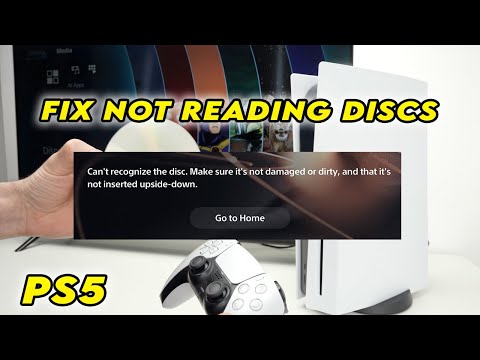
How to Fix PS5 Won’t Read DiscStruggling with a PS5 that won’t read discs? Learn quick fixes for common issueslike dirty lenses, software glitches, and power cycles. Get your console back to playing games in minutes.
How to Fix PS5 Error CE‑34878‑0
Learn how to fix PS5 Error CE-34878-0 with our step-by-step guide. Troubleshoot and resolve this common issue
How to Fix Cannot log in — quick fix
Stuck outside your account? Learn quick, step-by-step solutions to fix “cannot log in” errors and regain access in minutes.
PS5: Not enough space — how to fix it
Out of storage on your PS5? Learn how to fix "not enough space" errors bymanaging your game library, using extended storage, and freeing upvaluable console memory.
“Data corrupted” error on PS5: how to fix it step by step
Fix the Data corrupted error on your PS5 with our step-by-step guide. Get your console back to gaming in no time!
How to Improve Audio in Games: Equalization and Recommended Settings
Enhance your gaming experience with tips to improve audio quality in games. Discover techniques for immersive sound
How to use Remote Play on PS5 from PC or mobile
Experience gaming freedom with Remote Play on PS5. Play your favorite titles anywhere, anytime, and enjoy
How to free up space on PS5 without deleting your games
effective tips to free up space on your PS5. Optimize storage and enhance your gaming experience with our guide.
How to fix Apple Music not working on PS5
Today we bring you an explanatory guide on How to fix Apple Music not working on PS5 with precise details.
How to Fix PC Stuttering in Games
Troubled by PC stuttering in games? Our guide shows you how to fix gamestuttering & lag with step-by-step solutions for settings, hardware, & drivers.
How to Fix PS5 Won’t Connect to Wi‑Fi
Meta description: Having PS5 Wi‑Fi issues? Follow our step-by-step guide todiagnose and fix connection problems—from restarting your router toadjusting DNS settings and updating system software. Get back onlinefast.
How to Fix PC Freezing While Gaming
Expert troubleshooting guide to stop PC freezing during games. Learn quickfixes for overheating, driver issues, and hardware bottlenecks torestore smooth gameplay.
Where to Farm Griswold's Opus in Diablo 4
Discover the best locations to farm Griswold's Opus in Diablo 4. Maximize your loot and enhance your gameplay
How to Fix Steam Game Won’t Launch
Troubleshoot and resolve "Steam game won't launch" issues with our step-by-stepguide. Fix crashes, black screens, and launch errors quickly.