How to Fix DirectX has stopped working: causes and solutions
🖥️ The Fatal Crash: Solutions for "DirectX Has Stopped Working"
DirectX is not just a single piece of software; it's a collection of essential APIs (Application Programming Interfaces) developed by Microsoft. It acts as the crucial middleman between the Windows operating system, your video card (GPU), and the game or application. When a game needs to draw a polygon or process a texture, it calls a function within DirectX. If that function call fails, often due to corrupted files or driver conflicts, the entire process collapses, resulting in the dreaded "DirectX has stopped working" error on the Windows platform (Windows 10, 11, and earlier).This comprehensive, human-optimized guide will explain the technical context, detail the primary causes of this system-level failure, and provide a systematic, step-by-step troubleshooting plan to definitively restore the integrity of your DirectX installation and stabilize your gaming experience.
💥 Understanding the Context: The DirectX API Failure
The DirectX error signals a catastrophic failure in the fundamental communication chain responsible for graphics rendering and multimedia.- The Problem: The application (the game) sends a command (e.g., "draw this frame") through the DirectX API to the GPU driver. The error occurs when one of the crucial DLL (Dynamic Link Library) files that constitute DirectX is either missing, corrupted, or the GPU driver fails to correctly handle the instruction.
- The Consequence: Since the application cannot complete its core rendering loop, Windows issues the Access Violation or "Stopped Working" message and terminates the program to prevent system instability.
📉 Core Causes of DirectX Failure
The root cause of DirectX failure can be isolated to three main areas: Graphics Drivers, DirectX Files themselves, and related third-party software.| Problem Area | Detailed Explanation (Simple Technical View) |
| Outdated/Corrupted Drivers | The most frequent culprit. The GPU driver is the interpreter between DirectX and the hardware. If the driver is old or installed incorrectly, it cannot understand or execute DirectX calls, causing a crash. |
| DirectX File Corruption | The primary DirectX DLL files (e.g., d3d11.dll, d3dx9_43.dll) are essential. These files can be damaged by failed Windows updates, aggressive antivirus scans, or faulty game installs. |
| Incompatible GPU Settings | Aggressive overclocking of your GPU (even factory overclocks) or incorrect thermal management can lead to the GPU returning faulty data to DirectX, crashing the API. |
| Windows Component Issues | Core Windows files that house older DirectX components (like the legacy DirectX 9/10 libraries) may be missing after an OS upgrade, leading to crashes in older games. |
| Third-Party Overlays/Software | External software that injects itself into the game rendering path (e.g., overlay tools, recording software, or frame counters) can interfere with DirectX calls and trigger the error. |
⚡ Quick Fix for Impatient Users: Driver Clean and Verification
If you need a fast fix to determine the cause:🛠️ Detailed Solutions: Step-by-Step Troubleshooting
Follow these steps sequentially. They move from simple software fixes to advanced system-level repairs.Step 1: Update/Repair Microsoft Visual C++ Redistributables
Many applications and games rely on the C++ libraries, which work closely with DirectX.Step 2: Manually Reinstall DirectX End-User Runtimes
Windows 10/11 automatically manage core DirectX files (DX12), but older versions (DX9, DX10, DX11) are often managed by the legacy installer.Step 3: Use the System File Checker (SFC)
To check for corruption in core Windows system files, including those related to DirectX.Step 4: Check for DirectX Runtime Conflicts (Registry Fix)
Sometimes, Windows incorrectly tries to force a newer DirectX version onto an older application.Step 5: Lower GPU Clock Speeds (Overclocking Variant)
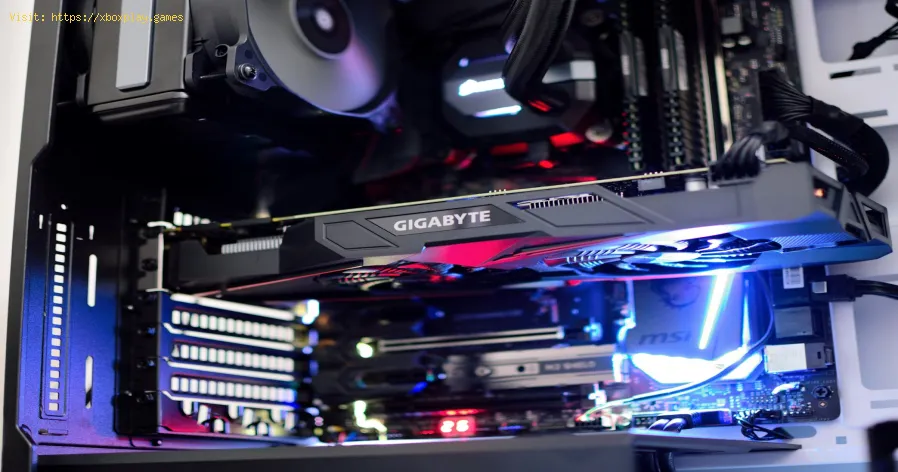
If your GPU is factory overclocked or manually overclocked, aggressive speeds can cause rendering instability.
- Use a utility like MSI Afterburner (or your GPU vendor's software).
- Temporarily reduce the Core Clock and Memory Clock speeds by $50 \text{ MHz}$ to $100 \text{ MHz}$.
- If the error stops, the crash was caused by thermal or power instability related to the overclock.
Step 6: Disable Windows Fullscreen Optimization
This Windows feature, intended to help games, sometimes conflicts with DirectX rendering paths.
- Find the executable (.exe) file of the game causing the crash (often in the Steam/Epic library folder).
- Right-click the .exe file and select Properties.
- Go to the Compatibility tab.
- Check the box for "Disable fullscreen optimizations."
- Click Apply and test the game.
🔄 Alternative Solutions: Deep System Diagnostics
If standard repairs fail, you must dig into deeper system conflicts.
- Disable Third-Party Overlays: Completely disable all gaming overlays (Discord, GeForceExperience/ShadowPlay, Xbox Game Bar, MSI Afterburner OSD). Launch thegame clean. If the error is gone, re-enable them one by one to find theculprit.
- Update Motherboard Chipset Drivers: Outdated chipset drivers can affect the communication path between theCPU, RAM, and PCIe bus (where the GPU sits), leading to communicationerrors that manifest as DirectX failures. Install the latest chipsetdrivers from the motherboard manufacturer or AMD/Intel websites.
- Windows Update Check: Ensure your Windows OS is fully up to date. Occasionally, Microsoftreleases "silent" fixes for core system components that resolvelong-standing DirectX issues.
🛡️ How to Prevent Future DirectX Failures
Maintaining a clean and stable system environment is the best long-term solution.
- Clean Driver Management: Whenever updating your graphics card driver, always choose the "Clean Installation" option in the vendor's installer or use DDU. This prevents leftover files from conflicting with new driver versions.
- Monitor Temperatures: Use monitoring software (like HWMonitor) to check your GPU'stemperature under load. Overheating is a common source of renderinginstability and DirectX crashes. Keep temperatures below $85^\circ \text{C}$.
- Regular SFC Scans: Run the sfc /scannow command once every few months to proactively detect and repair minor Windows file corruptions before they cause major crashes.
❓ Frequently Asked Questions (FAQ)
Is the error related to my graphics card hardware?
It could be. If the crash only happens under heavy load, it often pointsto an issue with the GPU's stability (e.g., overheating, faulty VRAM, or an unstable overclock). If software fixes fail, test the card inanother PC or run a GPU stress test (like FurMark).
Why does the error mention an old DirectX version if I have DX12?
Applications are compiled for specific DirectX versions. If a game was built forDirectX 9, it needs the DX9 DLLs to function. If those legacy files aremissing or corrupted (which often happens during OS upgrades), the gamecrashes, even if your system supports the latest DX12.
Will reformatting my PC fix this error?
Yes, a full, clean reformat will almost certainly fix any software-basedDirectX file corruption or driver conflict. However, this is the lastresort; the steps above resolve the vast majority of issues without data loss.
✅ Conclusion and Call to Action
The "DirectX has stopped working" error is a complex issue stemming from abreakdown in the graphics rendering pipeline. By methodically addressing driver integrity, verifying system files using SFC, and ensuring allnecessary C++ and DirectX runtime libraries are present, you can restore your system's stability and enjoy crash-free gaming.
Ready to say goodbye to crashing mid-game?
➡️ If you've performed all the software fixes and suspect a hardware conflict (overclocking or heat), tell me your CPU and GPU model, and I willprovide specific, safe temperature limits and recommended utilitysettings to check for stability!
Other Articles Related
How to Fix DirectX has stopped working: causes and solutionseffective solutions for the "DirectX has stopped working" error. Getyour games and applications running smoothly
Error 0xc0000005 on Windows: definitive solution
Fix Error 0xc0000005 on your PC with our guide. Discover effective solutions to resolve this common issue
How to Fix Honkai Star Rail Resolution on PC
Want How to fix the resolution of Honkai Star Rail on PC? Look no further! Our guide will help you fix any resolution issues you may be experiencing.
How to Fix Xbox error code 0x8028008b
How to Fix Xbox error code 0x8028008b. If you are facing the Xbox error code 0x8028008b while playing your favorite games.
How to Fix Update KB5017389 - KB5017271 on Windows 11
Find out how to fix KB5017389 - KB5017271 update on Windows 11 in this excellent and explanatory guide.
How to Fix Error Code 0x8007000d Installing Update KB5017328 on Windows 11
Failures usually occur on all platforms, let's see How to fix error code 0x8007000d Install KB5017328 update on Windows 11.
How to Fix Windows 11 Version 22H2 Not Showing in the Windows Update
Errors are normal in all systems and that is why today we will explain how to fix Windows 11 version 22H2 not showing.
How to Fix Update KB5017328 Not Installing on Windows 11
Inconveniences are normal everywhere and that is why today we willexplain how to fix the KB5017328 update that does not install in Windows 11.
How to Fix Update KB5017026 and KB5017321 Not Installing On Windows 11
With our guide, you will learn more about How to Fix Update KB5017026 and KB5017321 Not Installing on Windows 11.
How to Fix Update KB5017383 Not Installing on Windows 11
This time we return with a guide with the objective of explaining how to Fix Update KB5017383 Not Installing on Windows 11.
How To Get the Chic Outfits in Clair Obscur Expedition 33
Learn how to unlock every chic outfit in Clair Obscur: Expedition 33. Get our guide to earning cosmetic gear and customizing your characters' stylefor any expedition.
How to Fix Fortnite Unable to connect to server
Struggling with Fortnite connection errors? Discover effective solutions to fix your issues and get back to gaming
How to Fix PS4: Application cannot be launched — complete solution
Fix the Application cannot be launched error on PS4 with our easy troubleshooting guide. Get back to gaming in no time!
How To Link Intrepid Account to Steam in Ashes of Creation
Connect your Intrepid account to Steam for Ashes of Creation! Follow our simple guide to link accounts, enabling seamless access, pre-order bonuses,and future beta participation.
“Data corrupted” error on PS5: how to fix it step by step
Fix the Data corrupted error on your PS5 with our step-by-step guide. Get your console back to gaming in no time!