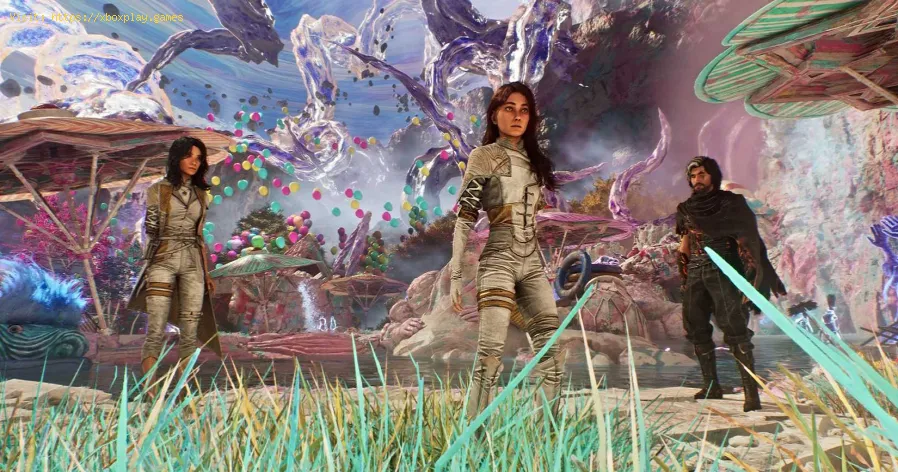
How to Use Photo Mode in Clair Obscur Expedition 33
How to Access & Navigate Photo Mode
The Quick Start: Instant Access
For players eager to jump right in, accessing Photo Mode is straightforward:Taking Control: Mastering Camera Movement
Once inside Photo Mode, you are granted free, unbounded control of the camera, letting you discover angles and vistas never seen during normal play.Basic Camera Controls:- PC: Fly using W, A, S, D. Raise and lower the camera with E and Q.
- Console (PlayStation/Xbox): Move the camera with the Left Stick. Look around with the Right Stick. Use the Triggers (R2/L2 or RT/LT) to move the camera up and down.
- Snap Back: If you fly too far and lose your subject, hit the Reset Camera button (F on PC, L3/Left Stick Click on console) to instantly return to your character.
- Precision Mode: For fine, delicate adjustments when lining up the perfect shot, hold the Slow Mode button. This drastically reduces camera movement speed for pixel-perfect positioning.
- PC: Hold Left Shift
- PlayStation: Hold L1
- Xbox: Hold LB
The Complete Toolkit: A Deep Dive into Photo Mode Settings
To unlock the full creative potential, you need to open the settings menu. Press the Toggle Menu button (Spacebar on PC, Square on PlayStation, X on Xbox) to reveal the comprehensive editing dashboard.1. The Camera Tab: Mastering Focus & Composition
This is where the foundation of a great shot is built. Think of these as your lens and viewfinder settings.- Focus Distance & Aperture: These control depth of field. A low aperture (like f/2.0) creates a beautiful, blurred background (bokeh), making your subject pop. A high aperture (like f/16) keeps everything in sharp focus. Pro Tip: Enable "Display Focus Point" to see a visual yellow plane showing exactly where your focus is set.
- Grid Overlays: Turn on the Rule of Thirds or Golden Ratio grid. Aligning key elements (like a character's eyes or the horizon) with these gridlines creates instinctively more balanced and compelling compositions.
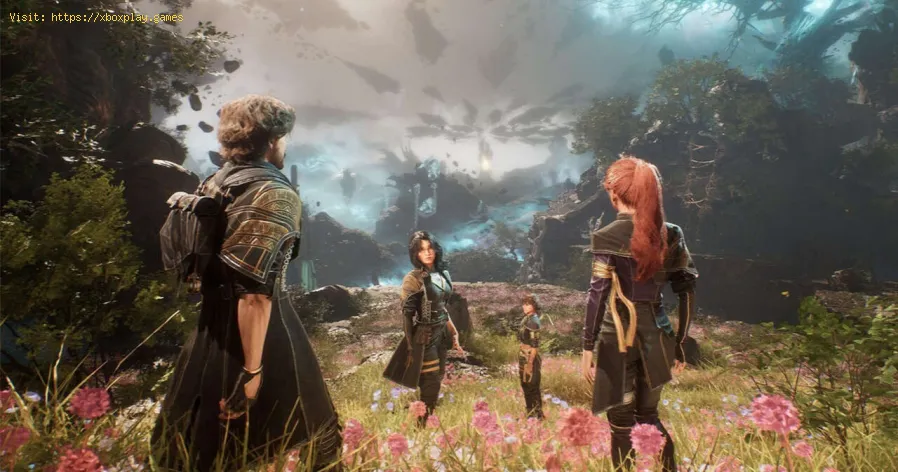
2. Color Grading Tab: Painting with Light and Color
This is your digital darkroom, where you adjust the mood and feel of your image.
- Exposure & Brightness: Controls the overall lightness/darkness of the shot.
- Temperature & Tint: Shift the colors towards warm (orange) or cool (blue) tones. Tintadjusts between green and magenta hues—perfect for correcting strangelighting or creating an alien atmosphere.
- Contrast, Saturation, Gamma:Contrast makes darks darker and lights lighter for a punchier image. Saturation controls the intensity of colors. Gamma adjusts the mid-tone brightness without blowing out highlights or crushing shadows.
3. Filters & Visual Effects: Establishing Style
This is where you can apply dramatic stylistic signatures to your photos.
- Artistic Filters: Beyond classic Black & White, Expedition 33 offers unique filters like Oil Painting, Brush Strokes, and Sketch. CRITICAL ADVICE: The default filter intensity is often set to 1.0, which can be overwhelmingly strong. For a more subtle, professional look, lower the intensity to around 0.2 - 0.4. This blends the artistic effect with the original image beautifully.
- Visual Effects:
- Chromatic Aberration: Creates a slight color separation on edges, mimicking certain camera lenses or a surreal feel.
- Vignette: Darkens the edges of the frame, naturally drawing the viewer's eye toward the center.
- Bloom: Adds a soft, glowing halo to bright light sources, enhancing the game's dreamlike quality.
- Film Grain: Introduces a subtle texture for a classic, cinematic look.
4. Lighting Tab: Become a Cinematographer
This is the most powerful—and advanced—section. Here, you can add your own light sources to the scene.
- Point Lights & Spot Lights: You can place, move, and rotate these lights anywhere. Point Lights glow in all directions (like a light bulb), while Spot Lights are directional (like a flashlight or stage light).
- Control: Adjust the Intensity, Color, and Radius of each light. Want to create a dramatic scene where your character islit only by a single, blue-hued spotlight? You can do that. This feature allows for limitless creative staging.
5. Characters & Environment Tab: Curating Your Scene
Sometimes, the perfect shot doesn't include the protagonist.
- Hide Characters/Enemies: Toggle your party members or foes on or off. This is perfect forcapturing the awe-inspiring, desolate environments of Expedition 33without any distractions.
- Pose & Expression: While Expedition 33's Photo Mode currently focuses on candid, in-moment captures rather than posed shots, you can influence the scene byunpausing the game for a moment to let an action play out, then quicklyre-entering Photo Mode to capture it.
How to Avoid Common Photo Mode Pitfalls
- The "Overcooked Filter": As mentioned, always dial back filter intensity for a more polished result.
- Flat Lighting: Don't rely solely on the game's default lighting. Experiment withadding one or two subtle point lights to add depth and highlight yoursubject's face.
- Busy Composition: Use the hide character feature and depth of field to simplify a cluttered scene and guide the viewer's attention.
- Ignoring the Grid: Forgetting to use the Rule of Thirds grid is a missed opportunity for instantly better composition.
Frequently Asked Questions (FAQ)
Q: Can I use Photo Mode during cutscenes or combat?
A: Typically, Photo Mode is disabled during pre-rendered cutscenes andintense combat sequences for narrative and technical reasons. It worksbest during exploration and quieter moments.
Q: Where are my saved photos stored?
A: On PC, check your Documents\My Games\Clair Obscur Expedition 33 folder. On PlayStation 5, they go to your Capture Gallery. On Xbox,they are saved to your network (accessible via the Xbox app) or anattached storage device.
Q: Can I adjust the time of day or weather in Photo Mode?
A: The current Photo Mode does not include direct time-of-day or weathercontrols. You must work with the conditions present in the game at thatmoment, making lighting tools even more valuable.
Q: Does using Photo Mode disable trophies or achievements?
A: No. Entering Photo Mode does not affect your ability to earn any in-game accomplishments.
Conclusion & Your Next Expedition
The Photo Mode in Clair Obscur: Expedition 33 is a love letter to its own artistry and to the creative spirit of itsplayers. It provides a deep, rewarding toolset that invites you to slowdown and truly see the world the developers have crafted. From thesubtle play of light on a character's coat to the vast, melancholicbeauty of a broken landscape, your unique perspective is now a part ofthe game's legacy.
Your adventure as a visual storyteller begins now. Boot up Expedition 33, find a moment that stirs you—a quiet reflection, a beam of light through ruins, a determined glance before battle—and freeze it in time. Share your captures with the world using #Expedition33Photography. We can't wait to see the world through your lens.
Other Articles Related
How To Get the Chic Outfits in Clair Obscur Expedition 33Learn how to unlock every chic outfit in Clair Obscur: Expedition 33. Get our guide to earning cosmetic gear and customizing your characters' stylefor any expedition.
All Weapons in Verso’s Drafts DLC in Clair Obscur Expedition 33
Master every new tool of war. Dive into our complete guide to all weapons inVerso's Drafts DLC for Clair Obscur: Expedition 33, covering stats,upgrades, and how to unlock each powerful armament.
How to Use Photo Mode in Clair Obscur Expedition 33
Master the art of cinematic photography in Clair Obscur Expedition 33. Ourguide reveals all Photo Mode controls, filters, and tips to capture your most stunning in-game moments.
How To Solve Esquie Statue Puzzle In Clair Obscur Expedition 33
Solve the Esquie statue puzzle in Clair Obscur Expedition 33 with this clear, step-by-step guide. Find all secret locations and unlock the hiddenrewards quickly.
How To Use Toy Boat In Clair Obscur Expedition 33
Learn how to unlock and use the Toy Boat artifact in Clair Obscur: Expedition 33, plus its best team applications and upgrade tips.
How To Get Birthday Cake In Clair Obscur Expedition 33
Earn the special birthday cake in Clair Obscur Expedition 33! Our guidecovers the exact objectives and steps to unlock this celebratory rewardfor your character.
How To Get Esquie Outfits in Clair Obscur Expedition 33
Discover how to obtain Esquie Outfits in Clair Obscur Expedition 33. Unlock unique styles and enhance your adventure !
Clair Obscur Expedition 33: How to Solve Seesaw Puzzle
Solve the seesaw puzzle in Clair Obscur Expedition 33 with our step-by-stepguide. Learn the exact weight distribution strategy to unlock the secret and advance through the game.
How To Beat The Balloon Gestral In Clair Obscur Expedition 33
Master the fight with our step-by-step guide on How To Beat The BalloonGestral in Genshin Impact's Clair Obscur Expedition: Expedition 33.Learn team comps, attack patterns, and essential strategies to claimvictory.
How To Counter Barbapapa Status in Clair Obscur Expedition 33
effective strategies to counter Barbapapa Status in the Clair Obscur Expedition 33. Master the challenges
How to record gameplay without losing FPS on PC or console
Capture your gameplay seamlessly without sacrificing FPS. Enjoy smooth recording and elevate your gaming
How to Optimize Windows 10/11 for Gaming and Higher FPS
Unlock peak gaming performance by optimizing your Windows settings. Enhance speed, reduce lag, and elevate your gaming
How to Get Mega Heatran in Pokemon Legends Z-A Mega Dimension
Discover how to obtain Mega Heatran in Pokemon Legends Z-A with our completeguide to unlocking this powerful Fire/Steel-type in the mysterious MegaDimension.
How to Get Mega Glimmora in Pokemon Legends Z-A Mega Dimension
Discover how to unlock Mega Glimmora in Pokémon Legends Z-A with our guide!Learn the exclusive Mega Evolution steps, abilities, and best strategies in the new Mega Dimension.
How to Get the Free Hogwarts Legacy Back Bling in Fortnite
Unlock the magic in Fortnite! This guide shows you the quick steps to claimthe free Hogwarts Legacy Back Bling in the Epic Games Store. Fly intobattle with style.