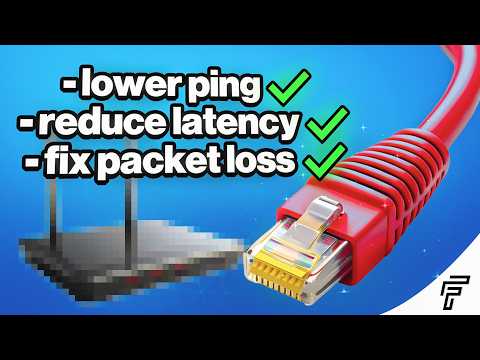
Call of Duty:Warzoneの試合に熱中し、完璧な側面攻撃を仕掛けて発砲…しかし、何も起こらない。次の瞬間、あなたは死んでしまい、キルカメラに映る敵の反応を目の当たりにする。画面上では、敵があなたに対して既に反応しているのが見える。どこかで聞いたことがあるような感覚ではないだろうか?この魂を砕かれるような体験は、高pingの典型であり、PC、PlayStation 5、Xbox Series Xなど、あらゆるプラットフォームのゲーマーを悩ませている。
しかし、この謎の「ping」とは一体何なのでしょうか?簡単に言うと、pingとはネットワークの遅延、つまり小さなデータパケットがデバイスからゲームサーバーまで往復するのにかかる時間を表す指標です。ミリ秒(ms)単位で測定され、ユーザーとサーバー間のデジタル距離を表します。pingが低い場合(10~40ms程度)、接続はほぼ瞬時です。一方、pingが高い場合(100ms以上)、遅延が顕著になり、素早い反射神経が鈍く遅延した行動に変わり、結果的にプレイヤーを殺してしまう可能性があります。
この問題は、オンラインゲームが単なるデータのダウンロードではなく、コンソールやPCとリモートサーバーの間で絶え間なく高速な通信を行っているために発生します。あらゆる動き、ショット、ターンはデータパケットです。高いping値は、通信にイライラするほどの遅延が発生し、対戦で深刻な不利を被ることを意味します。なぜこのようなことが起こるのか、そしてさらに重要なのは、どのように解決できるのかを詳しく見ていきましょう。
高いping値は、単一の問題が原因であることは稀です。通常は、ユーザーとゲームサーバー間の複数の要因が組み合わさって発生します。最も一般的な原因を以下にまとめます。
地理的な距離:これが最も根本的な原因です。マドリードからシンガポールにあるサーバーでプレイする場合、データは海底ケーブルやネットワークハブを経由して数千マイルも移動しなければなりません。物理的な速度制限があるため、距離は必然的に遅延を増加させます。
インターネット接続の種類と品質:
Wi-Fi vs. Ethernet: Wi-Fiは便利ですが、壁や他の電子機器(電子レンジ、コードレス電話)、さらには近隣のネットワークからの干渉を受けやすい傾向があります。これにより、パケットロスやpingの急上昇が発生します。
ISPの帯域制限/ネットワークの混雑:インターネットサービスプロバイダー(ISP)は、ピーク時に他のトラフィックを優先したり、帯域幅を調整したりすることがあります。家族全員が4K動画をストリーミングしながらゲームをしている場合、接続リソースの競合が発生します。
時代遅れまたは誤って構成されたネットワーク ハードウェア:最新のトラフィックを処理できない古いルーターや、何年も更新されていない PC 上のネットワーク カード ドライバーは、接続のボトルネックになる可能性があります。
Background Processes & Bandwidth Hogs: Windows updates, cloud backups (like OneDrive or Dropbox), torrents, or other devices automatically downloading updates can silently consumeyour bandwidth, spiking your ping.
Game Server Issues: Sometimes, the problem isn't on your end. An overloaded or poorlymaintained game server can cause high ping for everyone connected to it.
Before we get into the nitty-gritty, try these three steps immediately—they solve a majority of common ping issues:
Hardwire Your Connection. Unplug the Ethernet cable from your router and plug it directly intoyour gaming device (PC, PlayStation, Xbox). This is the single mosteffective change for most people.
Restart Your Network. Power off your modem and router, wait 60 seconds, and power them backon. This clears cache and can resolve many ISP-side hiccups.
Choose the Right Server. In your game's settings (look in "Network" or "Account" settings),manually select the game server region closest to your physicallocation.
If the quick fixes didn't solve it, it's time for a systematic approach.
Step 1: Diagnose Your Baseline Ping.
On PC, open Command Prompt and type ping 8.8.8.8 -t to see your ping to a Google server. Look for the average.
Consoles have built-in network tests. Run them to see your current latency and packet loss.
Step 2: Become the Bandwidth Boss.
On PC: Press Ctrl+Shift+Esc to openTask Manager. Click "More details," then the "Network" tab. Sort bybandwidth usage and close any unnecessary high-usage applications.
On All Platforms: Pause any activedownloads, streaming on other TVs, and video calls. Set your gamingdevice as a priority if your router supports Quality of Service (QoS)settings.
Step 3: Optimize Your Wi-Fi (If You Must Use It).
Change the Channel: Use a smartphoneapp like "WiFi Analyzer" to find the least congested channel for your2.4GHz or 5GHz band and change it in your router settings.
Strategic Placement: Move your routerto a central, elevated location, away from thick walls and electronicdevices. Even a few feet can make a difference.
Step 4: Configure Your Router for Gaming.
Enable QoS (Quality of Service): Loginto your router's admin panel (usually via 192.168.1.1 in a browser).Find QoS settings and prioritize traffic for your gaming device's MACaddress or for "Gaming" ports.
Port Forwarding: For certain games(like peer-to-peer hosted matches), forwarding specific ports can help.Find the required ports for your game (e.g., Apex Legends, Minecraft) on the developer's support site and forward them in your router settingsto your device's local IP address.
Step 5: Optimize Your PC Network Settings.
Disable Nagle's Algorithm: This canhelp in some games. Search for "View network connections" in Windows,right-click your active connection > Properties > Configure >Advanced. Look for "TCP Checksum Offload" or similar and experiment with disabling features.
Update Network Drivers: Visit yourmotherboard or network card manufacturer's website and download thelatest drivers. Don't rely on Windows Update for this.
Step 6: Consider a DNS Change.
Your ISP's default DNS can be slow. Try switching to a public DNS like Google DNS (8.8.8.8, 8.8.4.4) or Cloudflare DNS (1.1.1.1). You can change this in your network adapter settings on PC or in the network settings on your console.
Step 7: The Nuclear Option for Wi-Fi: Powerline Adapters.
If running an Ethernet cable is impossible, use yourhome's electrical wiring. Plug one Powerline adapter near your router(connected via Ethernet), and plug the other near your gaming setup.It's often more stable than Wi-Fi.
Step 8: Contact Your ISP.
If problems persist, your line may have an issue. Report high latency and packet loss. Ask if they offer a "gaming" package with better routing or lower latency.
If you've tried everything and your ping is still high due to geographical isolation, a Gaming VPN (like ExitLag, WTFast, or Mudfish) can sometimes help. These are notprivacy VPNs; they are optimized to find a more direct network path tothe game server, bypassing congested public internet hubs. They offerfree trials—test before you buy.
Make Ethernet Permanent: If possible, leave it connected.
Schedule Updates: Set Windows, Steam, PlayStation, and Xbox updates to occur overnight or when you're not gaming.
Regularly Reboot: Restart your router once a month to prevent memory leaks.
Monitor Your Network: Use your router's admin tools to see which devices are connected and monitor for unusual activity.
Q: What is a good ping for gaming?
A: For competitive FPS games like Valorant or Warzone, under 30ms isexcellent, 30-60ms is good, 60-100ms is manageable, and anything over100ms starts to become a serious disadvantage.
Q: より良いインターネットプランを選ぶとping値は下がりますか?
A:既にゲームに十分な帯域幅(約25Mbps)がある場合、より高帯域幅のプラン(より高いMbps)を選んでもping値は直接下がりません。ただし、光ファイバー接続(利用可能な場合)にアップグレードすると、ケーブルやDSLに比べてレイテンシが大幅に低下する可能性があります。
Q: ルーターが高価になればなるほど ping は下がりますか?
A:強力な QoS 機能と優れた処理能力を備えた最新のゲーム重視のルーターは、トラフィックをより適切に管理し、バッファブロートを減らしてより安定した接続を提供することで、ping スパイクを最小限に抑えることができます。
Q: ping値が低いのに、ラグが続くのはなぜですか?
A:パケットロスが発生している可能性があります。パケットロスとは、データパケットが全く届かない状態です。これにより、ラバーバンド現象やワーピング現象が発生します。コンソールまたはPCのネットワークテストでパケットロスが発生していないかご確認ください。
高いping値はオンラインゲームに付き物ではありません。解決可能なネットワークの問題です。その本質を理解し、解決策を系統的に実践することで(まずはイーサネットケーブルを使うという黄金律から始め、)、オンライン体験を劇的に改善できます。「ラグ」のせいでゲームオーバーになるのをやめ、自分のスキルに見合ったレスポンスで勝利を掴みましょう。