
What is input mapping and what is it used for?
What is Input Mapping? The Heart of Custom Control
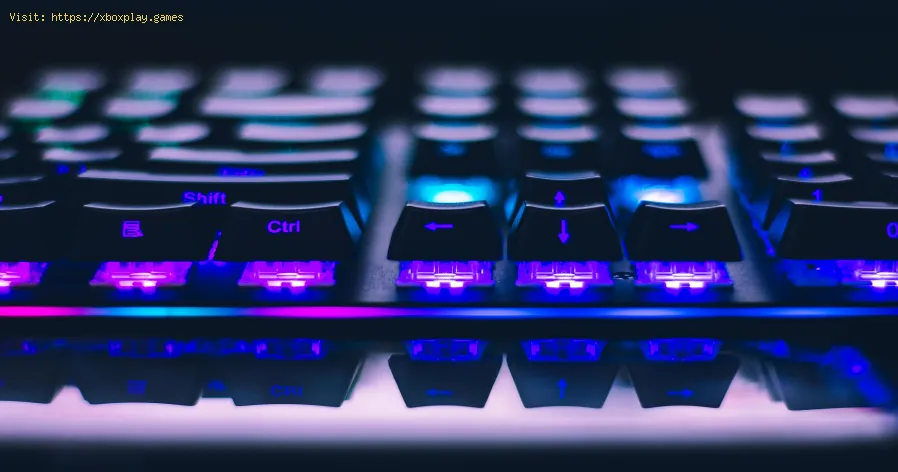
At its core, input mapping (often called keybinding, button mapping, or control remapping) is the process of assigning specific in-game actions—like jump, shoot, or interact—to physical inputs on your controller, keyboard, mouse, or other peripherals.It’s the digital equivalent of rearranging the pedals and steering wheel in a car to suit your preferences. Modern games, from sprawling RPGs like Cyberpunk 2077 to precision platformers like Celeste, offer extensive input mapping options. This system is used for several key reasons:- Personalization: To match your muscle memory and playstyle.
- Accessibility: To create control schemes that work for gamers with different physical abilities.
- Functionality: To make complex games with dozens of actions more manageable.
- Optimization: To gain a tactical advantage, especially in competitive PC titles like Valorant or Apex Legends.
The Quick Solution (For the Impatient Gamer)
Don’t want the deep dive? Here’s your fast fix: Head directly to your game’s “Settings” or “Options” menu, look for “Controls,” “Keybindings,” or “Input,” and start reassigning actions to your preferred buttons or keys. Save your profile, and you’re done!Your Detailed Step-by-Step Guide to Remapping Controls
The process varies slightly by platform, but the principle is universal. Follow these steps to take command.On PC (Steam, Epic Games, etc.):
On Consoles (PlayStation, Xbox, Nintendo Switch):
- From the game’s main menu or pause screen, go to “Settings” or “Options.”
- Select “Controls” or “Controller.”
- Choose “Button Configuration,” “Customize Layout,” or “Remap Controls.” (Note: Some console games have limited remapping options compared to PC).
- Using your controller, highlight the action you want to change and press the confirm button (usually “A” on Xbox, “X” on PlayStation, “B” on Switch).
- When prompted, press the new controller button you wish to assign.
- Be aware of conflicts. The system will usually warn you if you’re assigning the same button to two critical actions.
- Confirm and save your new control scheme. You may need to create and name a new control preset.
- Apply the changes and back out to test them.
Pro Tip: Both PlayStation and Xbox offer system-level accessibility settings that allow you to remap controller buttons for all games and apps, a fantastic feature for accessibility.
Alternative Solutions and Advanced Mapping
- Third-Party Software: For games with poor in-game options, software like reWASD (PC) or JoyToKey (PC) can remap any controller input to keyboard strokes or complex macros.
- Controller Software: If you use a proprietary controller (like from Razer, Scuf, orSteelSeries), its dedicated software often features deep remapping andmacro creation.
- Steam Input: The Steam Client is a powerhouse for input mapping. It lets you reconfigure anycontroller for any game in your Steam library, creating gyro controlsfor non-gyro games or turning a gamepad into a mouse-emulator forstrategy titles.
- Hardware Solutions: Gaming keyboards and mice often come with software (like iCUE orSynapse) that allows for per-game profiles and macro assignmentsdirectly on the hardware.
How to Prevent Future Frustration: Mapping Best Practices
- Create a Backup: Before making sweeping changes, note down the default layout or see if the game has a “Save Profile” option.
- Stay Consistent: Try to keep similar actions (like “Interact” or “Reload”) on the samebutton across different games to build universal muscle memory.
- Test Thoroughly: Always test your new map in a low-stakes game mode. Check for conflicts where one button press might trigger two unwanted actions.
- Use the Community: Many games on PC allow you to browse and download control schemescreated by other players. This is a great way to discover optimizedlayouts.
- Start Small: If you’re new to remapping, change one or two buttons at a time instead of overhauling everything at once.
Frequently Asked Questions (FAQs)
Q1: Will remapping my controls get me banned?
A: No, using in-game input mapping options is perfectly safe and intendedby developers. However, using third-party software to create complexmacros that perform automated sequences of actions (like a full combowith one button press) may violate the terms of service in somecompetitive online games.
Q2: I play on console. Are my remapping options more limited?
A: Traditionally, yes, but the gap is closing. Many modern AAA consolegames offer full remapping. For older or simpler games, remember tocheck your console’s system-level accessibility settings for universal controller remapping.
Q3: What’s the difference between input mapping and changing controller sensitivity?
A: Input mapping is about which button does what. Sensitivity (look/aim sensitivity, dead zones) is about how the joystick or mouse movement is interpreted by the game. They are both found in control settings but adjust different things.
Q4: My game doesn’t have a remap option at all! What can I do?
A: On PC, you can use tools like Steam Input (if you launch the game through Steam) or third-party software like reWASD. On console, your only recourse for such games is the system-level remapping feature.
Q5: What are some common optimal remaps for competitive FPS games?
A: Popular changes include moving “Crouch” to a mouse side button foreasier slide maneuvers, binding “Jump” to a mouse wheel for specifictechniques, or moving “Ping” to an easily accessible key. The “best” map is always what feels most natural to you.
Take Control and Game Your Way
You are not meant to adapt to a rigid control scheme—the game should adaptto you. Input mapping is your fundamental right as a gamer, a tool forcomfort, inclusion, and peak performance. So, dive into those settings,experiment fearlessly, and craft the perfect control scheme that letsyou forget the controller and simply play.
Found this guide helpful? Share it with a fellow gamer who’s struggling withclunky controls! Have a unique remapping tip or a game with fantasticinput options? Drop a comment below and let’s build the ultimatecommunity knowledge base for better gaming.
Other Articles Related
Guide to Understanding Latency in Video Games"Learn what gaming latency is and how it impacts your play. Discover types,causes, and proven tips to reduce lag for a smoother, more responsivegaming experience."
Guide to enabling Cross-Save in your games
Enabling Cross-Save? This guide shows you how to link your accounts and syncgame progress seamlessly between consoles, PC, and mobile platforms.Unlock true gaming freedom.
What is cross-save and how to use it
Unlock seamless gameplay across platforms. Learn what cross-save is and get asimple step-by-step guide to sync your progress and play anywhere.
Performance mode vs. quality mode: which to choose?
Performance mode prioritizes smoother frame rates for fast-paced gameplay, whilequality mode offers higher visual fidelity at lower frame rates.Discover which graphics setting is right for your playstyle.
What is V-Sync and should you enable it?
Discover the pros and cons of V-Sync technology. Learn how it reduces screentearing and its impact on gaming performance. Find out if you shouldenable V-Sync for a smoother experience.
What is anti-aliasing and which is the best?
Learn what anti-aliasing is, how different types (MSAA, FXAA, TAA, etc.)work, and which setting is best for performance vs. visual quality in PC gaming.
What is motion blur and when to disable it
Learn what motion blur is in video games, when it enhances realism, and keyscenarios to disable it for better clarity and performance.
The best shooters for beginners in 2026
the top shooters for beginners in 2026. Our expert reviews and tips will help you choose the perfect game to start your shooting
The best PS Plus games to download
the best PS Plus games to download this month. Explore top titles,hidden gems, and must-play classics to enhance your gaming
What is input mapping and what is it used for?
Discover what input mapping is and how it allows flexible control customizationin software, hardware, and games. Learn its key uses and benefits for an efficient user experience.
The best Xbox Game Pass games (updated list)
ultimate list of the best Xbox Game Pass games! Stay updated with our curated selection and find your next favorite title
What is cloud gaming and how does it work?
Discover how cloud gaming works: stream and play high-end video games instantlyon any device, no downloads or expensive hardware required. Learn thetechnology behind it.
The best games for low-end PCs
Explore top-rated games optimized for low-end PCs. Enjoy engaginggameplay and captivating stories
The best strategy games for beginners
the best strategy games for beginners! Dive into engaging gameplay, easy-to-learn mechanics, and fun challenges
What is SBMM and why is it controversial?
SBMM in gaming: What is skill-based matchmaking, why do players debate it, and how does it impact your multiplayer experience?