What is motion blur and when to disable it
What Exactly is Motion Blur? (The "Why" Behind the Effect)
Before we talk about turning it off, let's understand what it's trying to do. Motion blur isn't just a random graphical glitch; it's an intentional effect with specific goals:The Quick Solution (For the Impatient Gamer)
If you're here for one simple answer, here it is: In almost all competitive gaming scenarios, and for most players seeking visual clarity, you should disable motion blur.How to do it (in under 10 seconds):Detailed Step-by-Step: How to Disable Motion Blur on Any Platform
The setting isn't always in the same place. Here’s how to hunt it down, platform by platform.For PC Gamers (Steam, Epic, etc.):
PC games offer the most granular control. The steps are generally universal, whether you're playing Cyberpunk 2077, Elden Ring, or Apex Legends.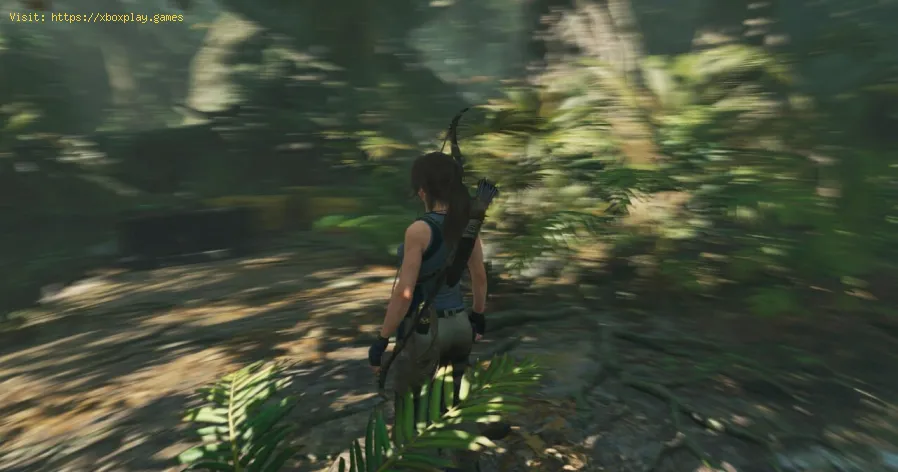
- You may see one or two types:
- Motion Blur: General camera-based blur.
- Per-Object Motion Blur: Blur applied to individual moving objects, often more performance-intensive but also more realistic.
- Toggle Motion Blur to OFF. If it's a slider, reduce it to 0.
- Some games require a restart to apply the changes. Apply/Save your settings and comply if prompted.
- For extra credit, consider adjusting Field of View (FOV). A higher FOV can reduce the perceived need for motion blur.
For PlayStation 5 & Xbox Series X/S Consoles:
Modern console games almost always include this toggle.
- From in-game, press the Options (PlayStation) or Menu (Xbox) button to pause.
- Navigate to the Settings or Options menu.
- Go to the Visuals, Graphics, or Video subsection.
- Use the right stick to scroll down. The setting is rarely at the top.
- Highlight Motion Blur.
- Toggle it to Off. Some games, like Horizon Forbidden West, offer a "Low" setting as a compromise.
- Back out of the menu. Changes are typically applied immediately.
For Nintendo Switch:
Due to the hardware focus on stability, fewer Switch games have this option, but it's appearing more in ports.
- Check the game's Options menu from the main title screen or pause menu.
- Look in Settings > Graphics. If there's no Graphics tab, check Other.
- If the option exists, simply disable it. In a game like The Witcher 3: Wild Hunt on Switch, disabling it can significantly improve readability in fast-paced combat.
For Mobile Games (iOS/Android):
This is rare, but found in high-end titles.
- Tap the gear icon for settings, usually in a corner of the main menu or pause screen.
- Look for Graphics Quality or Advanced Settings.
- If present, it will be a simple On/Off toggle. Disabling it can improve clarity on small screens.
When Should You Actually KEEP Motion Blur On?
Disabling it isn't always the right call. Here are the exceptions—the times when motion blur is your friend:
- You're Playing a Cinematic, Story-Driven Game: If you're immersed in a narrative adventure like The Last of Us Part I (PlayStation/PC) or Red Dead Redemption 2, and you're playing at a locked 30 FPS for fidelity, motion blur canmake the panning shots and slow walks feel more filmic and less choppy.
- You're on a Lower-End PC or Last-Gen Console: If your system struggles to maintain a stable 60 FPS, a subtle amount of motion blur can mask the stutter between frames, making 45-50 FPS feel smoother than it would otherwise.
- The Game's Artistic Vision Depends on It: Some games bake it into their identity. Turning it off in a game like Ghostrunner might make the speed feel less visceral.
- You Experience "Strobing" or "Judder": On very high-refresh-rate monitors (240Hz+), some players perceive aflickering or strobing effect during fast camera pans. A tiny amount ofmotion blur can eliminate this.
How to Prevent Needing to Tweak This in Every Game
While there's no global setting, you can develop a smart routine:
- Make It a Habit: The first thing you do when booting a new game should be: Settings > Graphics > Disable Motion Blur. Do it before you even start the campaign.
- Consult Digital Foundry or PC Gamer: These technical analysis outlets often provide optimal settings guidesfor major game releases, telling you exactly which effects are worth the performance cost.
- Prioritize Frame Rate: Aim for a stable frame rate (60 FPS or higher) first. The higher yourFPS, the less beneficial (and more detrimental) motion blur becomes.
Frequently Asked Questions
Q: Does disabling motion blur improve my FPS?
A: Usually, yes, but the gain is typically small (1-5 FPS). The primarybenefit is visual clarity and reduced input lag, not a massiveperformance boost.
Q: What's the difference between Camera Blur and Object Blur?
A: Camera Blur blurs the entire screen when you move the camera.Per-Object Motion Blur only blurs individual objects that are movingquickly within the scene. The latter is more realistic and lessdisorienting, but also more demanding on your hardware.
Q: Why do so many pro gamers and streamers turn it off?
A: For competitive play in titles like Valorant, *Counter-Strike 2*, or Warzone, every millisecond and every pixel of clarity counts. Motion blurobscures details, can hide enemy movement, and can add a minusculeamount of input lag. Sharpness and reactivity are king.
Q: I turned it off and now fast motion looks choppy. What's wrong?
A: Your system might be struggling with a low frame rate. Motion blur wasmasking that. Focus on raising your FPS through other graphical settingreductions (like shadows or anti-aliasing) instead of re-enabling blur.
Q: Is motion blur the same as ghosting on my monitor?
A: No. Ghosting is a hardware limitation of your monitor's response timeand is a physical smearing effect. Motion blur is a software-generatedeffect within the game. Disabling in-game motion blur will not fixmonitor ghosting.
Sharpen Your Senses and Take Control
Your graphics settings are a personal playground. There’s no universally“correct” way to play. The key is to understand what each setting does,so you can tailor your experience to your own eyes, your own hardware,and your own goals. Motion blur sits at the crossroads of art andperformance, and now you have the knowledge to judge it for yourself.
So, fire up your game of choice, dive into those settings, and try it bothways. Do you prefer the cinematic sweep or the crystal-clear snap? Share your preference and your biggest motion blur win (or horror story) inthe comments below! And if you found this guide helpful, why not shareit with your squad? Everyone deserves a clearer shot.
Other Articles Related
Guide to Understanding Latency in Video Games"Learn what gaming latency is and how it impacts your play. Discover types,causes, and proven tips to reduce lag for a smoother, more responsivegaming experience."
Guide to enabling Cross-Save in your games
Enabling Cross-Save? This guide shows you how to link your accounts and syncgame progress seamlessly between consoles, PC, and mobile platforms.Unlock true gaming freedom.
What is cross-save and how to use it
Unlock seamless gameplay across platforms. Learn what cross-save is and get asimple step-by-step guide to sync your progress and play anywhere.
Performance mode vs. quality mode: which to choose?
Performance mode prioritizes smoother frame rates for fast-paced gameplay, whilequality mode offers higher visual fidelity at lower frame rates.Discover which graphics setting is right for your playstyle.
What is V-Sync and should you enable it?
Discover the pros and cons of V-Sync technology. Learn how it reduces screentearing and its impact on gaming performance. Find out if you shouldenable V-Sync for a smoother experience.
What is anti-aliasing and which is the best?
Learn what anti-aliasing is, how different types (MSAA, FXAA, TAA, etc.)work, and which setting is best for performance vs. visual quality in PC gaming.
What is motion blur and when to disable it
Learn what motion blur is in video games, when it enhances realism, and keyscenarios to disable it for better clarity and performance.
The best PS Plus games to download
the best PS Plus games to download this month. Explore top titles,hidden gems, and must-play classics to enhance your gaming
What is input mapping and what is it used for?
Discover what input mapping is and how it allows flexible control customizationin software, hardware, and games. Learn its key uses and benefits for an efficient user experience.
Where to Find Herald of Zakarum Drop in Diablo 4
Explore the precise location of the Herald of Zakarum drop in Diablo 4.Get insights and maximize your chances of obtaining
Where to Find Supplication Drop in Diablo 4
Looking for Supplication Drops in Diablo 4? Explore our expert guide tolocate these essential items and elevate your gaming
The best shooters for beginners in 2026
the top shooters for beginners in 2026. Our expert reviews and tips will help you choose the perfect game to start your shooting
The best PS Plus games to download
the best PS Plus games to download this month. Explore top titles,hidden gems, and must-play classics to enhance your gaming
What is input mapping and what is it used for?
Discover what input mapping is and how it allows flexible control customizationin software, hardware, and games. Learn its key uses and benefits for an efficient user experience.