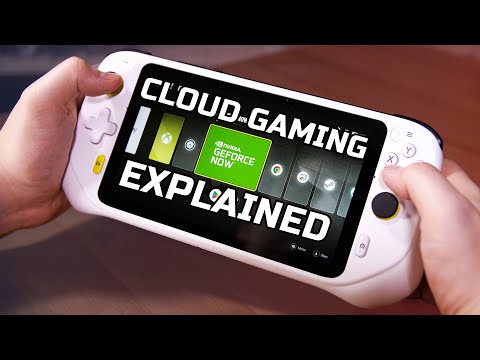
What is cloud gaming and how does it work?
How Does Cloud Gaming Actually Work? The Magic Behind the Screen
At its core, cloud gaming is a feat of modern engineering. Think of it not as downloading a game, but as streaming an interactive movie where you control the lead actor.Quick Solution (For the Impatient Gamer Ready to Jump In)
To start cloud gaming today: Choose a service like Xbox Cloud Gaming (with Game Pass Ultimate), NVIDIA GeForce Now, or PlayStation Plus Premium. Use any compatible device (phone, laptop, TV via app), a decent internet connection (15+ Mbps), and a controller. Sign up, browse the library, and click play. No downloads, no installs.Detailed Step-by-Step: Your First Cloud Gaming Session
Ready to dive in? Here’s how to get started, tailored to your platform of choice.Step 1: Choose Your Cloud Gaming Service- For Console Gamers (Xbox Focus): Xbox Cloud Gaming (part of Game Pass Ultimate) is your natural home. It streams games from the Xbox Series X hardware library.
- For Console Gamers (PlayStation Focus): PlayStation Plus Premium offers a catalog of streamable PS4, PS5, and classic games.
- For PC Gamers & Graphics Enthusiasts: NVIDIA GeForce Now is unique. It lets you stream games you already own on stores like Steam and Epic, using powerful RTX-grade servers.
- For a Standalone Library: Amazon Luna or Blacknut offer their own all-in-one subscription libraries.
This is non-negotiable. Run a speed test.
- Minimum: 15-20 Mbps for 1080p.
- Recommended: 35-50+ Mbps for 4K/HDR.
- Crucial: Use a 5GHz Wi-Fi network or, ideally, a wired Ethernet connection on stationary devices. Latency is your true enemy, not just bandwidth.
Step 3: Get the Right Equipment
- Device: Any modern phone, tablet, laptop, or smart TV with the service’s app or a compatible web browser (Chrome, Edge).
- Controller: A Bluetooth controller (Xbox Wireless, PlayStation DualSense, etc.) isbest for most games. Some services support touchscreen overlays formobile.
Step 4: Set Up Your Account and Payment
Visit the service’s website, sign up, and choose your tier. Many, like XboxCloud Gaming, require their premium subscription (Game Pass Ultimate).
Step 5: Download the App or Access via Browser
- Mobile (iOS/Android): Download the official app from your store.
- PC/Mac: Use the dedicated app or a supported browser for the best experience.
- Smart TV/Consoles: Look for the app on your device’s app store (e.g., on a Samsung TV or an Xbox itself).
Step 6: Optimize Your Network Settings
- On your router, enable QoS (Quality of Service) if available, and prioritize your gaming device.
- Ensure no other devices are hogging bandwidth with large downloads or uploads.
Step 7: Connect Your Controller
Pair your Bluetooth controller to your device before launching the game. The app will usually recognize it instantly.
Step 8: Launch a Game and Adjust Settings
Start with a graphically simpler game to test. Inside the service, you may find:
- Stream Quality Settings: Adjust based on your connection. A stable 1080p is better than a stuttering 4K.
- Data Usage: Options for capped connections.
Step 9: Do a Latency Check
Play for 10-15 minutes. Does it feel responsive, or is there a noticeabledelay between button press and action? This is your real-world test.
Step 10: Troubleshoot Immediately
If it’s choppy: Move closer to your router, switch to 5GHz Wi-Fi, orrestart your network hardware. Don’t struggle—address connection issuesfirst.
Alternative Approaches to Cloud Gaming
- Remote Play: Don’t forget console-specific streaming like PlayStation Remote Play or Xbox Remote Play. This uses your own PS5 or Xbox Series X as the server to stream to another device in your home. It’s a personal cloud.
- Cloud-Enabled Games: Some games, like Microsoft Flight Simulator, use the cloud to stream in real-world map data, enhancing the game even on local hardware.
How to Prevent a Poor Cloud Gaming Experience
- Hardwire Everything Possible: An Ethernet cable to your PC, TV, or laptop is the single biggest improvement.
- Master Your Wi-Fi: Place your router centrally, use the 5GHz band exclusively for gaming, and consider a Wi-Fi 6/6E router.
- Schedule Downloads: Ensure automatic updates on other devices aren’t scheduled during your prime gaming time.
- Choose Servers Wisely: Some services let you pick a data center region. Choose the one geographically closest to you.
- Monitor Your Connection: Use your service’s built-in network diagnostics (often with a keystroke like Ctrl+N on GeForce Now) to see real-time latency and packet loss.
Frequently Asked Questions
Q: Is cloud gaming as good as owning a console or PC?
A: For sheer, lag-free fidelity and absolute control, local hardware still wins. But cloud gaming is shockingly close for many games (especiallynon-competitive ones) and wins hands-down on convenience and access.
Q: Do I need a subscription and to buy the games?
A: It depends. Services like Xbox Cloud Gaming and PlayStation Plus Premium offer a Netflix-style all-you-can-play library. GeForce Now requires you to own the games on a PC storefront, but provides the hardware.
Q: Is there input lag? Will it feel sluggish?
A: With a good connection (<20ms latency to the server), lag is oftenimperceptible in single-player adventures or RPGs. Fast-pacedcompetitive shooters or precision platformers are where you might notice it most.
Q: How much data does it use?
A: A lot. Streaming at 1080p can use ~10-15 GB per hour. 4K can use ~25-35 GB per hour. Always use an unlimited plan or Wi-Fi.
Q: Is the future all cloud gaming?
A: Likely a hybrid future. Cloud will become a seamless option alongsidelocal hardware, giving players ultimate choice—play natively foresports, or stream instantly to your tablet on the couch.
Closing with a Call to Action
The gate to countless worlds is now open, and it’s not locked behind ahardware key. Cloud gaming is an invitation to play more, explore more,and worry less about specs. It’s the democratization of high-end gaming.
Your journey is just a click away. Try a free trial of a service today—feel that magic of a major title booting instantly on your phone. Then, share your experience! Did it blow your mind or leave you wanting? Comment below with your first cloud gaming story or the game you’re most excited to stream. And if you found this guide helpful, share it with a friend who’s still tethered to their tower. For more deep dives into the techthat’s shaping play, from optimizing your home network to VR firstlooks, explore our full collection of guides right here. The future of play is fluid. Go with the flow
Other Articles Related
Guide to Understanding Latency in Video Games"Learn what gaming latency is and how it impacts your play. Discover types,causes, and proven tips to reduce lag for a smoother, more responsivegaming experience."
Guide to enabling Cross-Save in your games
Enabling Cross-Save? This guide shows you how to link your accounts and syncgame progress seamlessly between consoles, PC, and mobile platforms.Unlock true gaming freedom.
What is cross-save and how to use it
Unlock seamless gameplay across platforms. Learn what cross-save is and get asimple step-by-step guide to sync your progress and play anywhere.
Performance mode vs. quality mode: which to choose?
Performance mode prioritizes smoother frame rates for fast-paced gameplay, whilequality mode offers higher visual fidelity at lower frame rates.Discover which graphics setting is right for your playstyle.
What is V-Sync and should you enable it?
Discover the pros and cons of V-Sync technology. Learn how it reduces screentearing and its impact on gaming performance. Find out if you shouldenable V-Sync for a smoother experience.
What is anti-aliasing and which is the best?
Learn what anti-aliasing is, how different types (MSAA, FXAA, TAA, etc.)work, and which setting is best for performance vs. visual quality in PC gaming.
What is motion blur and when to disable it
Learn what motion blur is in video games, when it enhances realism, and keyscenarios to disable it for better clarity and performance.
The best shooters for beginners in 2026
the top shooters for beginners in 2026. Our expert reviews and tips will help you choose the perfect game to start your shooting
The best PS Plus games to download
the best PS Plus games to download this month. Explore top titles,hidden gems, and must-play classics to enhance your gaming
What is input mapping and what is it used for?
Discover what input mapping is and how it allows flexible control customizationin software, hardware, and games. Learn its key uses and benefits for an efficient user experience.
The best games for low-end PCs
Explore top-rated games optimized for low-end PCs. Enjoy engaginggameplay and captivating stories
The best strategy games for beginners
the best strategy games for beginners! Dive into engaging gameplay, easy-to-learn mechanics, and fun challenges
What is SBMM and why is it controversial?
SBMM in gaming: What is skill-based matchmaking, why do players debate it, and how does it impact your multiplayer experience?
The best horror games to play at night
the best horror games to play at night for spine-chilling thrills and unforgettable scares. Get ready for a terrifying gaming
The best offline games to play without the internet
the best offline games to enjoy without an internet connection. Perfect for travel, downtime, or when Wi-Fi is unavailable!