How to Fix PS5 Error CE‑34878‑0
Causes of PS5 Error CE‑34878‑0
Understanding the "why" can help you choose the right fix. This error is a general software crash, and its roots can be in several places:Quick Solution (For Impatient Users)
Restart Your PS5, Check for Game Updates, and Rebuild the Database. This trio solves the majority of cases.Detailed Step-by-Step Solutions
Follow these steps in order. Start with the simplest and work your way down.Step 1: The Basic Restart & Update Check
- Action: Close the game, go to the Home Screen, highlight the game, press the Options button, and select "Close Game." Then, restart your PS5 completely.
- Why it works: This clears the game and any temporary system data from RAM, giving you a fresh start.
Step 2: Update Everything
- Action A: Update the Game: As in the quick fix, use the "Check for Game Update" option. Developers frequently release patches that fix crash bugs.
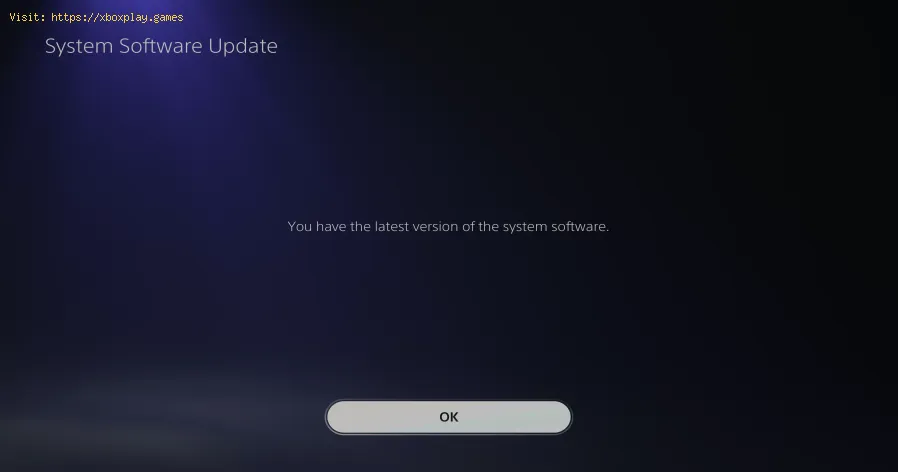
- Action B: Update System Software: Go to Settings > System > System Software > System Software Update and Settings. Ensure "Update System Software" is set to automatic, and manually check for an update.
- Why it works: Updates contain critical bug fixes for both games and the system itself that directly address stability issues.
Step 3: Clear the System Cache and Rebuild Database (Safe Mode)
- Action:
- Turn off your PS5 completely.
- Press and hold the power button. Release it after you hear the second beep (about 7 seconds).
- Connect your DualSense controller with the USB cable and press the PS button.
- Select Option 5: Clear Cache and Rebuild Database.
- Choose "Clear System Software Cache" first. Then repeat the process and choose "Rebuild Database."
- Why it works: This is like a deep-cleaning for your console's file system. It clearstemporary junk files and re-indexes your game library, fixing corrupteddata links without deleting your games or saves.
Step 4: Check for Game Data Corruption
- Action:
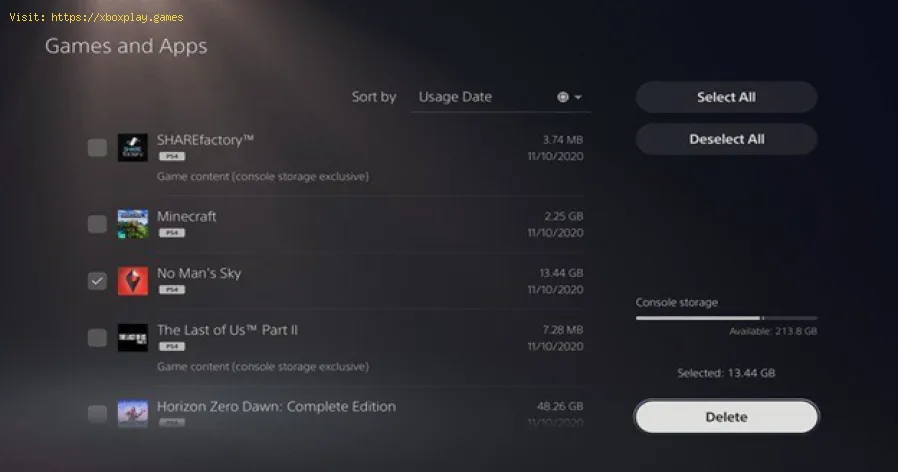
- Go to Settings > Storage > Games and Apps.
- Select the game causing the error.
- Choose "Delete"—but ONLY select the "Game Data" or "Application" file.DO NOT delete "Saved Data."
- Once deleted, re-download or re-install the game from your library or the disc.
- Why it works: This replaces the potentially corrupted game installation files with a fresh, clean set.
Step 5: Check for Saved Data Corruption (Use Cloud Backups!)
- Caution:Only do this if you have a recent cloud backup via PlayStation Plus, or a USB backup.
- Action:
- Go to Settings > Saved Data and Game/App Settings > Saved Data (PS5) > Console Storage.
- Select "Delete" and choose the saved data for the problematic game.
- After deleting, go to "Cloud Storage" and download your backup to the console.
- Why it works: Corrupted save files can cause crashes when loaded. Starting from a clean or backed-up save can resolve this.
Step 6: Try a Different User Profile & Initialize (Last Resort)
- Action A: Create a new user profile on the PS5 and try launching the game fromthere. If it works, the issue is likely with your main profile's localdata.
- Action B: Initialize Your PS5. This is a factory reset. Go to Settings > System > System Software > Reset Options. You can choose "Reset Your Console" (keeps games installed but removes users and settings) or the more thorough "Reset Your Console (Reinstall System Software)" which requires downloading firmware from a PC/USB. BACK UP EVERYTHING FIRST.
- Why it works: A factory reset eliminates all software-related corruption, returning the console to a pristine state.
Alternative Solutions & Checks
- Disconnect and Reconnect External Storage: If using an expansion SSD or USB drive, back it up, reformat it usingthe PS5, and re-download games. A failing drive can cause crashes.
- Check for Overheating: Ensure your PS5 is in a well-ventilated area, with plenty of spacearound the vents. Gently vacuum the dust catchers on the side panels.
- Test the Game Disc (If Applicable): For disc-based games, inspect the disc for deep scratches or smudges.Clean it gently with a microfiber cloth from the center outwards.
- Try Offline Mode: Boot your PS5 without an internet connection. If the error stops, it may point to a network-related issue with the game.
How to Prevent the Issue from Happening Again
- Always Close Games Properly: Don't just put the console in Rest Mode while a game is running. Return to the Home Screen and close the game first.
- Enable Automatic Updates: For both system and game software, ensure automatic downloads are on in Settings > System > Power Saving > Features Available in Rest Mode.
- Maintain Storage Health: Don't fill your SSD to 100% capacity. Leave at least 10-20% free space for cache and system operations.
- Use a Surge Protector: Protect your console from power fluctuations that could corrupt data during an update or save.
Frequently Asked Questions
Q: Is error CE‑34878‑0 a sign my PS5 is broken?
A: Almost never. It is overwhelmingly a software or data corruption error. Hardwarefailure is very rare and would typically manifest with more constant and varied problems.
Q: Will I lose my game progress if I follow these steps?
A: Not if you are careful. Always check what you are deleting. "Game Data" is safe to delete (you reinstall it). NEVER delete "Saved Data" unless you have a confirmed backup in the cloud or on USB.
Q: The error only happens with one specific game. What does that mean?
A: This strongly points to an issue with that particular game'sinstallation files or a bug within the game itself. Focus on stepsrelated to updating and reinstalling that game.
Q: I've done everything and the error persists across multiple games. What now?
A: If a full factory reset (Initialization) does not work, and the erroris frequent and widespread, it could indicate a deeper hardware issue.At this point, you should contact PlayStation Support for potential repair services.
Q: Is rebuilding the database safe?
A: Yes, completely safe. It is a standard maintenance tool. It does not delete your games,saves, or settings. It simply cleans up the file system, similar todefragmenting a PC drive (but optimized for SSD).
Error CE‑34878‑0 is a hurdle, not a dead end. With the structured approach in this guide, you have a clear path from simple restarts to more in-depth solutions that will likely get you back to your game. Remember, startsimple and work your way down the list.
Did this guide help you slay the crash monster? Let us know which step worked for you in the comments below—yourexperience could help another player! If you’re still stuck, drop acomment with the game you’re playing and what you’ve tried, and ourcommunity might have additional insights. For more troubleshootingguides, PS5 optimization tips, and gaming deep-dives, be sure to explore our other articles. Now get back out there and finish what you started
Other Articles Related
How to Fix PS5 Won’t Read DiscStruggling with a PS5 that won’t read discs? Learn quick fixes for common issueslike dirty lenses, software glitches, and power cycles. Get your console back to playing games in minutes.
How to Fix PS5 Won’t Connect to Wi‑Fi
Meta description: Having PS5 Wi‑Fi issues? Follow our step-by-step guide todiagnose and fix connection problems—from restarting your router toadjusting DNS settings and updating system software. Get back onlinefast.
How to Fix PS5 Error CE‑34878‑0
Learn how to fix PS5 Error CE-34878-0 with our step-by-step guide. Troubleshoot and resolve this common issue
How to Fix Cannot log in — quick fix
Stuck outside your account? Learn quick, step-by-step solutions to fix “cannot log in” errors and regain access in minutes.
PS5: Not enough space — how to fix it
Out of storage on your PS5? Learn how to fix "not enough space" errors bymanaging your game library, using extended storage, and freeing upvaluable console memory.
“Data corrupted” error on PS5: how to fix it step by step
Fix the Data corrupted error on your PS5 with our step-by-step guide. Get your console back to gaming in no time!
How to Improve Audio in Games: Equalization and Recommended Settings
Enhance your gaming experience with tips to improve audio quality in games. Discover techniques for immersive sound
How to use Remote Play on PS5 from PC or mobile
Experience gaming freedom with Remote Play on PS5. Play your favorite titles anywhere, anytime, and enjoy
How to free up space on PS5 without deleting your games
effective tips to free up space on your PS5. Optimize storage and enhance your gaming experience with our guide.
How to fix Apple Music not working on PS5
Today we bring you an explanatory guide on How to fix Apple Music not working on PS5 with precise details.
How to Find All Crypt Keys in the Graveyard in Megabonk
Master the graveyard in Megabonk! Discover step-by-step strategies to locateevery crypt key, unlock hidden areas, and maximize your secrets and loot in this detailed guide.
All List Keeper’s Challenges in Black Ops 7 Zombies
Complete every in-game task with our full list of All List Keeper's Challengesfor Black Ops 7 Zombies. Master strategies, track progress, and earnrewards.
How to Get the New Raid Boss Pal Hartalis in Palworld
Defeat and capture the elusive Pal Hartalis, the new powerful raid boss inPalworld! Learn its spawn location, best Pals & strategies for asuccessful raid.
How to Detect The 3 New Ghosts in Phasmophobia
Learn how to identify the new ghosts added in Phasmophobia's latest update.Discover their unique evidence, behaviors, and key detection strategies.
How to Reset Skill Tree in Arc Raiders
Learn how to reset your skill tree in Arc Raiders with this step-by-stepguide. Unlock new builds, correct mistakes, and optimize your characterfor battle.