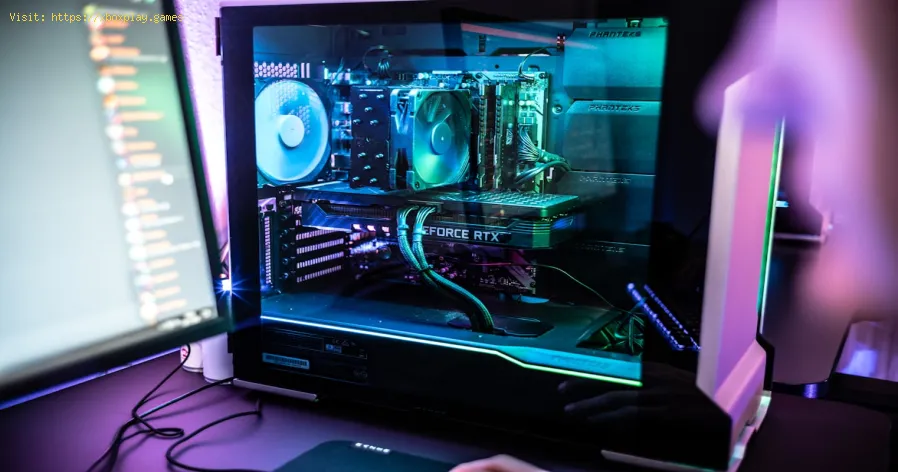
How to Fix GPU Not Detected
Causes of a "GPU Not Detected" Error
This problem is a chain with many possible weak links. Identifying the likely culprit saves time and frustration.Quick Solution (For the Impatient)
Perform a "Full Power Cycle" and Reseat Your GPU.Detailed Step-by-Step Solutions
Work through these steps methodically. Start with the simplest physical checks before moving to software.Step 1: The Foundational Physical & Power Checks
- 1.1. Reseat the GPU: As in the quick fix, a partial connection is common. Power down fully, remove the card, and insert it back into the primary PCIe x16 slot (usually the top one) with firm, even pressure.
- 1.2. Inspect Power Cables: Your GPU may require 6-pin, 8-pin (6+2), or 12VHPWR connectors. Ensure every required port on the GPU is filled. Crucially, if your GPU has two 8-pin ports, use two separate PCIe cables from your PSU, not one cable with two daisy-chained connectors. This prevents power starvation.
- 1.3. Try a Different PCIe Slot: If your motherboard has another x16 slot (even if it's electrically x8 or x4), try it. This tests if the primary slot is faulty.
- 1.4. Test with a Different PSU (If Possible): Borrow a known-good, higher-wattage PSU. A failing or underpowered PSU is a frequent cause of detection issues.
Step 2: Display & Connection Verification
- 2.1. Plug Your Monitor into the GPU: This sounds obvious, but it's a classic error. Your monitor cable (HDMI, DisplayPort) must be plugged directly into the GPU's output ports, not the motherboard's display ports.
- 2.2. Try a Different Display Cable & Port: A faulty cable or a specific port on the GPU can cause a black screen. Try a different HDMI/DisplayPort cable and try each output port on the GPU.
Step 3: BIOS/UEFI Configuration
- 3.1. Access BIOS/UEFI: During boot, spam the key (Del, F2, F12) to enter your motherboard's BIOS. If you get a black screen, try connecting your monitor to the motherboard's output to see if the BIOS displays using the integrated GPU.
- 3.2. Set Primary Display to PCIe/PCI: Look for settings like "Primary Display," "Init Display First," or "Graphics Adapter" under Advanced/Advanced Peripheral settings. Set it to "PCIe" or "PEG" (PCI Express Graphics), not "iGPU" or "Auto."
- 3.3. Disable CSM (For Modern Systems): In Boot settings, try disabling CSM (Compatibility Support Module) and ensuring UEFI mode is enabled. This can improve compatibility with newer GPUs.
- 3.4. Update the BIOS: Visit your motherboard manufacturer's website, download the latest BIOS for your exact model onto a USB drive, and use the BIOS flash utility. Warning: This carries a small risk; follow the guide meticulously and don't power off during the update.
Step 4: Operating System & Driver Troubleshooting
- 4.1. Boot into Safe Mode: Restart and interrupt the boot process three times to trigger Windows Recovery, then navigate to Troubleshoot > Advanced Options > Startup Settings > Restart > Enable Safe Mode. This loads Windows with minimal drivers.
- 4.2. Use Display Driver Uninstaller (DDU): This is critical. In Safe Mode, download and run DDU. Select your GPU brand (NVIDIA/AMD/Intel), choose "Clean and restart." This nukes all old driver files.
- 4.3. Install Fresh Drivers: After the restart from DDU, download the latest driver directly from NVIDIA or AMD's website. Do not use Windows Update or third-party tools. Install it.
Step 5: Advanced Hardware Diagnostics
- 5.1. Test the GPU in Another PC: This is the definitive test. If the GPU works in another known-good system, the problem is with your original PC (motherboard, PSU, BIOS). If it also fails in another PC, the GPU is likely faulty.
- 5.2. Clear CMOS: This resets BIOS settings to factory defaults. Power down, unplug, and either use the CMOS jumper pins on the motherboard or remove the coin-cell battery for 5 minutes. This can clear any erroneous settings blocking detection.
Alternative Solutions
- For Laptops with dGPUs: A laptop's discrete GPU is almost always soldered. Use DDU in Safe Mode and reinstall drivers from the laptop manufacturer's website, as theyare often customized. Overheating can also cause the dGPU to disableitself.
- Check for Physical Damage: Inspect the GPU's PCIe connector for bent or missing pins. Look for signs of capacitor damage or burn marks (rare but serious).
- Disable Integrated Graphics: Once your dedicated GPU is working, you can go into Device Manager,find the Intel/AMD integrated graphics under "Display adapters,"right-click, and select "Disable device" to prevent any future conflict.
How to Prevent the Issue from Happening Again
- Use Driver Monitoring: Tools like optional components in GeForce Experience or AMD Adrenalincan notify you of new driver updates, keeping your system stable.
- Practice Safe Driver Updates: Always create a system restore point before a major driver update.Consider waiting a few days after a new driver release to see if anywidespread issues are reported.
- Ensure Adequate Power: When upgrading your GPU, use a reliable PSU calculator and buy aquality PSU with 20-30% more wattage than the estimated requirement.
- Handle with Care: Always ground yourself before handling components. Support the GPU with a bracket or leg to prevent sag, which can stress the PCIe slot overtime.
Frequently Asked Questions (FAQs)
Q: My PC boots, but games use the integrated GPU. Is my dedicated GPU dead?
A: Not necessarily. This usually means the dedicated GPU is not being selected as the primary renderer. Go to Windows Graphics Settings (Windows 11/10) or the NVIDIA/AMD Control Panel and set your high-performance GPU as the default for games and applications.
Q: Device Manager shows my GPU with a yellow triangle (Code 43). What now?
A: "Windows has stopped this device because it has reported problems (Code 43)" is a classic driver/hardware communication error. Start with Step 4: Using DDU in Safe Mode and reinstalling drivers. This fixes it 80% of the time.
Q: I get a black screen as soon as I install the GPU. Does that mean it's faulty?
A: Not yet. A black screen on boot most often points to a power, connection, or BIOS setting issue. Triple-check your PCIe power cables, monitor connection (to the GPU!),and try the CMOS reset and BIOS primary display settings using youriGPU.
Q: Do I need to uninstall old drivers before installing a new GPU from the same brand (e.g., NVIDIA to NVIDIA)?
A: It's highly recommended, but not always strictly necessary. For the cleanest results and to avoid conflicts, using DDU whenchanging hardware is a best practice, even within the same brand.
Q: Can a faulty RAM stick cause a GPU to not be detected?
A: Indirectly, yes. A failing RAM stick can cause a failure during the POST (Power-OnSelf-Test), which may halt the system before it even initializes theGPU. Try booting with one stick of RAM at a time to rule this out.
Closing with a Call to Action
Diagnosing an undetected GPU is a process of elimination. By following thisstructured guide—from the simple act of reseating the card to thenuclear option of a clean driver wipe—you've systematically ruled outthe most common failures. In most cases, persistence and carefultroubleshooting will bring your graphics card back to life.
Did this guide help you resurrect your GPU? Let us know in the comments which step was the winner for you—was itthe DDU clean-up, the BIOS update, or simply re-seating the powercables? If you're still stuck, tell us your GPU and motherboard modeland what you've tried; our community of builders might spot thesolution. For more in-depth hardware guides, from choosing the right PSU to optimizing your gaming setup, explore our other articles. Now getback to your build and enjoy the frames you've earned

Other Articles Related
How to Fix Game Won’t Save Progress"Troubleshoot and fix game progress not saving with our step-by-step guide. Learn how to check settings, clear cache, fix corrupt files, and solve storageissues to prevent lost saves."
How to fix PC Fans Too Loud While Gaming
Meta description: "PC fans too loud while gaming? Learn 8 simple fixes toreduce noise & cool your PC effectively. Easy, step-by-step guidefor a quieter gaming rig."
How to Fix PC Won’t Boot After Update
Struggling with a black screen or errors after an update? Learn step-by-step fixes to get your PC booting again. From safe mode to recovery tools, we'llguide you through the solutions.
How to Fix PC Stuttering in Games
Troubled by PC stuttering in games? Our guide shows you how to fix gamestuttering & lag with step-by-step solutions for settings, hardware, & drivers.
How to Fix PC Freezing While Gaming
Expert troubleshooting guide to stop PC freezing during games. Learn quickfixes for overheating, driver issues, and hardware bottlenecks torestore smooth gameplay.
How to Fix Game Crashes on Startup
Learn effective solutions to fix game crashes on startup and enjoy seamless gaming. Troubleshoot issues
How to Fix GPU Not Detected
Learn effective solutions to fix GPU not detected issues. Troubleshoot and restore your graphics card functionality
Guide to Understanding Latency in Video Games
"Learn what gaming latency is and how it impacts your play. Discover types,causes, and proven tips to reduce lag for a smoother, more responsivegaming experience."
Guide to enabling Cross-Save in your games
Enabling Cross-Save? This guide shows you how to link your accounts and syncgame progress seamlessly between consoles, PC, and mobile platforms.Unlock true gaming freedom.
The best recommended survival games
Looking for your next survival challenge? Explore our expert picks of the bestsurvival games on PC and console, from wilderness crafting to intensehorror. Find your next adventure.
All Dark Ops challenges in Black Ops 7
all Dark Ops challenges in BO7 with our comprehensive guide. Unlock secrets, tips, and strategies to enhance your gameplay!
How to Fix PS5 Error CE‑34878‑0
Learn how to fix PS5 Error CE-34878-0 with our step-by-step guide. Troubleshoot and resolve this common issue
How to Find All Crypt Keys in the Graveyard in Megabonk
Master the graveyard in Megabonk! Discover step-by-step strategies to locateevery crypt key, unlock hidden areas, and maximize your secrets and loot in this detailed guide.
All List Keeper’s Challenges in Black Ops 7 Zombies
Complete every in-game task with our full list of All List Keeper's Challengesfor Black Ops 7 Zombies. Master strategies, track progress, and earnrewards.