PS5: How to fix USB drive's file system is unsupported error
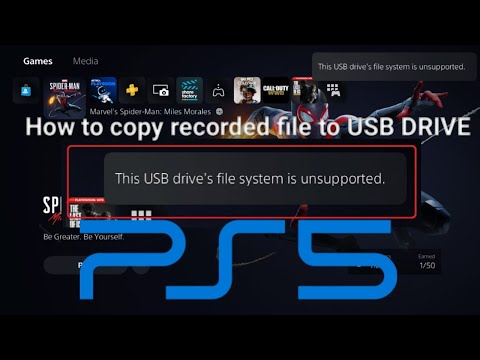
We welcome you to our PS5 guide where we will talk about How to fix the USB drive file system is not supported error.
This occurs when we connect a USB to our console, displaying a message that indicates non-compatibility, this may be due to the file format that the USB or external hard drive has that is different from the one supported by the console, then we can rely on a computer To reach the correct format, now to have an idea with more details about How to fix the error The file system of the USB drive is not compatible, we will be able to have the following content, let's see.
What we will do is connect the device to our computer and go to the file exploration, where it is presented on the screen on the left noting the connected USB, these usually carry labels such as the main unit that is displayed as C and D, while The connected USB looks like F, it is important to choose the correct one to click with the mouse on it and choose to format, then some details are presented that we can modify, being only necessary to place exFAT and mark the quick format box to start the process, which depends on the capacity of our USB, after it is completed we have our USB ready that will now be compatible with our console, and we can use it just by connecting it.
Knowing how to fix the error The file system of the USB drive is not compatible is interesting, because we can use more space in our PS5.
Struggling with a PS5 that won’t read discs? Learn quick fixes for common issueslike dirty lenses, software glitches, and power cycles. Get your console back to playing games in minutes.
How to Fix PS5 Won’t Connect to Wi‑Fi
Meta description: Having PS5 Wi‑Fi issues? Follow our step-by-step guide todiagnose and fix connection problems—from restarting your router toadjusting DNS settings and updating system software. Get back onlinefast.
How to Fix PS5 Error CE‑34878‑0
Learn how to fix PS5 Error CE-34878-0 with our step-by-step guide. Troubleshoot and resolve this common issue
How to Fix Cannot log in — quick fix
Stuck outside your account? Learn quick, step-by-step solutions to fix “cannot log in” errors and regain access in minutes.
PS5: Not enough space — how to fix it
Out of storage on your PS5? Learn how to fix "not enough space" errors bymanaging your game library, using extended storage, and freeing upvaluable console memory.
“Data corrupted” error on PS5: how to fix it step by step
Fix the Data corrupted error on your PS5 with our step-by-step guide. Get your console back to gaming in no time!
How to Improve Audio in Games: Equalization and Recommended Settings
Enhance your gaming experience with tips to improve audio quality in games. Discover techniques for immersive sound
How to use Remote Play on PS5 from PC or mobile
Experience gaming freedom with Remote Play on PS5. Play your favorite titles anywhere, anytime, and enjoy
How to free up space on PS5 without deleting your games
effective tips to free up space on your PS5. Optimize storage and enhance your gaming experience with our guide.
How to fix Apple Music not working on PS5
Today we bring you an explanatory guide on How to fix Apple Music not working on PS5 with precise details.
Rust: How To Survive As A Solo Player
Delve into the universe of Rust, because today we are going to tell you how to survive as a solo player.
Mass Effect Legendary Edition: How to Romance Ashley Williams in Mass Effect 1
With our Mass Effect Legendary Edition guide you will learn more about How to woo Ashley Williams in Mass Effect 1.
Destiny 2: How to get the New Lost Sector Exotics
The action does not stop at Destiny 2, so today we are going to explain how to get the new exotic objects from the lost sector.
Rust: Where to Find a Server You’ve Played in Console Edition
Today we bring a Rust guide in order to tell you where to find a server that you have played with in Console Edition
Subnautica Below Zero: Where To Find Architect Artifacts Q59
We continue to run searches on Subnautica Below Zero which allows us to tell you where to find Q59 architect artifacts.
What to know about the error USB drive file system is not supported in PS5?
This occurs when we connect a USB to our console, displaying a message that indicates non-compatibility, this may be due to the file format that the USB or external hard drive has that is different from the one supported by the console, then we can rely on a computer To reach the correct format, now to have an idea with more details about How to fix the error The file system of the USB drive is not compatible, we will be able to have the following content, let's see.
How to fix USB drive file system is not supported error in PS5?
It is important that the format of the USB drive has the exFAT or FAT32 format, taking into account that the other formats will not be compatible with the PS5, the one indicated for our PS5 is the exFAT, because in the case of the FAT 32 there are some restrictions in regarding the size of the files, by means of a PC we can do it easily, so looking for How to fix the error The file system of the USB drive is not compatible, we must follow some instructions to find the format we need.What we will do is connect the device to our computer and go to the file exploration, where it is presented on the screen on the left noting the connected USB, these usually carry labels such as the main unit that is displayed as C and D, while The connected USB looks like F, it is important to choose the correct one to click with the mouse on it and choose to format, then some details are presented that we can modify, being only necessary to place exFAT and mark the quick format box to start the process, which depends on the capacity of our USB, after it is completed we have our USB ready that will now be compatible with our console, and we can use it just by connecting it.
Knowing how to fix the error The file system of the USB drive is not compatible is interesting, because we can use more space in our PS5.
Tags: ps5, restock, console, for sale, games, controller, sony playstation console restock, price, target ps5, walmart ps5
Mode:
Other Articles Related
How to Fix PS5 Won’t Read DiscStruggling with a PS5 that won’t read discs? Learn quick fixes for common issueslike dirty lenses, software glitches, and power cycles. Get your console back to playing games in minutes.
How to Fix PS5 Won’t Connect to Wi‑Fi
Meta description: Having PS5 Wi‑Fi issues? Follow our step-by-step guide todiagnose and fix connection problems—from restarting your router toadjusting DNS settings and updating system software. Get back onlinefast.
How to Fix PS5 Error CE‑34878‑0
Learn how to fix PS5 Error CE-34878-0 with our step-by-step guide. Troubleshoot and resolve this common issue
How to Fix Cannot log in — quick fix
Stuck outside your account? Learn quick, step-by-step solutions to fix “cannot log in” errors and regain access in minutes.
PS5: Not enough space — how to fix it
Out of storage on your PS5? Learn how to fix "not enough space" errors bymanaging your game library, using extended storage, and freeing upvaluable console memory.
“Data corrupted” error on PS5: how to fix it step by step
Fix the Data corrupted error on your PS5 with our step-by-step guide. Get your console back to gaming in no time!
How to Improve Audio in Games: Equalization and Recommended Settings
Enhance your gaming experience with tips to improve audio quality in games. Discover techniques for immersive sound
How to use Remote Play on PS5 from PC or mobile
Experience gaming freedom with Remote Play on PS5. Play your favorite titles anywhere, anytime, and enjoy
How to free up space on PS5 without deleting your games
effective tips to free up space on your PS5. Optimize storage and enhance your gaming experience with our guide.
How to fix Apple Music not working on PS5
Today we bring you an explanatory guide on How to fix Apple Music not working on PS5 with precise details.
Rust: How To Survive As A Solo Player
Delve into the universe of Rust, because today we are going to tell you how to survive as a solo player.
Mass Effect Legendary Edition: How to Romance Ashley Williams in Mass Effect 1
With our Mass Effect Legendary Edition guide you will learn more about How to woo Ashley Williams in Mass Effect 1.
Destiny 2: How to get the New Lost Sector Exotics
The action does not stop at Destiny 2, so today we are going to explain how to get the new exotic objects from the lost sector.
Rust: Where to Find a Server You’ve Played in Console Edition
Today we bring a Rust guide in order to tell you where to find a server that you have played with in Console Edition
Subnautica Below Zero: Where To Find Architect Artifacts Q59
We continue to run searches on Subnautica Below Zero which allows us to tell you where to find Q59 architect artifacts.