Você acabou de instalar o mais recente sucesso de bilheteria AAA no seu poderoso PC gamer. As configurações gráficas estão no máximo, a resolução está definida para um impressionante 4K e você está pronto para mergulhar na experiência. Mas, ao entrar no mundo do jogo, um inimigo familiar aparece: quedas bruscas na taxa de quadros . Seu sonho de alta resolução está se transformando em uma apresentação de slides lenta. Por anos, os jogadores de PC enfrentaram uma escolha brutal: fidelidade visual impressionante ou desempenho fluido e responsivo. Era possível diminuir as configurações e a resolução, mas isso significava sacrificar os detalhes pelos quais você investiu em seu hardware.
Apresentamos o NVIDIA DLSS (Deep Learning Super Sampling) , uma tecnologia revolucionária com inteligência artificial que visa acabar com esse dilema. Se você possui uma placa de vídeo NVIDIA RTX (da série RTX 20 em diante), você tem à sua disposição uma ferramenta poderosa que pode aumentar drasticamente suas taxas de quadros, mantendo — ou até mesmo melhorando — a qualidade da imagem. Este artigo irá desmistificar o que é o DLSS , como essa "mágica" funciona em termos simples e fornecer um guia claro, passo a passo, sobre como habilitá-lo em seus jogos favoritos compatíveis. Diga adeus à dolorosa escolha e olá para jogos fluidos e em alta resolução.
Em essência, o DLSS é uma tecnologia de ampliação e aprimoramento de imagens com inteligência artificial . Vamos explicar isso de forma simples, sem jargões complexos.
Imagine que você peça a um artista para desenhar um retrato detalhado e em alta resolução. Agora, imagine que você dê a outro artista uma versão muito menor e mais desfocada desse retrato e peça a ele que use sua habilidade e conhecimento para recriar a versão em alta resolução, preenchendo os detalhes que faltam de forma inteligente. O segundo artista é DLSS.
Eis o processo técnico em etapas simples:
Seu jogo renderiza um quadro em uma resolução interna mais baixa (por exemplo, 1080p). Isso exige menos da sua GPU, permitindo que ela processe os dados muito rapidamente, o que pode resultar em uma taxa de quadros (FPS) potencialmente maior.
Este quadro de resolução mais baixa, juntamente com os dados de movimento do motor de jogo, é enviado para um processador de IA dedicado na sua GPU RTX, chamado Tensor Cores .
Esses Tensor Cores executam uma rede neural superpotente (treinada com milhares de imagens de alta qualidade pela NVIDIA) que reconstrói de forma inteligente a imagem até a resolução desejada (por exemplo, 1440p ou 4K).
Não se trata apenas de esticar pixels. A IA adiciona detalhes, aprimora as bordas e até ajuda a reconstruir elementos finos que foram perdidos na renderização de baixa resolução. A imagem final é então exibida no seu monitor.
NVIDIA offers several DLSS modes, giving you control over the performance vs. quality balance:
Quality: Prioritizes image clarity. Renders at a resolution closer to the target (e.g., 1440p internal for a 4K output). Offers a moderate FPS boost.
Balanced: The sweet spot for many. A good blend of extra performance and maintained visual quality.
Performance: Maximizes FPS. Renders at a lower base resolution (e.g., 1080p internal for 4K output) for the biggest performance leap. Image quality can soften slightly.
Ultra Performance: Primarily for extreme scenarios like 8K gaming, where the performance gain is critical.
DLAA (DLSS Anti-Aliasing): Uses the DLSS AI network without any upscaling, purely to provide the highest quality anti-aliasing at your native resolution.
Enabling DLSS is almost always done within a game’s settings menu. The process is generally universal, though menu names may vary slightly.
Launch a game that supports DLSS (e.g., Cyberpunk 2077, Alan Wake 2, Marvel's Spider-Man Remastered).
Open the game’s Settings or Options menu.
Navigate to the Graphics or Video settings.
Look for a setting labeled "DLSS," "Upscaling," or "NVIDIA DLSS."
Turn it ON and select your preferred mode: Quality, Balanced, or Performance.
Enjoy higher FPS!
Here is a more detailed guide, covering different in-game menu layouts.
Step 1: Verify Your Hardware and Drivers
Ensure you have an NVIDIA RTX graphics card (RTX 20, 30, or 40 series).
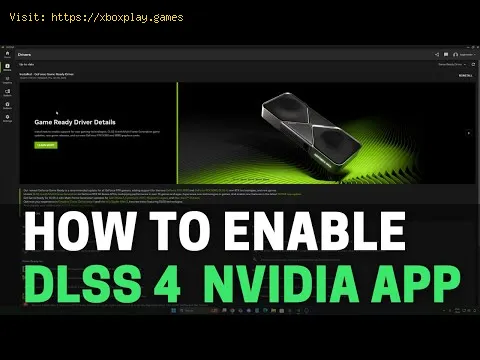
Update to the latest NVIDIA Game Ready Drivers via the GeForce Experience app or NVIDIA's website. New game support and DLSS improvements are often included in driver updates.
Step 2: Launch a Supported Game
DLSS must be implemented by the game developers. Popular titles like Control, Death Stranding, Fortnite, Hogwarts Legacy, and Baldur's Gate 3 all support it. Check the game's graphics settings or NVIDIA's website for a list.
Step 3: Access the Graphics Menu
Step 4: Locate the Upscaling/Image Scaling Section
Step 5: Activate DLSS
Step 6: Choose Your DLSS Mode
Step 7: Adjust DLSS Sharpening (If Available)
Step 8: Set Your Target Resolution
Step 9: Consider Related Settings
Step 10: Apply, Save, and Test!
What if your game doesn't support DLSS, or you have a non-RTX GPU?
Q: Does DLSS reduce image quality?A: In its modern versions (DLSS 2 and DLSS 3), it often improves image quality over native rendering by providing superior anti-aliasing. Insome cases, particularly in "Performance" mode, fine details likedistant hair or chain-link fences can appear slightly softer. The"Quality" mode is often visually indistinguishable from or better thannative.
Q: Can I use DLSS on a GTX card?A: No. DLSS requires the dedicated Tensor Core AI processors found only in RTX-series GPUs.
Q: What is DLSS 3 and "Frame Generation"?A: DLSS 3 is the latest version, exclusive to RTX 40-series GPUs. Itincludes the core upscaling of DLSS 2 plus a revolutionary AI Frame Generation feature. It creates entirely new frames between rendered ones,dramatically boosting smoothness and responsiveness. The guide abovestill applies to enabling the core DLSS upscaling part of DLSS 3.
Q: Should I use DLSS even if my FPS is already high?A: Yes! You can use DLAA (if supported) for supreme image quality, or enable DLSS Quality tolower your GPU's power consumption and heat output while maintaininghigh FPS.
Q: Is DLSS a type of cheating in competitive games?A: No. It's a graphics rendering technology. While it can give you ahigher, smoother frame rate, it doesn't provide in-game information youwouldn't otherwise have.
NVIDIA DLSS is more than just a graphics setting; it's aparadigm shift in how games are rendered. By leveraging the power of AI, it effectively gives you a free performance upgrade, allowing you togame at higher resolutions, with more eye-catching effects, and asmoother overall experience. The best part? Enabling it takes just a few clicks.
Stop leaving performance on the table. The next time you launch a game, take 30 seconds to open the graphics menu. Look for the DLSS option, switch it on, and feel the immediate difference as your frame ratesoars while your game's world remains stunningly crisp. Your RTX GPU has this incredible capability built-in—it’s time to use it.
Ready to transform your gaming? Boot up your favorite RTX-supported title right now and enable DLSS. Feel the smoothness,see the clarity, and never look back at choppy framerates again.