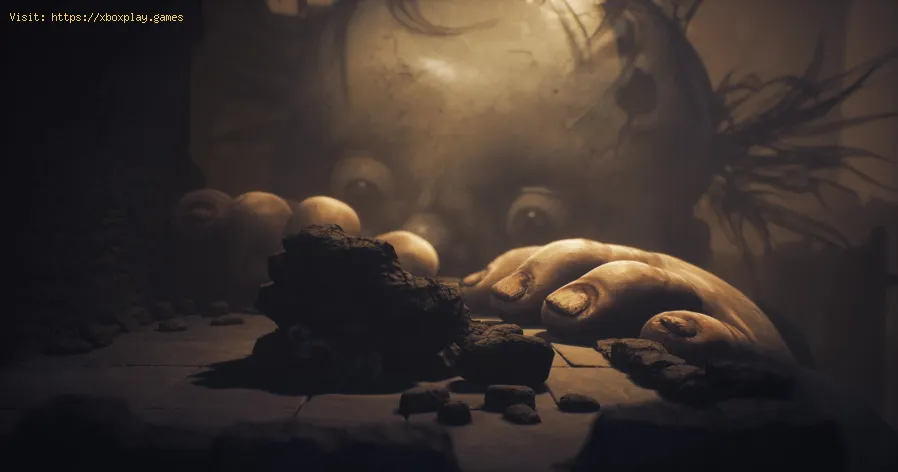
How To Fix Little Nightmares 3 Ultrawide Issue on PC
Fix Little Nightmares 3 Ultrawide Issue
The Unexpected Solution: An Enhanced Edition Patch
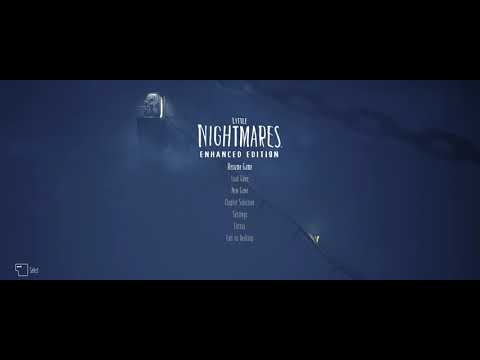
The reason this fix works is straightforward: Little Nightmares 3 is built on the same underlying technology—likely Unreal Engine 4—as its predecessor, Little Nightmares 2 Enhanced Edition. This compatibility means the ultrawide patch created by modder Lyall for the previous title is fully functional here.
This community patch, known as the SUWSF (Simple Ultrawide Screen Fix), is designed specifically to remove the distracting black bars, or pillarboxing and letterboxing, from both gameplay and in-game cutscenes, delivering a true ultrawidepresentation. Since official support from developers for this issue isoften unlikely, this is undoubtedly the best way to play the game onyour monitor.
Step-by-Step Installation Guide
Installing the ultrawide fix is a straightforward process that involvesdownloading a single file and dropping it into the correct game folder.Follow these steps precisely for a seamless 21:9 or 32:9 experience.
Prerequisites
Download the Patch
Locate and Install
[Your Game Installation Folder] / SMG031MP / Binaries / Win64
Crucial Note: The patch must be extracted into the Win64 folder specifically. Extracting it to the main game folder will not work and the fix will not be applied.
Why This Fix is Essential for Ultrawide Users
While the core game design of Little Nightmares features a strong cinematic vignette (darkening) effect around the edges of the screen in many scenes, thisfix ensures that the image extends correctly to fill the full horizontal space.
The work of modders like Lyall is invaluable to the PCcommunity, addressing issues that developers often overlook or declineto officially patch. This simple file injection transforms the visualexperience, allowing players with high-end ultrawide setups to enjoy the atmospheric horror without distraction.
Since the fix works flawlessly using the established patch for Little Nightmares 2, it is highly unlikely that the original modder will need to release a new version specifically for Little Nightmares 3. This means the solution you install today should remain stable for theforeseeable future, making it the definitive way to explore the dark and foreboding world of the Nowhere.
Don't let the black bars box inyour horror experience—install this patch and get full immersion. Areyou ready to see the bigger picture in the Nowhere?
Other Articles Related
How to Calibrate Your TV for GamingCalibrate your TV for gaming with our step-by-step guide. Optimize response time, HDR, color, and input lag for the ultimate competitive edge and visualexperience.
How to Fix PC Blue Screen While Gaming
Stop gaming crashes! Learn step-by-step fixes for the PC blue screen (BSOD)during gameplay. Troubleshoot drivers, overheating, hardware &settings for a stable system.
How to Fix PC Restarts While Gaming
Expert tips to diagnose and fix sudden PC restarts during gaming. Learntroubleshooting steps for overheating, PSU issues, driver problems, andhardware stability.
How to Fix CPU Overheating While Gaming
Learn how to fix CPU overheating while gaming with effective coolingsolutions, proper maintenance, and system optimization tips to preventdamage and boost performance.
How to Fix Game Won’t Save Progress
"Troubleshoot and fix game progress not saving with our step-by-step guide. Learn how to check settings, clear cache, fix corrupt files, and solve storageissues to prevent lost saves."
How to fix PC Fans Too Loud While Gaming
Meta description: "PC fans too loud while gaming? Learn 8 simple fixes toreduce noise & cool your PC effectively. Easy, step-by-step guidefor a quieter gaming rig."
How to Fix PC Won’t Boot After Update
Struggling with a black screen or errors after an update? Learn step-by-step fixes to get your PC booting again. From safe mode to recovery tools, we'llguide you through the solutions.
How to Fix PC Stuttering in Games
Troubled by PC stuttering in games? Our guide shows you how to fix gamestuttering & lag with step-by-step solutions for settings, hardware, & drivers.
How to Fix PC Freezing While Gaming
Expert troubleshooting guide to stop PC freezing during games. Learn quickfixes for overheating, driver issues, and hardware bottlenecks torestore smooth gameplay.
How to Fix Game Crashes on Startup
Learn effective solutions to fix game crashes on startup and enjoy seamless gaming. Troubleshoot issues
How To Unlock Every Class Training Path in Battlefield 6
how to unlock every class training path in Battlefield 6. Master yourskills and dominate the battlefield with our comprehensive guide.
How To Unlock Float And Phantom Dash in Blue Protocol Star Resonance
Learn how to unlock the Float and Phantom Dash abilities in Blue ProtocolStar Resonance. Step-by-step guide to enhance your character's mobilityand movement skills.
Where To Find All The Ghosts In Little Nightmares 3
Explore the ghost locations in Little Nightmares 3. Our guide providestips and tricks to help you find every spectral presence lurking in theshadows.
Best PW7A2 Loadout in Battlefield 6
the ultimate PW7A2 loadout for Battlefield 6. Enhance your gameplay with expert tips and strategies to dominate the battlefield.
Best M/60 Loadout in Battlefield 6
the ultimate M/60 loadout for Battlefield 6. Enhance your gameplay with expert tips and strategies to dominate the battlefield.