
How to improve FPS on PC
- Platform: Personal Computer (PC) running Windows (versions 10/11) with various hardware configurations (NVIDIA, AMD, Intel).
- The Problem: Experiencing low, unstable, or "stuttering" FPS, which negatively impacts gameplay enjoyment and reaction time.
- Why It Occurs: Low FPS is a symptom of a bottleneck—a situation where one hardware component (usually the CPU or GPU) cannot process data as fast as the game requires, leading to a delayed output of frames to your monitor.
Guide to Improving FPS in Any PC Game
📉 Causes of Low FPS and Stuttering
The common causes of performance dips are often layered, involving both physical hardware limitations and underlying software inefficiencies. Understanding the cause is the first step toward effective optimization.| Cause | Simple Technical Explanation |
| Outdated Drivers | Graphics drivers (GPU software) act as translators between the game and the hardware. Older drivers lack optimization profiles and efficiency boosts provided by newer versions, resulting in slower instruction execution. |
| Thermal Throttling | If the CPU or GPU overheats (e.g., above $90^\circ\text{C}$), the hardware automatically reduces its operating frequency (clock speed) to prevent damage. This reduced speed directly lowers frame processing capability. |
| System Bloat & Background Tasks | Too many background applications (web browsers, chat apps, system updaters) consume CPU cycles and RAM. This reduces the resources available for the game, starving it of necessary power. |
| Inefficient In-Game Settings | Using graphics settings (like ultra quality or complex anti-aliasing) that demand more VRAM and processing power than the GPU can comfortably supply at a high speed. |
| Power Management Settings | The Windows operating system may default to power-saving modes that intentionally limit the CPU’s maximum frequency to save energy, even when plugged in, sacrificing gaming performance. |
| Monitor/Cable Bottleneck | Using an incorrect cable (e.g., HDMI 1.4 for a 144Hz monitor) or improper resolution/refresh rate settings can prevent the PC from displaying the high FPS it is generating. |
⚡ Quick Fix (For Impatient Users)

If you need an immediate boost, perform these three actions before jumping into your next game:
- Close Everything: Exit all non-essential programs (browsers, Discord, Spotify) and check your System Tray.
- Update Drivers: Use your graphics card software (GeForce Experience or AMD Adrenalin) to quickly install the latest game-ready driver.
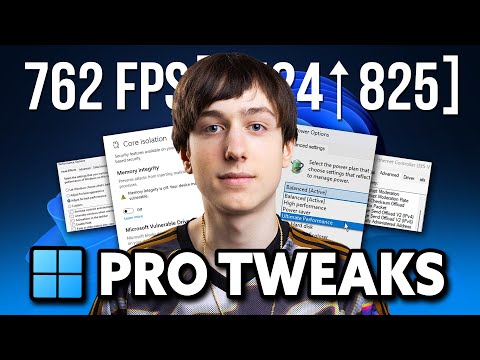
- Adjust Power Plan (Windows): Search Windows for "Power & Sleep Settings," go to Additional Power Settings, and select High Performance or Ultimate Performance.
⚙️Detailed Solutions: Step-by-Step Optimization
Achieving maximum FPS requires tuning both your operating system and your game settings.
System and Driver Updates (Essential)
Windows Power and Gaming Settings
Graphics Card Control Panel Tweaks
In-Game Settings Optimization
🧊 Alternative Solutions (The Overclocking & Cooling Route)
- Clean and Cool Your PC: Open your case and use compressed air to thoroughly clean dust fromyour CPU cooler, GPU fans, and case filters. Improved airflow directlycombats thermal throttling.
- XMP/DOCP Profile (BIOS): Ensure your RAM is running at its advertised speed. Enter your motherboard's BIOS/UEFI and enable the XMP (Intel) or DOCP (AMD) profile. Incorrect RAM speed is a massive bottleneck.
- Overclocking (Use with Caution): Advanced users can use software like MSI Afterburner to slightly increase the clock speed and memory speed of their GPU foran extra performance boost, provided temperatures remain stable.
🛡️ How to Prevent FPS Drops from Recurring
Consistency is key to stable performance.
- Routine Driver Checks: Get into the habit of checking for a new "Game Ready Driver" before installing any new major game or expansion.
- Monitor Temperatures: Install a monitoring tool (like HWMonitor or MSI Afterburner's OSD) totrack CPU/GPU temperatures. If they consistently exceed$85^\circ\text{C}$, you need better cooling.
- Maintain a Clean Startup: Use the Task Manager (Ctrl+Shift+Esc) to manage the Startup tab. Disable any programs that aren't necessary immediately upon booting your PC.
❓ Frequently Asked Questions(FAQ)
Q: Should I use DLSS/FSR?
A: Yes. If your game supports NVIDIA DLSS or AMD FSR, enable it. Thesetechnologies render the game at a lower resolution internally and useadvanced AI to upscale the image, providing massive FPS boosts withminimal visual quality loss.
Q: Does reinstalling the game help?
A: Rarely. It generally only helps if the installation itself was corrupted. Focus on system and driver fixes first.
Q: What is the ideal FPS target?
A: For competitive shooters, aim for the maximum supported by your monitor (e.g., 144 FPS). For single-player games, $60$ FPS is the widelyaccepted target for a smooth experience.
🏁 Cierre con Call to Action (CTA)
If these powerful tweaks helped you stabilize your framerate, be sure to share this guide with your gaming squad! For more targeted fixes and guides, check out our deep-dive solutions for common errors in latest driver updates or our comprehensive hardware optimization hub.
- NVIDIA: Open GeForce Experience, navigate to the Drivers tab, and select Express Installation for the latest "Game Ready Driver."
- AMD: Open AMD Adrenalin Software, click Check for Updates, and install the latest Recommended driver.
- Go to Settings > System > Display > Graphics Settings.
- Toggle Hardware-accelerated GPU scheduling to On. (Requires Windows 10/11 and an up-to-date GPU driver.)
- Go to Settings > Gaming > Xbox Game Bar and ensure it's Off.
- Go to Settings > Gaming > Captures and turn off Record in the background and all recording features.
- NVIDIA: Open NVIDIA Control Panel > Manage 3D settings. Under the Global Settings tab, change Power management mode to Prefer maximum performance.
- AMD: Open AMD Adrenalin Software > Gaming > Global Graphics. Set Radeon Anti-Lag and Radeon Boost to Enabled (if available and compatible with your game).
- Disable: Ray Tracing, V-Sync (if you have G-Sync/FreeSync), Motion Blur.
- Lower: Anti-Aliasing (use FXAA or TAA instead of MSAA), Volumetric Fog, Shadows Quality, Texture Quality (if VRAM usage is maxed out).
Other Articles Related
How to configure a gaming monitor for the best image qualityDiscover how to configure your gaming monitor to get the best image quality and maximize your gaming experience.
How to use a Nintendo Switch controller on a PC, step by step
Learn how to connect and use your Nintendo Switch controller on a PC with our step-by-step. Enhance your gaming experience
How to connect a PS5 controller to your PC via USB or Bluetooth
Learn how to easily connect your PS5 controller to your PC using USB or Bluetooth with our step-by-step.
How to Connect an Xbox controller to your PC
Easily connect your Xbox controller to your PC running Windows 10/11 with our step-by-step guide. Enjoy seamless gaming
How to reduce input lag on consoles
Discover effective solutions to reduce input lag on Xbox, PS5, and Switch for a smoother gaming experience. Optimize your gameplay
How to improve FPS on PC
Boost your PC's performance with our comprehensive guide on improving FPS. Unlock smoother gameplay and enhance your gaming
How To Get Dual Hammers in Vermintide 2
Learn how to unlock the powerful Dual Hammers for the Bardin Goreksson inVermintide 2. This guide covers the simple steps to get this top-tiermelee weapon for the Ironbreaker, Ranger Veteran, and Slayer careers.
All Heroes and Careers in Vermintide 2
Explore the diverse heroes and careers in Vermintide 2. Discover unique abilities, playstyles, and strategies to enhance your gameplay
Return to the Reik Grimoire and Tome Locations in Vermintide 2
Searching for every grimoire and tome? Our Vermintide 2 collectible guide for"Return to the Reik" reveals all book locations to maximize your lootand complete the mission.
All Formable Nations in Europa Universalis 5
all formable nations in Europa Universalis 5! Explore strategies, tips, and guides to expand your empire and dominate the game.
How To Find Cinderella’s Shoe in Disney Dreamlight Valley
Embark on a magical quest in Disney Dreamlight Valley! Discover where to findCinderella’s iconic glass slipper, unlock secrets, and add thisenchanting item to your collection. Your fairytale adventure awaits!
How To Unlock the Fairy Godmother in Disney Dreamlight Valley
Unlock the Fairy Godmother in Disney Dreamlight Valley with our step-by-stepguide. Discover the quests, materials, and secrets needed to bring thismagical character to your Valley.
How To Get Exotic Orders in Destiny 2 Renegades
Destiny 2 Renegades: Learn how to unlock and farm Exotic Orders with ourcomplete guide. Get the best tips for acquiring these powerful newweapons.
How To Defeat Matriarch in Arc Raiders
Conquer the Matriarch in Arc Raiders with our step-by-step guide. Learn keystrategies, optimal loadouts, and crucial weak points to defeat thisepic boss.
How To Forge a Samurai Chestplate in The Forge
Learn step-by-step how to forge a samurai chestplate in The Forge. Discover the materials, crafting recipes, and essential techniques tocraft this iconic armor.