
How to Fix Clair Obscur Expedition 33 Controller Not Working
Discover effective solutions for your Clair Obscur Expedition 33 controller problems. Follow our step-by-step guide to restore functionality quickly.
It's a bummer when you settle in for a comfortable controller session in Clair Obscur: Expedition 33 and run into input issues! It sounds particularly frustrating that the A button (confirm) stops working after the first boss, breaking the game's flow. You're right to look for a fix.
Unlock new secrets in Clair Obscur Expedition 33. Our guide reveals the exactlocation of the elusive Old Key to help you progress.
How To Get Visages Outfit in Clair Obscur Expedition 33
Learn how to obtain the exclusive Visage's Outfit in Clair Obscur: Expedition 33. Follow our step-by-step guide to complete the required challengesand unlock this coveted cosmetic armor set.
How To Defeat Chromatic Franctale in Clair Obscur Expedition 33
Overwhelmed by Chromatic Franctale in Expedition 33? Learn the exact strategy, team composition, and mechanics to defeat this challenging boss in ClairObscur. Get the victory!
How To Find All Hopscotch Tile in Clair Obscur Expedition 33
Uncover all Hopscotch Tile secrets in Clair Obscur Expedition 33. Find exactlocations, solve the puzzle, and earn your achievement with ourstep-by-step guide.
How To Defeat Simon in the Endless Tower in Clair Obscur Expedition 33
Join Simon in the Endless Tower during the thrilling Clair Obscur Expedition 33. Discover secrets, challenges
All Merchant Locations In Clair Obscur Expedition 33
Discover all merchant locations in Clair Obscur Expedition 33. Explore unique items and enhance your adventure
Where to Find Sunless Cliffs in Clair Obscur Expedition 33
Discover the location of Sunless Cliffs in the Clair Obscur Expedition 33. Uncover hidden treasures
How To Get the Chic Outfits in Clair Obscur Expedition 33
Learn how to unlock every chic outfit in Clair Obscur: Expedition 33. Get our guide to earning cosmetic gear and customizing your characters' stylefor any expedition.
All Weapons in Verso’s Drafts DLC in Clair Obscur Expedition 33
Master every new tool of war. Dive into our complete guide to all weapons inVerso's Drafts DLC for Clair Obscur: Expedition 33, covering stats,upgrades, and how to unlock each powerful armament.
How to Use Photo Mode in Clair Obscur Expedition 33
Master the art of cinematic photography in Clair Obscur Expedition 33. Ourguide reveals all Photo Mode controls, filters, and tips to capture your most stunning in-game moments.
Framework Laptop 13 (2025) Review: with AMD Ryzen AI and More Power
Discover the Framework Laptop 13 (2025) in our in-depth review. Exploreits features, performance
How To Get Skooma in Oblivion Remastered
Discover the ultimate guide on how to get Skooma in Oblivion Remastered.
Where to Buy the Soul Trap Spell in Oblivion Remastered
Discover where to buy the Soul Trap spell in Oblivion Remastered.
How to Restock Shops in Oblivion Remastered
Learn how to effectively restock shops in Oblivion Remastered with our comprehensive guide.
How To Get Welkynd Stones in Oblivion Remastered
Discover the best ways to obtain Welkynd Stones in Oblivion Remastered.
It's a bummer when you settle in for a comfortable controller session in Clair Obscur: Expedition 33 and run into input issues! It sounds particularly frustrating that the A button (confirm) stops working after the first boss, breaking the game's flow. You're right to look for a fix.
Fix Clair Obscur Expedition 33 Controller Not Working
Here are the workarounds players have discovered that might resolve the controller issues you're experiencing:1. The Power of Repetition: Reboot the Game
- This might seem simple, but several players have reported success by restarting the game multiple times. It's worth giving this a try as a quick first step.
- While you're at it, consider switching to a wired controller connection. Sometimes, wireless signals can have intermittent issues. Launching the game with a wired controller might bypass any wireless connectivity problems.
2. Back to Basics: Default Graphics Settings
- This is an odd one, but some players have found that resetting all the in-game graphics settings back to their default values has resolved the controller confirmation input issue.
- To try this, navigate to the graphics settings within the game menu and look for an option to set everything back to default. Apply the changes and see if your controller starts working as expected.
3. Windowed View: Switch to Borderless Windowed Mode
- Changing the display mode has worked for some players. Try switching the game from Fullscreen mode to Borderless Windowed mode.
- You can usually find this setting in the Settings > Graphics menu. Look for the Display Mode option and change it. Apply the changes, and test your controller inputs.
4. PlayStation Power-Up: Using DS4Windows (for PS Controllers)
- If you're using a PlayStation controller (like a DualShock 4), the program "DS4Windows" can be a lifesaver.
- Some Game Pass games, including Clair Obscur: Expedition 33, can havetrouble properly recognizing PlayStation controllers. DS4Windowsessentially tricks the game into thinking your PS controller is an Xboxcontroller, making it fully functional.
- Keep in mind that while your controller will work, the button promptsdisplayed on the screen will likely still show Xbox symbols instead ofPlayStation ones.
5. Game Pass & DualSense Magic: Steam Workaround
- If you're playing the Game Pass version with a DualSense (PS5) controller and aren't using DS4Windows, there's a more involved workaround using Steam:
- Step 1: Force PS5 Prompts: Create a file named game.ini in your WinGDK config folder:
C:\Users\[YourUsername]\AppData\Local\Sandfall\Saved\Config\WinGDK
Open this file with Notepad (or a similar text editor) and add the following lines:
[CommonInputPlatformSettings_WinGDK CommonInputPlatformSettings]DefaultGamepadName=PS5bCanChangeGamepadType=FalseSave the changes and set the file's attribute to Read Only (right-click the file, select Properties, and check the "Read-only" box).
- Step 2: Add as Non-Steam Game: Open Steam and click "Add a Game..." at the bottom left, then select"Add a Non-Steam Game...". Choose any random non-Steam program for now.
- Step 3: Rename and Point to Executable:
- Find the newly added non-Steam game in your Steam library, right-click on it, and select "Properties...".
- Rename it to "Clair Obscur: Expedition 33".
- In the "Target" field, click "Browse...". Navigate to the game's installation folder, then go to:
[YourInstallPath]\Content\Sandfall\Binaries\WinGDK
- Select the SandFall-WinGDK-Shipping.exe file and click "Open". This will paste the path into the "Target" field.
- For the "Start In" field, copy the same path as the "Target" but exclude the .exe portion.
- Example Paths (Remember to use your actual installation path):
- Target: D:\Games\Clair Obscur- Expedition 33\Content\Sandfall\Binaries\WinGDK\SandFall-WinGDK-Shipping.exe"
- Start In: D:\Games\Clair Obscur- Expedition 33\Content\Sandfall\Binaries\WinGDK
- Step 4: Enable Steam Input and Launch: Go to the "Controller" tab in the game's properties in Steam and set it to "Enable Steam Input". Launch the game through Steam. This method aims to provide full DualSense functionality with correct button prompts.
- Step 1: Force PS5 Prompts: Create a file named game.ini in your WinGDK config folder:
6. Tweak Steam Input Settings:
- Even if you're not using the DualSense-specific workaround, you can try adjusting the general Steam Input settings for the game.
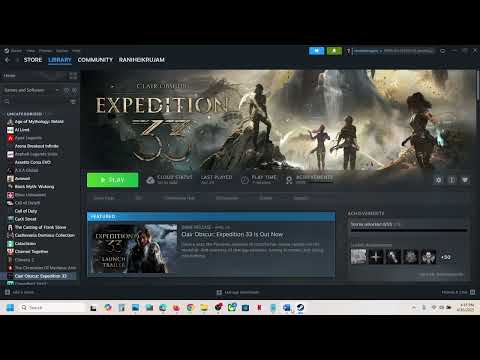
- In Steam, right-click on Clair Obscur: Expedition 33, select "Properties...", and go to the "Controller" tab.
- Try setting the "Override for Clair Obscur: Expedition 33" dropdown to "Disable Steam Input" and launch the game to see if the controller works.
- If disabling doesn't help, try setting it back to "Enable Steam Input" (or even "Enable Steam Input for PlayStation Controllers" if applicable) and test again.
7. Controller Housekeeping: Firmware and External Devices
- Update Controller Firmware: Outdated controller firmware can sometimes cause compatibility issues.
- For Xbox controllers, install the Xbox Accessories App from the Microsoft Store. Connect your controller via USB and check for updates.
- For PlayStation controllers, visit the official PlayStation website to find the PlayStation Accessories App. Connect your controller via USB and check for updates.
- Disconnect External Devices: Having multiple peripherals connected (like HOTAS setups, racingwheels, pedals, or extra controllers) can sometimes confuse the game'sinput detection. Disconnect all unnecessary USB devices before launching Clair Obscur: Expedition 33.
Hopefully, one of these workarounds will get your controller working correctly soyou can comfortably continue your expedition in Clair Obscur: Expedition 33! Since the issue hasn't been officially patched yet, keep an eye out for any future updates from the developers that might provide a morepermanent solution. Good luck!
Developer(s): Sandfall Interactive
Publisher(s): Kepler Interactive
Engine: Unreal Engine 5
Release date: April 24, 2025
Mode:
Age rating (PEGI): +18
Other Articles Related
Where To Find the Old Key in Clair Obscur Expedition 33Unlock new secrets in Clair Obscur Expedition 33. Our guide reveals the exactlocation of the elusive Old Key to help you progress.
How To Get Visages Outfit in Clair Obscur Expedition 33
Learn how to obtain the exclusive Visage's Outfit in Clair Obscur: Expedition 33. Follow our step-by-step guide to complete the required challengesand unlock this coveted cosmetic armor set.
How To Defeat Chromatic Franctale in Clair Obscur Expedition 33
Overwhelmed by Chromatic Franctale in Expedition 33? Learn the exact strategy, team composition, and mechanics to defeat this challenging boss in ClairObscur. Get the victory!
How To Find All Hopscotch Tile in Clair Obscur Expedition 33
Uncover all Hopscotch Tile secrets in Clair Obscur Expedition 33. Find exactlocations, solve the puzzle, and earn your achievement with ourstep-by-step guide.
How To Defeat Simon in the Endless Tower in Clair Obscur Expedition 33
Join Simon in the Endless Tower during the thrilling Clair Obscur Expedition 33. Discover secrets, challenges
All Merchant Locations In Clair Obscur Expedition 33
Discover all merchant locations in Clair Obscur Expedition 33. Explore unique items and enhance your adventure
Where to Find Sunless Cliffs in Clair Obscur Expedition 33
Discover the location of Sunless Cliffs in the Clair Obscur Expedition 33. Uncover hidden treasures
How To Get the Chic Outfits in Clair Obscur Expedition 33
Learn how to unlock every chic outfit in Clair Obscur: Expedition 33. Get our guide to earning cosmetic gear and customizing your characters' stylefor any expedition.
All Weapons in Verso’s Drafts DLC in Clair Obscur Expedition 33
Master every new tool of war. Dive into our complete guide to all weapons inVerso's Drafts DLC for Clair Obscur: Expedition 33, covering stats,upgrades, and how to unlock each powerful armament.
How to Use Photo Mode in Clair Obscur Expedition 33
Master the art of cinematic photography in Clair Obscur Expedition 33. Ourguide reveals all Photo Mode controls, filters, and tips to capture your most stunning in-game moments.
Framework Laptop 13 (2025) Review: with AMD Ryzen AI and More Power
Discover the Framework Laptop 13 (2025) in our in-depth review. Exploreits features, performance
How To Get Skooma in Oblivion Remastered
Discover the ultimate guide on how to get Skooma in Oblivion Remastered.
Where to Buy the Soul Trap Spell in Oblivion Remastered
Discover where to buy the Soul Trap spell in Oblivion Remastered.
How to Restock Shops in Oblivion Remastered
Learn how to effectively restock shops in Oblivion Remastered with our comprehensive guide.
How To Get Welkynd Stones in Oblivion Remastered
Discover the best ways to obtain Welkynd Stones in Oblivion Remastered.