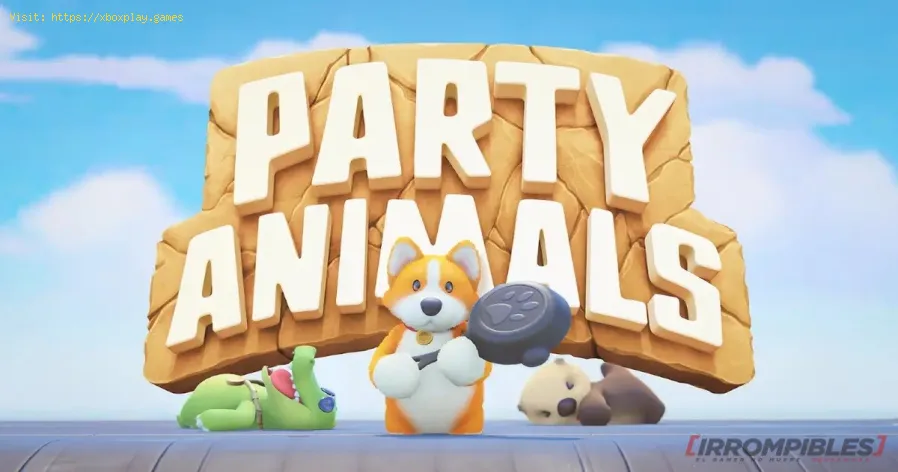
How To Play Split Screen in Party Animals
Master the joy of multiplayer fun with our guide on How To Play Split Screen in Party Animals.
Welcome to our friendly guide on how to set up and enjoy split screen couch co-op gameplay in Party Animals. Party Animals is a hilarious and entertaining multiplayer game where adorable animals engage in various challenges and mini-games. Playing in split screen mode allows you and your friends to compete and laugh together in the comfort of your own living room. Follow these simple steps to create your own custom game and have a blast with your friends!
To begin your split screen adventure in Party Animals, start by accessing the Custom Game menu. From the main menu, locate and select the "Custom Game" option. This will take you to the customization hub where you can personalize your gaming experience.
Once inside the Custom Game menu, you have the option to choose from existing game modes or create your own. Party Animals offers a variety of game modes such as soccer, sumo, and obstacle races. Select a mode that suits your preferences or let your creativity flow and create a unique game mode of your own. Feel free to experiment with different settings to make it even more enjoyable for everyone.
After setting up your desired game mode, it's time to choose the maps on which you and your friends will play. Party Animals offers a selection of colorful and engaging maps, each with its own unique challenges. Browse through the available options and pick your favorites. Whether it's a vibrant cityscape or a wacky obstacle course, there's a map to suit every player's taste.
To ensure a private couch co-op session with only your invited friends, it's essential to lock your Custom Room. By doing this, you prevent other players from joining without permission. In the customization hub, look for the option to lock the room and enable it. This way, you can enjoy uninterrupted gameplay with your chosen companions.
"Learn what gaming latency is and how it impacts your play. Discover types,causes, and proven tips to reduce lag for a smoother, more responsivegaming experience."
Guide to enabling Cross-Save in your games
Enabling Cross-Save? This guide shows you how to link your accounts and syncgame progress seamlessly between consoles, PC, and mobile platforms.Unlock true gaming freedom.
What is cross-save and how to use it
Unlock seamless gameplay across platforms. Learn what cross-save is and get asimple step-by-step guide to sync your progress and play anywhere.
Performance mode vs. quality mode: which to choose?
Performance mode prioritizes smoother frame rates for fast-paced gameplay, whilequality mode offers higher visual fidelity at lower frame rates.Discover which graphics setting is right for your playstyle.
What is V-Sync and should you enable it?
Discover the pros and cons of V-Sync technology. Learn how it reduces screentearing and its impact on gaming performance. Find out if you shouldenable V-Sync for a smoother experience.
What is anti-aliasing and which is the best?
Learn what anti-aliasing is, how different types (MSAA, FXAA, TAA, etc.)work, and which setting is best for performance vs. visual quality in PC gaming.
What is motion blur and when to disable it
Learn what motion blur is in video games, when it enhances realism, and keyscenarios to disable it for better clarity and performance.
The best shooters for beginners in 2026
the top shooters for beginners in 2026. Our expert reviews and tips will help you choose the perfect game to start your shooting
The best PS Plus games to download
the best PS Plus games to download this month. Explore top titles,hidden gems, and must-play classics to enhance your gaming
What is input mapping and what is it used for?
Discover what input mapping is and how it allows flexible control customizationin software, hardware, and games. Learn its key uses and benefits for an efficient user experience.
How To Save Ending Podium Photos In Party Animals
How To Save Ending Podium Photos In Party Animals! Follow our guide for simple steps.
How to Fix Dota 2 Not Showing in Your Steam Library
How to Fix Dota 2 Not Showing in Your Steam Library. Follow our step-by-step guide to ensure uninterrupted gaming.
How to use the EA Sports FC 24 Companion Web App
How to use the EA Sports FC 24 Companion Web App Web App with our step-by-step guide. Boost your gameplay.
Where to find Zeki and Zeki’s Extended Backpack in Palia
Where to find Zeki and Zeki’s Extended Backpack in Palia - must-have info for your epic adventure.
How to Upgrade Your Inventory in Paleo Pines
How to Upgrade Your Inventory in Paleo Pines with our step-by-step guide. Excel in this prehistoric adventure.
Welcome to our friendly guide on how to set up and enjoy split screen couch co-op gameplay in Party Animals. Party Animals is a hilarious and entertaining multiplayer game where adorable animals engage in various challenges and mini-games. Playing in split screen mode allows you and your friends to compete and laugh together in the comfort of your own living room. Follow these simple steps to create your own custom game and have a blast with your friends!
Step 1: Accessing the Custom Game Menu
To begin your split screen adventure in Party Animals, start by accessing the Custom Game menu. From the main menu, locate and select the "Custom Game" option. This will take you to the customization hub where you can personalize your gaming experience.
Step 2: Creating a Game Mode
Once inside the Custom Game menu, you have the option to choose from existing game modes or create your own. Party Animals offers a variety of game modes such as soccer, sumo, and obstacle races. Select a mode that suits your preferences or let your creativity flow and create a unique game mode of your own. Feel free to experiment with different settings to make it even more enjoyable for everyone.
Step 3: Selecting Maps
After setting up your desired game mode, it's time to choose the maps on which you and your friends will play. Party Animals offers a selection of colorful and engaging maps, each with its own unique challenges. Browse through the available options and pick your favorites. Whether it's a vibrant cityscape or a wacky obstacle course, there's a map to suit every player's taste.
Step 4: Locking Your Custom Room
To ensure a private couch co-op session with only your invited friends, it's essential to lock your Custom Room. By doing this, you prevent other players from joining without permission. In the customization hub, look for the option to lock the room and enable it. This way, you can enjoy uninterrupted gameplay with your chosen companions.
Step 5: Connecting Your Friend's Controller
Now that everything is set up, it's time to connect your friend's controller to your gaming device. Depending on the platform you're playing on, there may be different methods for controller syncing. Refer to the instructions provided by your console or PC to ensure the proper connection. Once the controller is synced, your friend can jump right into the action alongside you.
Step 6: Customizing Teams with Bots
If desired, you can customize the teams by adding bots to your split screen game. Bots are computer-controlled players that can fill any remaining slots and make the gameplay more exciting. They can be a great addition to your party, especially if you don't have enough human players to fill all the spots. Mix things up by adjusting their difficulty levels for an extra challenge or a more relaxed experience.
Step 7: Start Playing Couch Co-op Gameplay
With all preparations made, it's time to start playing Party Animals in split-screen couch co-op mode! Take your positions, grab your controllers, and dive into the hilarious world of animal antics. Laugh, compete, and enjoy spending quality gaming time together with your friends. Whether you're scoring goals, wrestling in the sumo ring, or racing through obstacles, the fun never stops in Party Animals.
Step 8: Creating New Custom Games
Want to switch things up or play with a different group of friends? No worries! Party Animals allows you to create new custom games easily. Simply repeat the above process to create a new custom game, select different game modes and maps, and invite your friends for another round of couch co-op fun. The possibilities are endless, and each playthrough promises a unique and enjoyable experience.
Playing Party Animals in split screen couch co-op mode is a fantastic way to bond with your friends. The customizable game modes, diverse maps, and the added element of competition make for an unforgettable gaming experience. By following these friendly guidelines, you'll be able to set up your own customized games and enjoy hours of laughter-filled gameplay together. So gather your friends, grab those controllers, and let the fun begin! Party Animals awaits you with open paws!
Mode:
Other Articles Related
Guide to Understanding Latency in Video Games"Learn what gaming latency is and how it impacts your play. Discover types,causes, and proven tips to reduce lag for a smoother, more responsivegaming experience."
Guide to enabling Cross-Save in your games
Enabling Cross-Save? This guide shows you how to link your accounts and syncgame progress seamlessly between consoles, PC, and mobile platforms.Unlock true gaming freedom.
What is cross-save and how to use it
Unlock seamless gameplay across platforms. Learn what cross-save is and get asimple step-by-step guide to sync your progress and play anywhere.
Performance mode vs. quality mode: which to choose?
Performance mode prioritizes smoother frame rates for fast-paced gameplay, whilequality mode offers higher visual fidelity at lower frame rates.Discover which graphics setting is right for your playstyle.
What is V-Sync and should you enable it?
Discover the pros and cons of V-Sync technology. Learn how it reduces screentearing and its impact on gaming performance. Find out if you shouldenable V-Sync for a smoother experience.
What is anti-aliasing and which is the best?
Learn what anti-aliasing is, how different types (MSAA, FXAA, TAA, etc.)work, and which setting is best for performance vs. visual quality in PC gaming.
What is motion blur and when to disable it
Learn what motion blur is in video games, when it enhances realism, and keyscenarios to disable it for better clarity and performance.
The best shooters for beginners in 2026
the top shooters for beginners in 2026. Our expert reviews and tips will help you choose the perfect game to start your shooting
The best PS Plus games to download
the best PS Plus games to download this month. Explore top titles,hidden gems, and must-play classics to enhance your gaming
What is input mapping and what is it used for?
Discover what input mapping is and how it allows flexible control customizationin software, hardware, and games. Learn its key uses and benefits for an efficient user experience.
How To Save Ending Podium Photos In Party Animals
How To Save Ending Podium Photos In Party Animals! Follow our guide for simple steps.
How to Fix Dota 2 Not Showing in Your Steam Library
How to Fix Dota 2 Not Showing in Your Steam Library. Follow our step-by-step guide to ensure uninterrupted gaming.
How to use the EA Sports FC 24 Companion Web App
How to use the EA Sports FC 24 Companion Web App Web App with our step-by-step guide. Boost your gameplay.
Where to find Zeki and Zeki’s Extended Backpack in Palia
Where to find Zeki and Zeki’s Extended Backpack in Palia - must-have info for your epic adventure.
How to Upgrade Your Inventory in Paleo Pines
How to Upgrade Your Inventory in Paleo Pines with our step-by-step guide. Excel in this prehistoric adventure.