Hai appena installato l'ultimo blockbuster AAA sul tuo potente PC da gaming. Le impostazioni grafiche sono al massimo, la risoluzione è impostata su uno straordinario 4K e sei pronto per immergerti. Ma mentre ti immergi nel mondo di gioco, appare un nemico familiare: frame rate instabili . Il tuo sogno di alta risoluzione si sta trasformando in una presentazione lenta. Per anni, i giocatori su PC hanno dovuto affrontare un compromesso brutale: una fedeltà visiva straordinaria o prestazioni fluide e reattive. Potevi ridurre le impostazioni e la risoluzione, ma ciò significava sacrificare proprio i dettagli per cui avevi investito nell'hardware.
Ecco NVIDIA DLSS (Deep Learning Super Sampling) , una tecnologia rivoluzionaria basata sull'intelligenza artificiale che mira a infrangere questo compromesso. Se possiedi una scheda grafica NVIDIA RTX (dalla serie RTX 20 in poi), hai a disposizione un potente strumento in grado di aumentare drasticamente il frame rate mantenendo, o addirittura migliorando, la qualità dell'immagine. Questo articolo spiegherà cos'è DLSS , come funziona questa "magia" in termini semplici e fornirà una guida chiara e passo passo su come abilitarla nei tuoi giochi preferiti supportati. Di' addio a questo doloroso compromesso e dai il benvenuto a un gaming fluido e ad alta risoluzione.
In sostanza, DLSS è una tecnologia di upscaling e miglioramento delle immagini basata sull'intelligenza artificiale . Cerchiamo di spiegarne il significato senza troppi giri di parole.
Immagina di chiedere a un artista di disegnare un ritratto dettagliato e ad alta risoluzione. Ora, immagina di dare a un altro artista una versione molto più piccola e sfocata di quel ritratto e di chiedergli di usare le sue capacità e conoscenze per ricreare la versione ad alta risoluzione, completando in modo intelligente i dettagli mancanti. Il secondo artista è DLSS.
Ecco il processo tecnico in semplici passaggi:
Il gioco renderizza un fotogramma a una risoluzione interna inferiore (ad esempio, 1080p). Questo è meno gravoso per la GPU, quindi può farlo molto più velocemente, con un conseguente aumento potenziale degli FPS.
Questo frame a bassa risoluzione, insieme ai dati di movimento provenienti dal motore di gioco, viene immesso in un processore AI dedicato sulla GPU RTX chiamato Tensor Core .
Questi Tensor Core gestiscono una rete neurale superpotente (addestrata su migliaia di immagini di alta qualità da NVIDIA) che ricostruisce in modo intelligente l'immagine fino alla risoluzione desiderata (ad esempio, 1440p o 4K).
Non si limita ad allungare i pixel. L'intelligenza artificiale aggiunge dettagli, rende più nitidi i bordi e aiuta persino a ricostruire dettagli fini che sono andati persi nel rendering a bassa risoluzione. L'immagine finale viene quindi visualizzata sul monitor.
NVIDIA offers several DLSS modes, giving you control over the performance vs. quality balance:
Quality: Prioritizes image clarity. Renders at a resolution closer to the target (e.g., 1440p internal for a 4K output). Offers a moderate FPS boost.
Balanced: The sweet spot for many. A good blend of extra performance and maintained visual quality.
Performance: Maximizes FPS. Renders at a lower base resolution (e.g., 1080p internal for 4K output) for the biggest performance leap. Image quality can soften slightly.
Ultra Performance: Primarily for extreme scenarios like 8K gaming, where the performance gain is critical.
DLAA (DLSS Anti-Aliasing): Uses the DLSS AI network without any upscaling, purely to provide the highest quality anti-aliasing at your native resolution.
Enabling DLSS is almost always done within a game’s settings menu. The process is generally universal, though menu names may vary slightly.
Launch a game that supports DLSS (e.g., Cyberpunk 2077, Alan Wake 2, Marvel's Spider-Man Remastered).
Open the game’s Settings or Options menu.
Navigate to the Graphics or Video settings.
Look for a setting labeled "DLSS," "Upscaling," or "NVIDIA DLSS."
Turn it ON and select your preferred mode: Quality, Balanced, or Performance.
Enjoy higher FPS!
Here is a more detailed guide, covering different in-game menu layouts.
Step 1: Verify Your Hardware and Drivers
Ensure you have an NVIDIA RTX graphics card (RTX 20, 30, or 40 series).
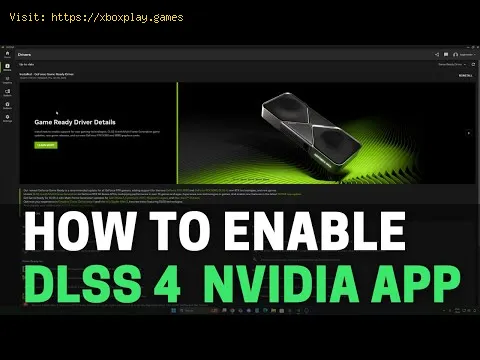
Update to the latest NVIDIA Game Ready Drivers via the GeForce Experience app or NVIDIA's website. New game support and DLSS improvements are often included in driver updates.
Step 2: Launch a Supported Game
DLSS must be implemented by the game developers. Popular titles like Control, Death Stranding, Fortnite, Hogwarts Legacy, and Baldur's Gate 3 all support it. Check the game's graphics settings or NVIDIA's website for a list.
Step 3: Access the Graphics Menu
Step 4: Locate the Upscaling/Image Scaling Section
Step 5: Activate DLSS
Step 6: Choose Your DLSS Mode
Step 7: Adjust DLSS Sharpening (If Available)
Step 8: Set Your Target Resolution
Step 9: Consider Related Settings
Step 10: Apply, Save, and Test!
What if your game doesn't support DLSS, or you have a non-RTX GPU?
Q: Does DLSS reduce image quality?A: In its modern versions (DLSS 2 and DLSS 3), it often improves image quality over native rendering by providing superior anti-aliasing. Insome cases, particularly in "Performance" mode, fine details likedistant hair or chain-link fences can appear slightly softer. The"Quality" mode is often visually indistinguishable from or better thannative.
Q: Can I use DLSS on a GTX card?A: No. DLSS requires the dedicated Tensor Core AI processors found only in RTX-series GPUs.
Q: What is DLSS 3 and "Frame Generation"?A: DLSS 3 is the latest version, exclusive to RTX 40-series GPUs. Itincludes the core upscaling of DLSS 2 plus a revolutionary AI Frame Generation feature. It creates entirely new frames between rendered ones,dramatically boosting smoothness and responsiveness. The guide abovestill applies to enabling the core DLSS upscaling part of DLSS 3.
Q: Should I use DLSS even if my FPS is already high?A: Yes! You can use DLAA (if supported) for supreme image quality, or enable DLSS Quality tolower your GPU's power consumption and heat output while maintaininghigh FPS.
Q: Is DLSS a type of cheating in competitive games?A: No. It's a graphics rendering technology. While it can give you ahigher, smoother frame rate, it doesn't provide in-game information youwouldn't otherwise have.
NVIDIA DLSS is more than just a graphics setting; it's aparadigm shift in how games are rendered. By leveraging the power of AI, it effectively gives you a free performance upgrade, allowing you togame at higher resolutions, with more eye-catching effects, and asmoother overall experience. The best part? Enabling it takes just a few clicks.
Stop leaving performance on the table. The next time you launch a game, take 30 seconds to open the graphics menu. Look for the DLSS option, switch it on, and feel the immediate difference as your frame ratesoars while your game's world remains stunningly crisp. Your RTX GPU has this incredible capability built-in—it’s time to use it.
Ready to transform your gaming? Boot up your favorite RTX-supported title right now and enable DLSS. Feel the smoothness,see the clarity, and never look back at choppy framerates again.