
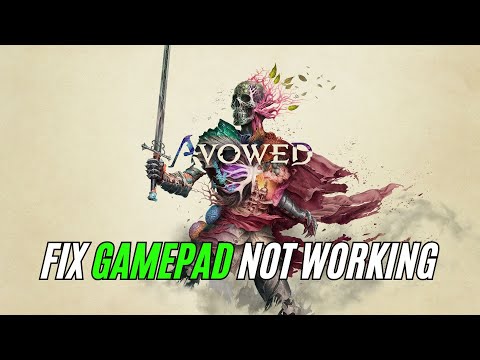
How to Fix Avowed controller not working error
"Avowed," Obsidian Entertainment's highly anticipated action RPG, plunges players into the vibrant and perilous Living Lands. While many PC gamers are enjoying the immersive experience with a controller, some are encountering frustrating connectivity problems when playing through Steam. This article aims to provide a comprehensive guide to diagnosing and resolving these controller issues, ensuring a seamless gameplay experience.
Controller connectivity problems in "Avowed" can stem from a variety of sources. While the exact cause may vary from system to system, here are some common culprits:
Before diving into complex solutions, it's crucial to start with the basics.
Steam Input is a critical component for controller compatibility. Here's how to manipulate it:
If you purchased "Avowed" from a platform like GOG and added it to your Steam library:
Discover how to obtain the Sigil of the Arcane in Avowed with our comprehensive guide.
Sarcophagus key Location in Avowed
Discover the exact location of the Sarcophagus key in Avowed. Unlock secrets
Where To Find Dirty Brown Key In Sand Sea Ruins in Avowed
Discover the location of the Dirty Brown Key in the Sand Sea Ruins of Avowed.
How To Find Every Strangled Adra in Avowed
Discover how to locate every Strangled Adra in Avowed with our comprehensive guide.
Obsidian Prayer Beads Totem Fragment Location in Avowed
Discover the Obsidian Prayer Beads totem fragment location in Avowed.
Where To Find Emerald Eye Totem Fragment in Avowed
Discover the location of the Emerald Eye Totem Fragment in Avowed. Uncover secrets
Topaz Eye Totem Fragment Location in Avowed
Discover the location of the Topaz Eye Totem Fragment in Avowed. Uncover secrets
Sacrificial Dagger Totem Fragment Location in Avowed
Discover the location of the Sacrificial Dagger Totem Fragment in Avowed.
Southern Warden Tower Storage Room Key Location In Avowed
Discover the Southern Warden Tower storage room key location in Avowed.
Survivalist Chest Key Location In Shatterscarp in Avowed
Discover the Survivalist Chest Key location in Shatterscarp, Avowed. Unlock hidden treasures
How To Find The Pyromancer's Key In Dawnshore in Avowed
Discover how to locate the Pyromancer's Key in Avowed with our comprehensive guide.
How to get to the Watcher in Avowed
Discover how to locate the Watcher in Avowed, a key figure in the 'An Untimely End' quest.
Every Ancient Memory Location in Avowed
Discover every Ancient Memory location in Avowed with our comprehensive guide.
How to declare War in Civilization 7
Short & Direct: Learn the steps to declare war in Civilization 7. Dominate your rivals and expand your empire.
How to fix Monster Hunter Wilds Error Code s3091-0-0
Learn how to fix the Monster Hunter Wilds Error Code s3091-0-0 with our step-by-step guide.
Understanding the Problem: Potential Causes of Controller Disconnection
Controller connectivity problems in "Avowed" can stem from a variety of sources. While the exact cause may vary from system to system, here are some common culprits:
- Steam Input Conflicts: Steam Input, a powerful tool designed to enhance controller compatibility, can sometimes malfunction, leading to conflicts and disconnections.
- Driver Issues: Outdated or corrupted controller drivers can interfere with proper communication between the controller and the game.
- Steam Client Glitches: Temporary glitches within the Steam client itself can disrupt controller functionality.
- Game-Specific Bugs: Although less common, bugs within "Avowed" itself could be contributing to the issue.
- External Software Interference: Other programs running in the background might be conflicting with Steam or "Avowed."
- Non-Steam Game Integration: If "Avowed" was purchased from a platform other than Steam and added as a non-Steam game, Steam input can have issues if not configured correctly.
- Bluetooth and Wireless Issues: Wireless controllers can suffer from signal interference or battery issues.
Comprehensive Solutions: Step-by-Step Troubleshooting
Before diving into complex solutions, it's crucial to start with the basics.
1. The Classic Restart: Steam and PC
- Begin by closing "Avowed" and completely exiting the Steam client.
- Restart your PC. This simple step can resolve temporary software conflicts and glitches.
- After restarting, relaunch Steam and "Avowed" to see if the issue persists.
2. Mastering Steam Input: Enabling, Disabling, and Reconfiguring
Steam Input is a critical component for controller compatibility. Here's how to manipulate it:
- Accessing Steam Input Settings:
- Open the Steam client.
- Click "Steam" in the top-left corner.
- Select "Settings."
- Navigate to the "Controller" tab.
- Click "General Controller Settings"
- Enabling/Disabling Steam Input:
- In the controller settings window, you will see a list of controller types. Ensure the controller type you are using is checked.
- If Steam Input is already enabled, try unchecking the controller type, clicking ok, then going back into the controller settings and re-enabling it. This can reset any potential configuration errors.
- Per-Game Steam Input Settings:
- In your Steam library, right-click on "Avowed" and select "Properties."
- Navigate to the "Controller" tab.
- Here, you can configure Steam Input settings specifically for "Avowed." Experiment with different configurations to find what works best.
3. Integrating Non-Steam Games: Ensuring Proper Configuration
If you purchased "Avowed" from a platform like GOG and added it to your Steam library:
- Adding the Game:
- Open Steam and click "Games" in the top menu.
- Select "Add a Non-Steam Game to My Library."
- Browse to the "Avowed" executable (.exe) file and add it.
- Configuring Steam Input for Non-Steam Games:
- Right-click "Avowed" in your Steam library and select "Properties."
- Navigate to the "Controller" tab.
- Ensure Steam Input is enabled and configured correctly for your controller.
4. Driver Management: Keeping Your Controller Up-to-Date
- Identifying Your Controller: Determine the make and model of your controller.
- Updating Drivers:
- Visit the manufacturer's website (e.g., Microsoft for Xbox controllers, Sony for PlayStation controllers).
- Download and install the latest drivers for your controller.
- For generic controllers, check Windows Device Manager for driver updates.
- Windows Device Manager:
- Press Windows key + X and select "Device Manager."
- Locate your controller under "Human Interface Devices" or "Xbox Peripherals."
- Right-click and select "Update driver."
5. Steam Client Integrity: Verifying Game Files and Client Repair
- Verifying Game Files:
- Right-click "Avowed" in your Steam library and select "Properties."
- Navigate to the "Local Files" tab and click "Verify integrity of game files."
- Repairing Steam Client:
- If file verification doesn't resolve the issue, try reinstalling the Steam client.
6. External Interference: Closing Background Applications
- Close any unnecessary applications running in the background, especiallythose that might interfere with controller input or Steam.
- Examples include other game launchers, controller mapping software, or overlay applications.
7. Wireless Controller Troubleshooting
- Check Battery Levels: Ensure your wireless controller has sufficient battery power.
- Minimize Interference: Keep your controller within close range of the receiver and away fromsources of interference, such as Wi-Fi routers or other electronicdevices.
- Bluetooth Issues: If using Bluetooth, ensure your Bluetooth drivers are up to date andthat there are no other bluetooth devices causing interference.
8. Community and Official Support
- Obsidian Entertainment Forums: Check the official "Avowed" forums for known issues and solutions.
- Steam Community: Search the Steam community forums for similar reports and potential fixes.
Disclaimer:
These solutions are workarounds and may not guarantee a fix for every user.Obsidian Entertainment is expected to release official patches toaddress known issues. Stay updated with game updates for official fixes.
Mode:
Other Articles Related
How to Get the Sigil of the Arcane in AvowedDiscover how to obtain the Sigil of the Arcane in Avowed with our comprehensive guide.
Sarcophagus key Location in Avowed
Discover the exact location of the Sarcophagus key in Avowed. Unlock secrets
Where To Find Dirty Brown Key In Sand Sea Ruins in Avowed
Discover the location of the Dirty Brown Key in the Sand Sea Ruins of Avowed.
How To Find Every Strangled Adra in Avowed
Discover how to locate every Strangled Adra in Avowed with our comprehensive guide.
Obsidian Prayer Beads Totem Fragment Location in Avowed
Discover the Obsidian Prayer Beads totem fragment location in Avowed.
Where To Find Emerald Eye Totem Fragment in Avowed
Discover the location of the Emerald Eye Totem Fragment in Avowed. Uncover secrets
Topaz Eye Totem Fragment Location in Avowed
Discover the location of the Topaz Eye Totem Fragment in Avowed. Uncover secrets
Sacrificial Dagger Totem Fragment Location in Avowed
Discover the location of the Sacrificial Dagger Totem Fragment in Avowed.
Southern Warden Tower Storage Room Key Location In Avowed
Discover the Southern Warden Tower storage room key location in Avowed.
Survivalist Chest Key Location In Shatterscarp in Avowed
Discover the Survivalist Chest Key location in Shatterscarp, Avowed. Unlock hidden treasures
How To Find The Pyromancer's Key In Dawnshore in Avowed
Discover how to locate the Pyromancer's Key in Avowed with our comprehensive guide.
How to get to the Watcher in Avowed
Discover how to locate the Watcher in Avowed, a key figure in the 'An Untimely End' quest.
Every Ancient Memory Location in Avowed
Discover every Ancient Memory location in Avowed with our comprehensive guide.
How to declare War in Civilization 7
Short & Direct: Learn the steps to declare war in Civilization 7. Dominate your rivals and expand your empire.
How to fix Monster Hunter Wilds Error Code s3091-0-0
Learn how to fix the Monster Hunter Wilds Error Code s3091-0-0 with our step-by-step guide.